Live Activities
Overview
Live Activities enable real-time updates on a user’s device (e.g., order tracking, delivery status). In this implementation, Live Activities are triggered via Adobe Journey Optimizer campaigns, and each step in a configured flow updates the activity dynamically on the device.
Prerequisites
Before starting, ensure the following:
- Create a project using quick-setup: https://dsn.adobe.com/quick-setup. Use advance preset for the same, either Luma - Advanced or Halliby - Advanced.
Example: Use Luma - Advanced Preset.
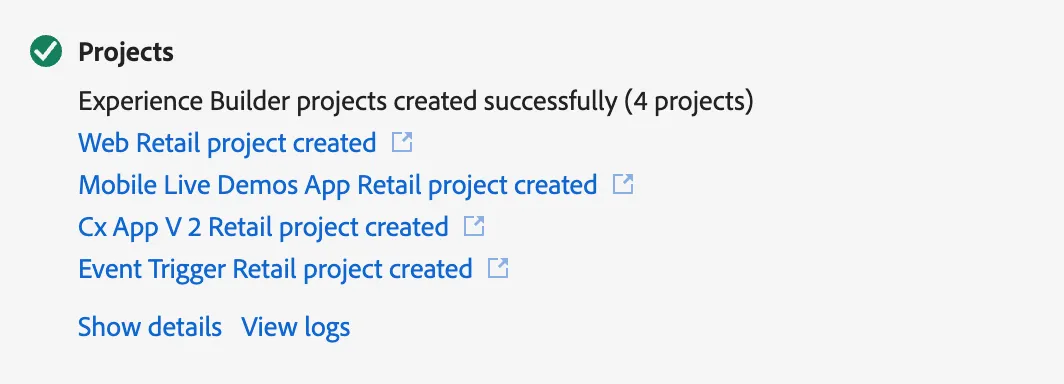
This will create a web, mobile, cx, and event trigger project.
- Install the app: Live Demos Mobile(iOS version)
- Open the app and:
- Go to the Settings tab (bottom navigation)
- Select the tab “Custom project”
- Use the mobile project created above.
- Create an account :
- Click on the login icon
- Create API triggered transactional campaign based on email namespace. https://experienceleague.adobe.com/en/docs/journey-optimizer/using/campaigns/api-triggered-campaigns/api-triggered-campaign-properties
Step 1: Configure Live Activities
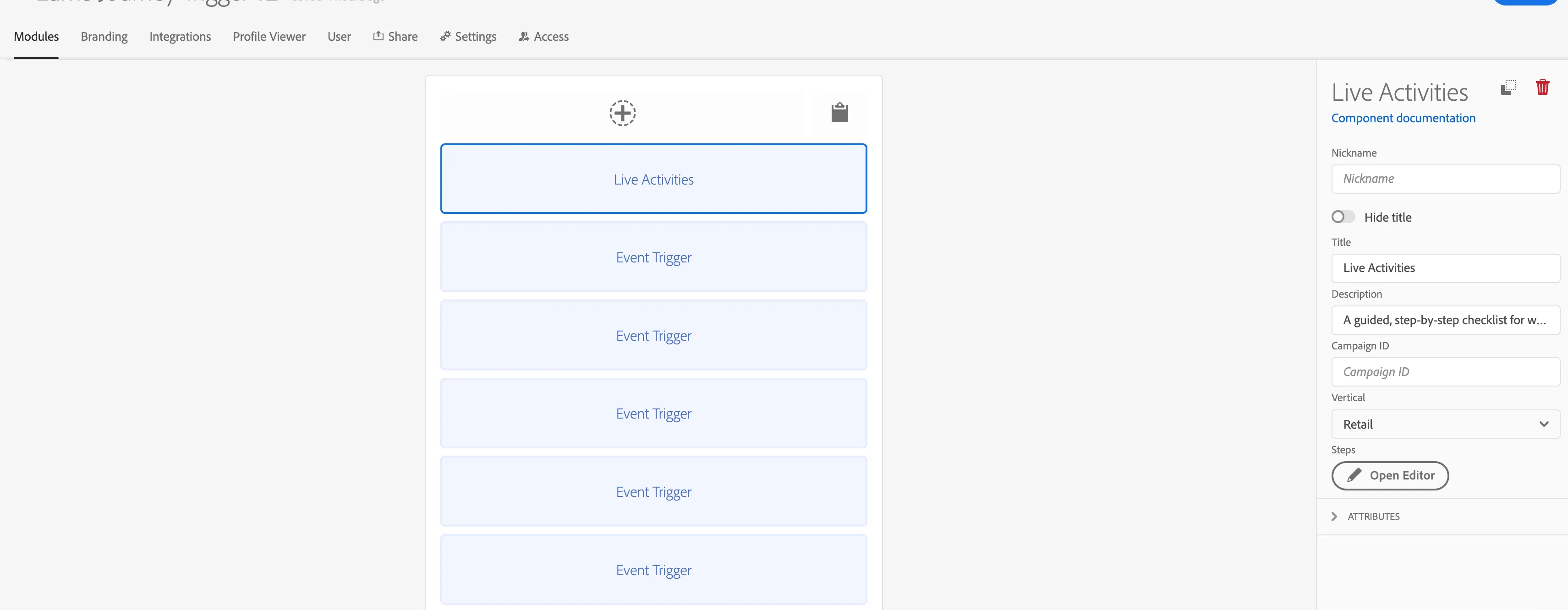
Edit the Event Trigger project created above and open the Live Activities module:
Configure the following fields:
Module: Live Activities
- Campaign: Select the campaign to trigger. This is the api triggered campaign and provide the campaign ID. Use a campaign based on the email namespace.
- Vertical: Retail
- Restaurant Name: Luma
- Steps
- Order Status (e.g., Order Placed, On the way to store)
- Extra message: This will be shown on live activity
- Current State
These values are passed in the payload and are used to update the Live Activity UI in real time.
Note: For Luma (public project), this is already configured; the steps are provided for a custom implementation.
Step 2: Configure Steps
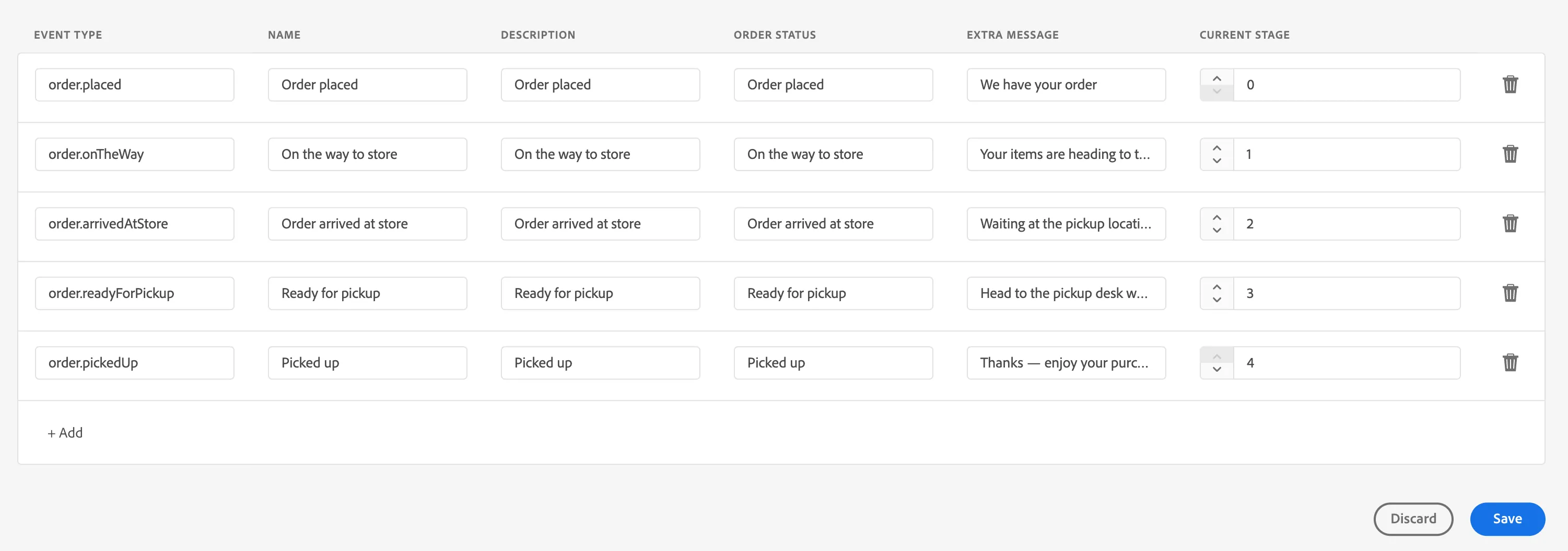
- Click on Open Editor under Steps
- Define multiple steps of the Live Activity
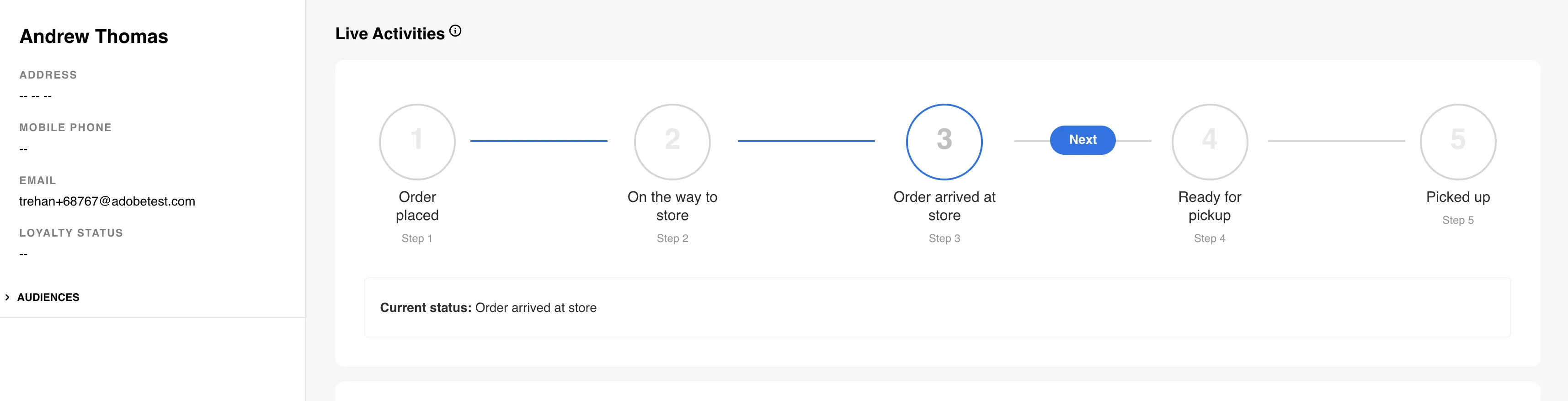
- Each step represents a status update (e.g., Order Placed → On the way to store → Order arrived at store)
- These steps will:
- Appear in the flow UI
- Trigger events when executed
Step 3: Run the Experience
Navigate to the Journey Trigger project created above.
and select Email from the dropdown.
Provide a valid Email. It will load the profile and the live activities module.
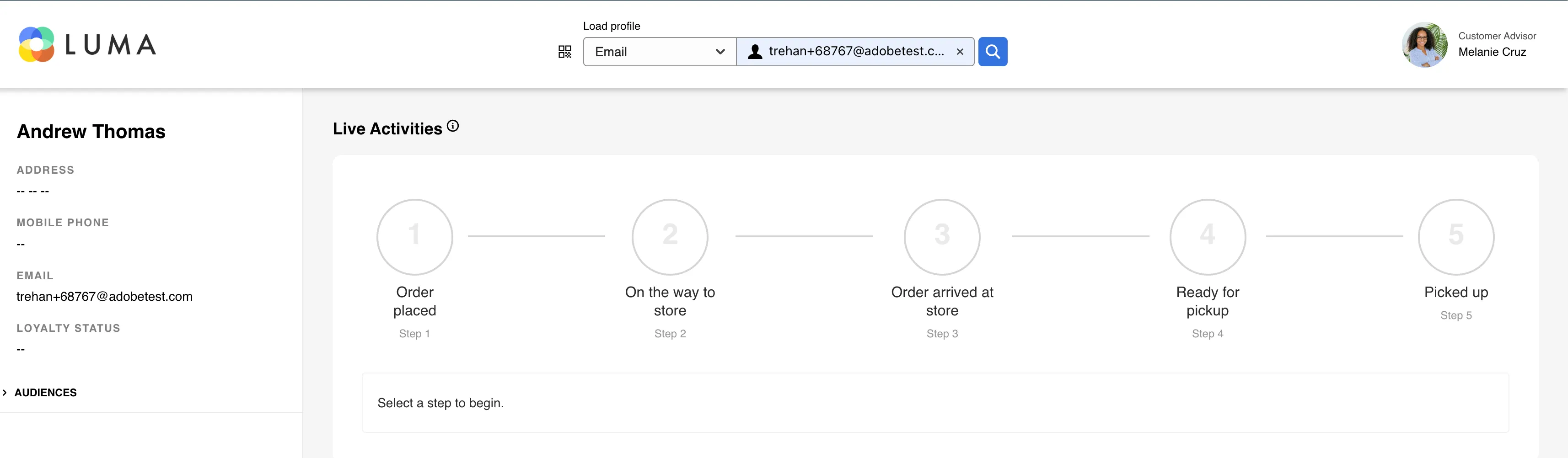
Step 4: Trigger Live Activity Events
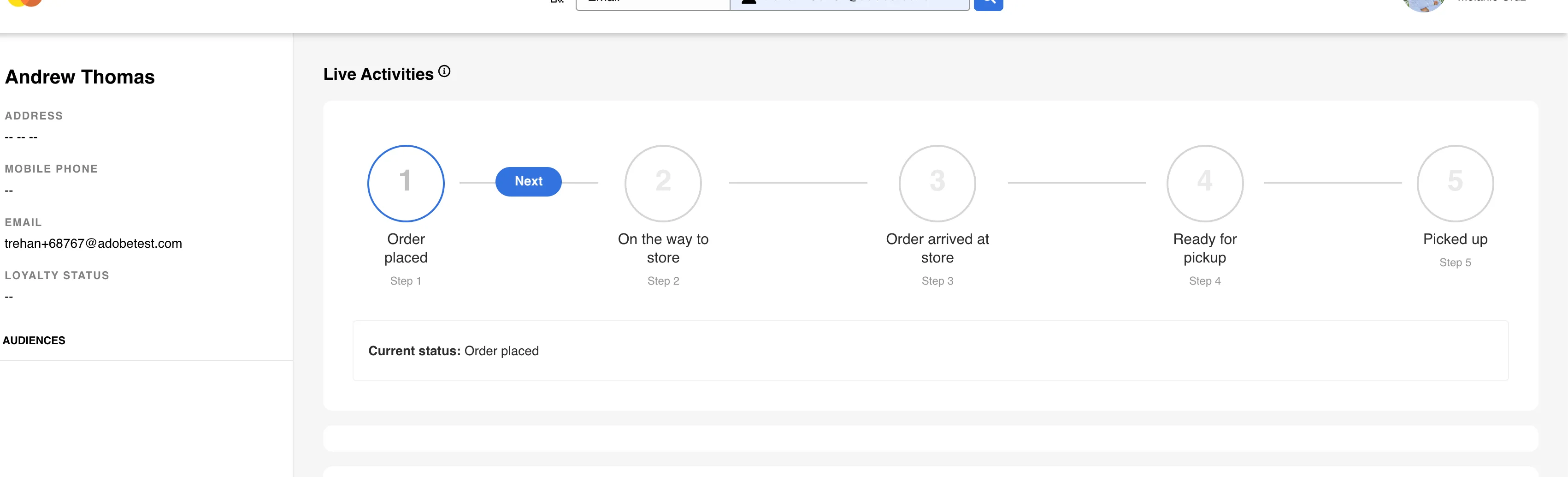
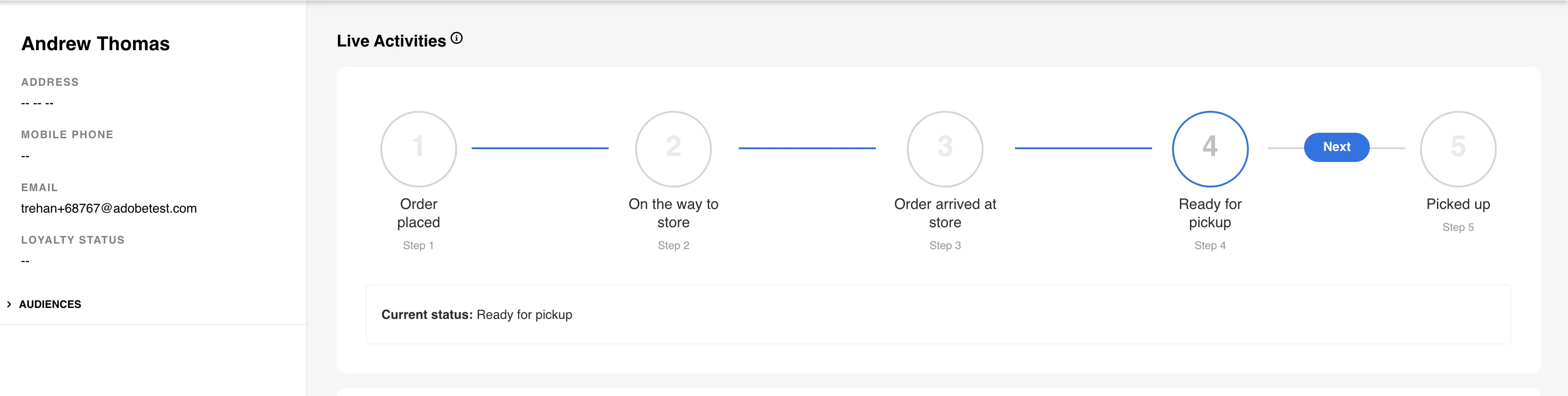
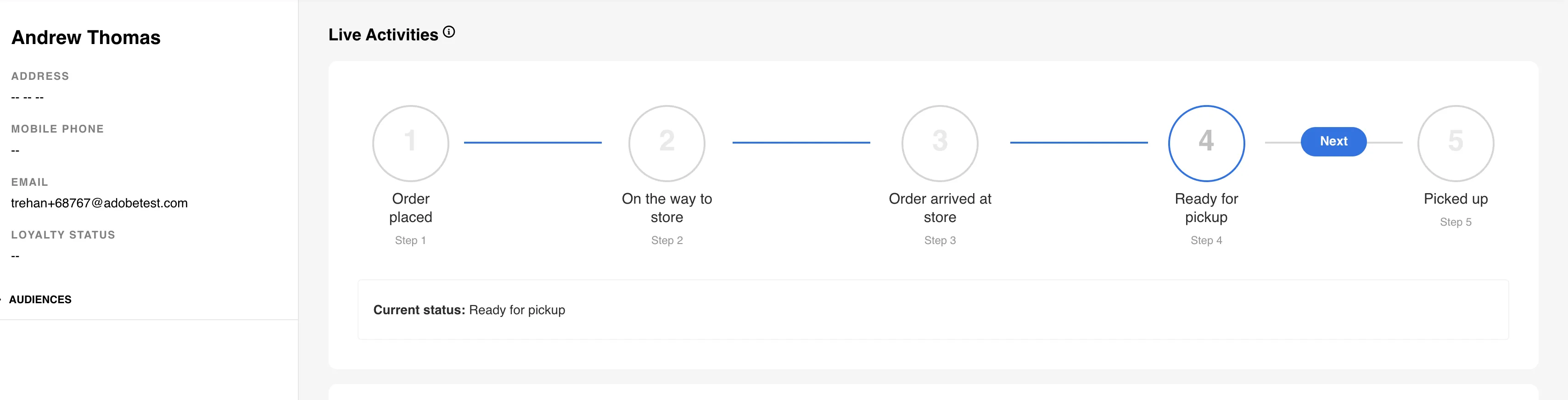
Execute the steps sequentially in the flow, where each step triggers an event that invokes the campaign, which in turn sends a Live Activity update to the device using fields such as Order Status, Extra Message and Current State.
Step 5: Real-Time Device Updates
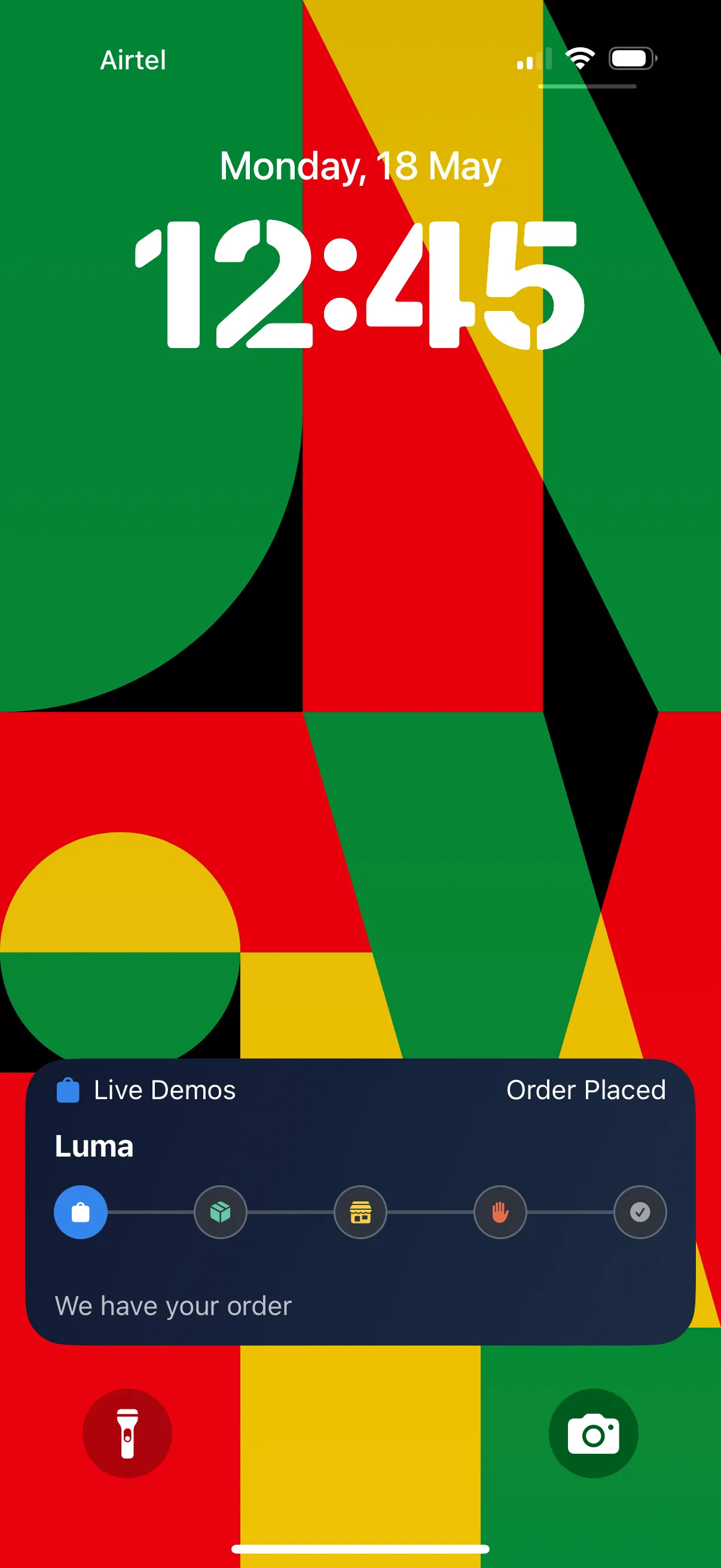
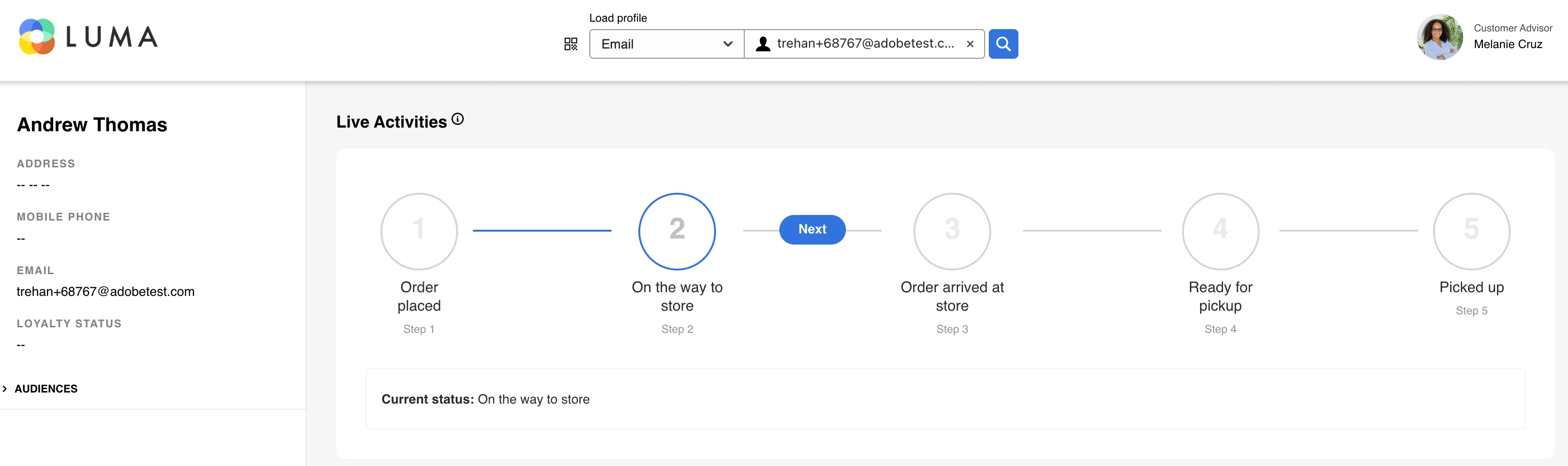
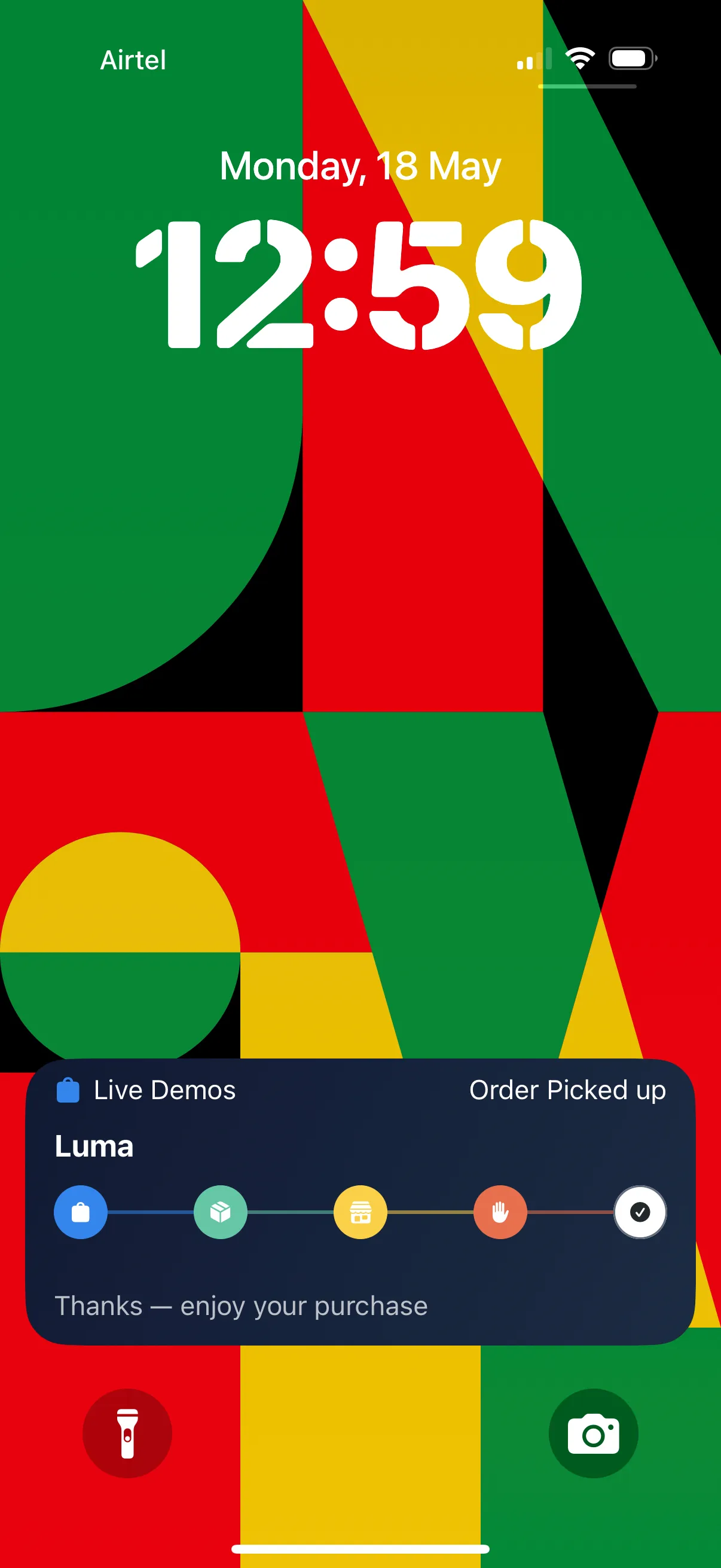
Once the Live Activity is triggered on the device, each subsequent step continues to send updates, which are reflected in real time on the device by updating the Order Status, Extra message, and Current State.
Alternative: Trigger Using Postman
If you do not want to use the Journey Trigger, you can trigger Live Activity updates using the attached Postman collection.
Steps:
- Import the provided Postman collection
- Open the Live Activity request
- Update the required fields (explained below)
- Send the request to trigger the campaign
🔧 Required Fields Explanation
- campaignId → AJO Campaign ID used to trigger the Live Activity
- timestamp → Dynamic epoch timestamp (in seconds) representing when the event is triggered
- userId (Email) → Email of the target device/user where the Live Activity should appear
- event → Defines the Live Activity lifecycle:
- start → Starts the activity
- update → Updates the activity
- end → Ends the activity
- liveActivityID → Unique identifier for a Live Activity instance → Must remain the same across updates
Live Activity Update Fields
- orderStatus → Current order status
- statusDetail → Extra message
- currentStage → Current stage/progress of the activity(0,1,2,3,4)
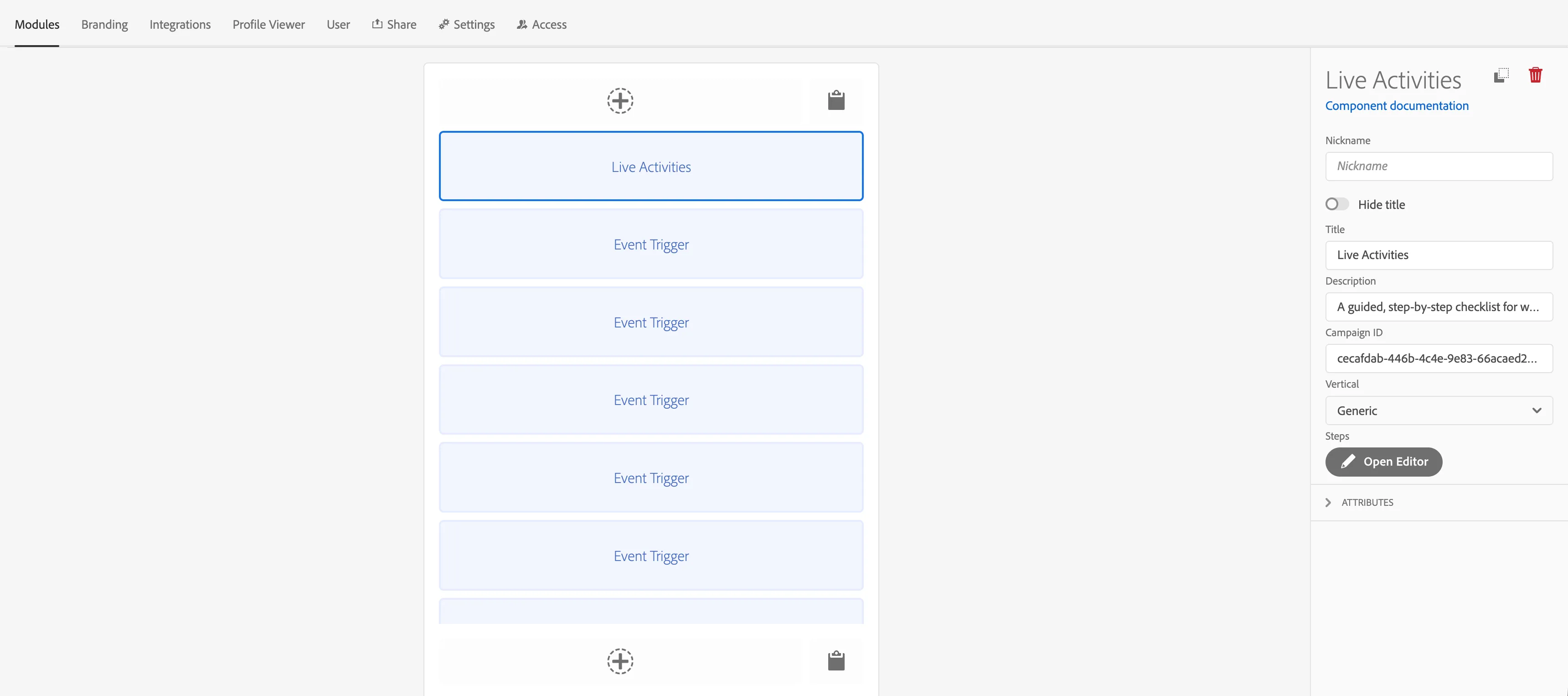
Vertical - Generic
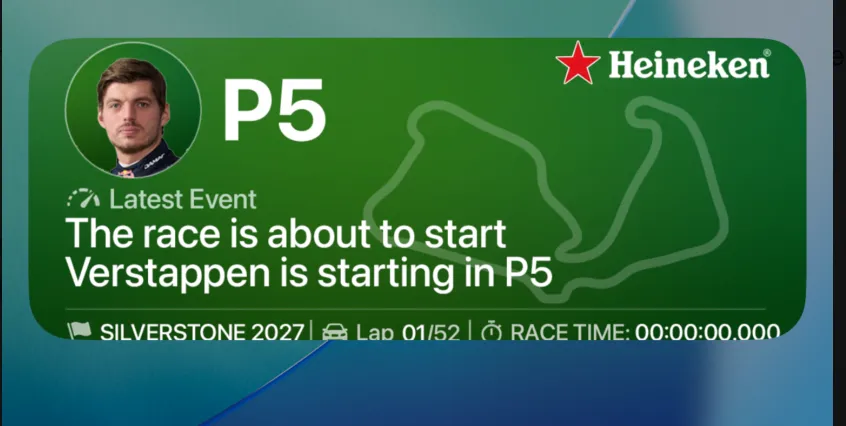
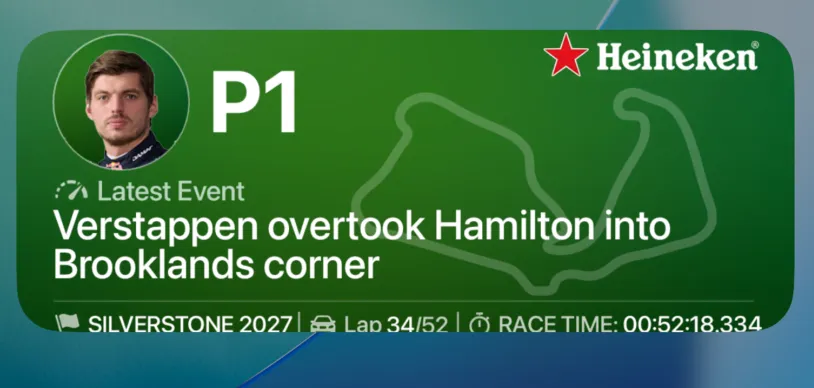
The generic template provides a flexible foundation for Live Activities with varied UI designs, while supporting rich images to make the experience more engaging and visually appealing. If no image is available, it gracefully falls back to a built-in status card.
Step 1: Configure Live Activities
Edit the Event Trigger project created above and open the Live Activities module:
Configure the following fields:
Module: Live Activities
- Campaign: Select the campaign to trigger. This is the api triggered campaign and provide the campaign ID. Use a campaign based on the email namespace.
- Vertical: Generic
- Steps
- Order Status (e.g., Order Placed, On the way to store)
- Extra message: This will be shown on live activity
- Current State
- Image
These are optional parameters which will be used when image is not fetched from the server. If image is provided and is available, then full image would be displayed.
In case, still wants to display these on image use switch -"Show all details".
These values are passed in the payload and are used to update the Live Activity UI in real time.
Step 2: Configure Steps
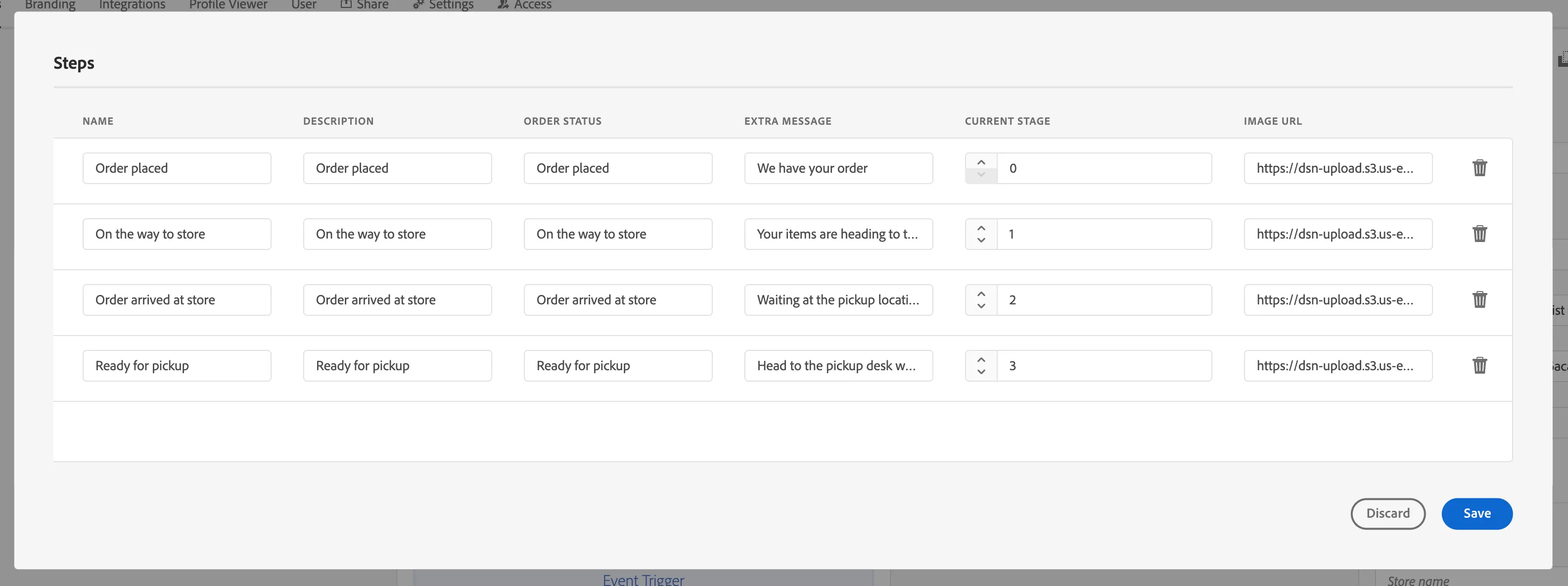
- Click on Open Editor under Steps
- Define multiple steps of the Live Activity
- Each step represents a status update (e.g., Order Placed → On the way to store → Order arrived at store)
- These steps will:
- Appear in the flow UI
- Trigger events when executed
Step 3: Run the Experience
Navigate to the Journey Trigger project created above.
and select Email from the dropdown.
Provide a valid Email. It will load the profile and the live activities module.
Step 4: Trigger Live Activity Events
Execute the steps sequentially in the flow, where each step triggers an event that invokes the campaign, which in turn sends a Live Activity update to the device using fields.
If image cannot be fetched, it falls back to native card.
Step 5: Real-Time Device Updates
Once the Live Activity is triggered on the device, each subsequent step continues to send updates, which are reflected in real time on the device by updating the image.
Postman Collection -