Prepare your AEP/AJO sandbox
Use this guide to configure an Adobe Experience Platform (AEP) sandbox for a Demo System Next (DSN) demonstration. It covers sandbox access, an industry preset, demo data, a web/mobile profile walkthrough, and optional asset customization.
Prerequisites
Before you begin, make sure you have:
- Access to an IMS organization with AEP sandboxes.
- The IMS Org has been onboarded on DSN Tools
-> Learn more using How to add a new Adobe IMS Org in Demo System Next
- Your AEP sandbox is visible in DSN Tools to use the Quick Setup
- Note: If you cannot see the organization or sandbox in DSN Tools because it has already been onboarded, ask support from the Demo System Next team.
-> Learn more about the Environment Admin tool
- A demonstration goal, for example, retail profile enrichment from website and mobile interactions, so you can choose the right preset and data.
Step 1: Make the sandbox visible in DSN
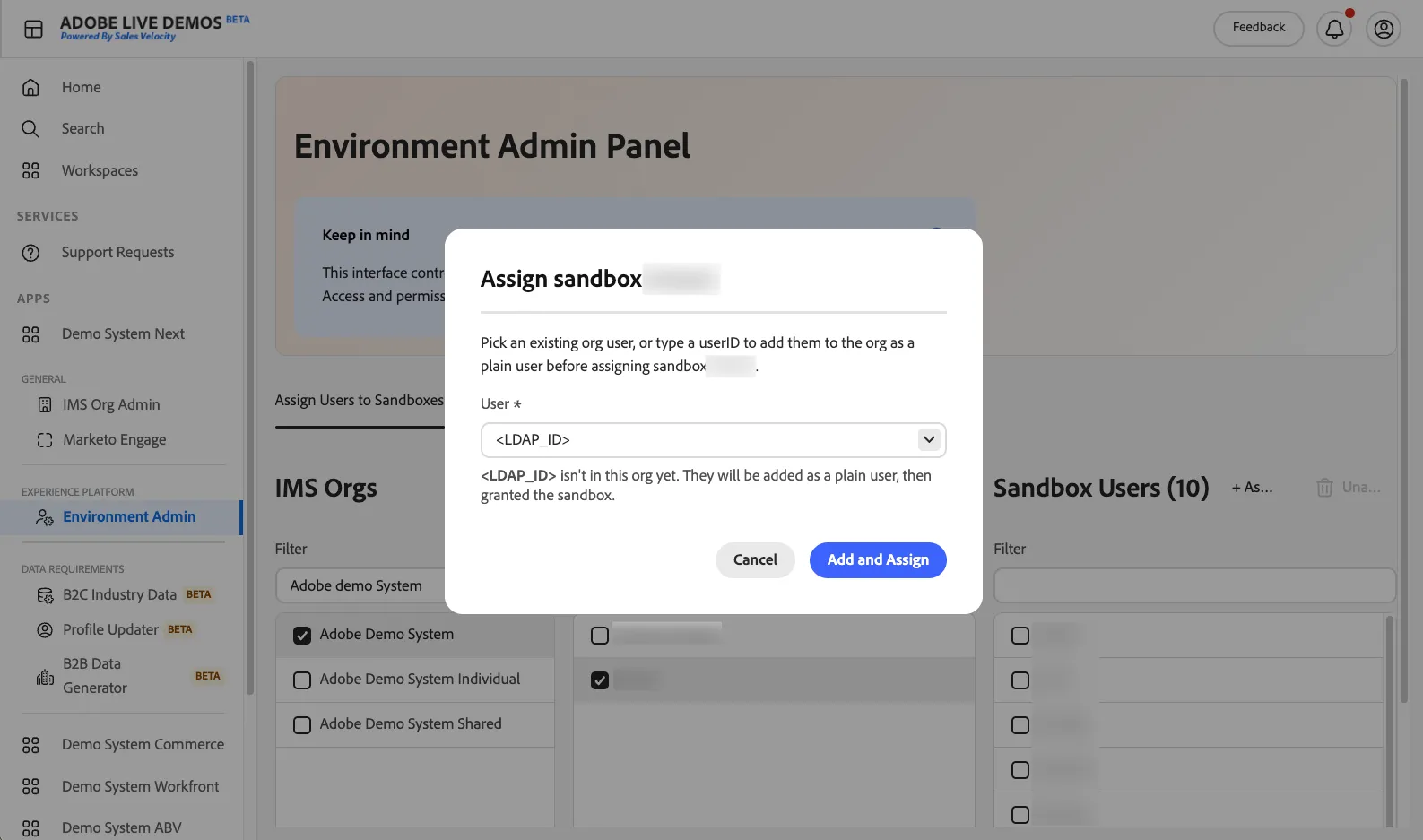
- Open DSN Tools and go to Environment Admin.
- Select the correct IMS organization and AEP sandbox, then click on + Assign
- Enter the LDAP ID e.g., name without @adobe.com, then confirm the assignment.
This assignment only makes an existing AEP sandbox available in DSN Tools; it does not create a sandbox in AEP or grant AEP permissions. If the sandbox appears in DSN but you can't open or configure it, check AEP access with your org administrator.
Step 2: Set up the AEP sandbox with an industry preset
If you need to reset your AEP sandbox to start from a clean state,
Below are the steps to install an industry preset on your AEP sandbox:
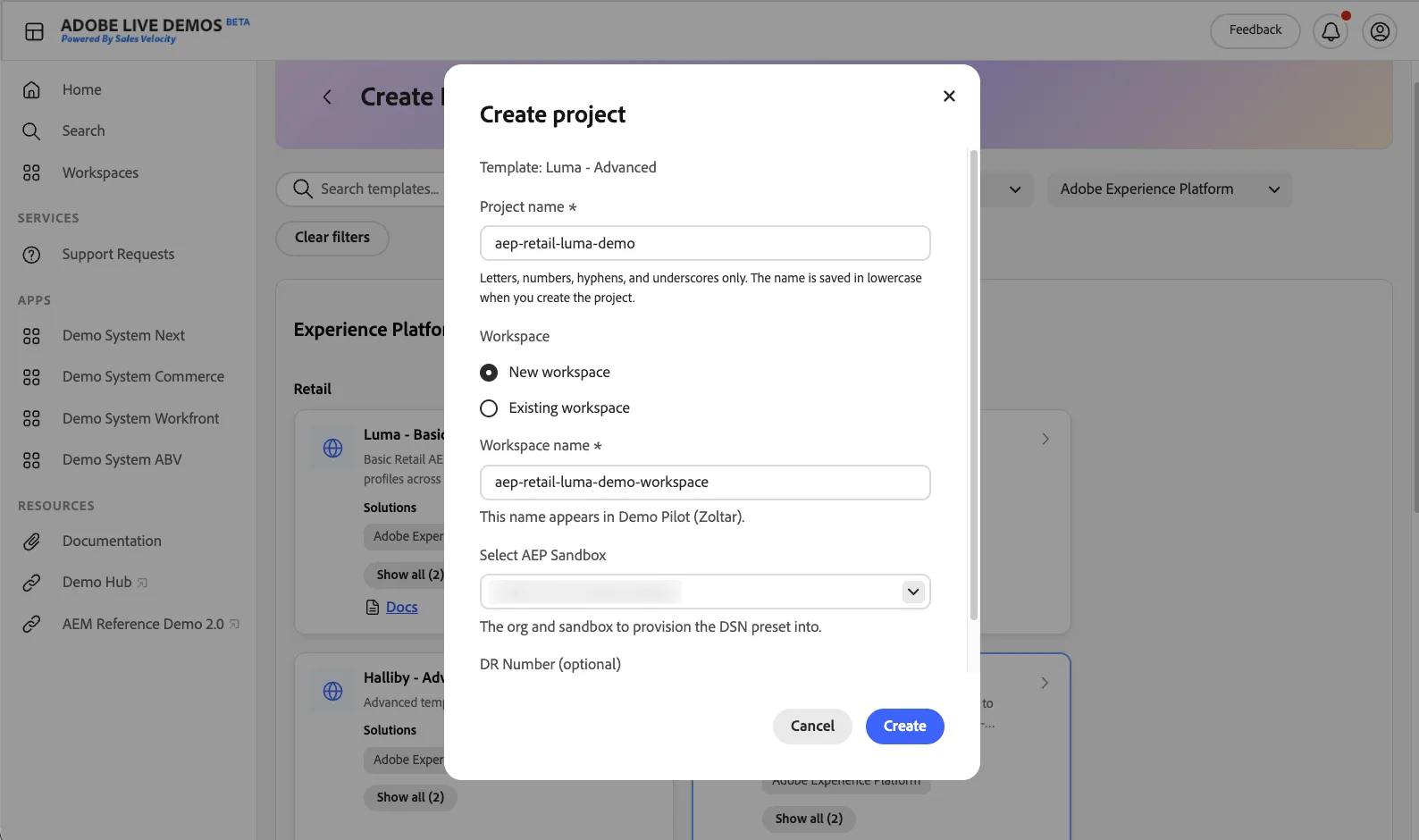
- Open Adobe Live Demos, click on Create Demo
- Set the filter Adobe Solutions to Adobe Experience Platform
- Set the Industry filter to the required industry preset
- Click on the available industry presets, e.g., Luma Basic or Luma Advanced
- Fill the form with the following required information
- Project name, e.g., aep-retail-luma-demo
- Create or use an existing Live Demos Workspace
- Select the AEP sandbox
- Provide a Deal Registration ID (DR) optional
- Click Create
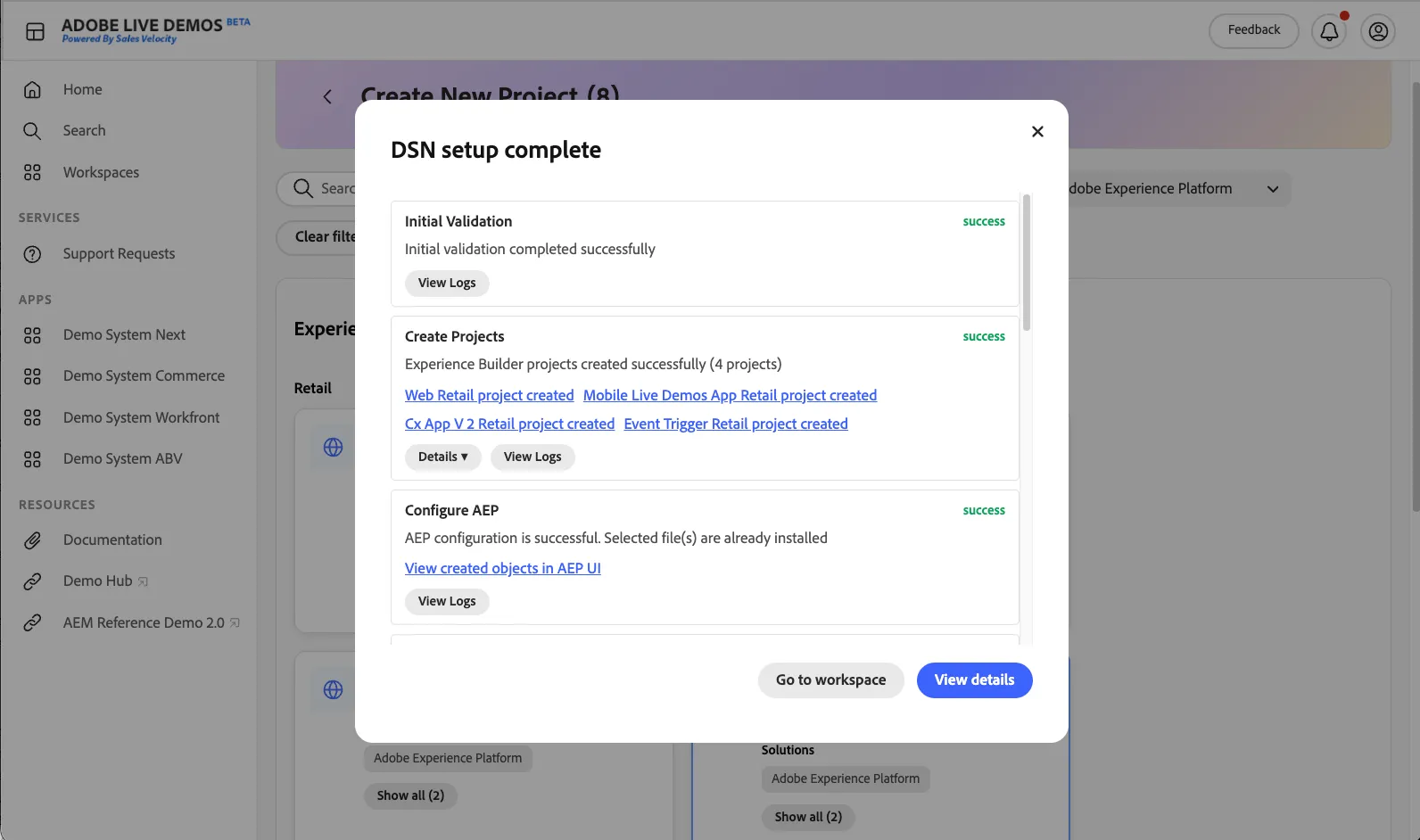
Note: Once the installation process is complete. you'll be able to access the DSN projects and Data Collection properties you created.
Step 3: Populate the AEP sandbox with industry demo data
Setting up the DSN industry preset and populating data are related but separate steps. A DSN preset can define the data structure, but you still need to generate profile and event data for your scenario.
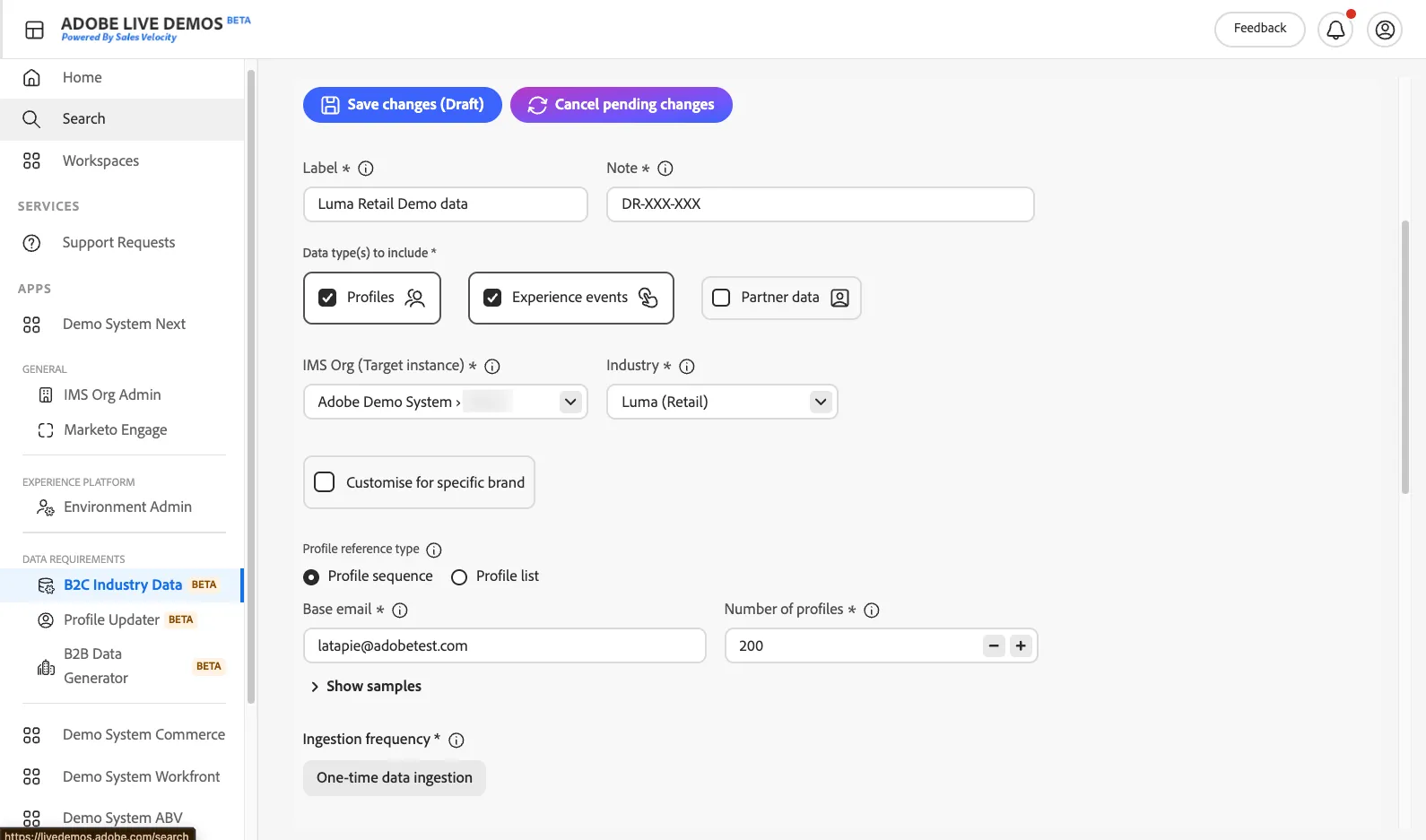
- Open the B2C Data Generator
- Fill out the form with the required information
- Label, e.g., Luma Retail Demo data
- Note, e.g., DR-XXX-XXX from the CRM or the reason, like Marketing Event XXX
- Select the XDM Data required, e.g., Profile & Events
- Select the IMS org/AEP Sandbox
- Select the Industry
- Set the Ingestion Frequency, e.g., One-time ingestion
- Save your changes
- Click on Generate Data
- Review the data generation configuration, then click on Generate Data
Reminder: Use synthetic data in a demonstration sandbox. Adhere to your organization’s data-handling policies, and avoid uploading real customer data unless explicitly authorized for that environment.
Your new data generation request will be visible on the Data Generator request list. It will also give you access to the data ingestion summary:
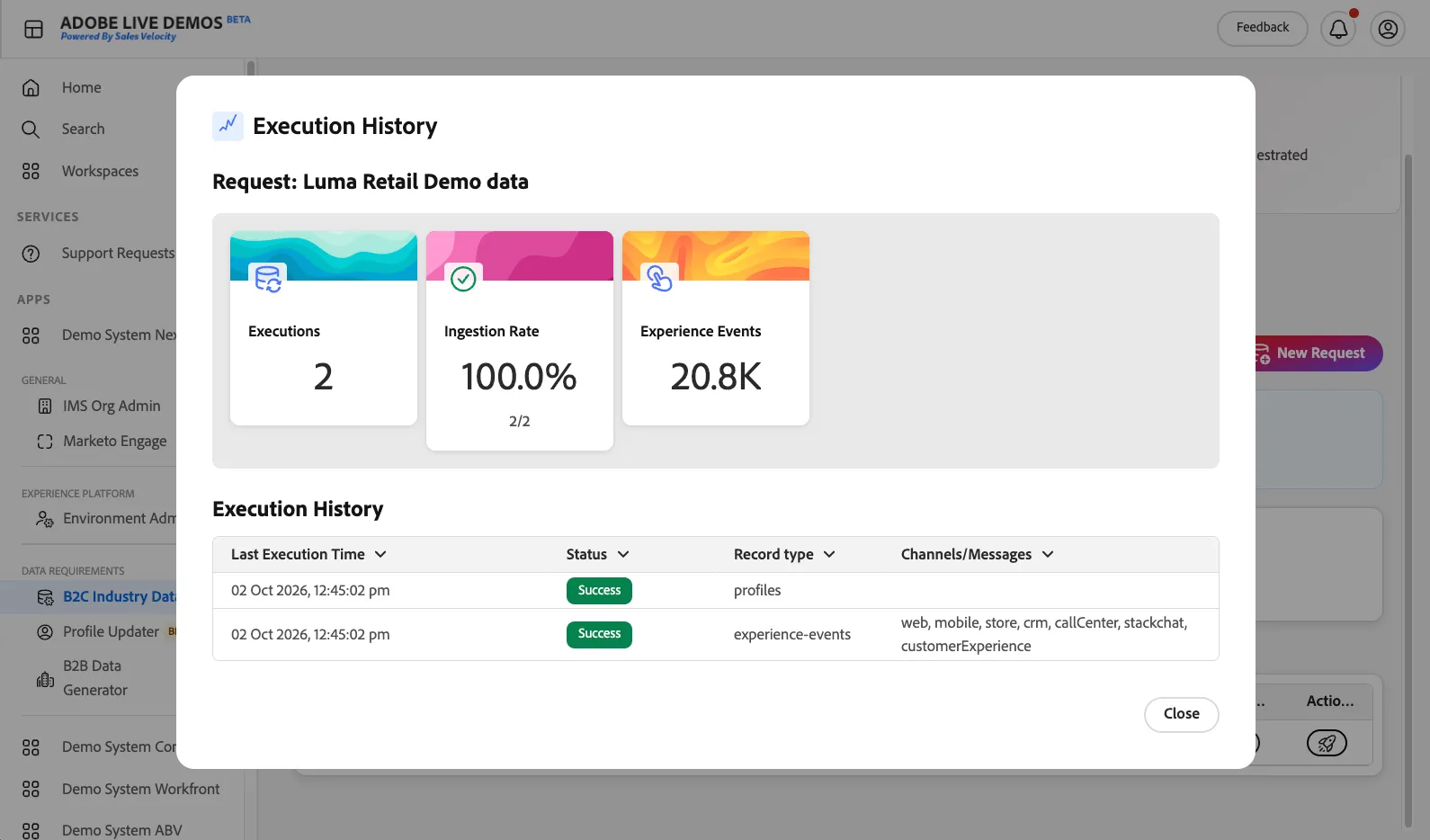
-> Learn more about the Unified B2C Data Generator tool.
Summary
Congratulations, you configured your AEP sandbox with the following industry-specific assets via:
DSN Quick Setup tool
- AEP XDM data model (schemas, datasets, identities, etc.)
- AEP Audiences
- AJO Journeys - available on the Advanced presets, e.g. Luma Advanced
- Offers (Experience Decisioning) - available on the Advanced presets
- DSN B2C Data Generator tool
- Profiles & Experience Events demo data
Next, you can start demonstrating the AEP Real-time Customer Profile using various touchpoints, such as the Website or mobile app, pre-configured with industry-preset demo assets and connected to your AEP sandbox.
-> Learn more about Sending live data to your AEP sandbox using a website.