Customer Experience App
Customer Experience App in its new version (also referred to as v2) introduces a remake of the CX App, with improves the user experience and lays foundation for developing more needed modules.
When to use
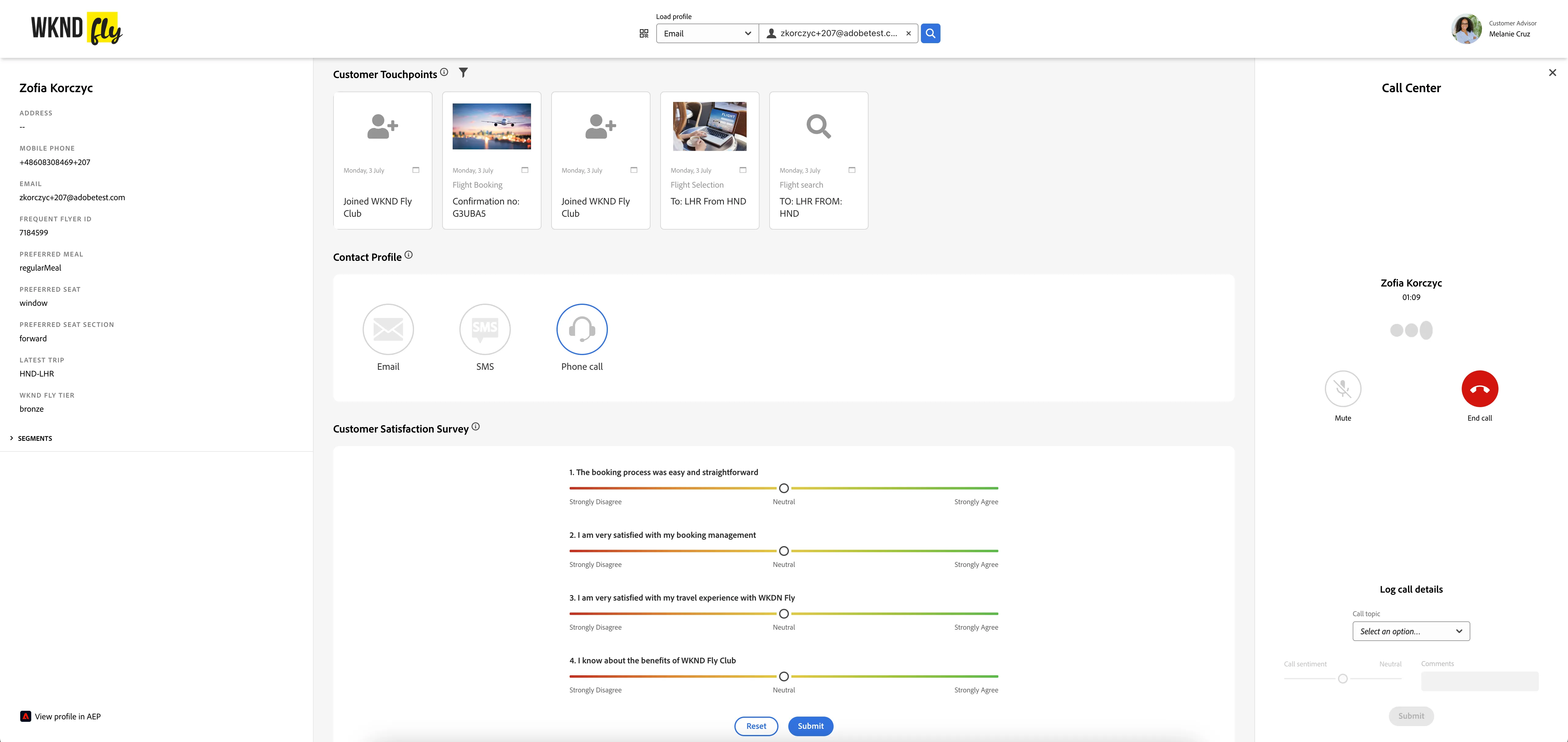
Customer Experience App (CX App) lets you quickly configure and demo application to simulate Call Center or Clienteling apps - for whatever purpose which demonstrates the interface used by an employee and not a client.
As a call center operator, account manager or sales advisor, you can search for a profile based on any identity (email, mobile, crmId and more) and display its details as well as segment membership. Furthermore, the application lets you interact with the profile and send events related to this application, like emails, messages, phone call simulations, survey answers and more.
App content is fully easily customizable thanks to modules which provide i.a. profile activity details, surveys, contact and personalized offers.
Presets
Using the Quick Setup you can use various presets for creating multi-project workspaces which CX App can be created with. Those presets include e.g. automotive, retail or travel related projects. Serving as a base for the respective industry fields, those presets can be further modified to tailor the project to your vision.
Configuration
Modules
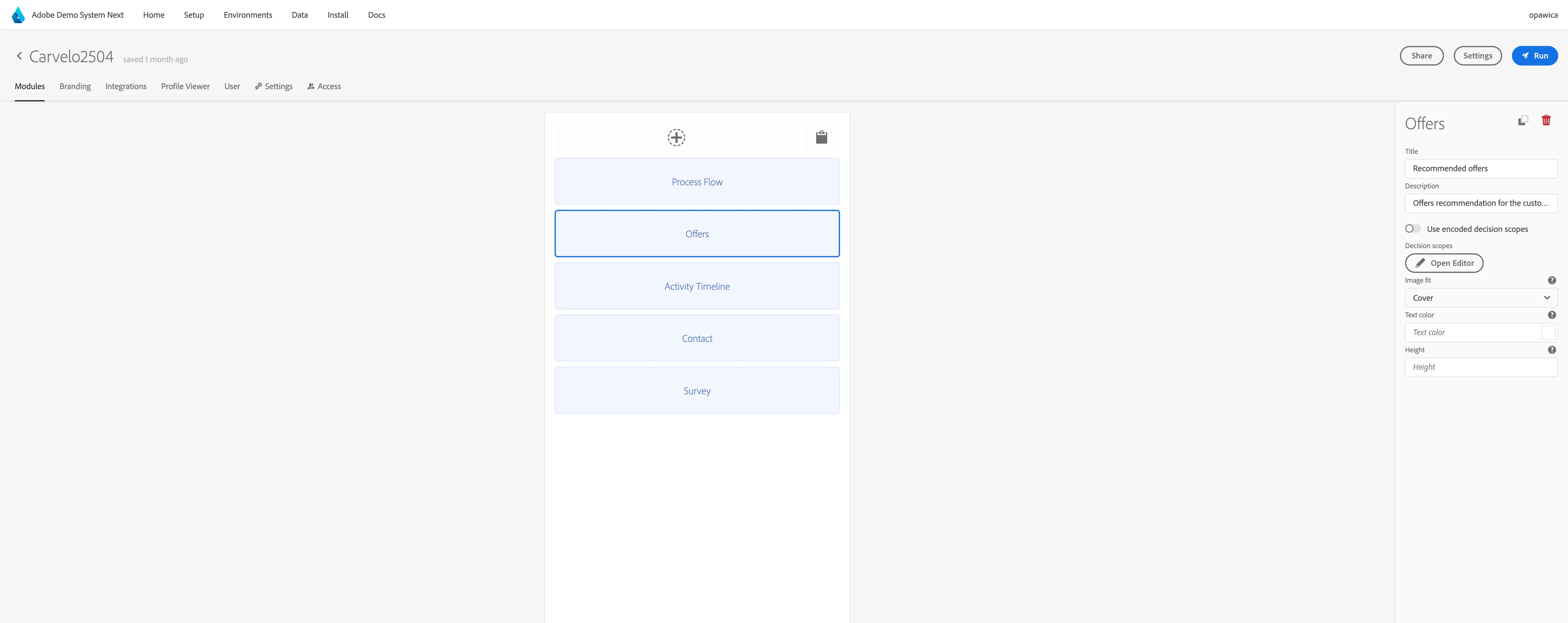
The Modules tab is the place where you are able to manage the modules of your Customer Experience App project (by reordering, adding, removing the modules as well as configuring their content).
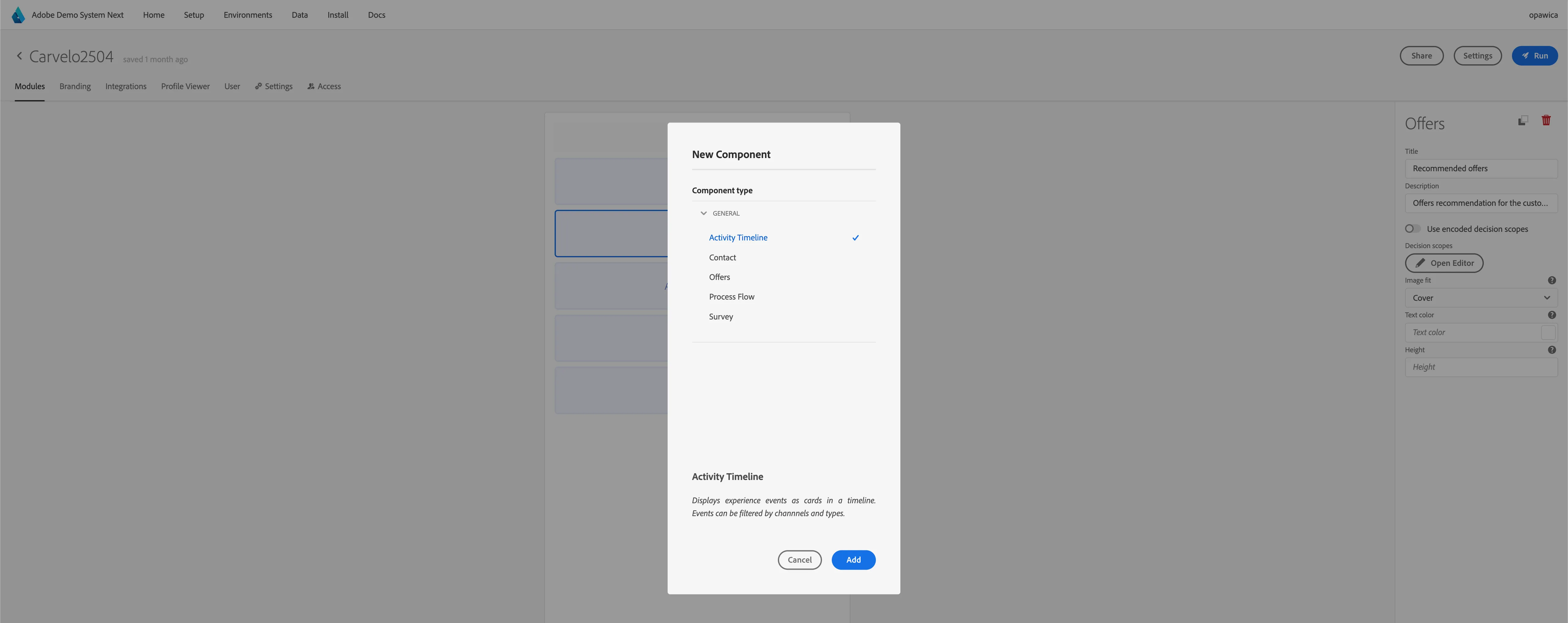
- Click the + button in the modules listing to add a module
- Click a module on the list to open a sidebar which will allow you to edit the module content
- Click the "rubbish bin" icon in the sidebar to remove a module
- Click the "copy" icon in the sidebar to copy a module, then click on the "paste" icon in the modules listing to paste copied module data
Branding
This tab gathers all styling-related properties. To allow a full customization of all parts of the project, the branding properties are split into four sections: main, header, modules and sidebar. You can choose font and background colors for each part of the project. Color inputs allow for manual adjustment or inserting direct CSS value (eg. copied from client's original website). You can also choose the header logo - the input allows you to add an image from a public URL or upload it from your drive.

Integrations
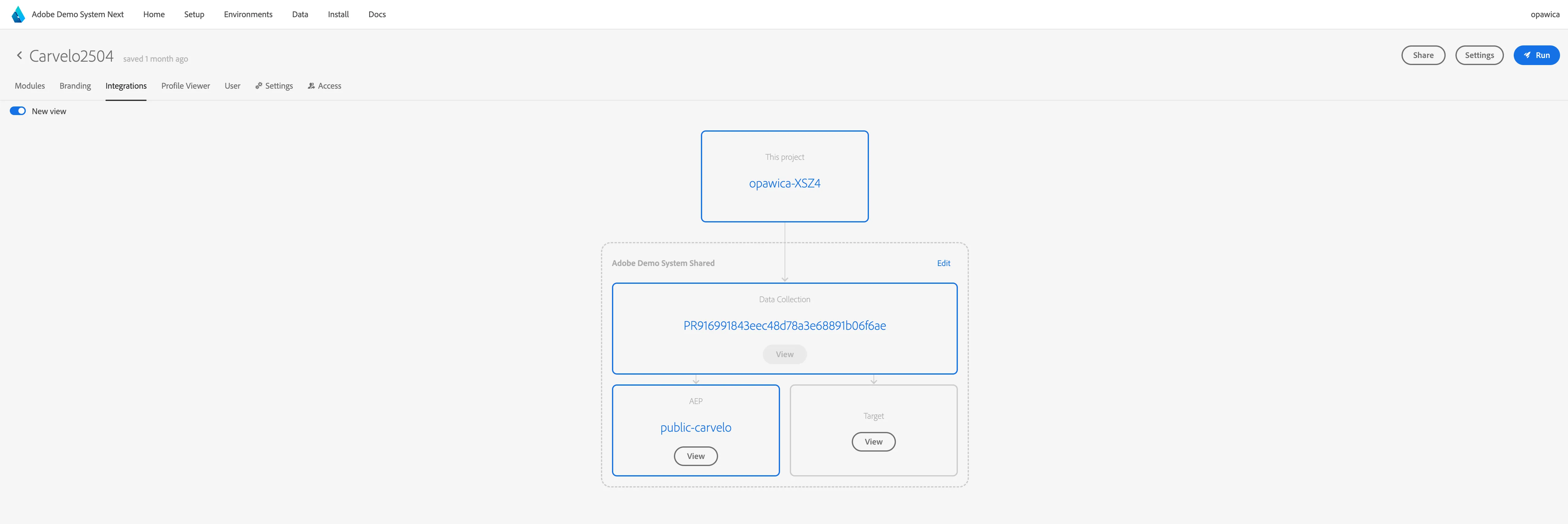
The Integrations tab allows you to link Launch Property to your CX App project. You can either select one of Launch Properties generated in Demo System Next Dashboard or provide details of an external launch property. Launch Properties generated through Dashboard are pre-configured to link your Website to AEP Rules and Data Elements.
Profile Viewer
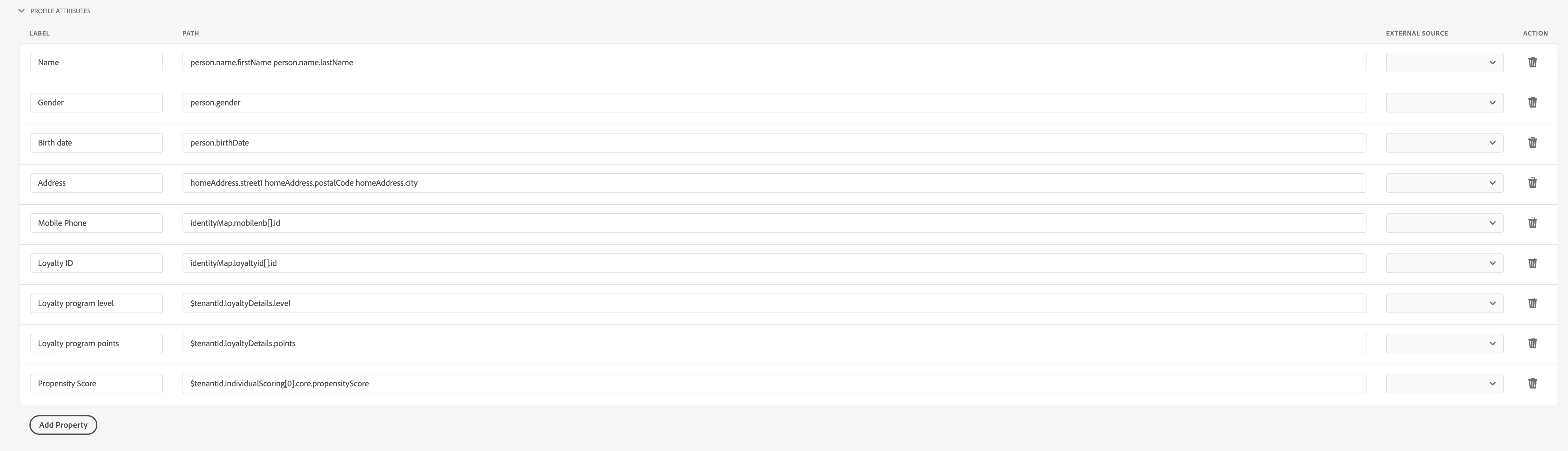
The Profile Viewer tab to configure which profile attributes should be displayed in the left-hand side Profile Viewer in the application.
User
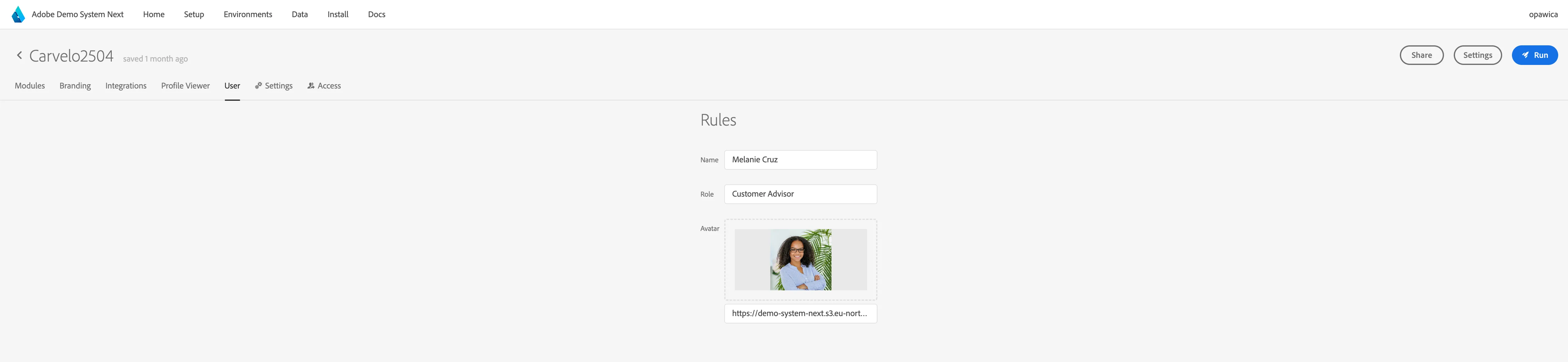
Type the name and the role of the operator which will be used in the the application. You can also specify which image will be used to represent the logged in operator.
Functionalities
Looking up profiles
In order to look up different profiles in the application, your project must first be connected to AEP environment. This will enable you to search for profiles using the following namespaces:
- CRM ID
- ECID
- Loyalty ID
- Phone number
- Mobile number
- QR Code - you can use the camera of your device to scan a QR code and use it to load a profile. The QR code contents should be a JSON with the following structure:
{
  "entityIdNs": <namespace_type>, // e.g. "email"
  "entityId": <entity_id_within_namespace>, // e.g. "[email protected]"
}
Profile Viewer
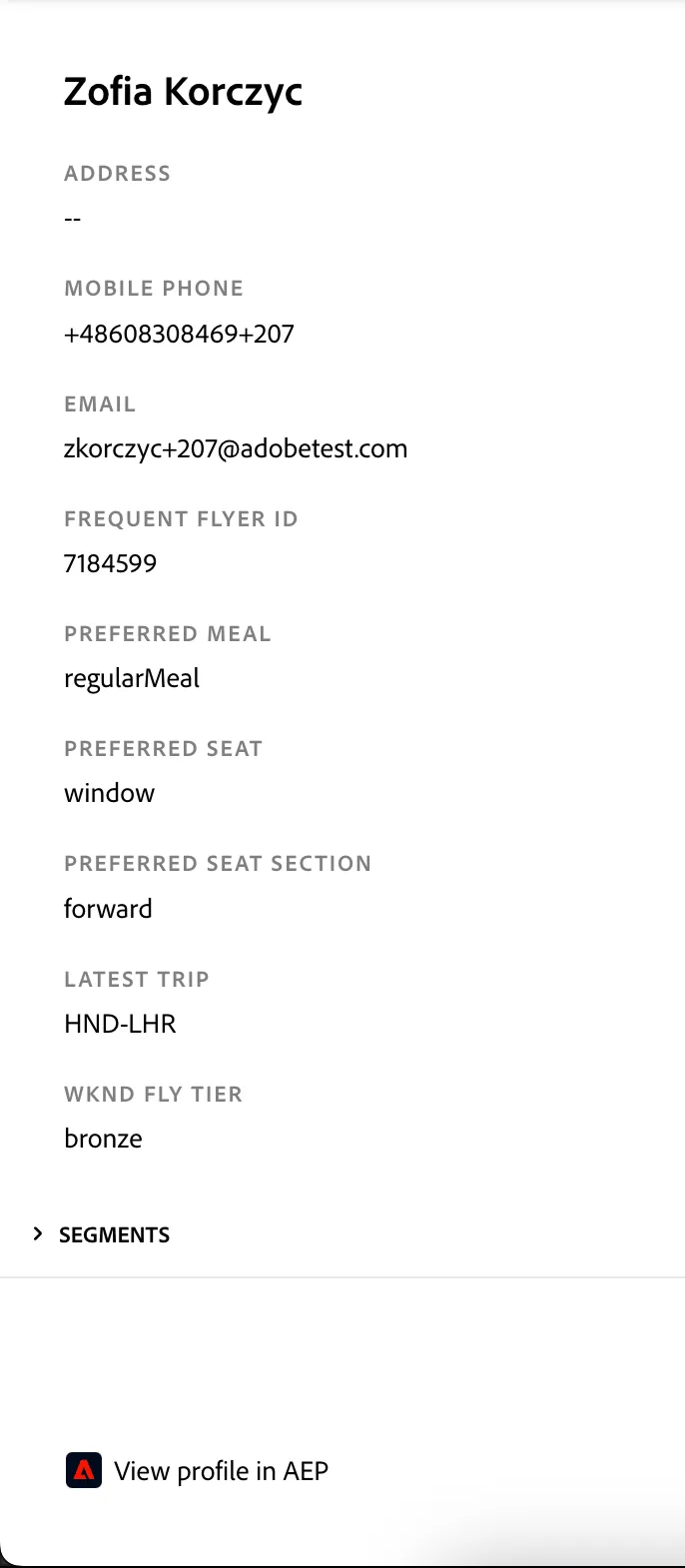
The Profile Viewer is displayed on the left side of the Customer Experience App. It displays details about the currently opened profile information, including information about segments. You can also click on a button to view the profile in AEP. To customize the details displayed in the Profile Viewer, use the Profile Viewer tab of your project's configuration page.
Modules
The detailed description of each module of the Customer Experience App can be found here Modules