AEM Outbound Marketing(Email Template) with AJO
Introduction
The core components of Adobe Experience Manager (AEM) facilitate the creation of email marketing content through email-compliant HTML rendering. Overall, AEM's email components streamline email campaign creation by offering pre-built modules tailored for email authoring akin to web page authoring in AEM.
STEPS (LUMA NEWSLETTER EMAIL TEMPLATE)
NOTE: If you'd like to replicate the below OOTB demo flow in your sandbox in ADSS or any other org, follow the steps below.
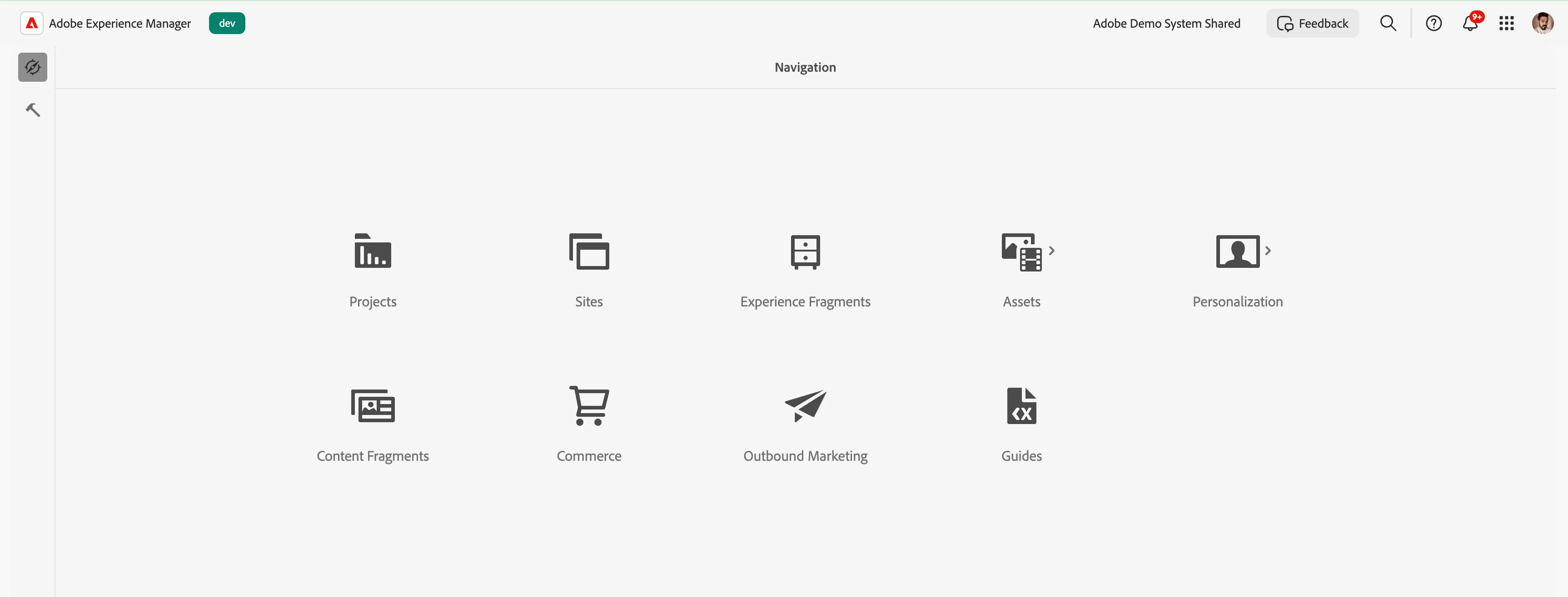
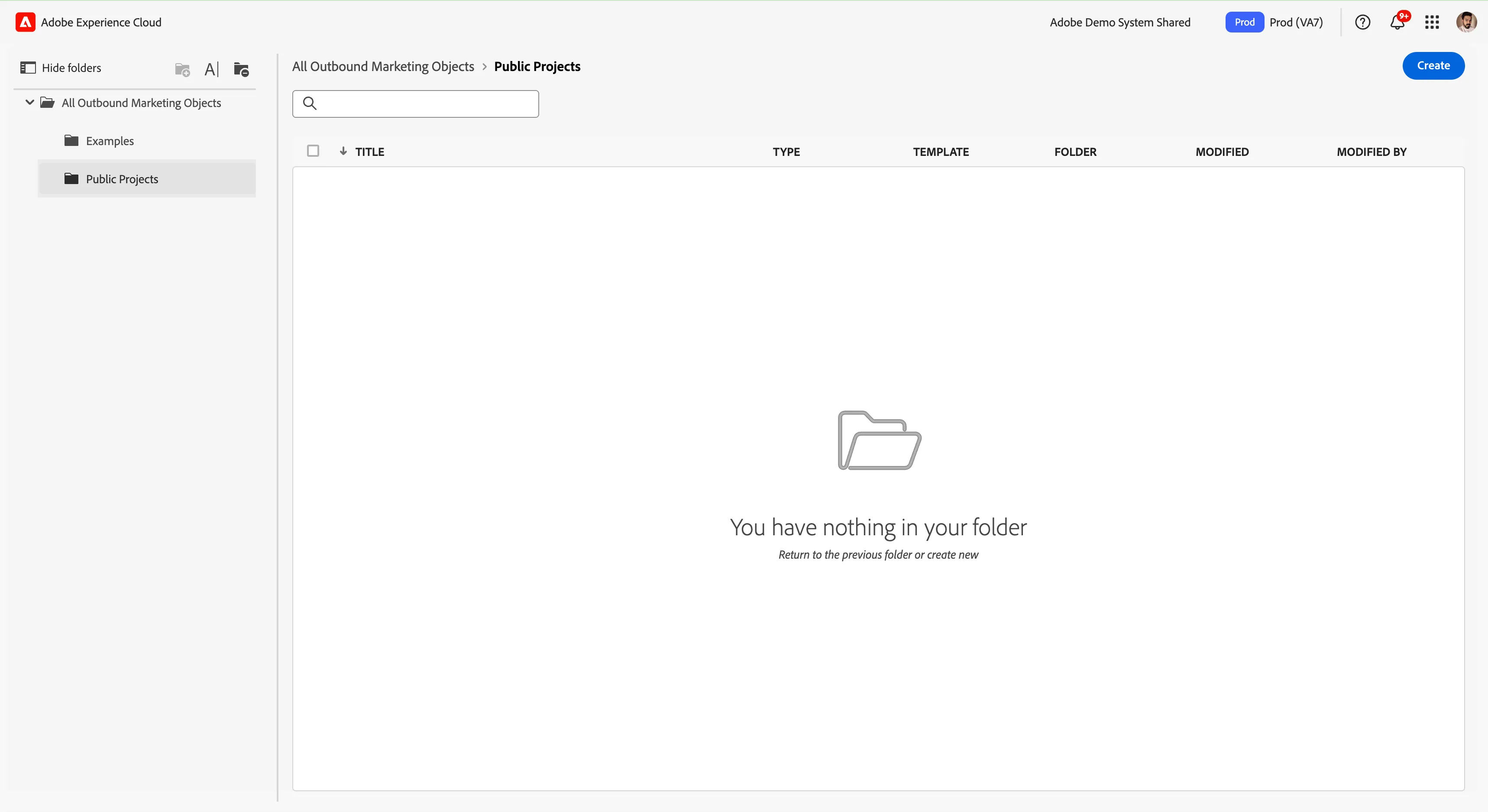
2. Go to Outbound Marketing > Public Projects (You can create your folder in your sandbox).
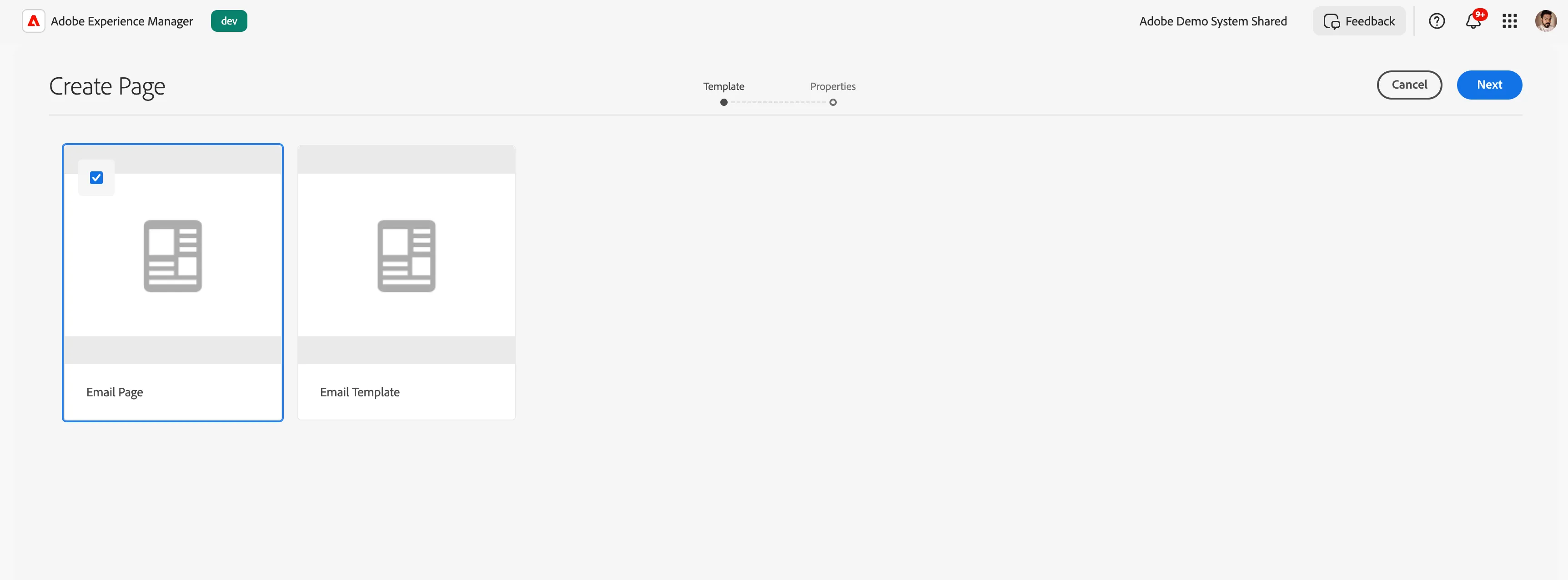
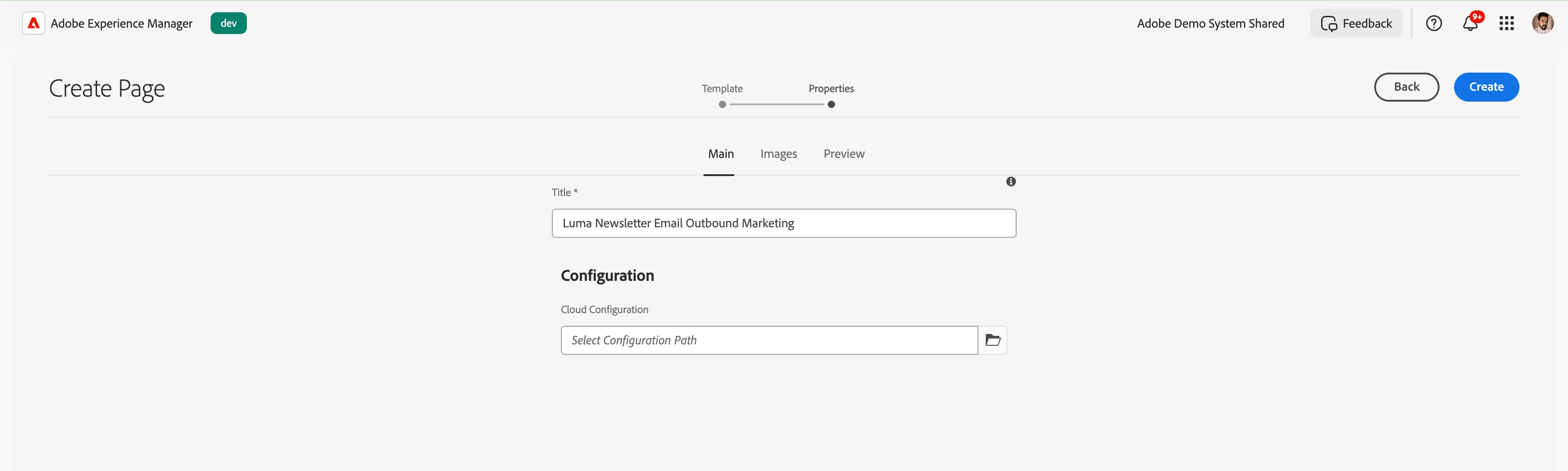
3. Click on Create and Select Email Page, click on Next, and provide a suitable name, Luma Product Update Email Outbound Marketing. Click on create.
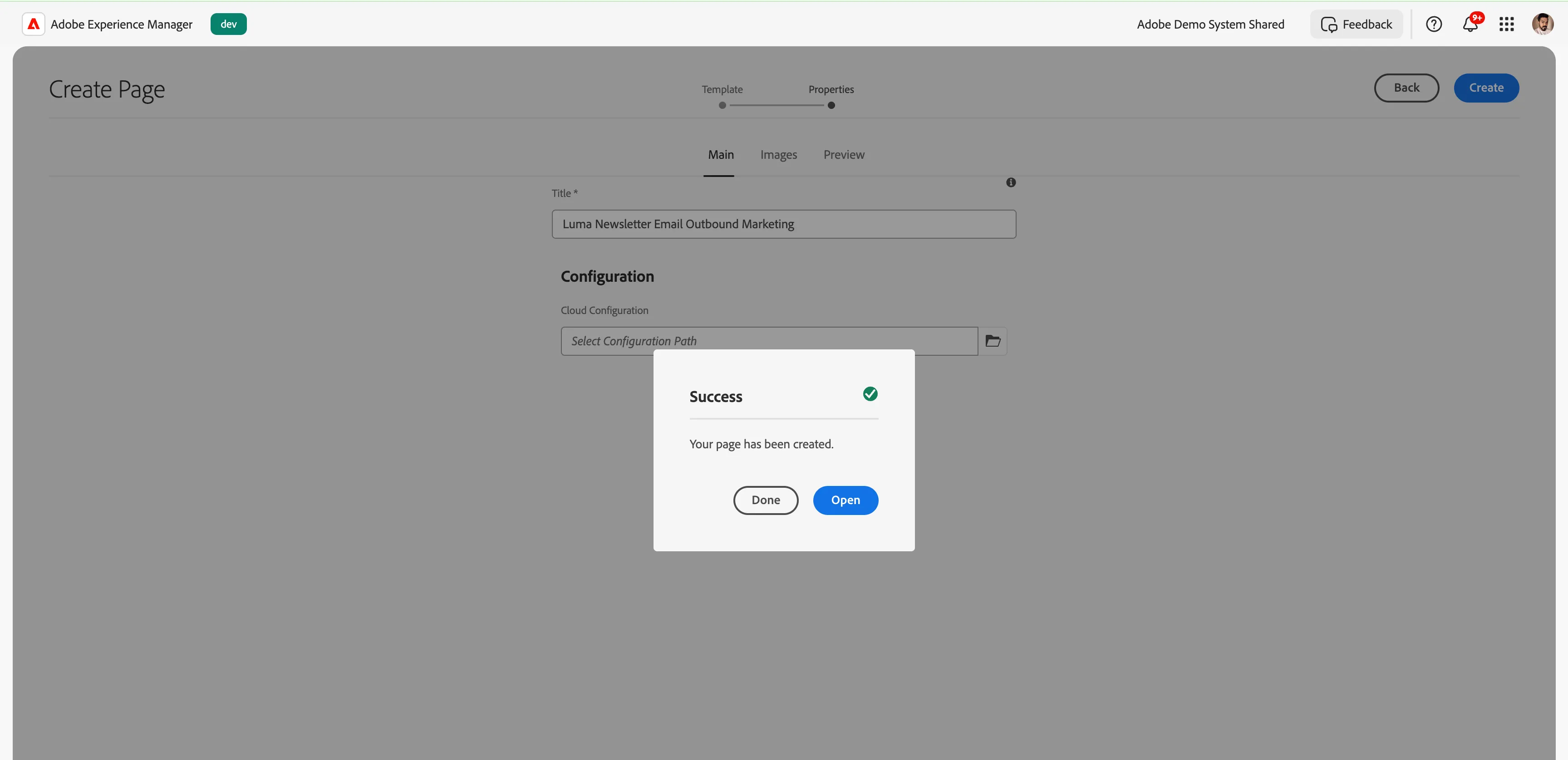
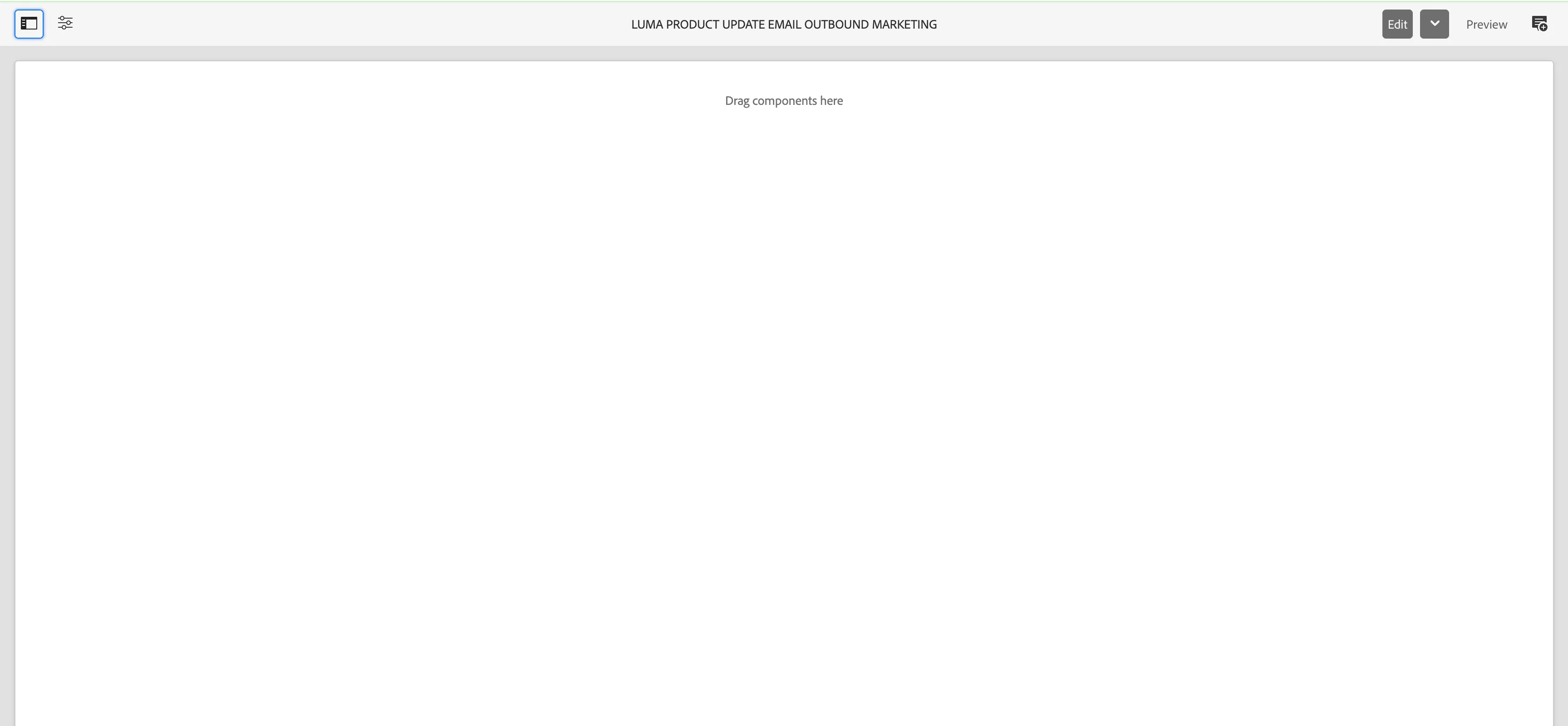
4. Click on open and this will open the email authoring window and you can drag components and create a email.
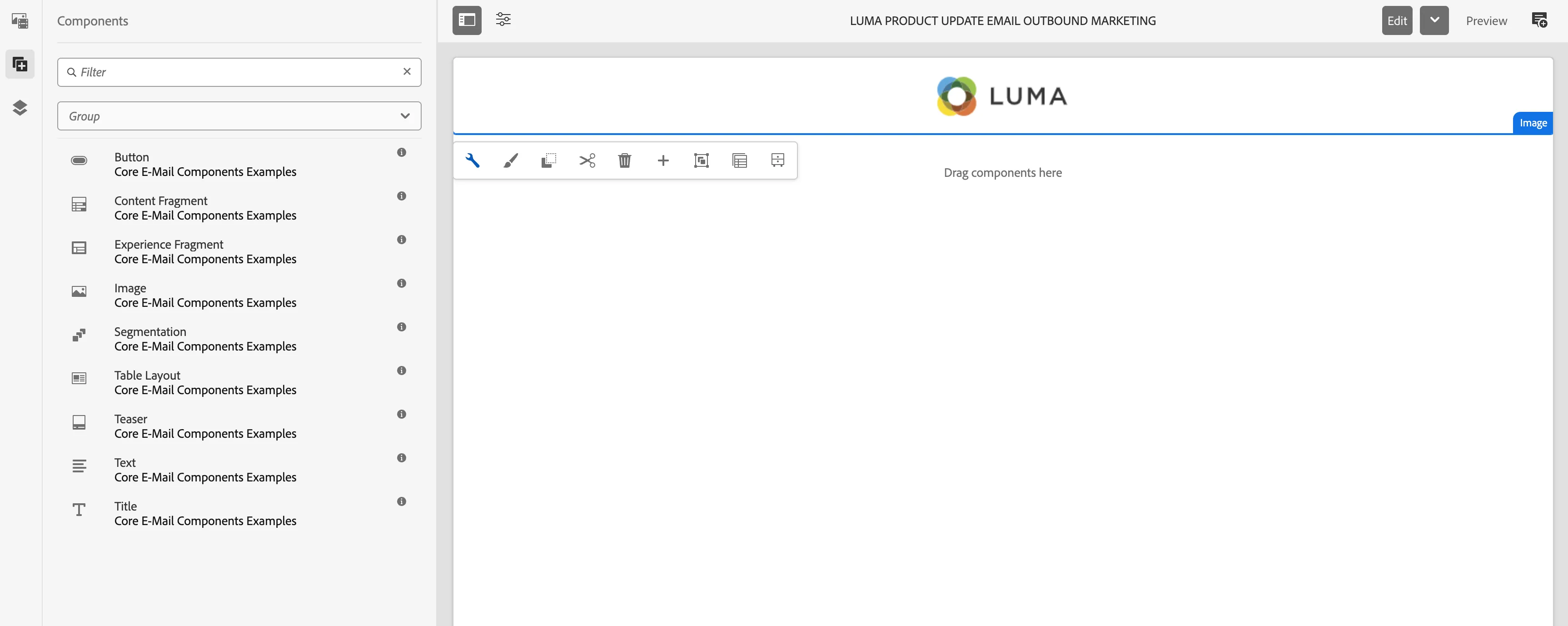
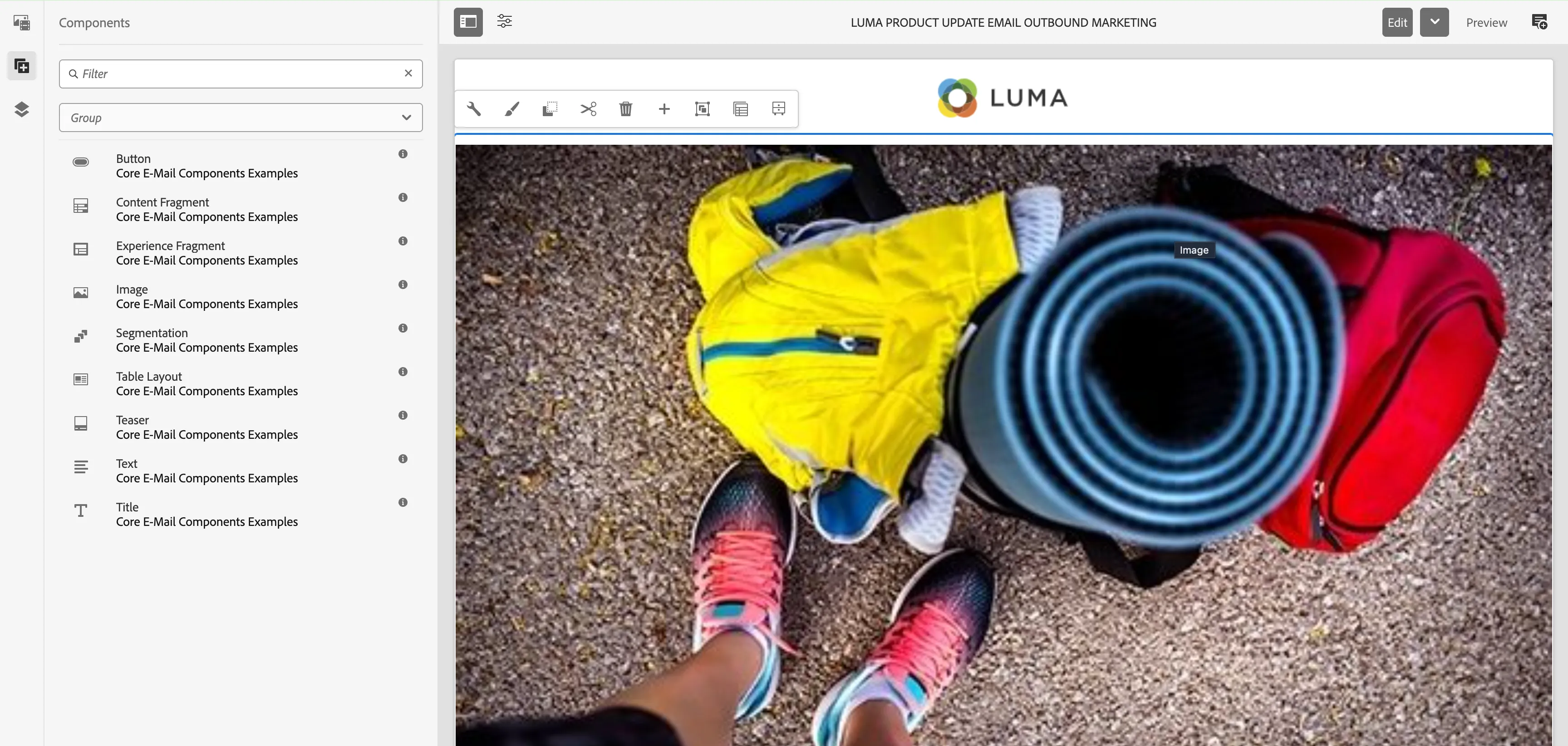
5. Now, from the left rail, select the component list(Plus Symbol) and drop the components on the email authoring window. Drag the image component > Click on the wrench icon to configure > under assets, uncheck inherit feature from page. Upload the Luma logo image from your local system. Under styles, select logo.
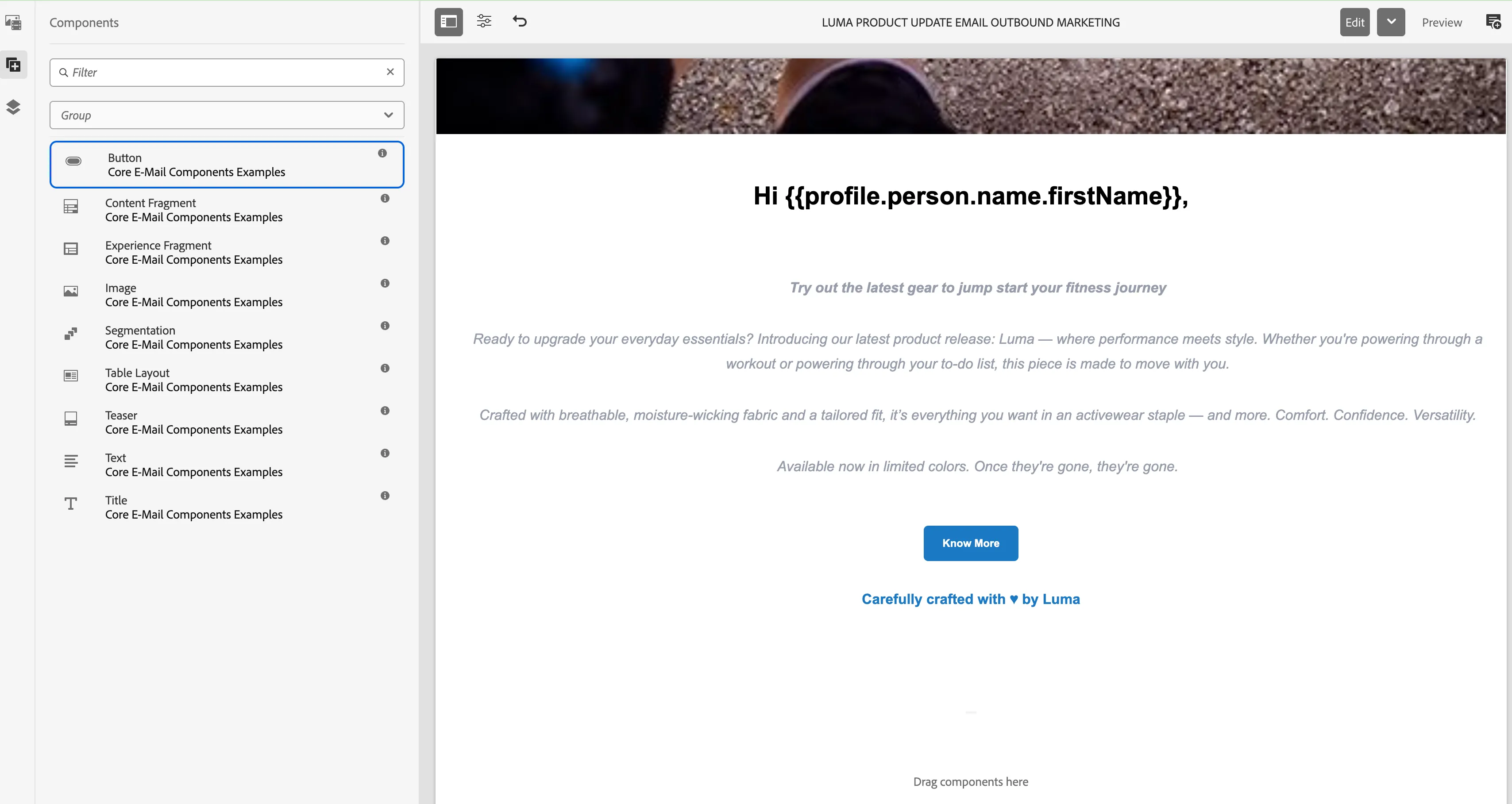
6. Now drop another image component from the left rail for the email banner. Under styles, select banner.
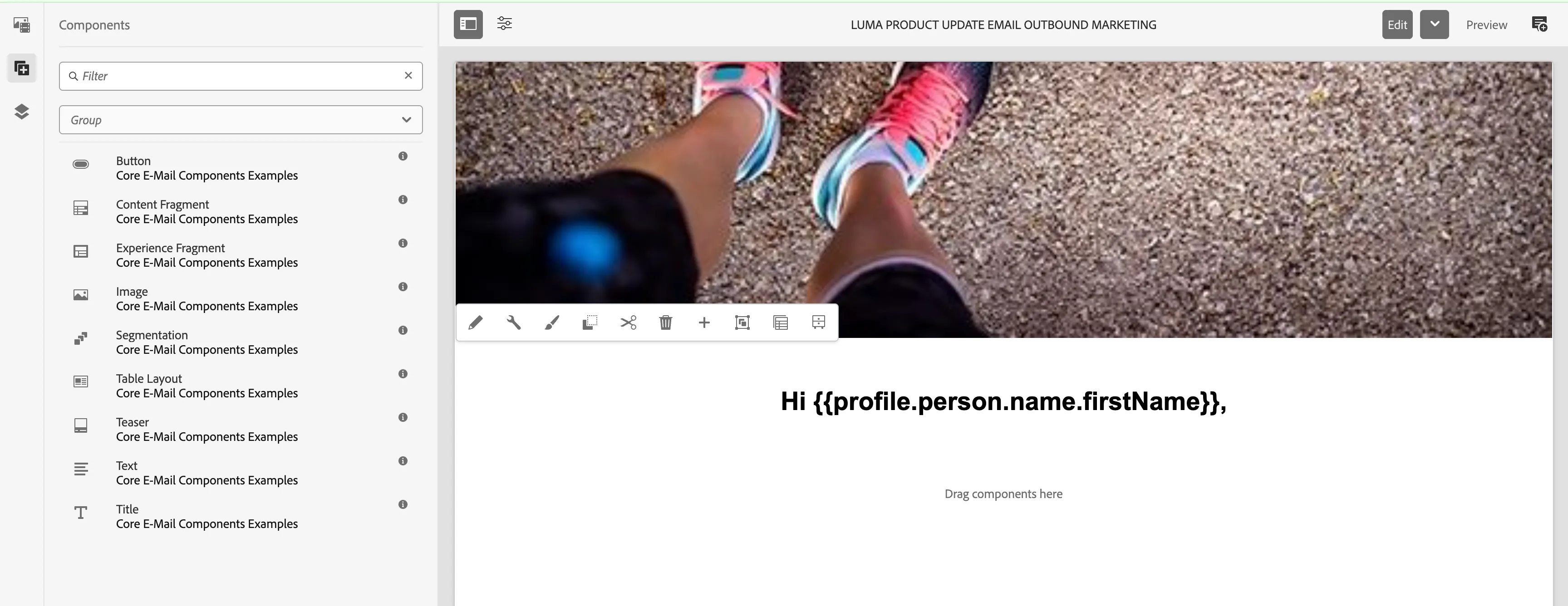
7. Below the banner component, add a new title component for greeting and add an AJO handlebar syntax for profile Firstname. (One must know the AJO handle bar syntax to configure this in email.)
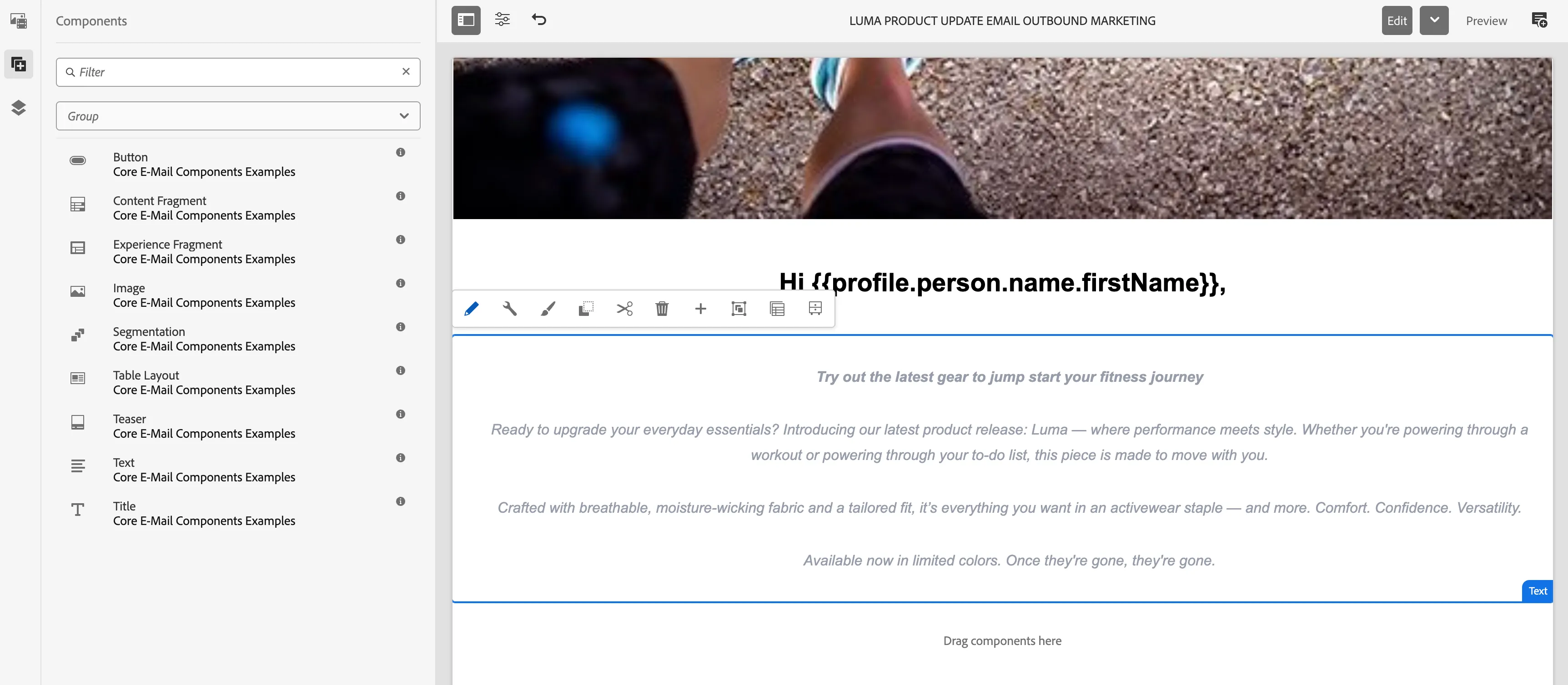
8. Now add the text component for the email body text. Drag the text component > click on the wrench icon and provide the email body text.
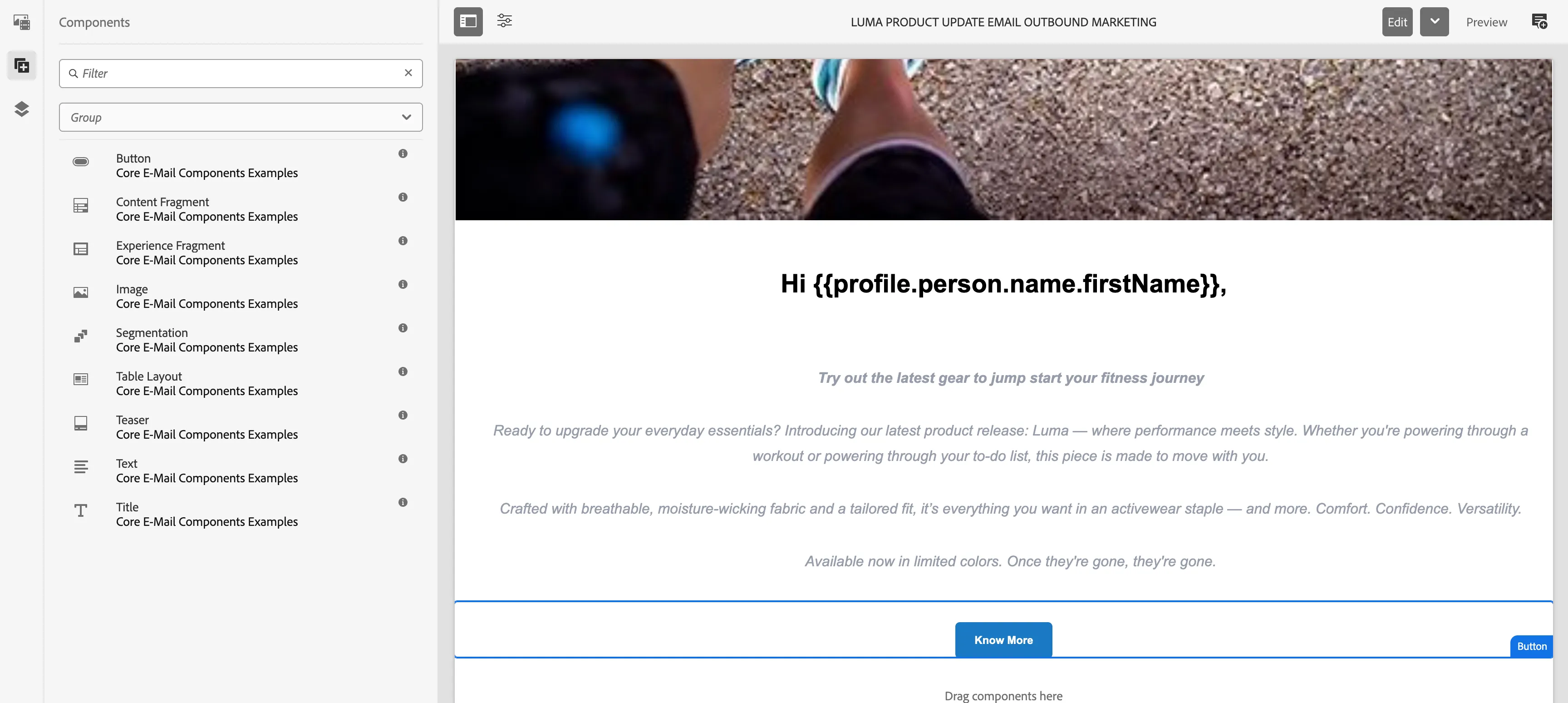
9. Now, drag a button component from the left rail and click on the wrench icon, and under text give value as Know More, and under styles, align center and style as theme.
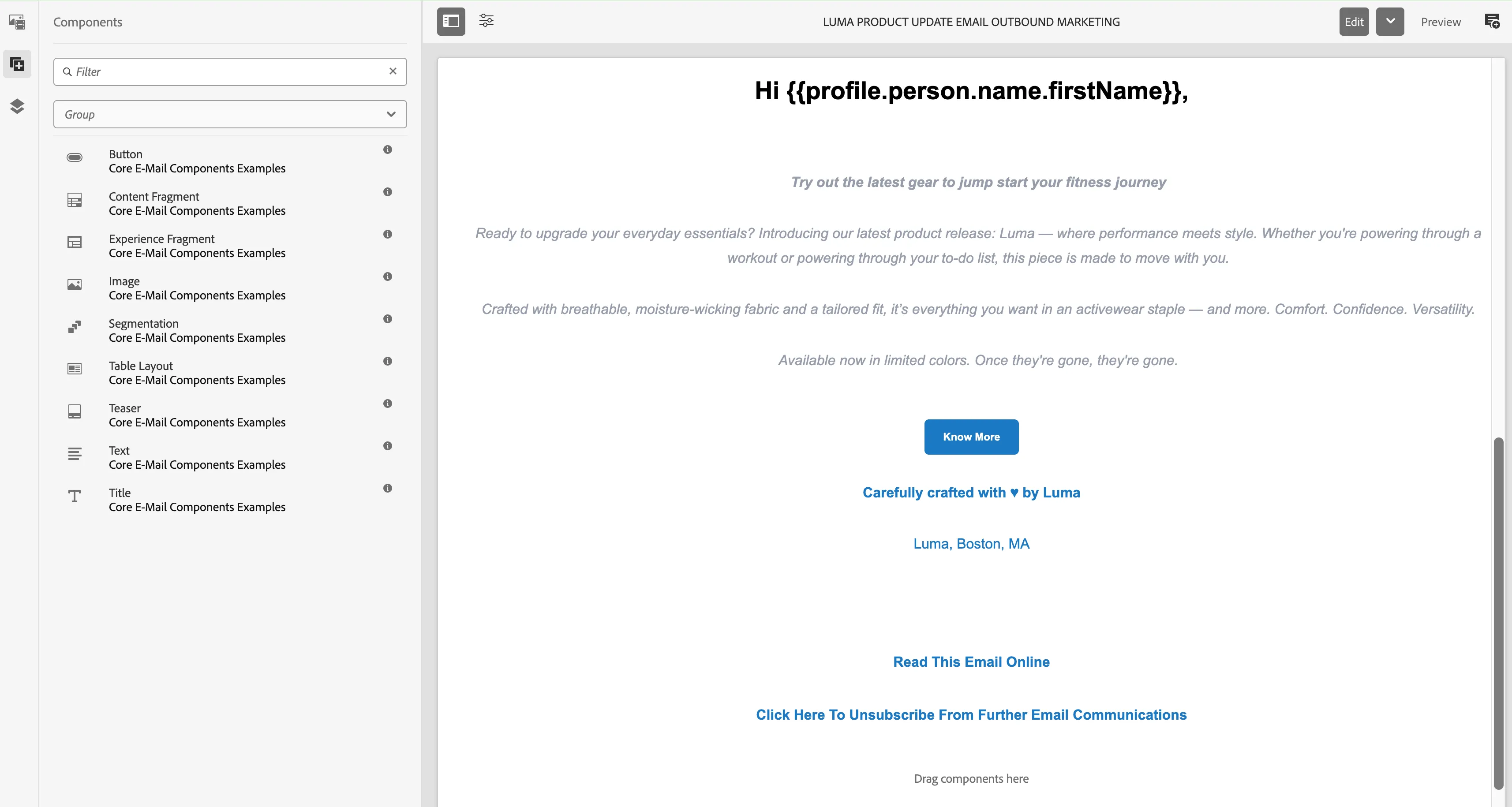
10. Add a text component below the know more button component and enter the text as: "Carefully crafted with ♥ by Luma, Luma, Boston, MA".
10. Add a 2-button component for the footer of the email and add text: "Read this email online" and "Click here to unsubscribe from further email communications."
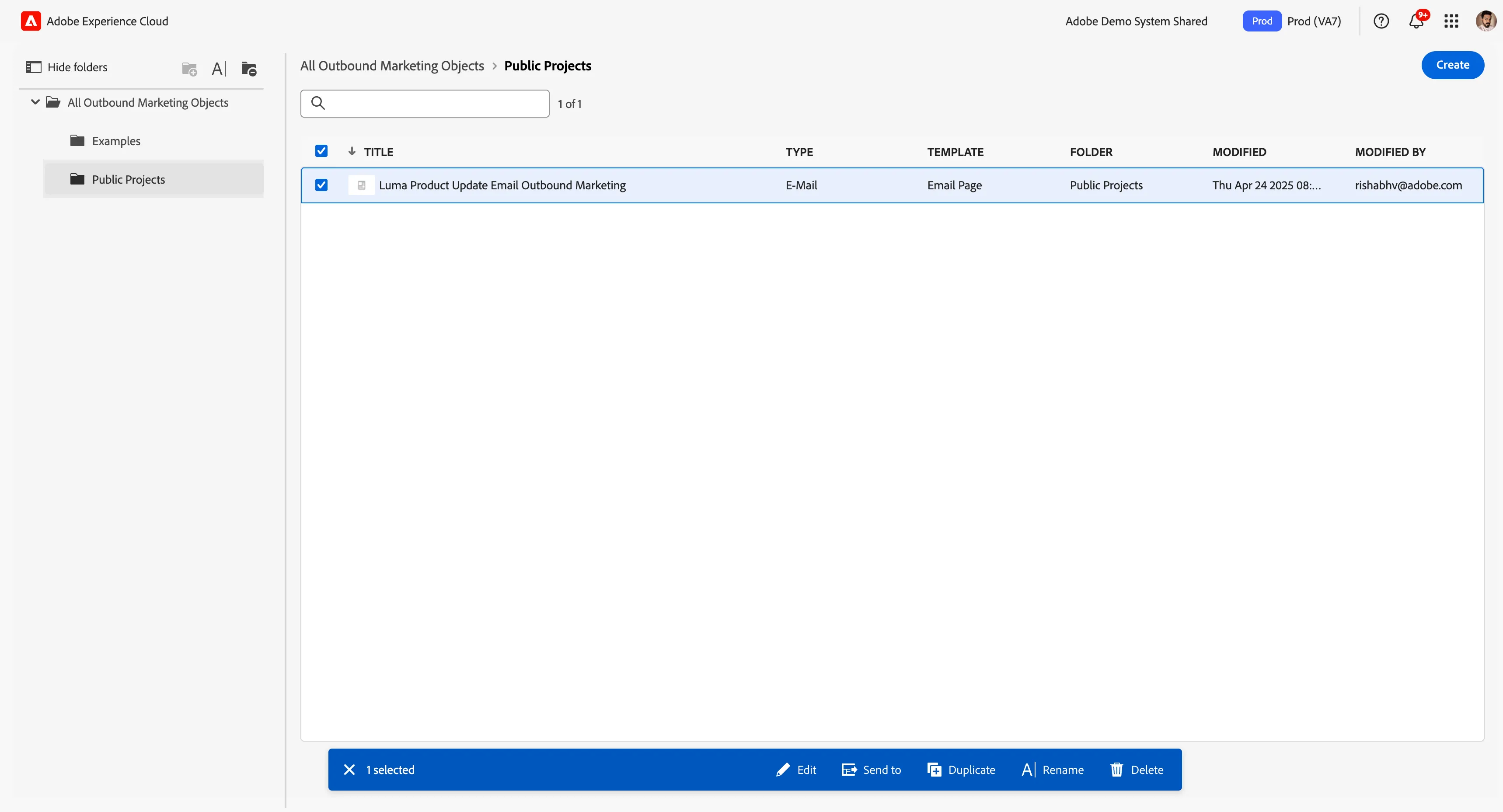
11. The template gets automatically saved. Now go to your folder inside Outbound marketing. We will go into public projects and see our template is available.

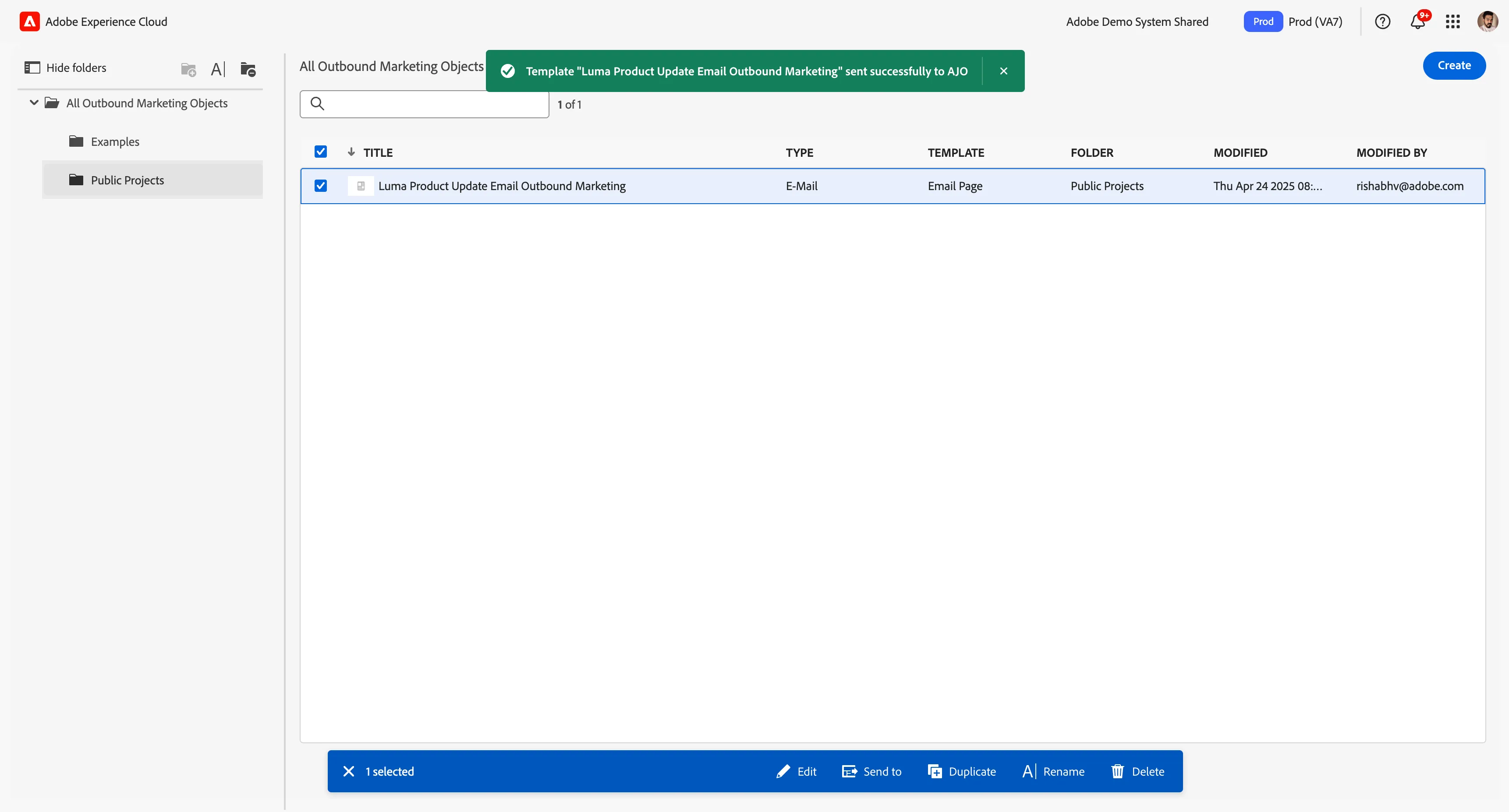
12. Click on the checkbox against the template, and the blue bar at the bottom will appear with different options.
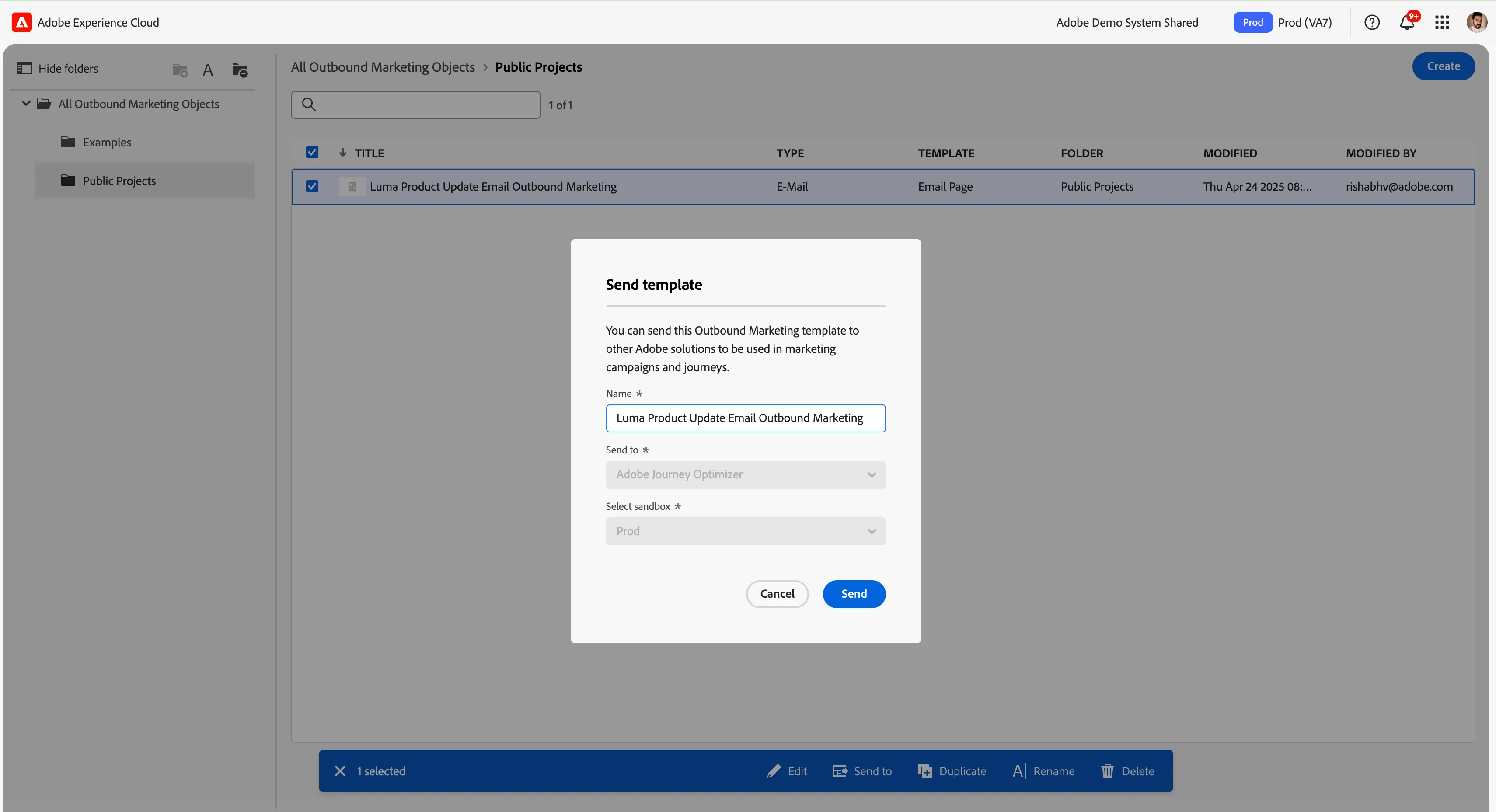
13. Click on the option "Send to." This option lets you send the email template to the designated AJO sandbox your AEM instance is connected. You will also provide an option to change the name if needed. We have kept the same as the template and by default connected with AJO Prod Sandbox. Click on Send.
14. After clicking, you will get a confirmation message as "Successfully sent to AJO".
15. Now go to AJO > Content templates > Prod Sandbox and find the template that you created in AEM OM and sent here in AJO.
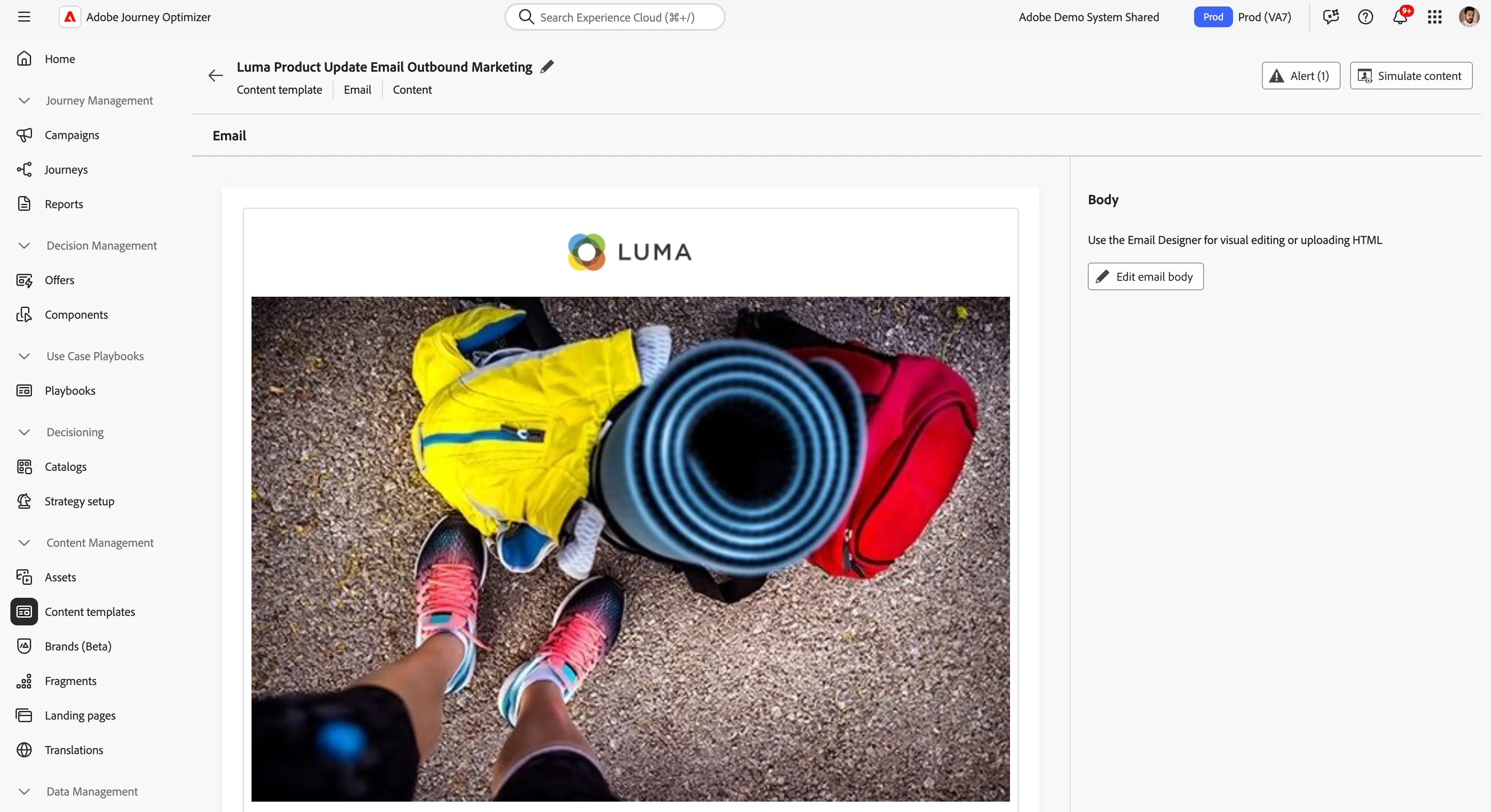
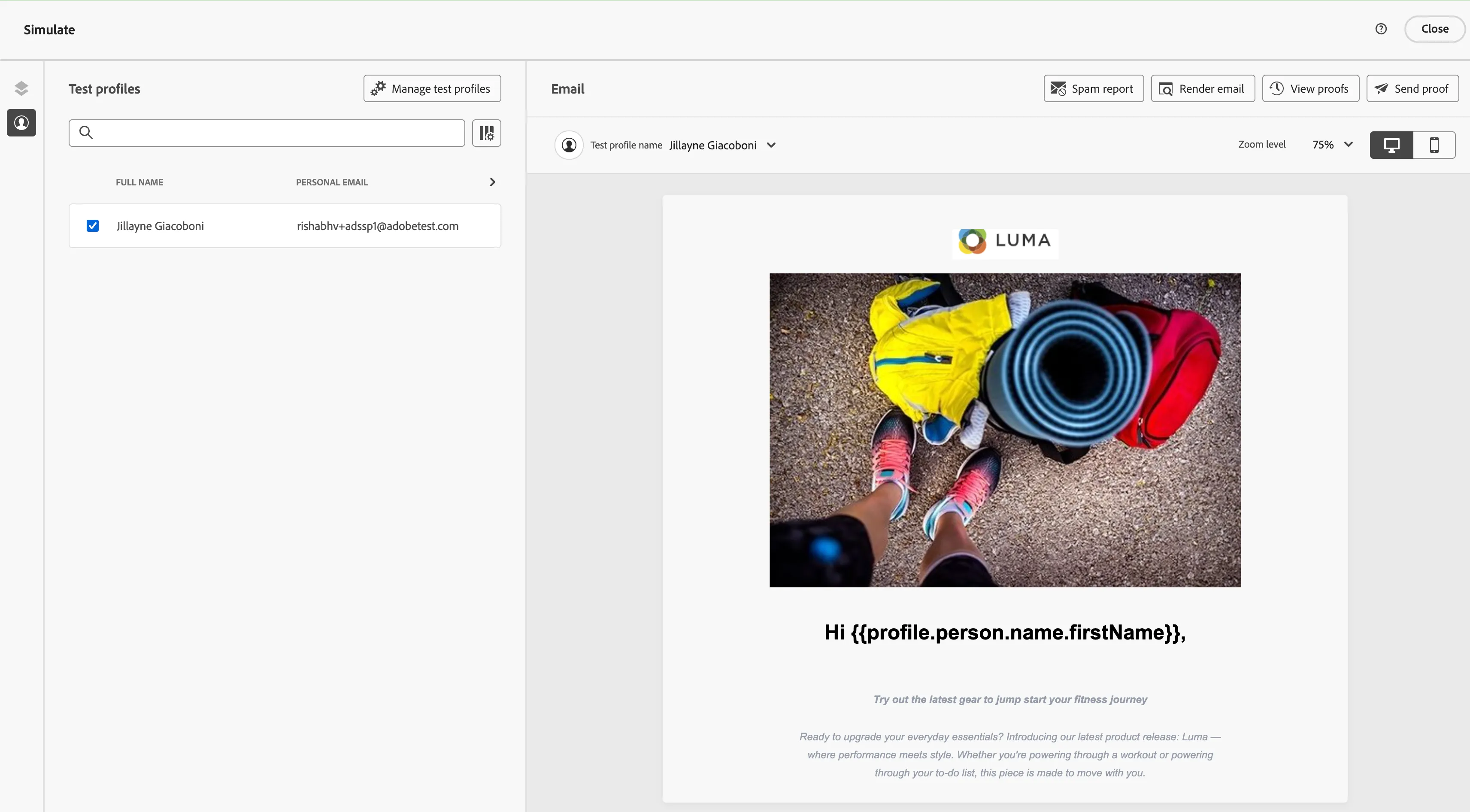
16. Click on the template and on top right click on simulate content to see the look and feel against a test profile.
NOTE:
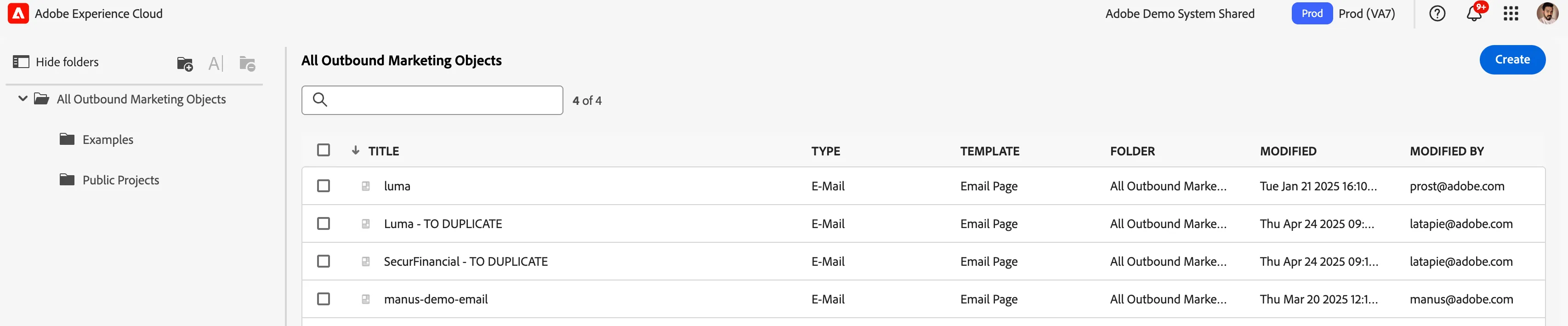
For quickly demonstrating this feature, you can duplicate the templates labelled as "TO DUPLICATE" under Outbound Marketing > All Outbound marketing objects, as per your look and feel.