B2B Data Generator
Introduction
This guide is for solution consultants and platform users who need a realistic B2B sandbox quickly. B2B Demo Data Generator creates connected sample data across accounts, contacts, opportunities, and activities so your AEP demos behave like real business scenarios.
Prerequisite
To ingest data generated by the new B2B data generator, the standard DSN B2B schemas and datasets must be installed in your targeting instance. If these are not already available, you can configure them by running the DSN Quick Setup and selecting B2B RTCDP under Solutions.
Steps
In this section, you will define the parameters for data generation. These parameters generate data structured and aligned with the standard B2B schemas.
- Select your AEP sandbox
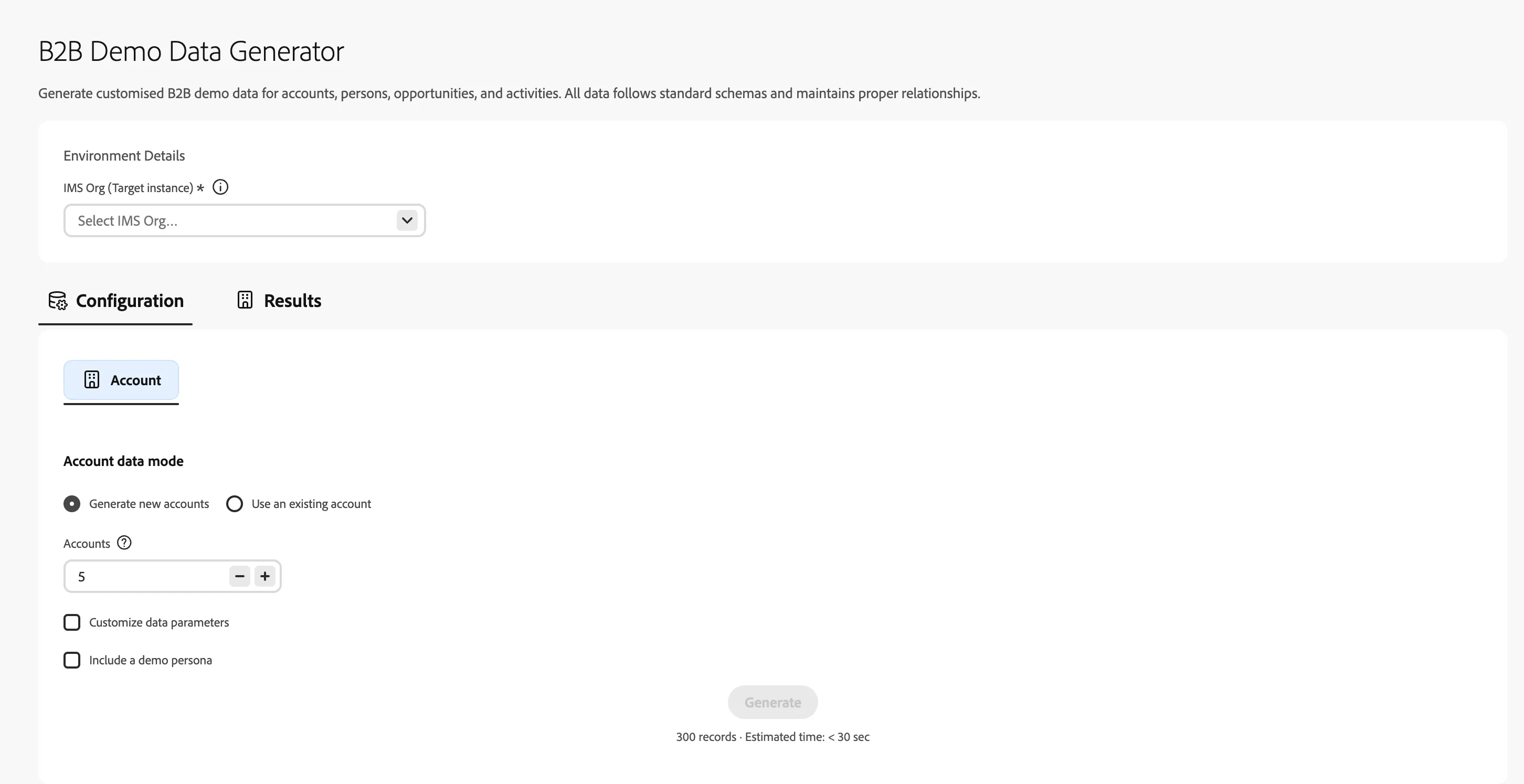
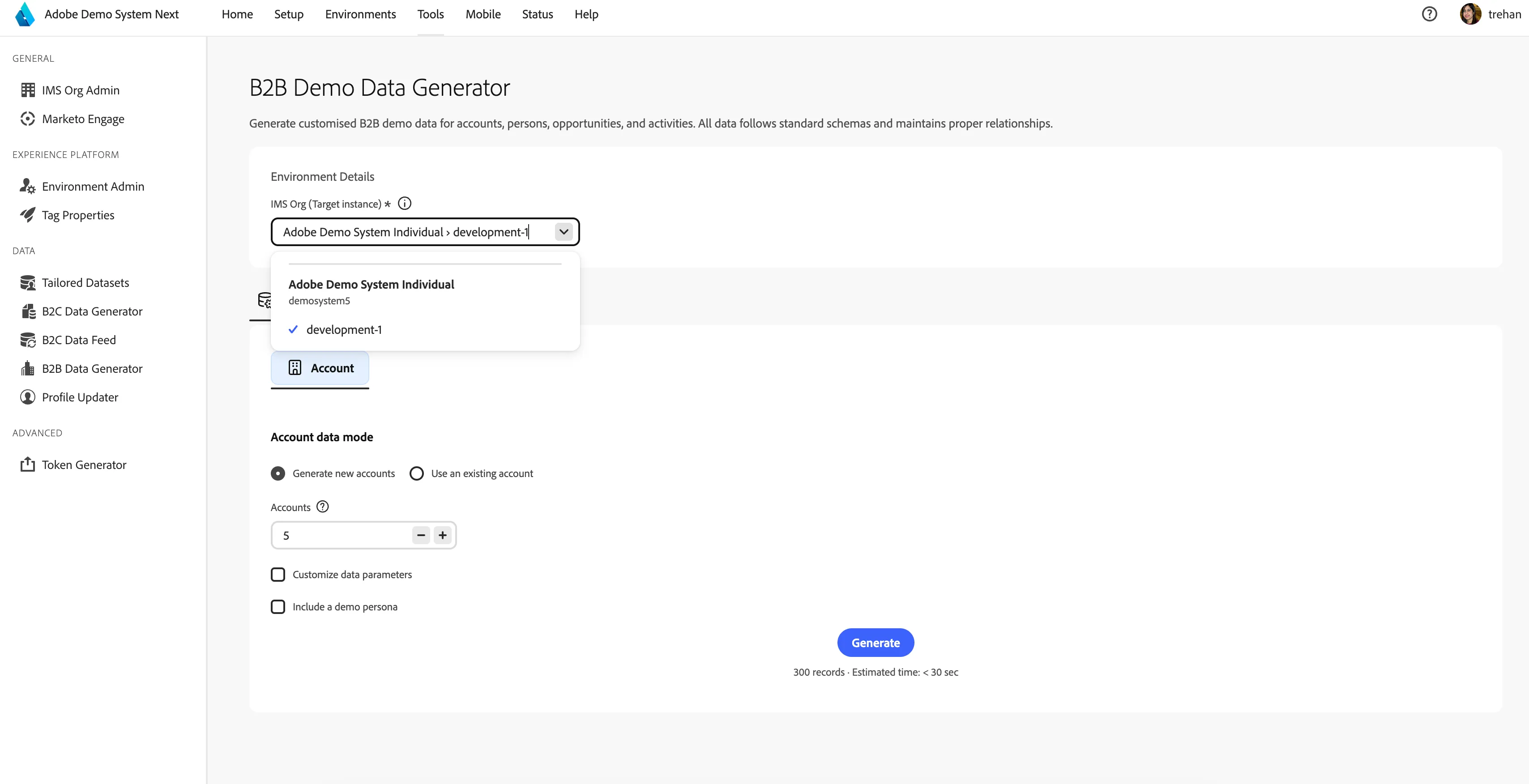
Go to Tools → B2B Demo Data Generator. First, you will see the Environment Details section at the top.
Click the dropdown and select the sandbox you want to populate.
- Set up your accounts
The Configuration tab opens automatically. Inside it, the Account tab is shown first. This is where you decide whether to create brand-new companies or link data to a company that already exists in your sandbox.
You have two options:
Option A — Generate new accounts
Leave the selection on Generate new accounts. Type how many companies you want in the Accounts field. You can generate up to 100 companies per run.
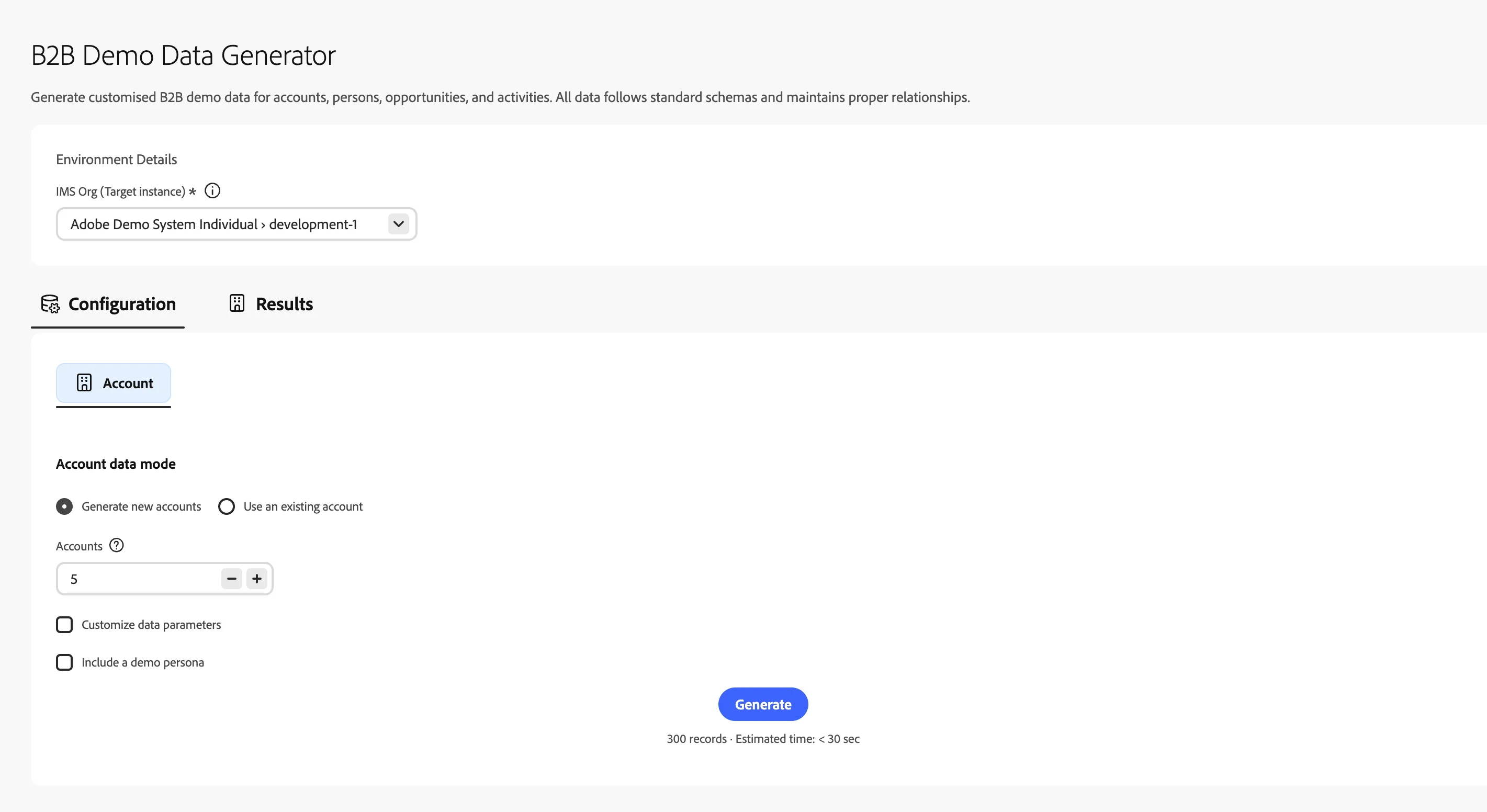
💡 Click the ⓘ icon next to the Accounts field if you want a reminder of the limit.
Option B — Use an existing account.
Select Use an existing account if the company already exists in your sandbox and you want to add contacts, deals, and activities under it rather than create a new one.
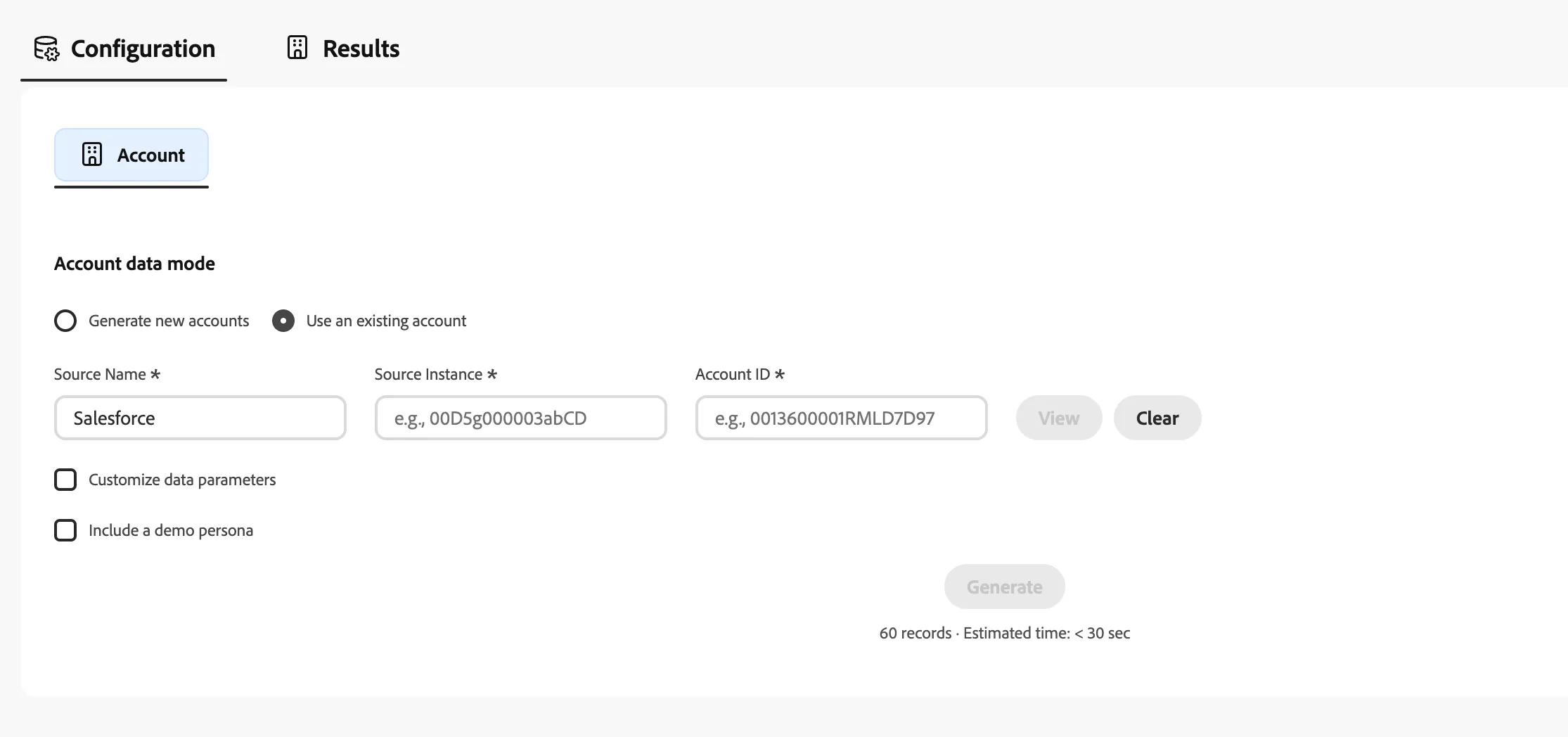
Fill in the three fields:
· Source Name — the CRM system the account came from, e.g. Salesforce or Marketo
· Source Instance — the ID of your CRM organisation, e.g. 00D5g000003abCD
· Account ID — the ID of the specific account in that CRM
Then click View. If the account is found, a green badge appears with the account name.
- Choose optional extras (optional)
Still on the Account tab, you will see two checkboxes at the bottom. These unlock additional tabs where you can fine-tune the data
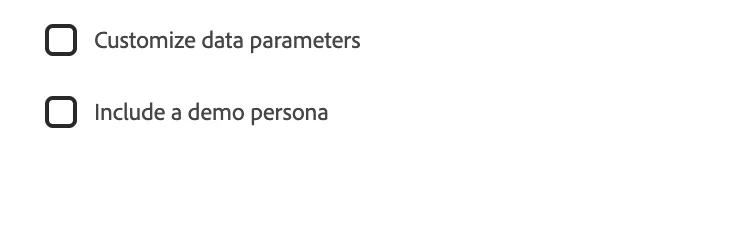
Customize data parameters
Tick this if you want to control things like how many opportunities per account, which industry to use, or what job titles appear on contacts. A new Data Parameters tab appears at the top.
Include a demo persona
Tick this if you want one specific named contact planted in your data — useful for demos where you need a real-feeling protagonist. A new Key Persona tab appears at the top.
💡 You can tick both, one, or neither. If you skip both, the tool generates everything automatically with sensible defaults

- Adjust data parameters (if enabled)
If you ticked Customize data parameters, click the green Data Parameters tab. This tab has four sections.
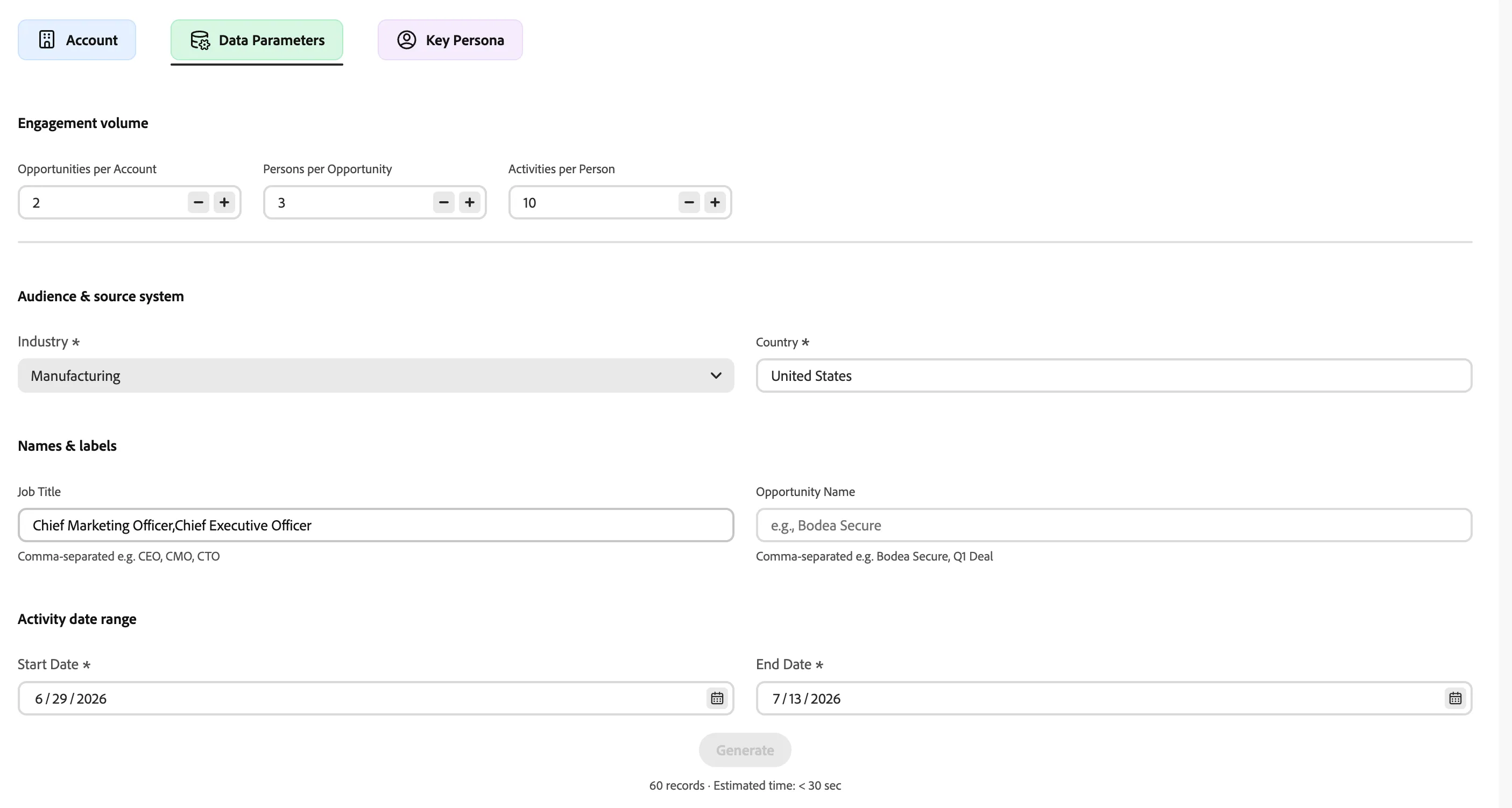
Engagement volume
Controls how much data is created per acccount:
- Opportunities per Account — how many deals each company has
- Persons per Opportunity — how many contacts are on each deal
- Activities per Person — how many interactions each contact has (emails, calls, visits, etc.)
Audience & source system
- Industry — pick the sector your companies belong to (Manufacturing, Healthcare, Finance, etc.)
- Country — drives the look of names, cities, phone numbers, and currency
- Source Type — which CRM the data appears to come from: Salesforce, Marketo, or MS Dynamics
- Instance / Munchkin ID — your actual CRM org ID (only required when Source Type is not Default)
Names & labels
- ·Job Title — type a comma-separated list of titles to use for contacts, e.g. CEO, CMO, CTO. Leave blank to use industry defaults.
- Opportunity Name — type a comma-separated list of deal names to cycle through, e.g. Bodea Secure, Q1 Deal. Leave blank to auto-generate
Activity date range
Set the date window for all activities and interactions in the dataset.
- Start Date — earliest date activities can be timestamped
- End Date — latest date activities can be timestamped
- Set up your demo persona (if enabled)
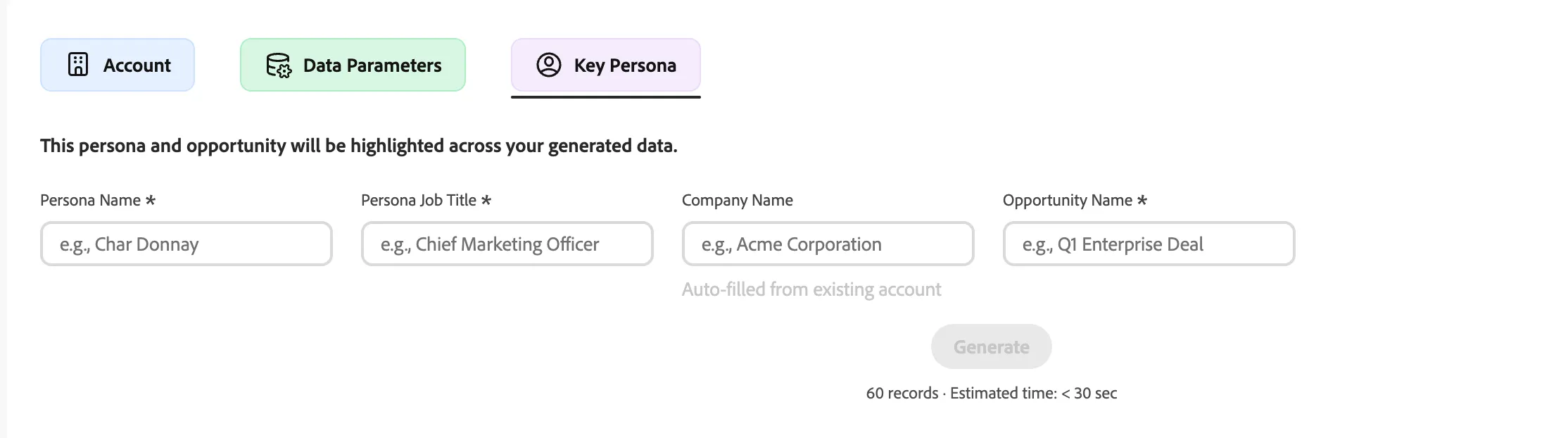
If you ticked Include a demo persona, click the purple Key Persona tab. Fill in the four fields to define your main demo character.
- Persona Name — the full name of your contact, e.g. Char Donnay
- Persona Job Title — their role, e.g. Chief Marketing Officer
- Company Name — the company they belong to. If you chose an existing account in Step 2, this fills in automatically.
- Opportunity Name — the deal they are associated with, e.g. Q1 Enterprise Deal
💡 This person will always appear as the first contact in the first company and first deal — making it easy to find them in AEP after ingestion.
- Generate
When you are happy with the settings, click the blue Generate button at the bottom of the configuration card.
The page automatically switches to the Results tab and shows a progress spinner.
Typical times:
- Small dataset (under 1,000 records) — under 30 seconds
- Medium dataset (up to 10,000 records) — about 1 minute
- Large dataset (up to 50,000 records) — 2 to 3 minutes
- Very large dataset — 4 to 5 minutes
- Check the preview
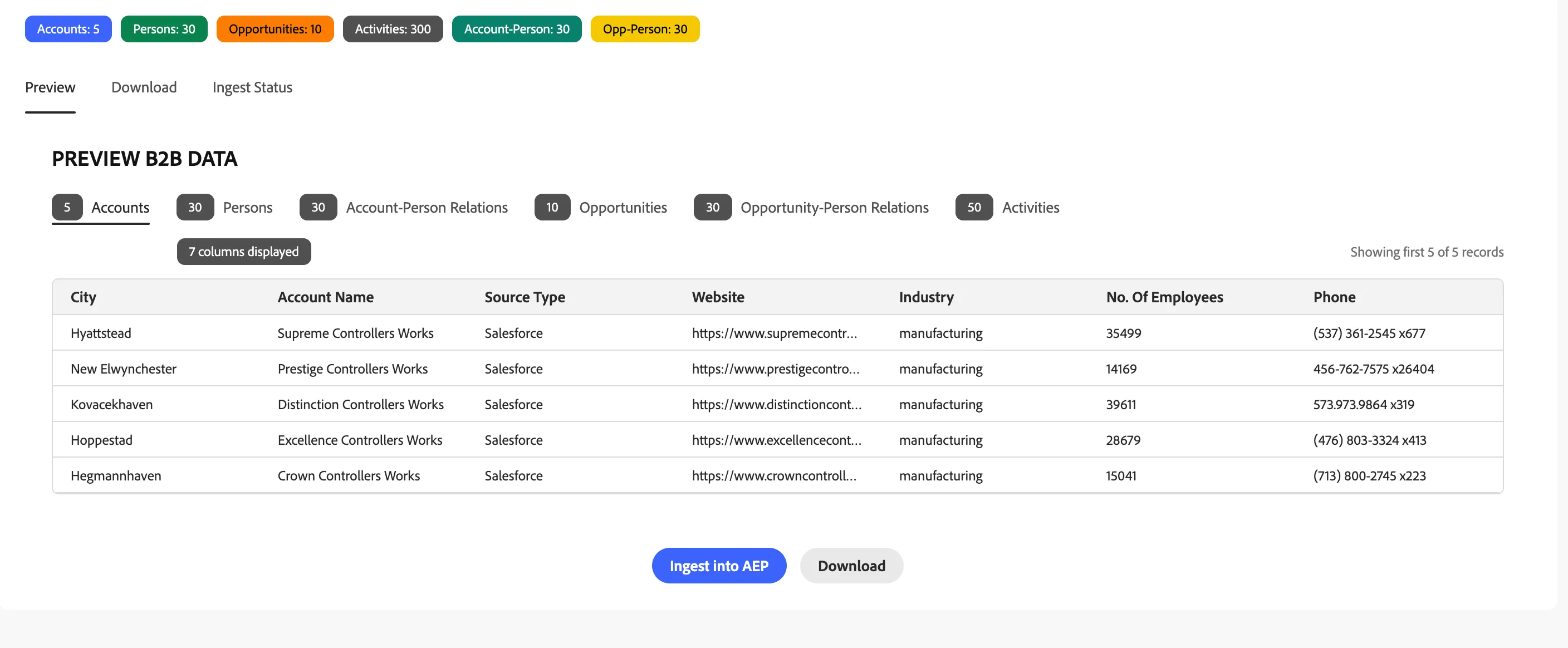
Once generation is complete, a green banner confirms success. The Preview tab shows a sample of each entity type so you can check the data looks right before doing anything with it.
- Download or Ingest
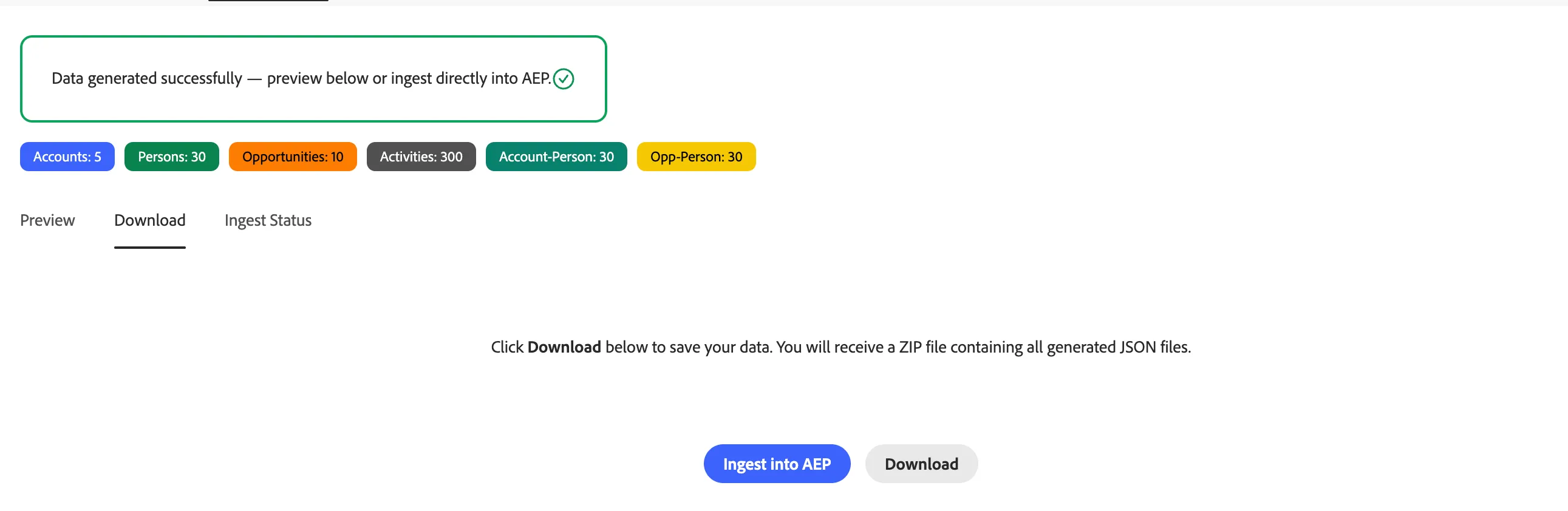
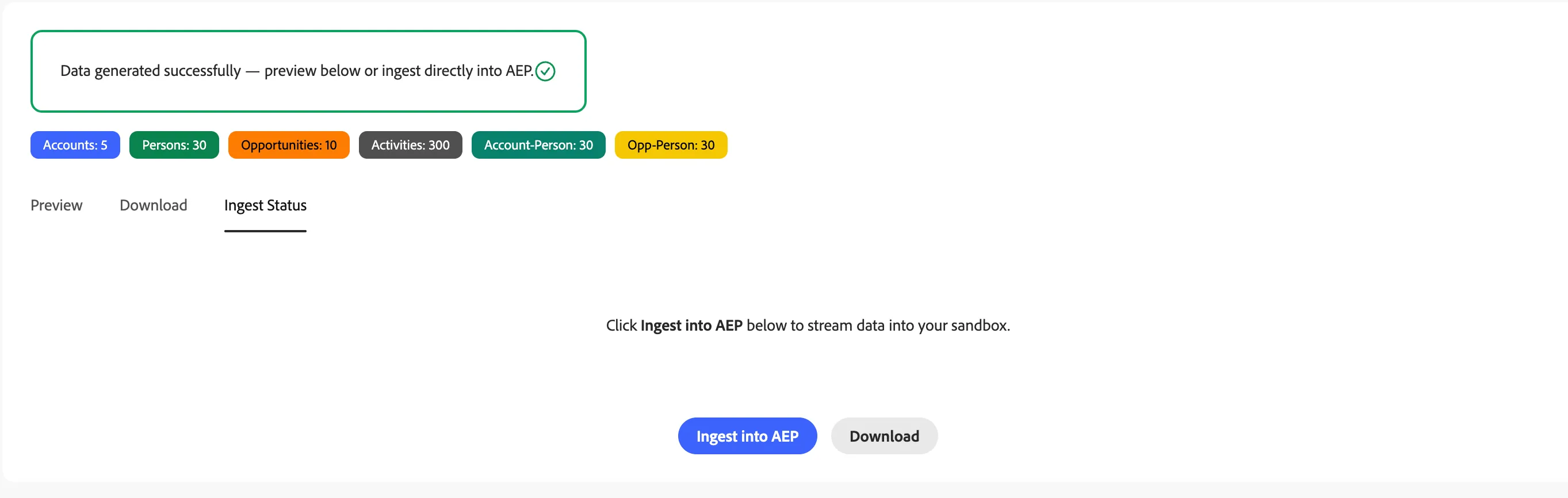
You now have two options. Use the buttons at the bottom of the results card.
Option A — Download the files
Click Download. The tool bundles all the data into a ZIP file and saves it to your computer. Inside the ZIP, you will find one file per entity type:
- accounts.json
- opportunities.json
- persons.json
- activities.json
- account-person-relations.json
- opportunity-person-relations.json
💡 If you used an existing account in Step 2, the accounts.json file is not included — only 5 files are downloaded.
Option B — Ingest directly into AEP
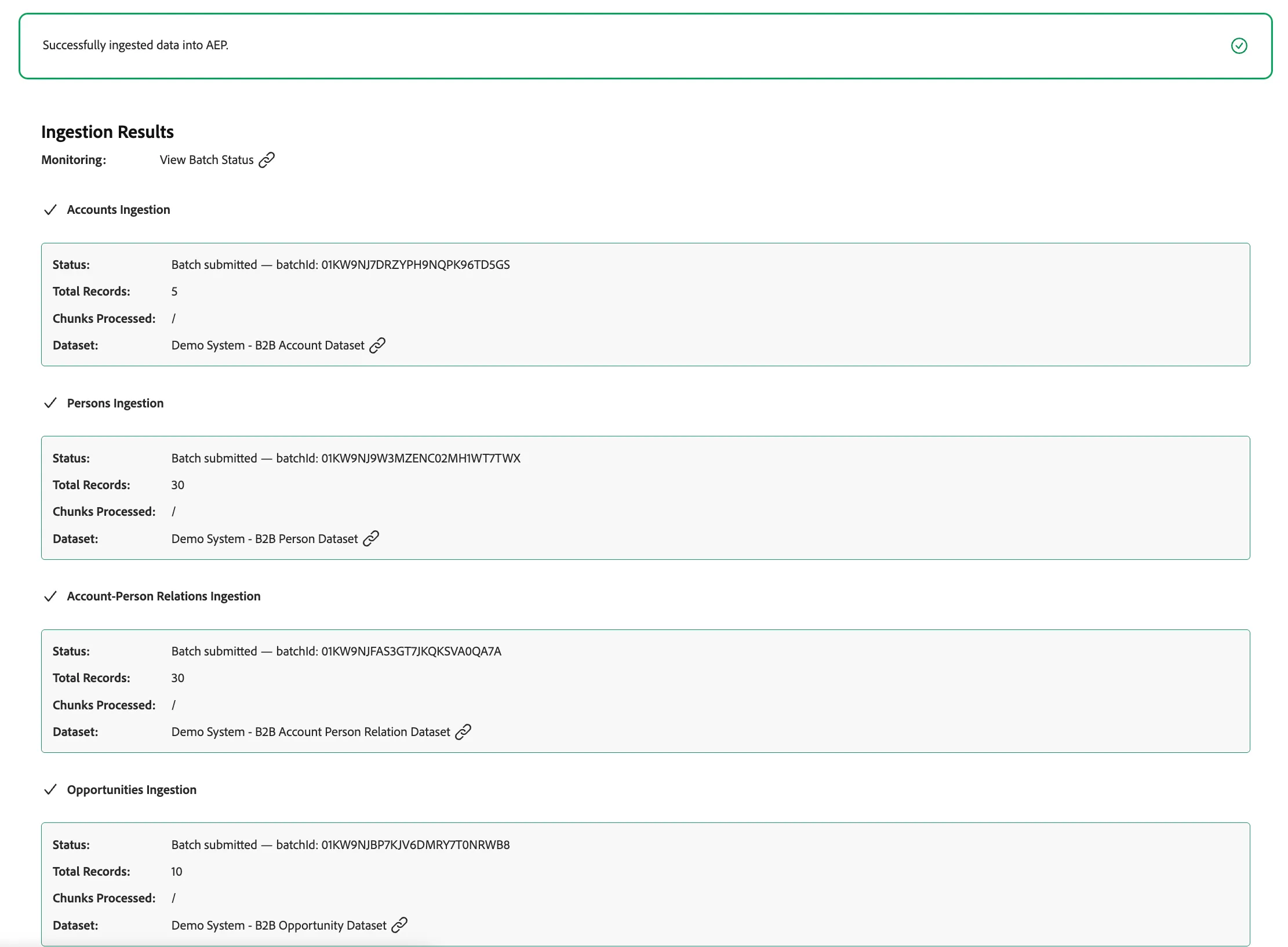
Click Ingest into AEP. The tool automatically sends all six entity types to your sandbox datasets. Switch to the Ingest Status tab to watch the progress.
For each entity type, you will see:
- Status — whether it succeeded or if there was a problem
- Total Records — how many records were sent
- Dataset — a link that takes you straight to that dataset in AEP
💡 AEP can take a few minutes to process the data after ingestion. Use the View Batch Status link at the top of the results to check progress in AEP.