Content
Keeping Content Up
Keeping page

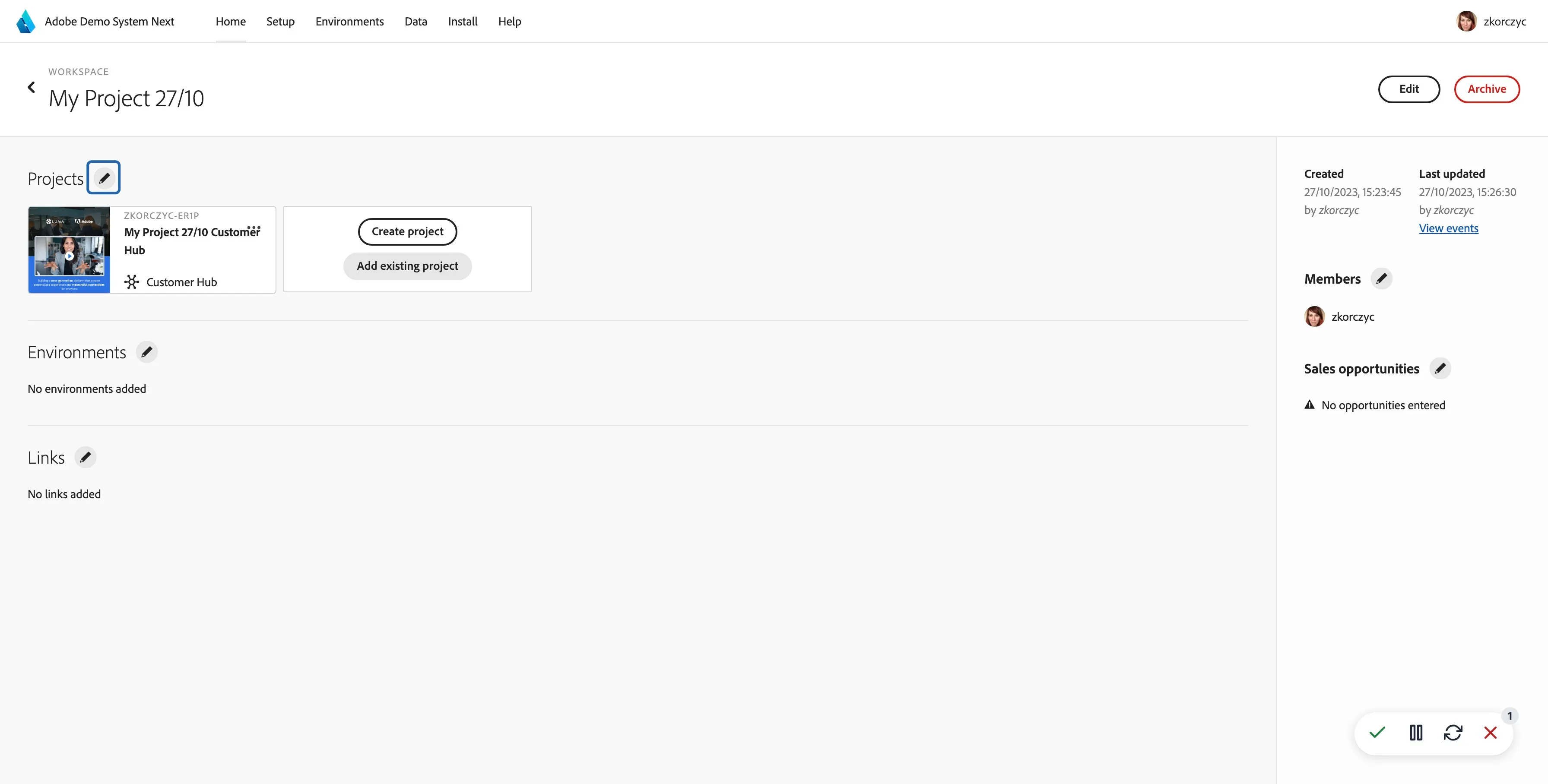
Open your workspace
Click on Microsite project you want to modify

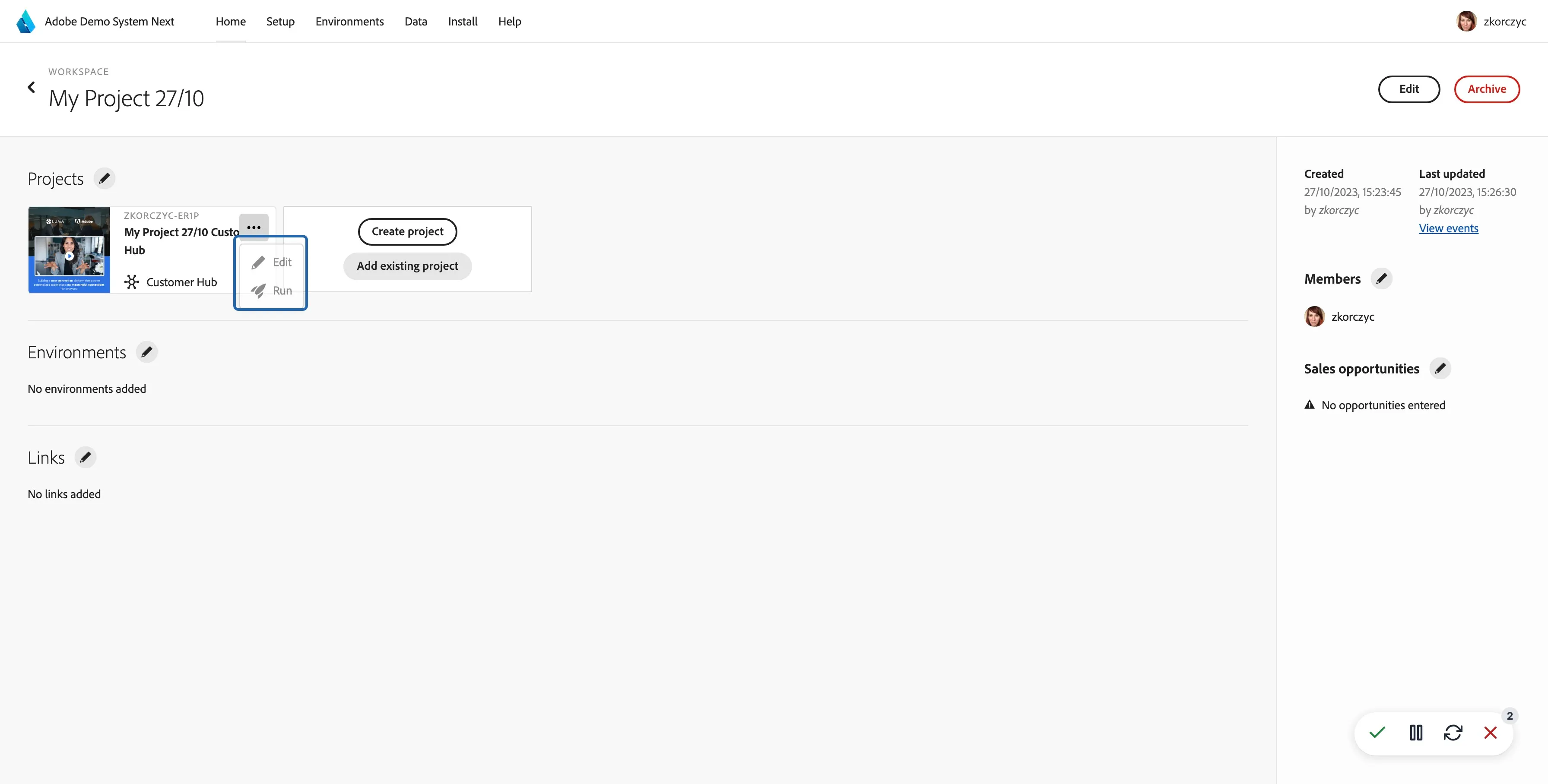
Click on the 3 dots that appeared in the top right corner. Click "Edit"

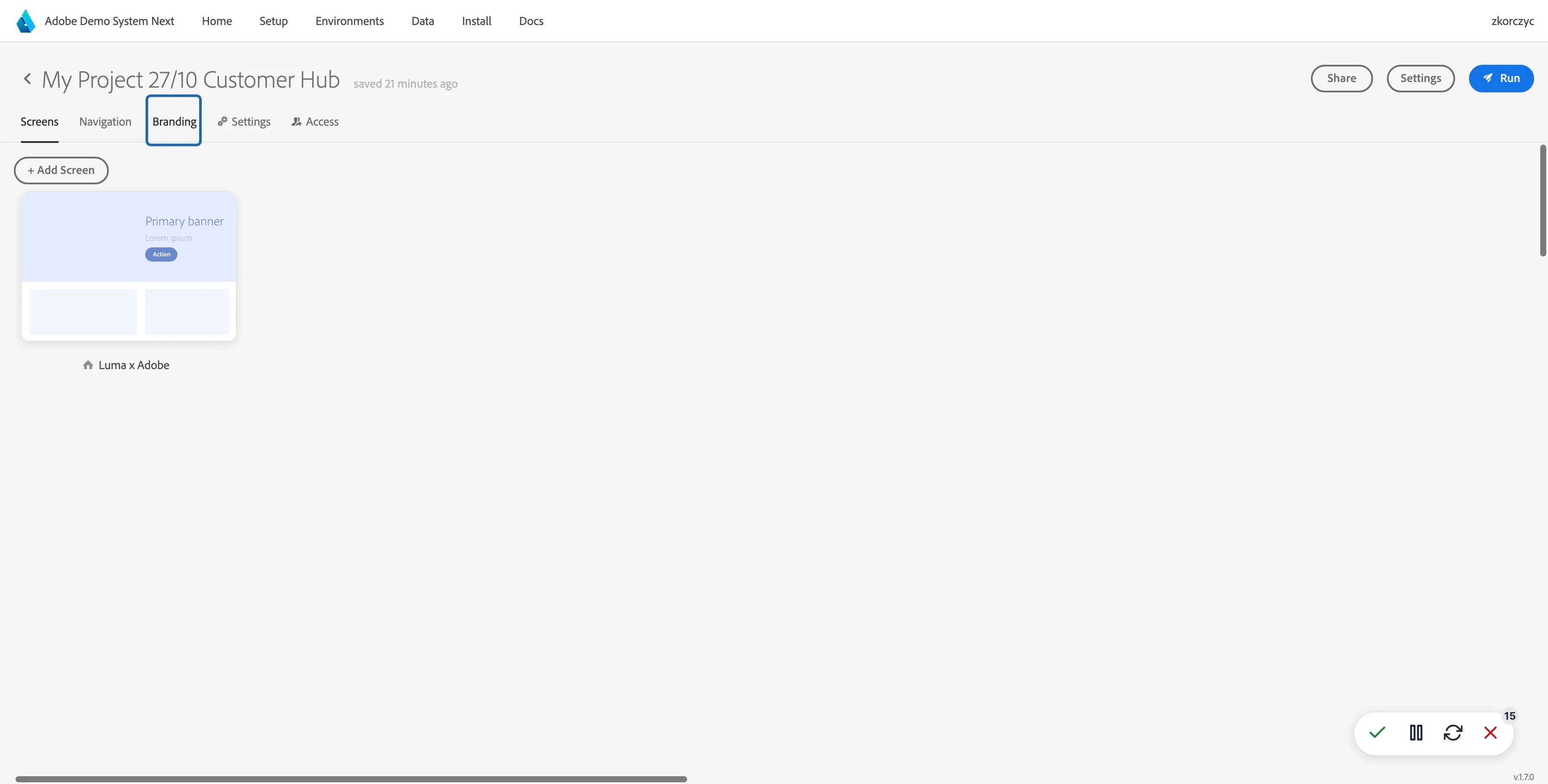
Click on Branding

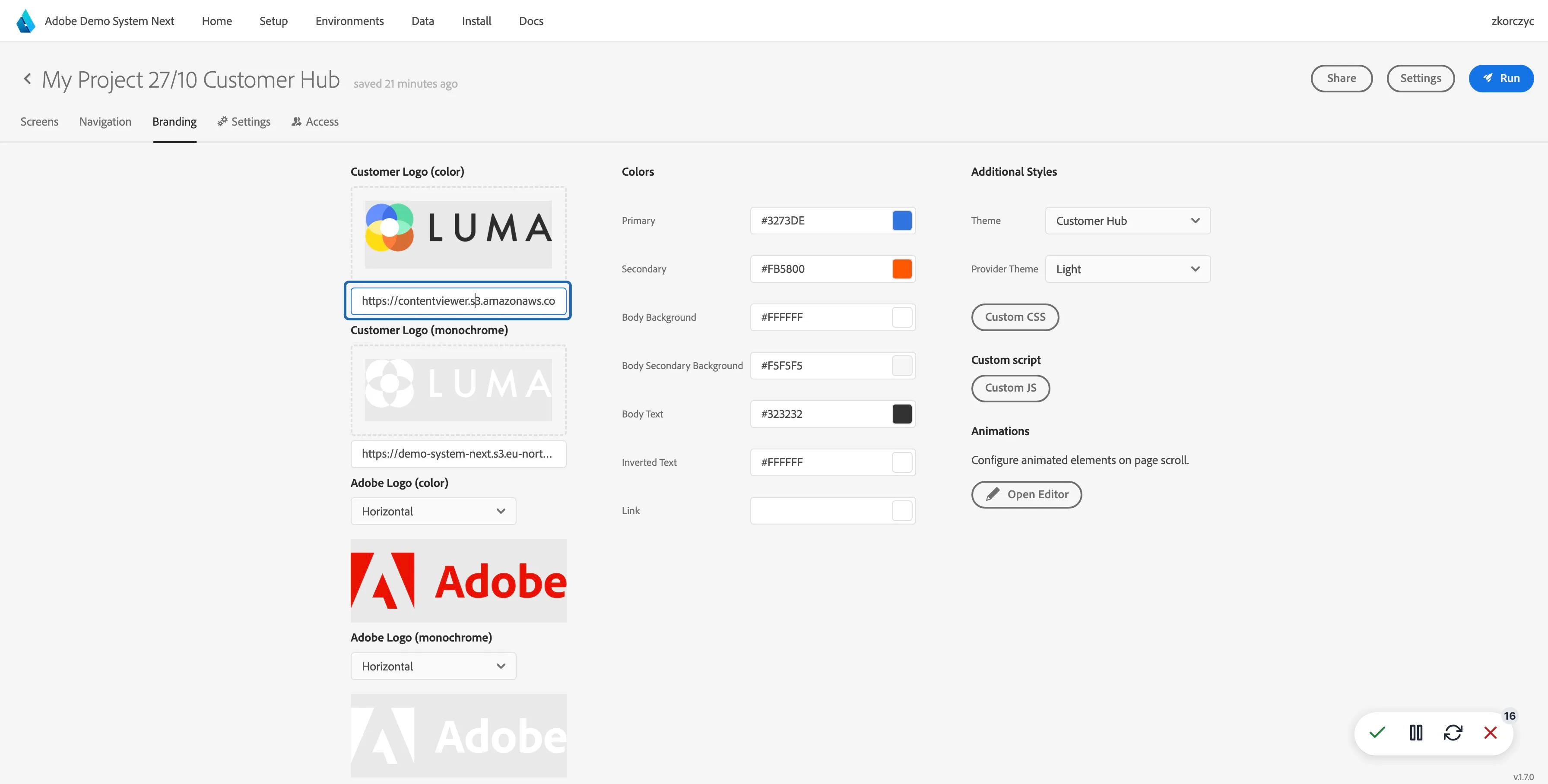
Modify the branding details like colors and logo

Click on "Run" in the top right corner

Click on the pencil icon in the left bottom corner to go to edit mode

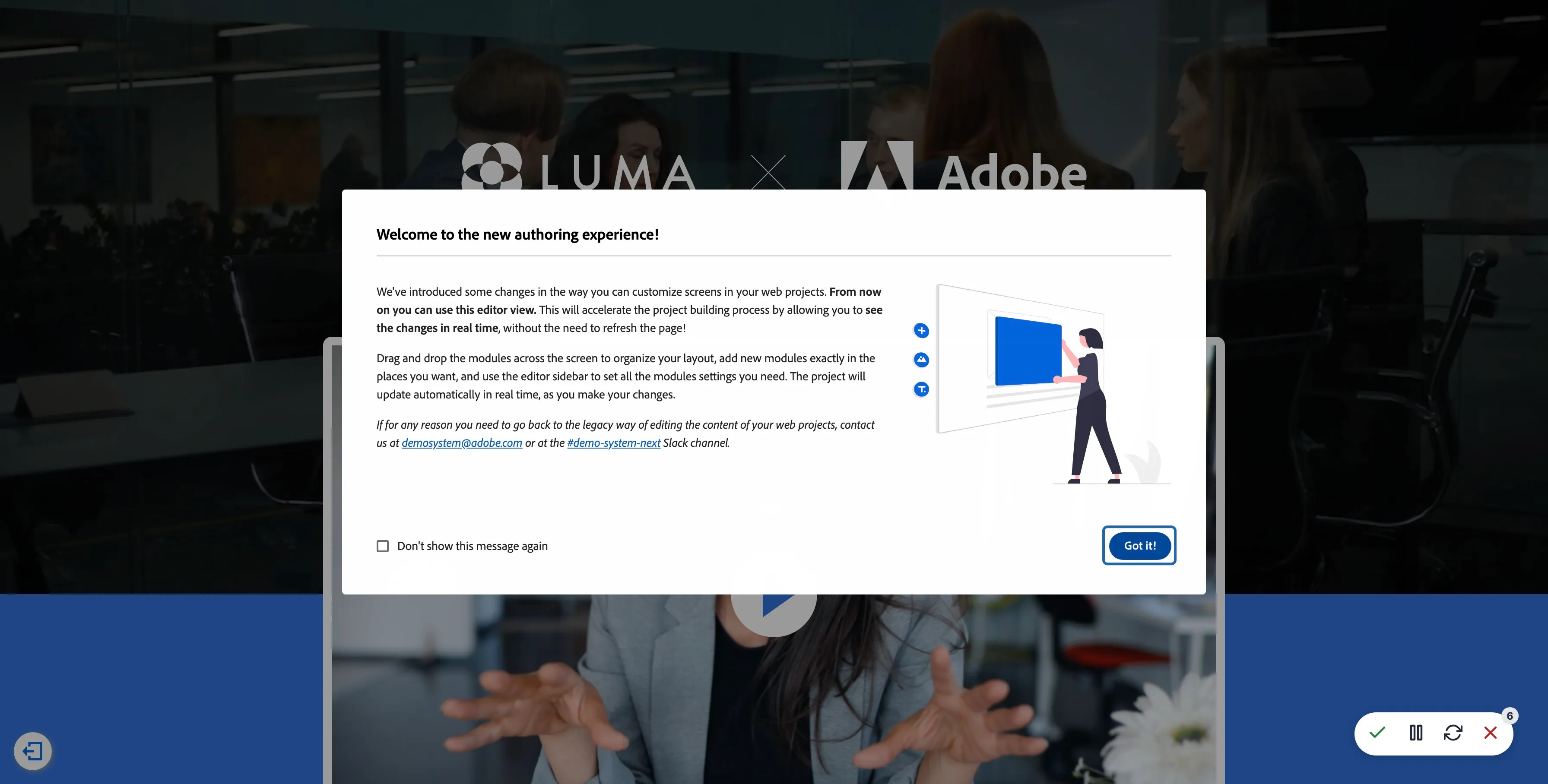
If the information about new authoring experience appears, close it after reading the details

Click on any element you want to modify and update the its properties

Continue until your website is ready
/
New Screen
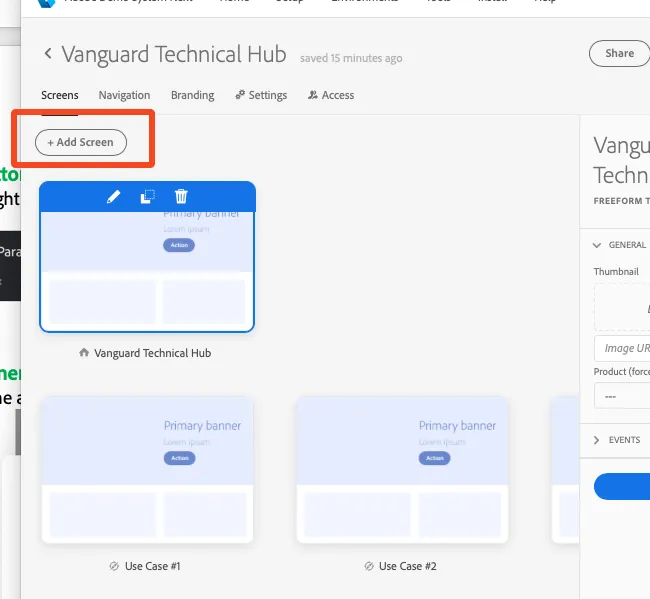
Add a screen by clicking the "Add Screen" button under the project screens menu.

Duplicate Screen
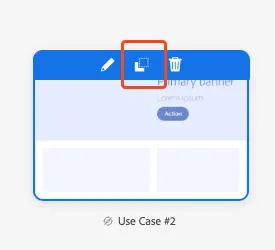
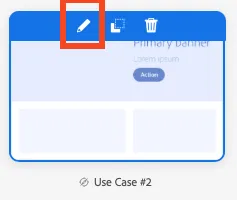
You can also duplicate an existing screen if you'd like to use that as the based of your project. Click on the same page, and use the duplicate button (see attached screenshot)

Rename Screen
After duplicating or creating a new screen, you may want to rename it. Click the pencil icon to rename it so you can more easily find it when connecting it to a button or menu.

You can add videos to your project with the video limit.
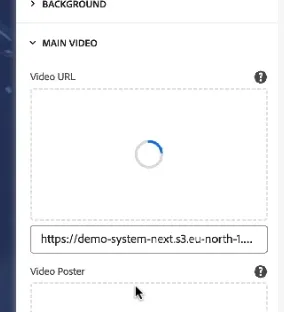
When adding video, it may take a while to upload. There is an indication that the video is uploading. The video will show once the upload is complete. Please do not refresh the page while the video is being uploaded.

The limit is 1GB.
Create A Spot in HighSpot
- Click “new” on the top left, and click new “spot.”
- Title it accordingly, and set sharing to “specific people”.
Upload Presentation (or media) to Spot in HighSpot
- Navigate to your newly created spot
- On the spot, click “add files”
- Choose the file, and add the usage label “External”
Share from HighSpot (using Link Pitch)
- Wait for it to finish processing. The larger the file, the longer it’ll take to process.
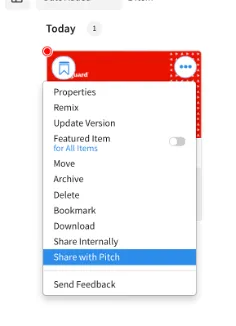
- Click the three dots on the top right, then “share with pitch”
- Click link pitch.
- Select the preferred options, I usually don’t allow content to be downloaded or shared, and ask notifications to be sent when there is activity.
- Copy the link (& save it on a separate notes app for safekeeping)
Add Presentation Link To Button
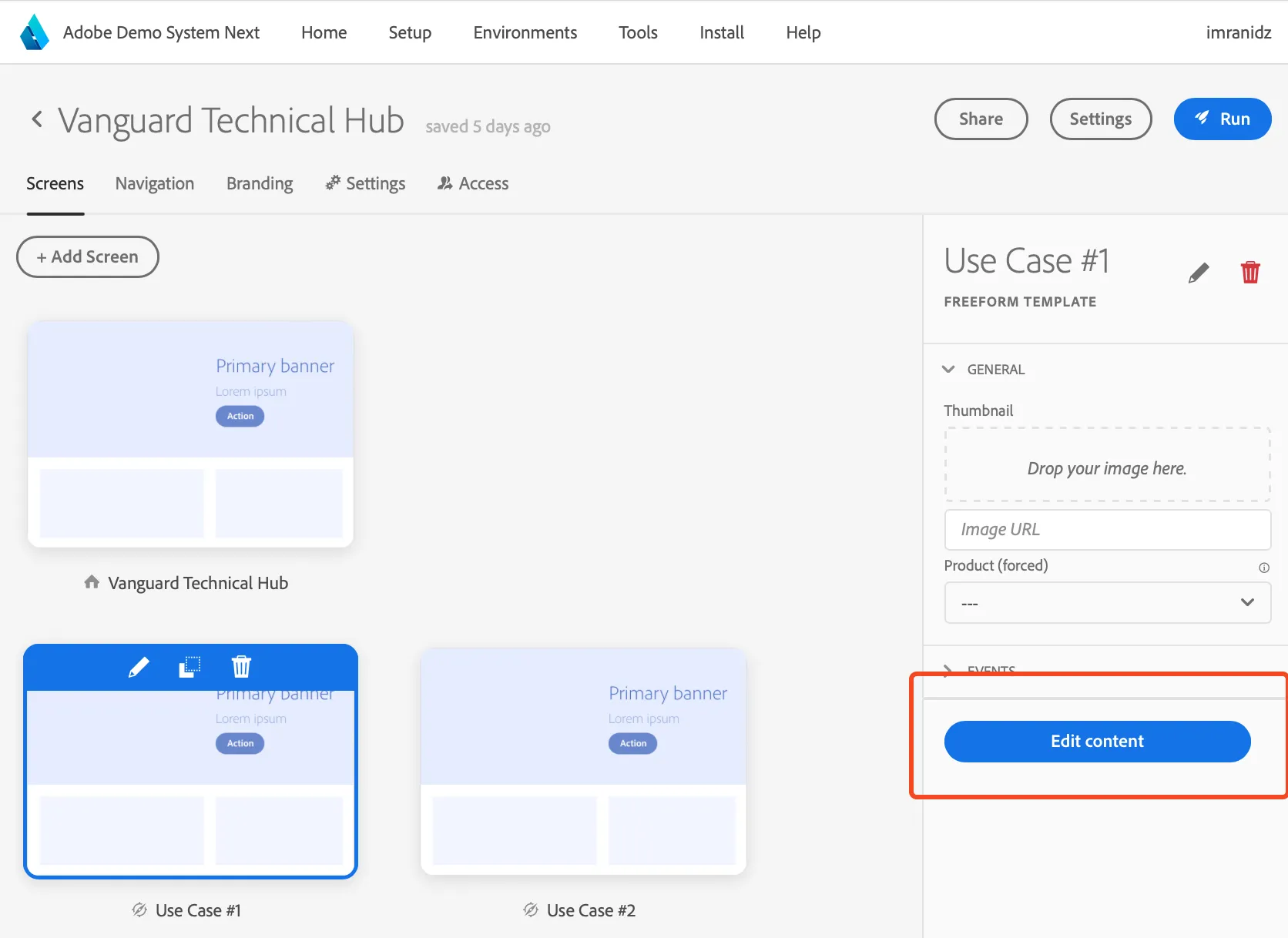
- From the home page, click "Edit Content"
-
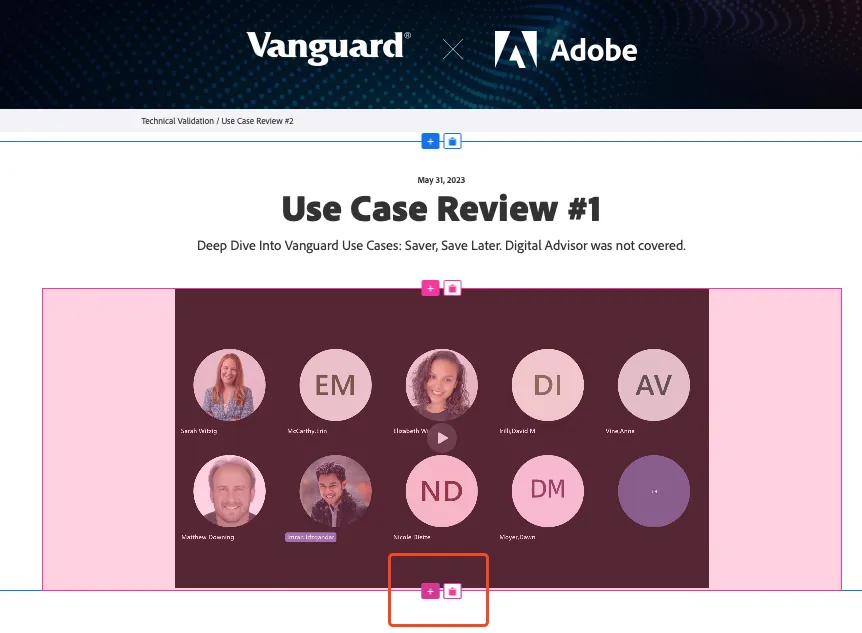
2. From the editor, add a new modules where applicable.
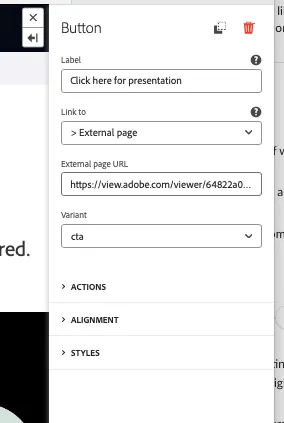
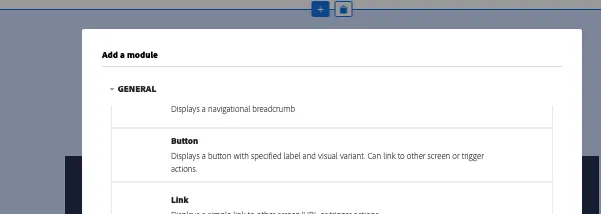
3. Choose "button"
4. Add the corresponding label, change the "Link To" to "External Page" and add the corresponding external page URL