Data Distiller
Data Distiller Resources:
- Data Distiller Overview Customer Presentation
- Data Distiller FAQs
- Data Distiller Use Case Repository
- https://fieldreadiness-adobe.highspot.com/items/6340b3946acd44dd2728fe54?lfrm=srp.2
- Data Distiller Technical Enablement/Technical Deep Dive
- Data Distiller Walnut demo
- Query Service Guardrails
Demo Summary
Before you get into the UI, it’s assumed that you’ve delivered an overview of Query Service and explained key concepts such as:
- Data lake vs profile store
- Schemas & datasets
- Query Service use cases and capabilities.
- Ad hoc vs batch queries
The goal of the demo is to re-iterate the key value propositions of Data Distiller from your presentation by showing them in action. To wit, the demo uses the following structure:
- Introducing the Query Service UI Orient the audience to the user interface with a high-level explanation of the major elements
- Writing a Query Explain the options for creating queries and how queries function within the AEP architecture
- Scheduling a Query Show this essential aspect of Data Distiller and re-iterate its value proposition and use cases.
How to Use:
- There are queries live in both Prod Retail and Prod B2P sandboxes
- Prod Retail: Tier Calculation
- Prod B2P: Contact Engagement Counter
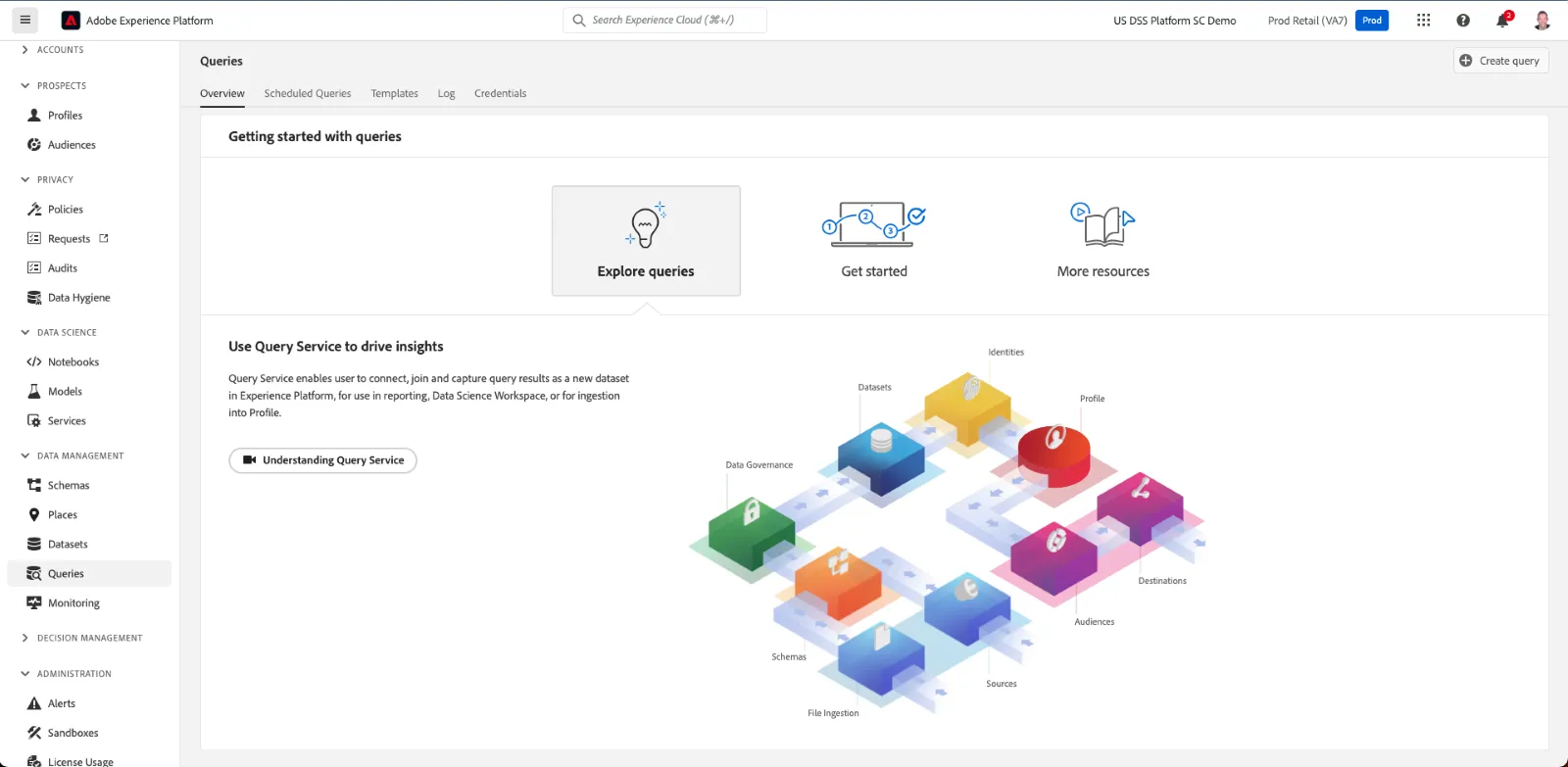
Orient your audience to the user interface, starting on the “Overview” tab within queries. Items to call out:
- For people who haven’t seen the UI before, point out that across the top is the Adobe navigation and down the left is the RTCDP navigation
- The Overview page is a great place to access Query Service product documentation
- Summarize the other items that are NOT part of your demo
- Credentials is where you can get the username and password to use for the day if you’re using a visualization tool like PowerBI or Tableau to query the data lake
- Log is where you can see a history of the queries that have been run in your sandbox
Templates & Scheduled Queries are where you will spend your time when demonstrating Data Distiller.
If you’re doing a full Query Service Demo, you may choose to click in and spend more time on the other items as well.
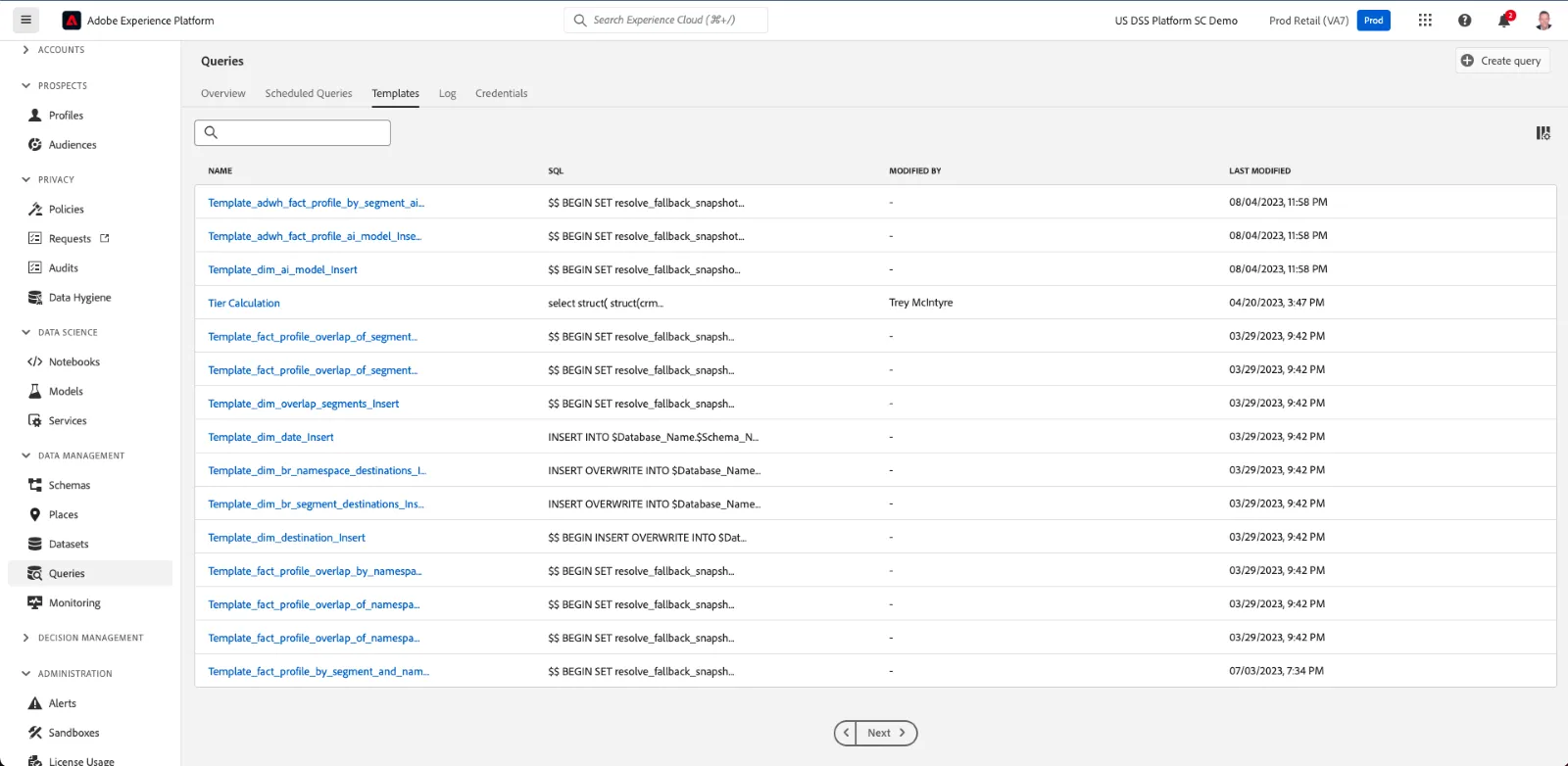
TEMPLATES
As you click into the Templates section, explain this is where saved queries reside. All queries run in the UI or via POST request by API are saved here to make it easy to re-use queries and run them again later if needed.
Click the Create Query button >>>
TIPS
- Have a simple query ready to paste into the UI.
- Limit your results to 10
- Run the query before your meeting because query results are cached and it will run faster.
- Table names depend on the dataset you’re running against. Choose something with a recent, successful run. And, ideally, a dataset with data of interest to your audience such as CRM data.
- Ideally, in a custom demo, you’ll write a query that reflects something specifically useful to your customer.
EXAMPLE:
select * from customer_ai_scores_propensity_to_complete_order
limit 10;
Explain:
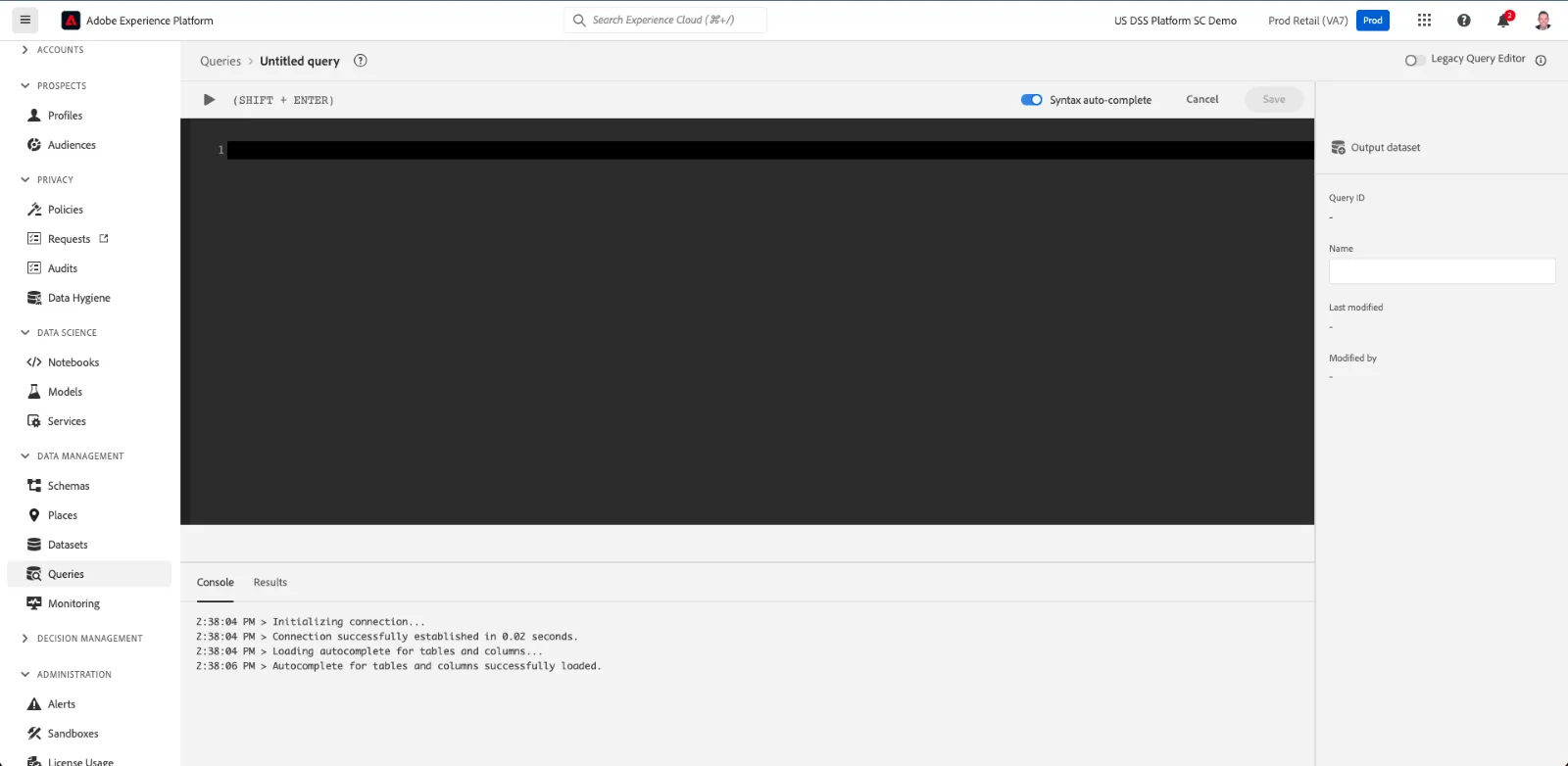
- To create a new query, we can type our SQL code into this window. I have a query already for us to go. (Paste your query and run it while you make the following points)
- This UI is intended to be used for either simple ad hoc queries or to set up your scheduled queries like we’re doing today.
- If you need to run or test very complex queries, the credentials screen provides you with the detail needed to connect an editor to our datalake, which will be able to run much faster than using a browser-based system like this.
- This editor will allow you to use most standard SQL functions, an Adobe-specific library of functions, as well as some Spark SQL function. These and more are all documented on Experience League.
- In looking at the results, notice the JSON format. You can use your SQL queries to display the results in different formats if needed. At this point, what we’ve done is effectively run what we call an ad hoc query. As hoc queries are very useful for spot-checking data to see what came into the data lake.
- At this point, we have run what we call an ad hoc query. We call them “ad hoc” because the results are not output to a dataset. VALUE PROPOSITION: Ad hoc queries are good for spot-checking data or validating what has come into the data lake.
- In order to schedule this query, we need to first give it a name and save it. Saving an ad hoc query also allows us to come back and run the query again, if we need to routinely check on the data that has been sent to the system.
EITHER
- save your basic query and click back into it OR
- click back to Templates and click into a query saved in advance of the demo. If you saved your basic query, you may need to refresh the Templates screen to see it in the list.
- Once the query has been saved as a template, we can now add a schedule and output the results to a dataset, which is the essence of Data Distiller
Click the View Schedule button >>>
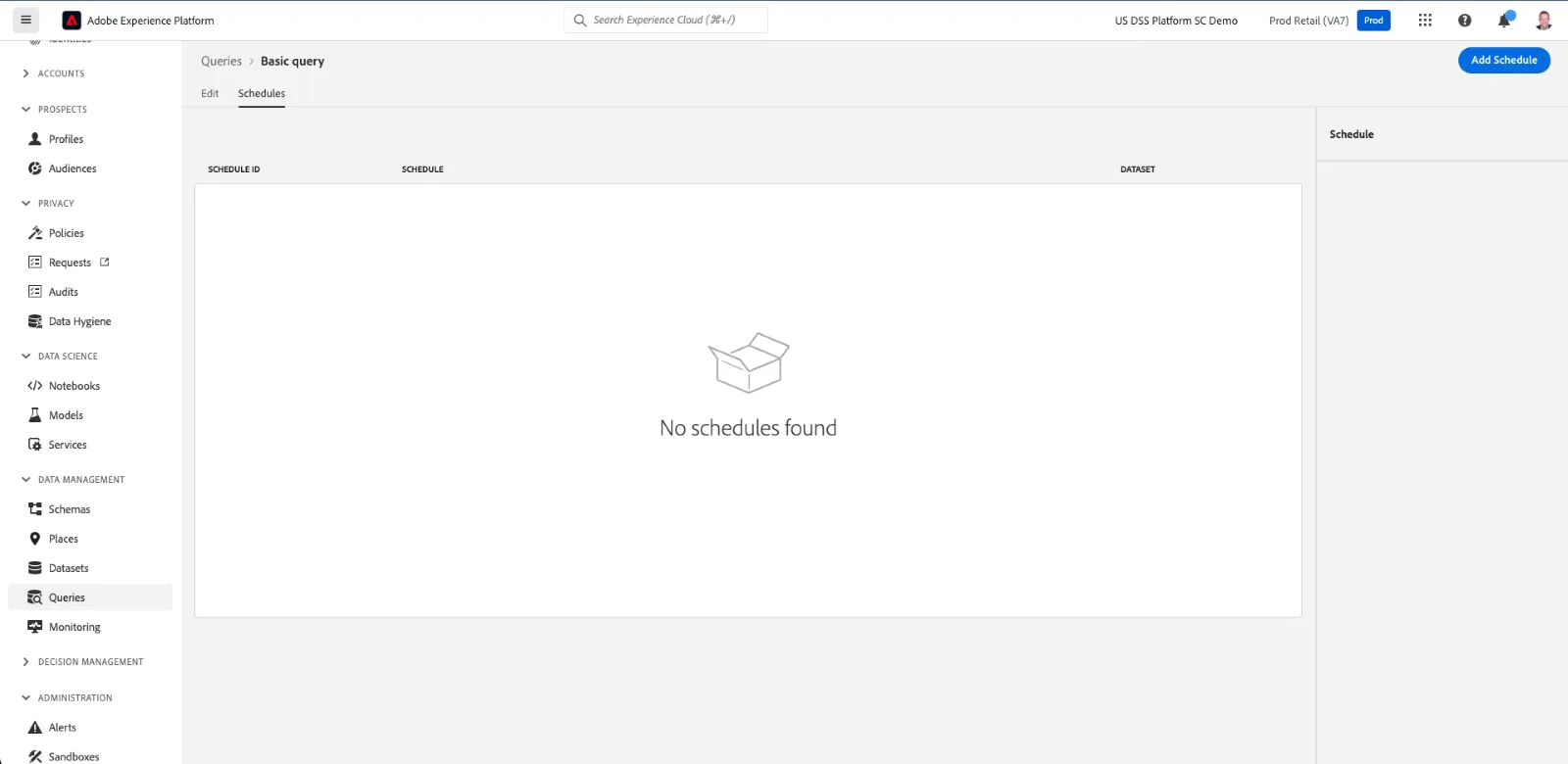
This screen is where the schedules associated with this query appear. You can have multiple schedules for the same query. This is handy for situations where you want to use the same query to output to different datasets.
VALUE PROPOSITION: The ability to schedule queries to run on a regular basis and output those results to a dataset is what gives us the ability to shape or manipulate data after it has already been ingested once. This is what Data Distiller is all about. It allows us to generate new data elements based on any previously-ingested data elements, which, for some use cases, can further enrich the profile.
So, let’s add a schedule.
Click the Add Schedule button >>>
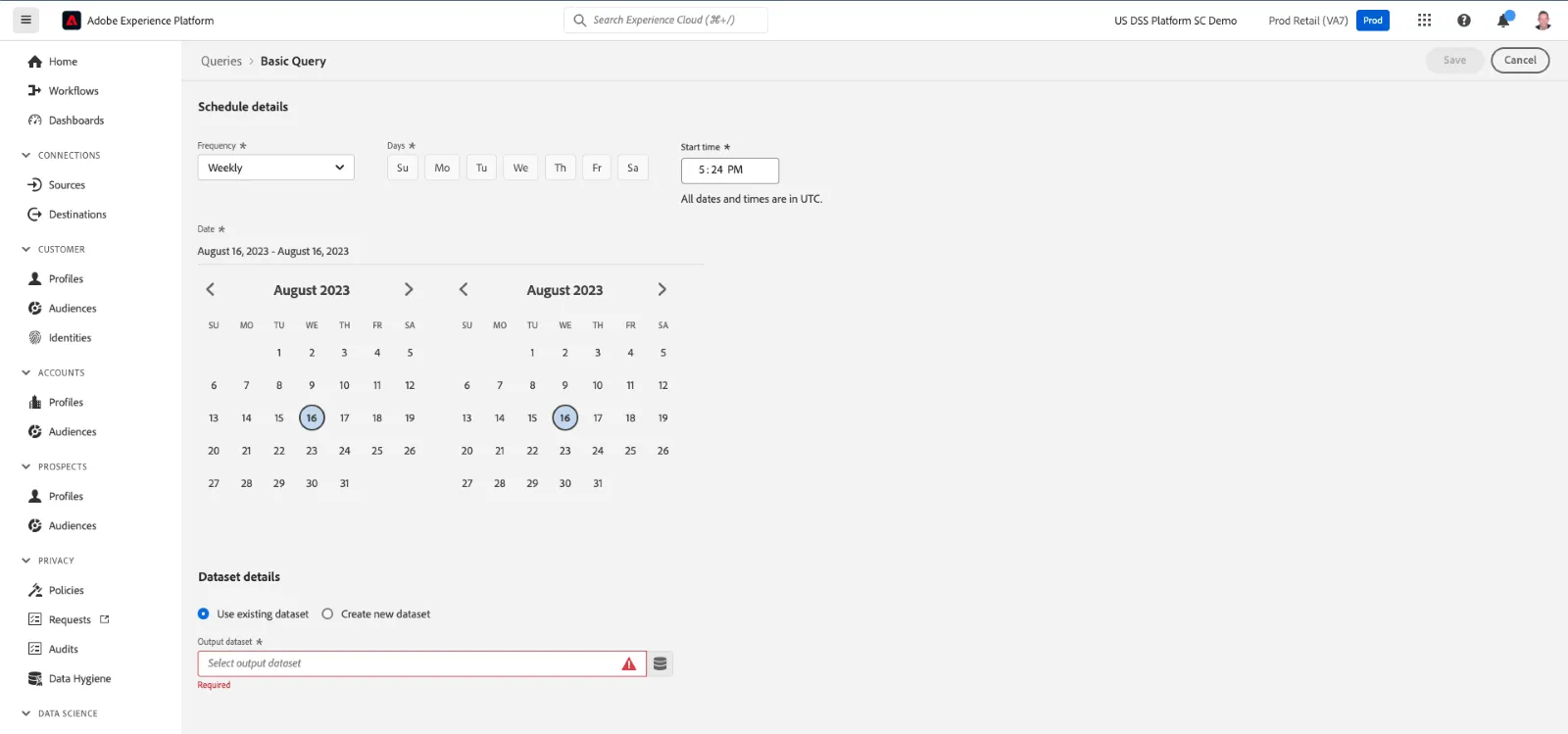
Step through the options around scheduling and the dataset.
- The shortest frequency option is hourly
- The longest frequency option is yearly
- You can choose when the process will start and stop.
- There isn’t an option at the moment for it to run indefinitely, so if you want it to run for a long time, you choose a date far in the future.
- Choose whether you want to use an existing dataset or have the system create a new dataset for you. (You can use this as an opportunity to discuss the value of our dataset approach: You’ll typically want a separate dataset for the results of your query so that you can monitor it. Manual dataset creation or system generated datasets are just a matter of preference.)
Once you’re done setting this up, you click “save” and then the query will run according to the schedule.
CAUTION:
- Once a schedule is created, it will always be listed on the Scheduled Queries screen even after you delete it. So, don’t save your schedules in shared sandboxes
- If you’re building a custom demo and you absolutely have to create a scheduled query, be sure to limit the results and the number of runs in your schedule. The cost to run scheduled queries can run very high!
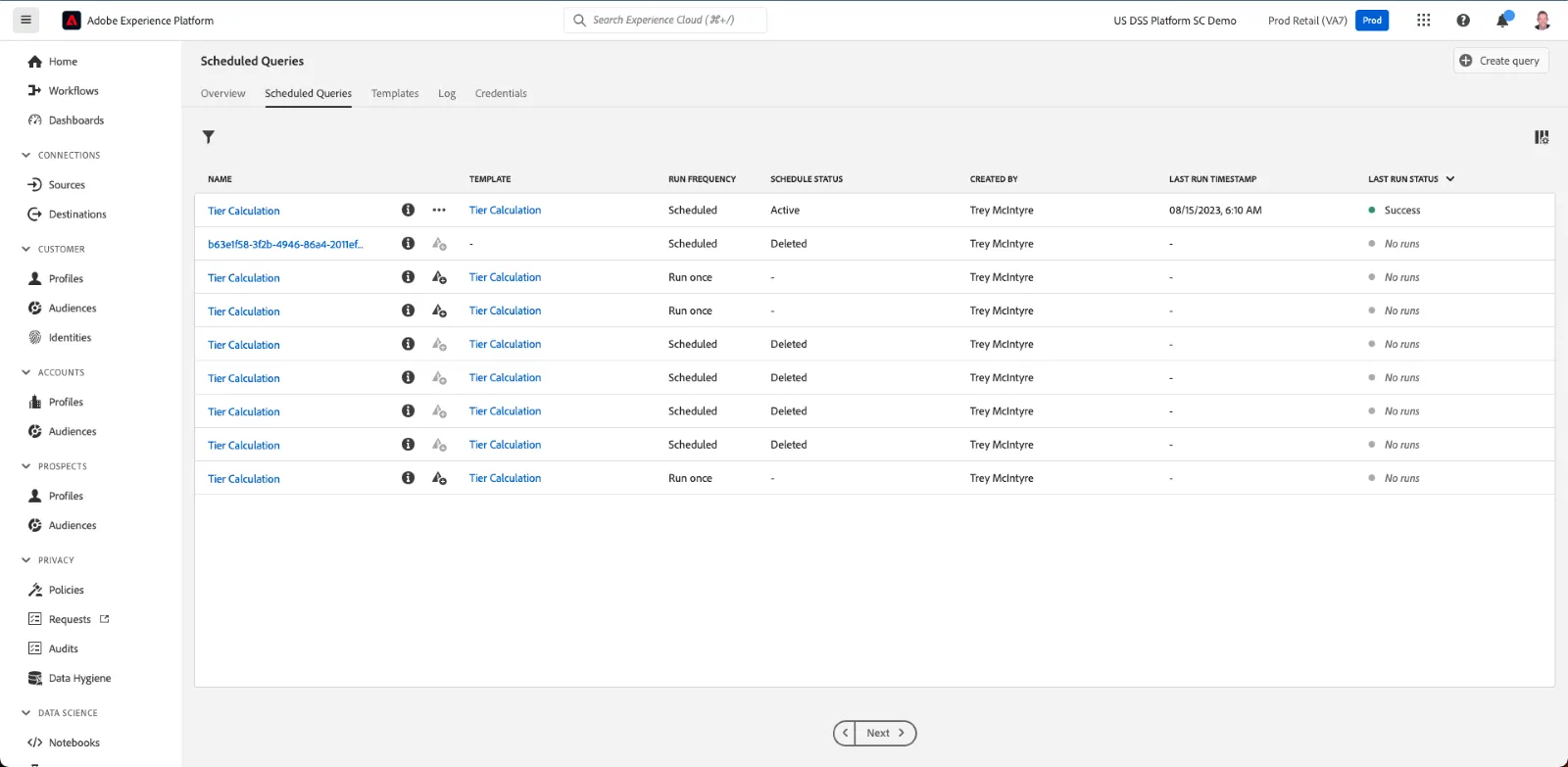
Click “cancel” and then click over to the Scheduled Queries tab >>>
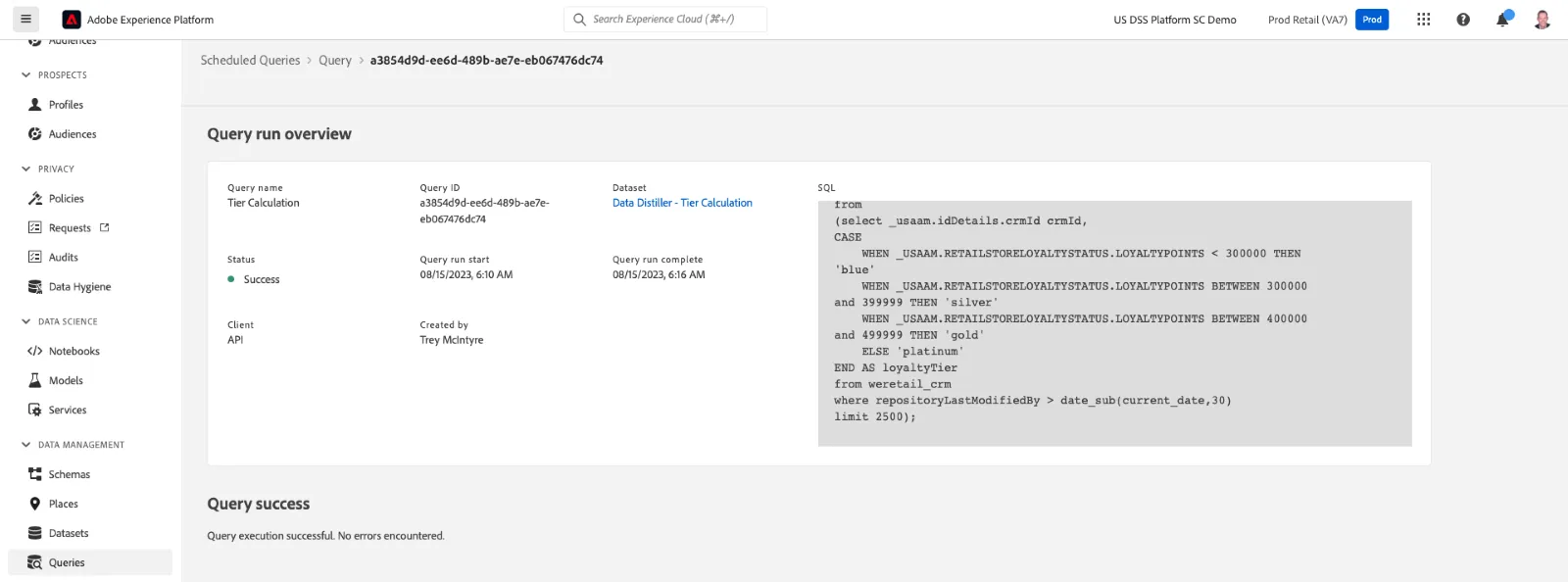
This screen shows you all the queries that are currently running and have run in the past.
Clicking on the name of a recurring query will let you see a list of past runs of that query schedule.
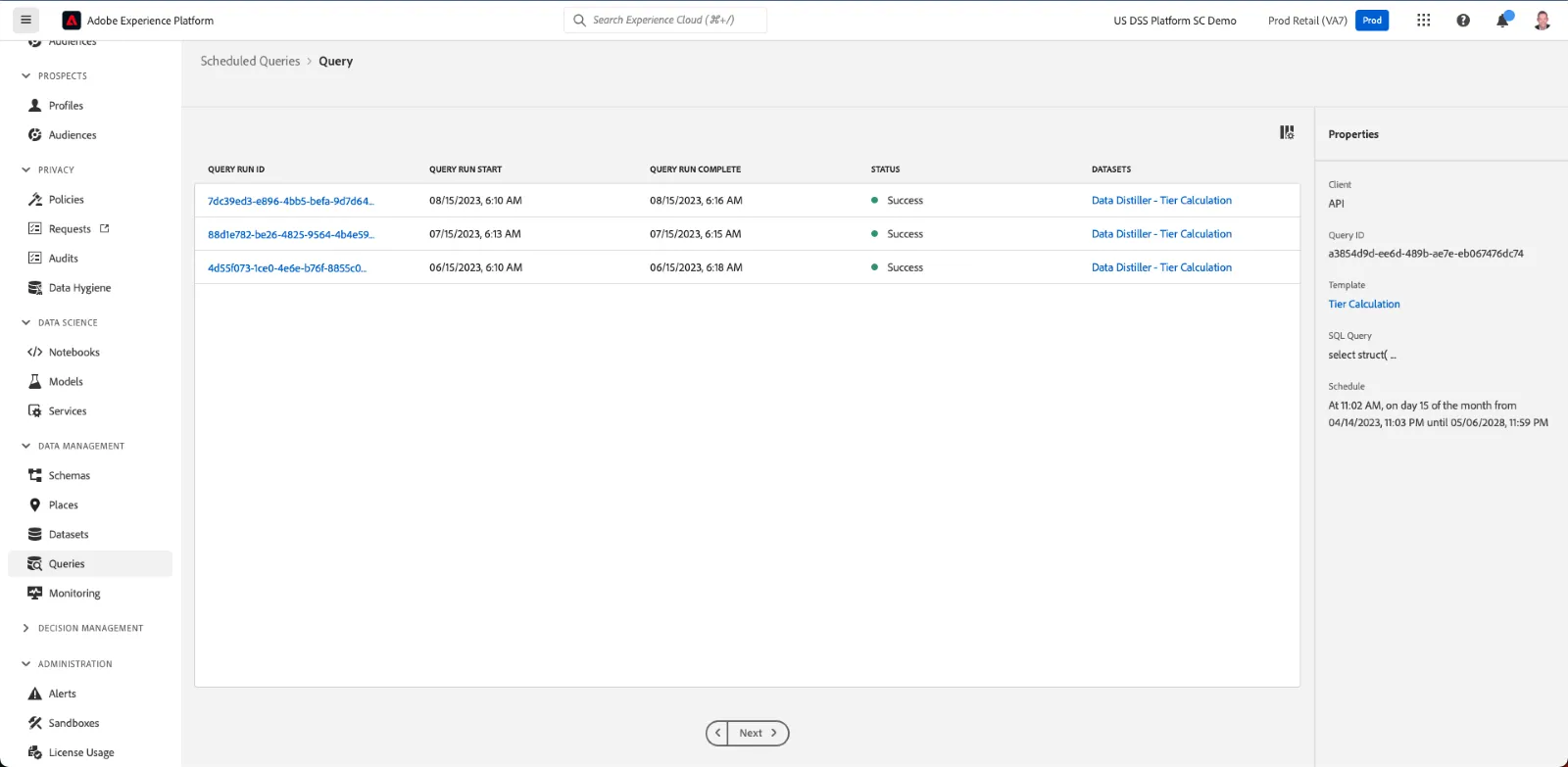
Click the name of your scheduled query >>>
And clicking the query run ID will take you into detail about that specific run.
Click one of the query IDs >>>
And, finally, this detail screen shows you exactly what query ran and when along with other technical details.
This concludes the demo. From here, you could explore other areas of query service, datasets, or aspects of profile. >>>