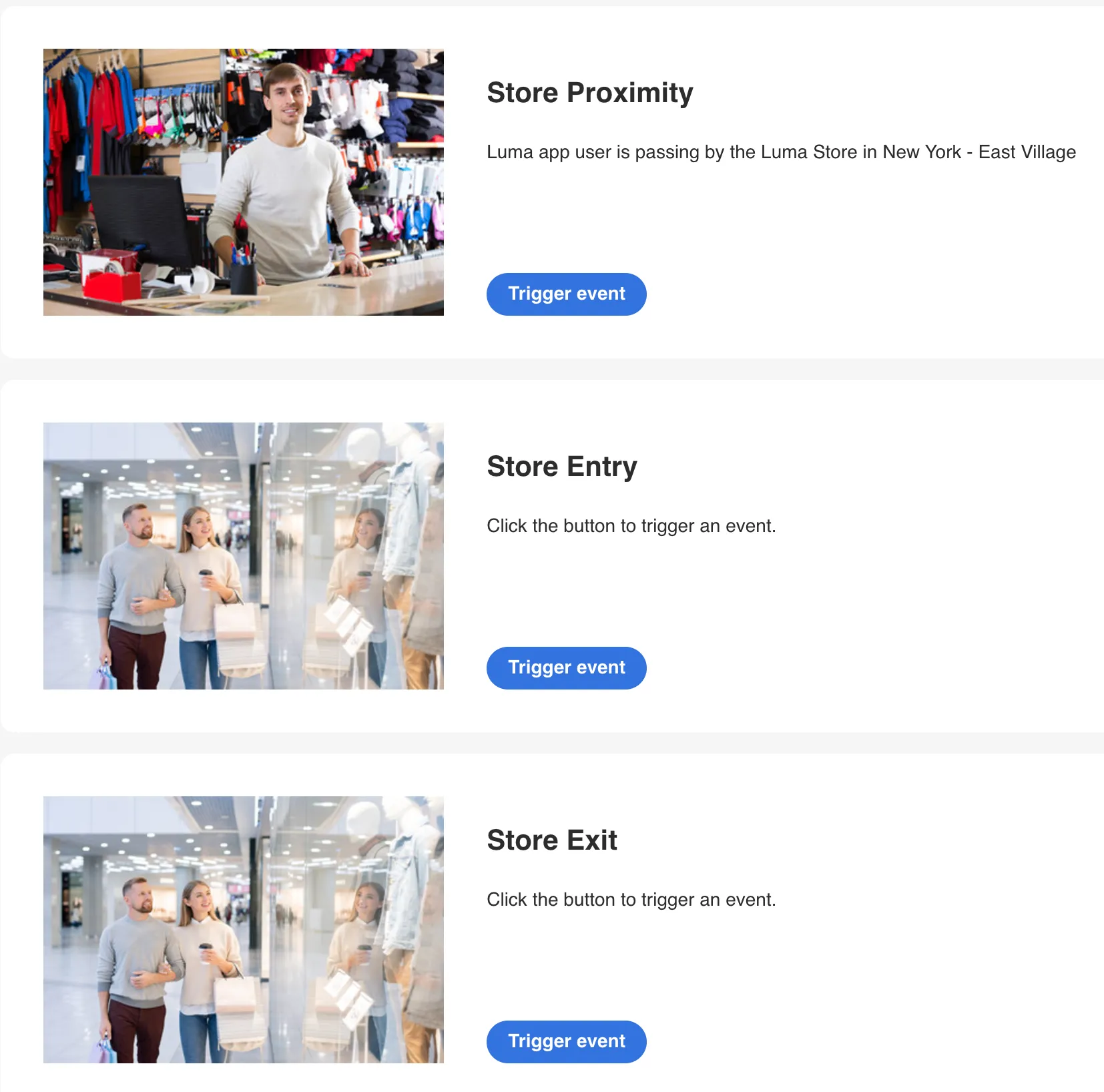
Event Trigger
When to use
Event Trigger projects offer a friendly, configurable interface for triggering Customer Events during Adobe Journey Optimizer demos.
How to create an Event Trigger project
Usually, an Event Trigger project is created along with an appropriate Data Collection Tag Property via Quick Setup advanced presets.
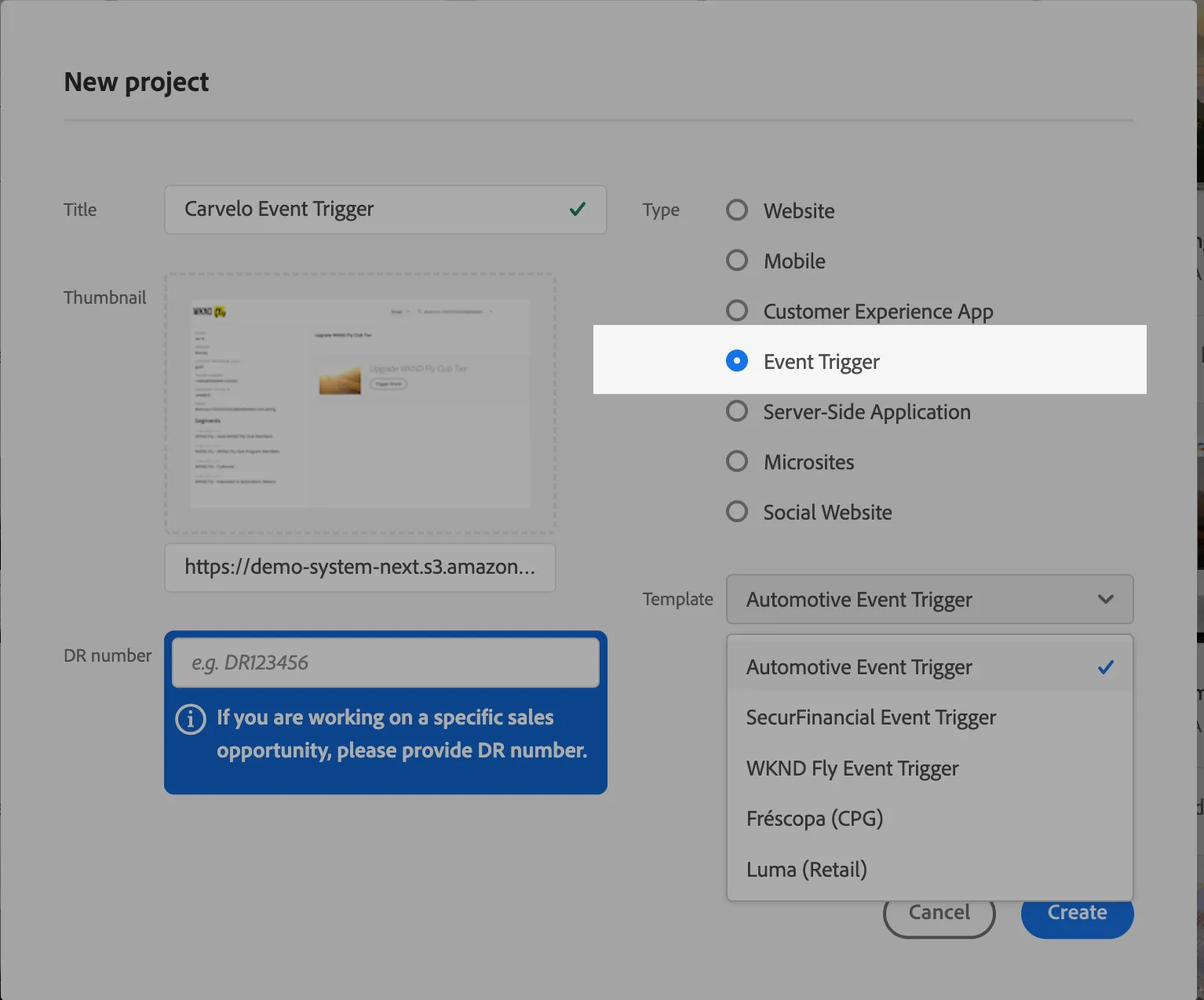
If you want to create a new project manually, you can do it at Demo System Experience Builder home page by clicking New Project button. This project will most likely require a configured Data Collection Tag Property to work, so this approach is recommended only to experienced users.
Select "New Project" --> Event Trigger

How to modify?
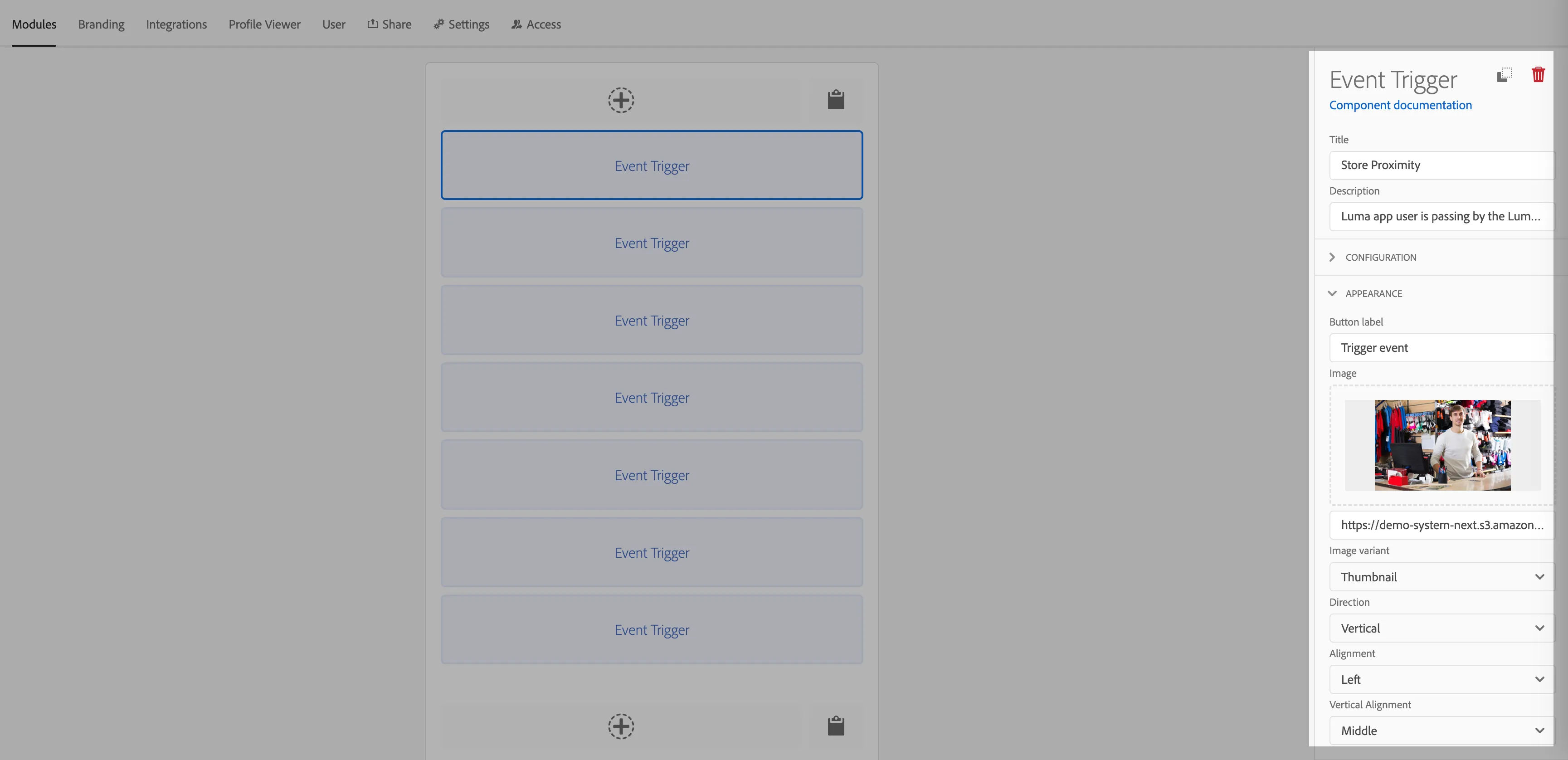
Open the Journey Trigger project you created and modify which journey to trigger by changing the Event Trigger Module on the "Modules" tab. You can update the title, description, thumbnail and payload for the Journey which should be triggered.
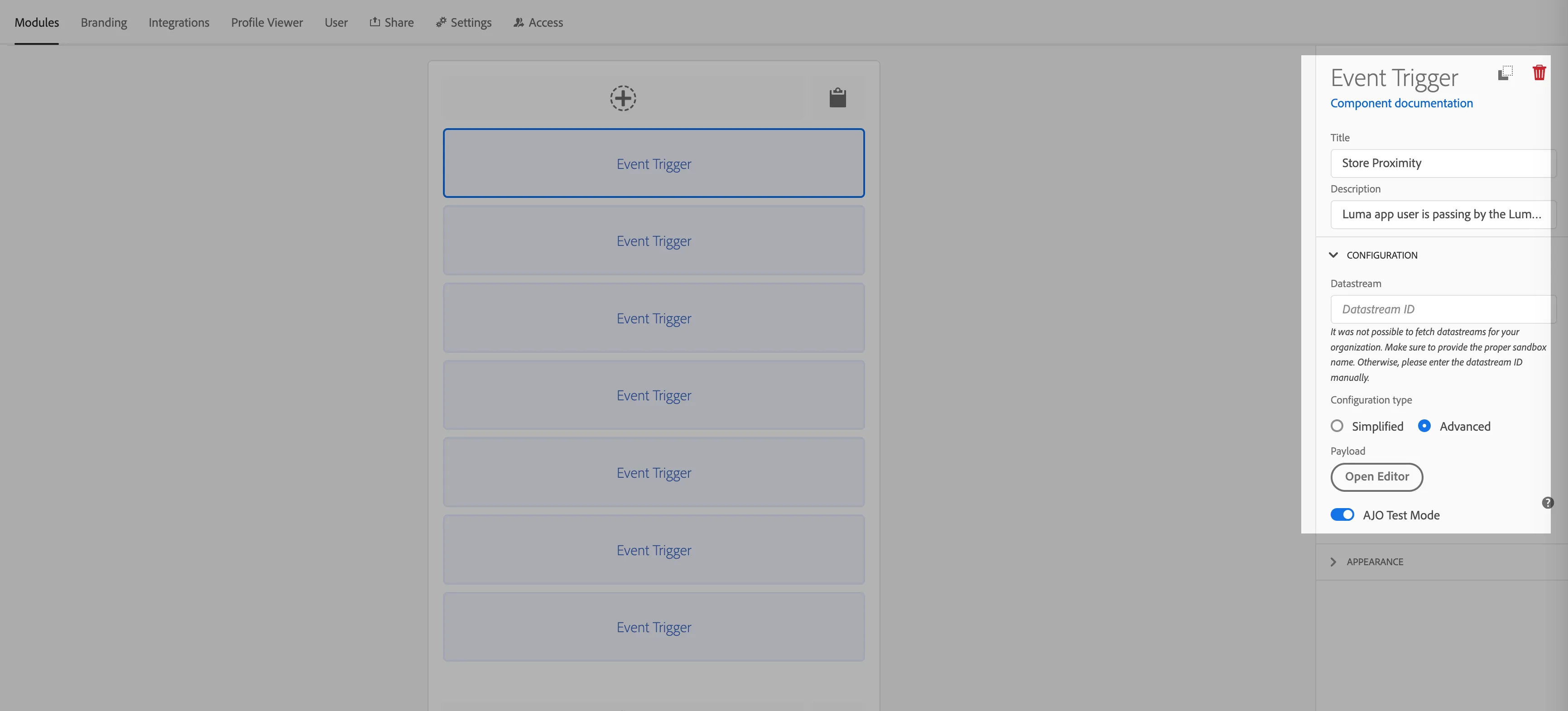
Go to your Journey and find the triggering Event. Click the "View payload" button next to the Event Fields
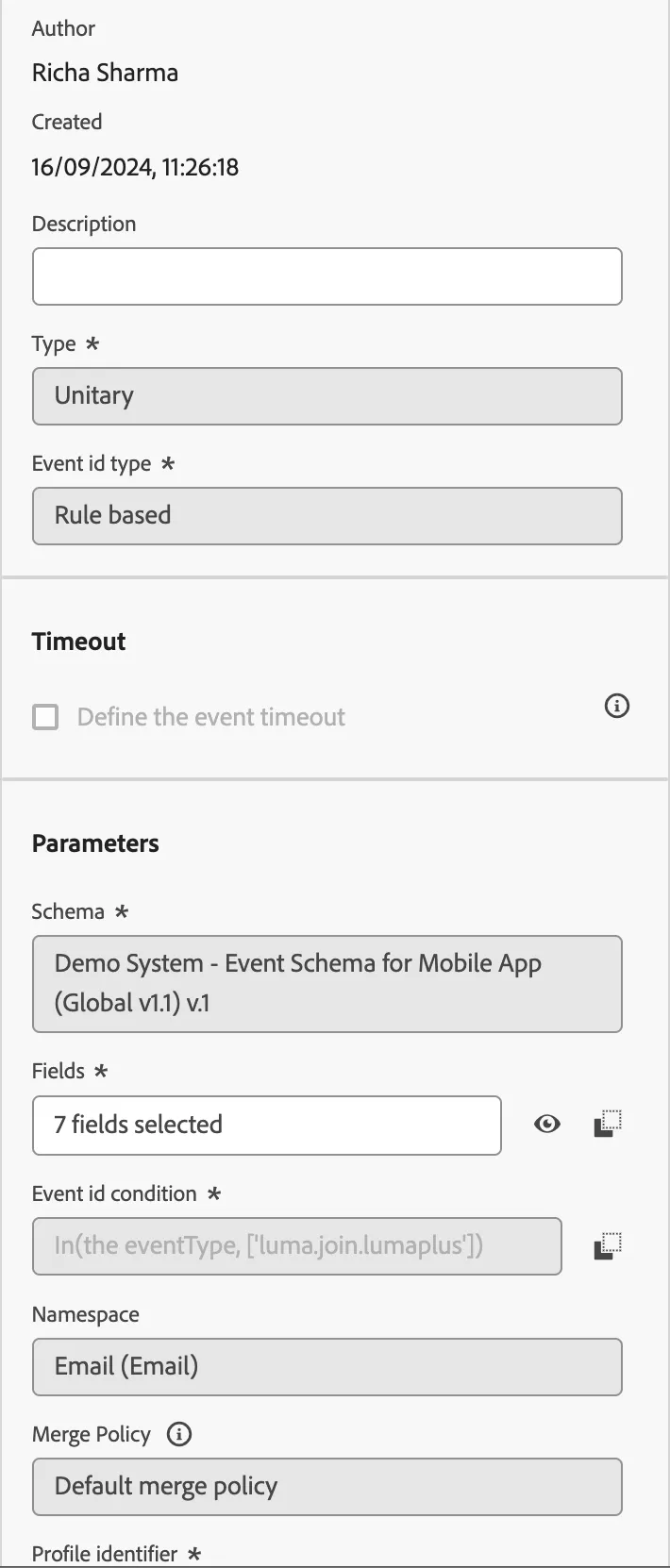
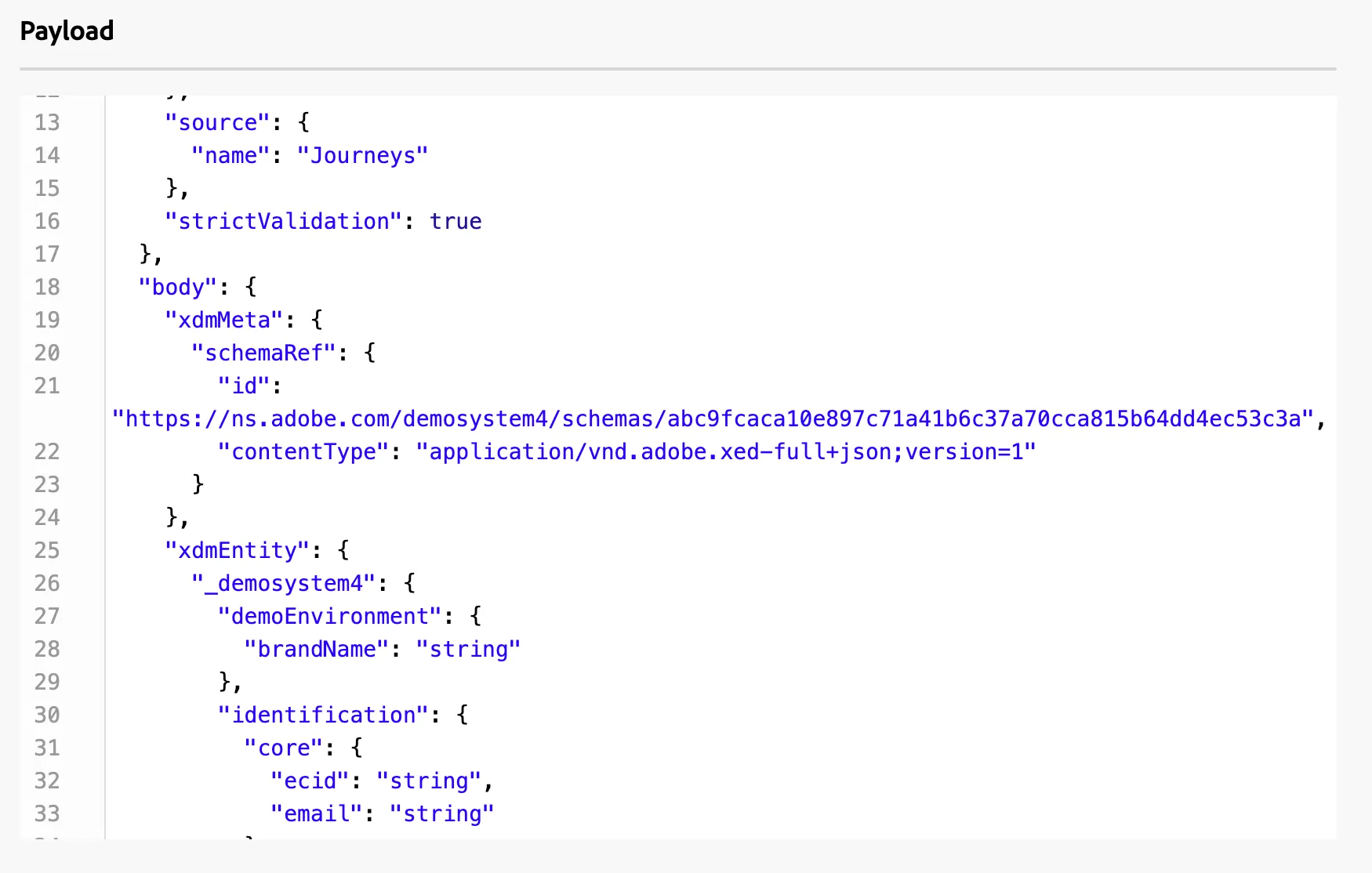
Go back to your project. Click the "Open Editor" button to paste the Journey Event Code.
Make sure you updated the payload with your eventType (if it is used as a condition) and brand name (if you are using filtering)
How to update profile viewer fields?
Use the Profile Viewer tab to configure the Profile Attributes to be displayed in Journey Triggers
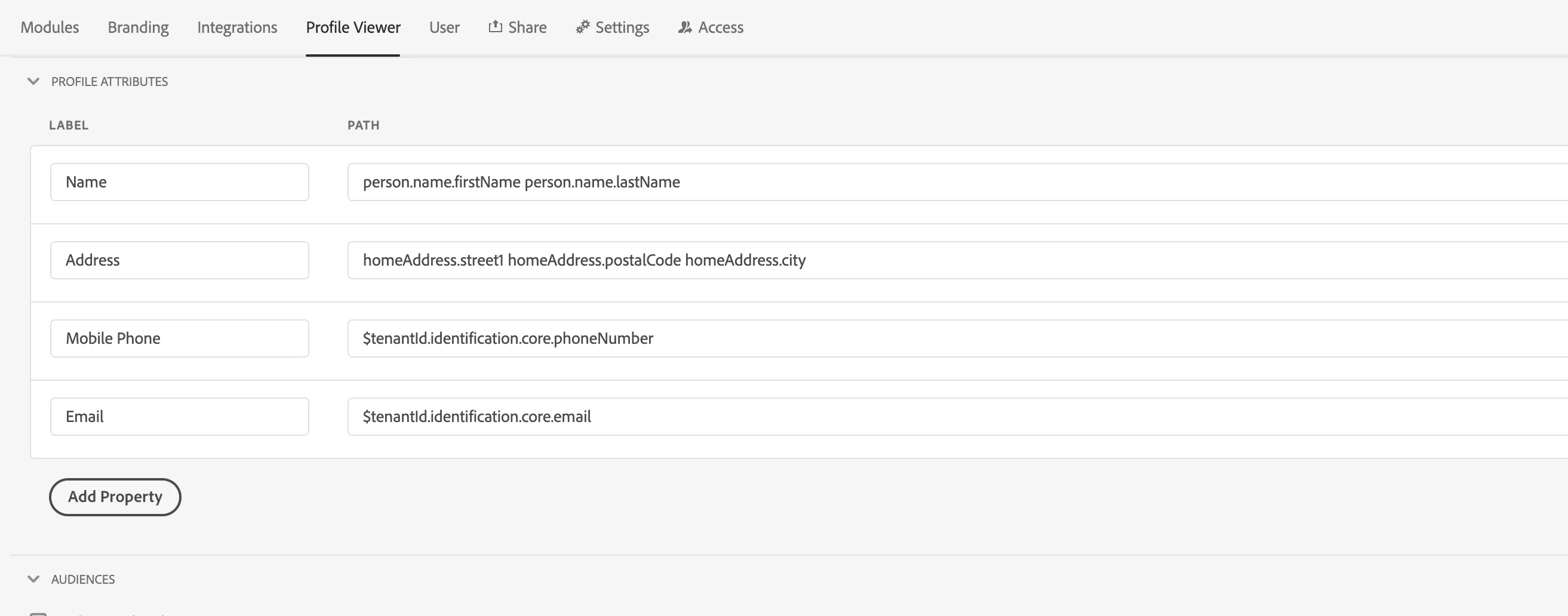
Example
Luma public JT project to trigger push notification and loyalty status upgrade https://dsn.adobe.com/cx2/luma3-jt