How to open DSN Web Page in Target VEC
The website created in DSN, requires authentication, which makes it harder to use with Target VEC because it will keep redirecting to the login form.
It is recommended to have the DSN website open in the second tab, it will help with opening the page in VEC without the need to login with Adobe ID.
If it doens't work you can try the old way:
1) Open your web project and create a link for sharing. To do that:
a) Click the "Share" button under the project
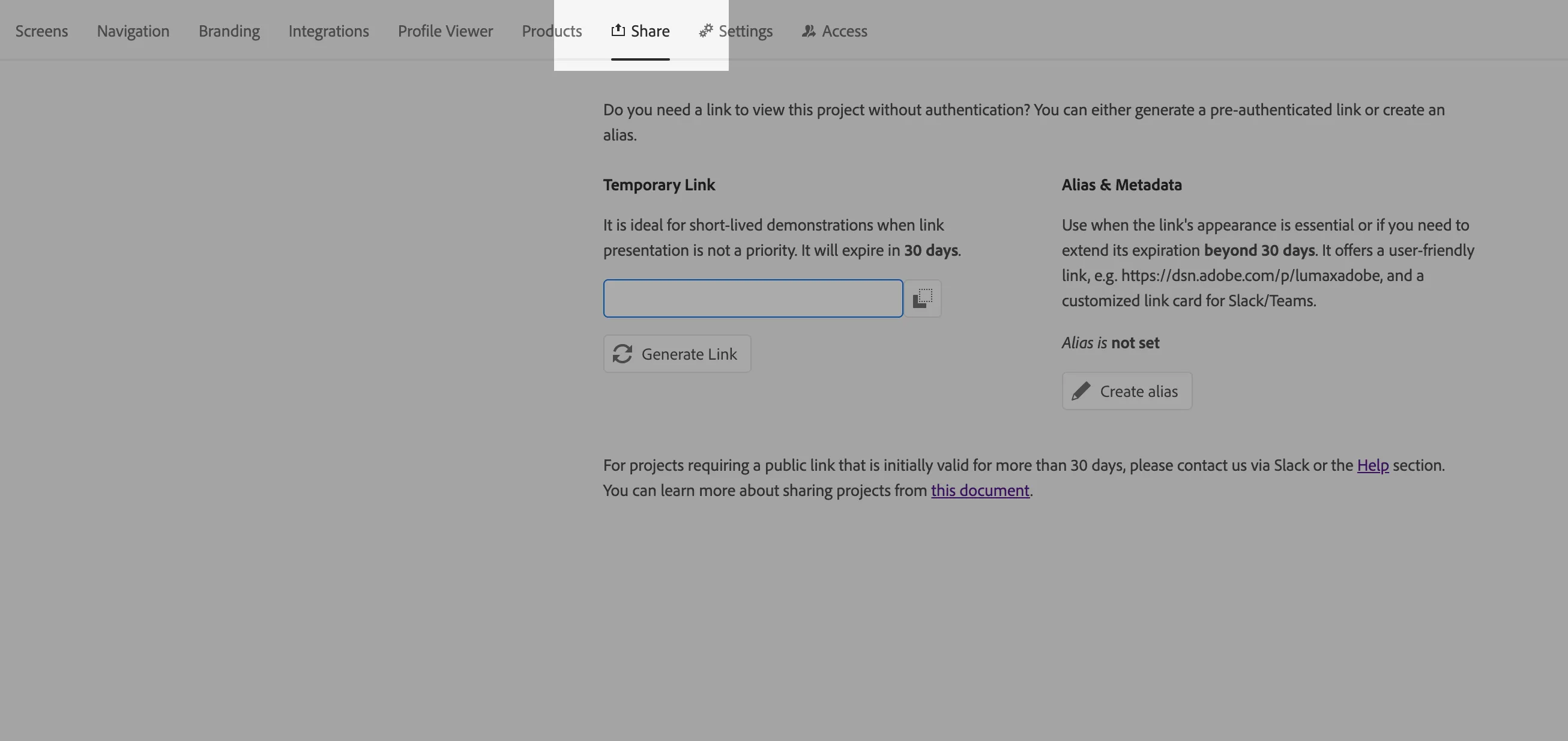
b) Click "Generate Link" button under Temporary Link. This will generate a link for sharing, which contains a token to bypass authentication.
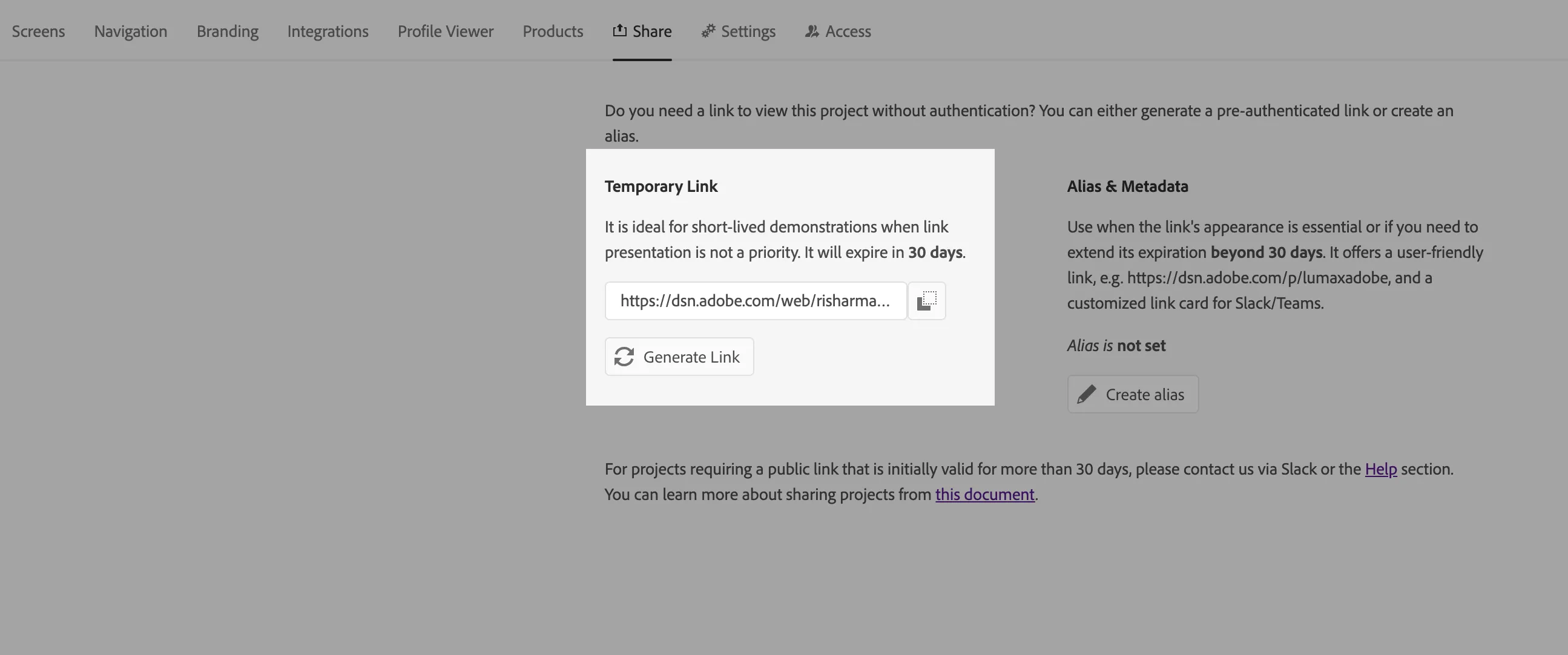
c) Copy the new link
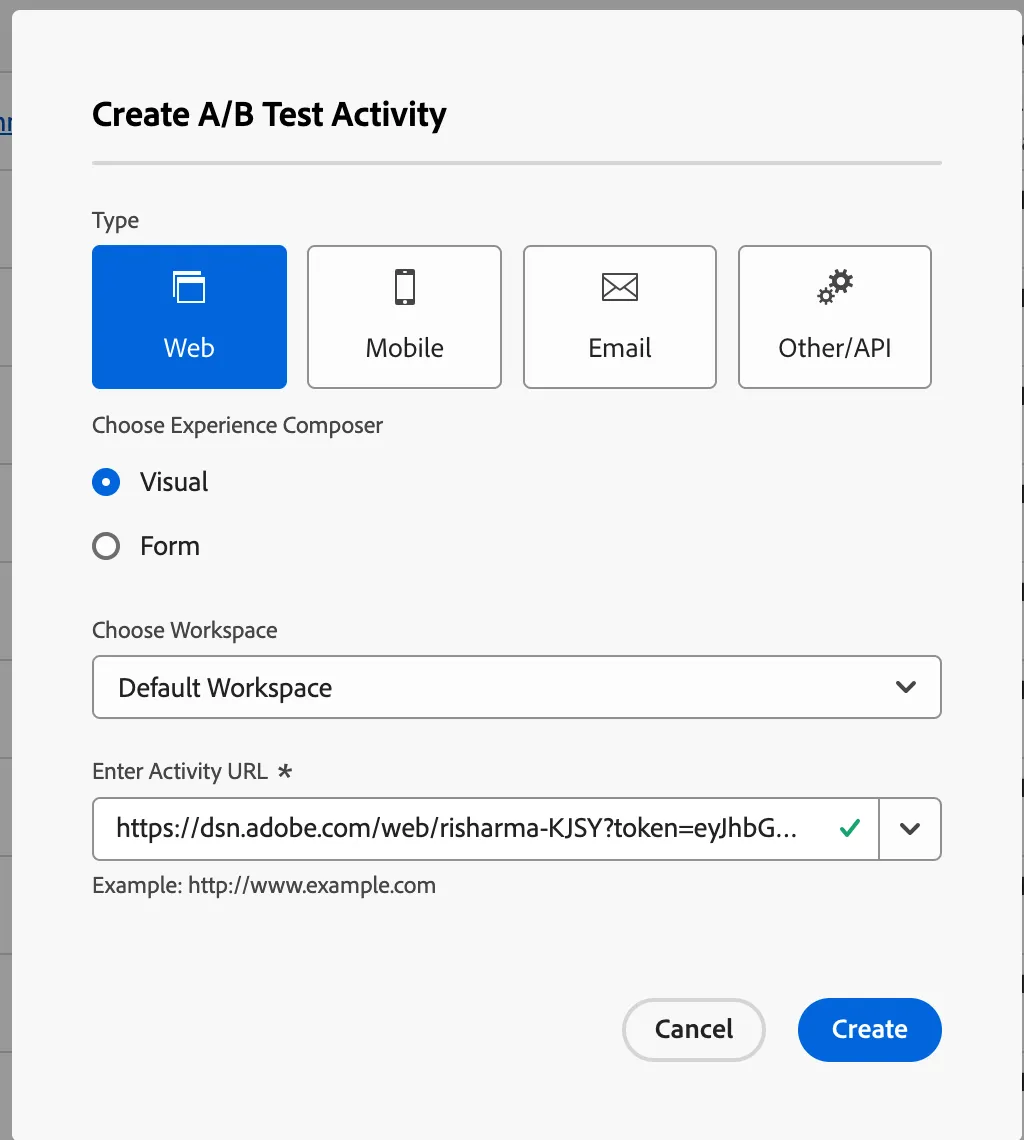
2) Go to Adobe Target. Create a new Activity (experience or A/B Test). As the activity URL paste the link copied above.
If the URL is highlighted in red it means it's too long for Target to process. You can use some link shortener like tinyurl.com
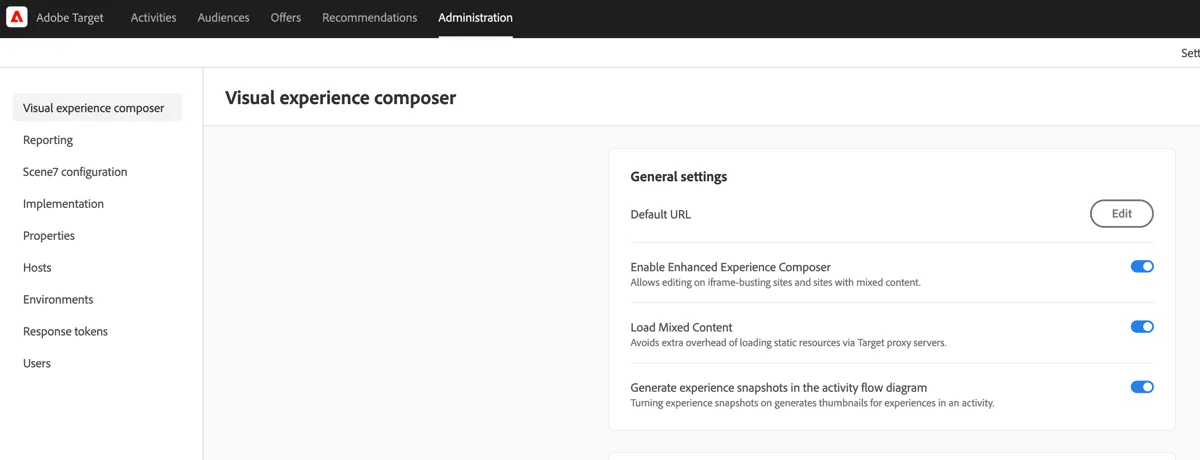
If your page does not load, please check your Target settings. Go to administration and make sure that the "enable enhanced experience composer" and "load mixed content" switches are set to on.
3) After the page will load make your modifications. If you need any help take a look at this link: https://experienceleaguecommunities.adobe.com/t5/experience-platform-edge-alpha/assignment-4-target-vec/ba-p/356026
Sample HTML Offer to update the banner for interested in Women's category Audience
Sample HTML Offer to update the banner for interested in Men's category Audience
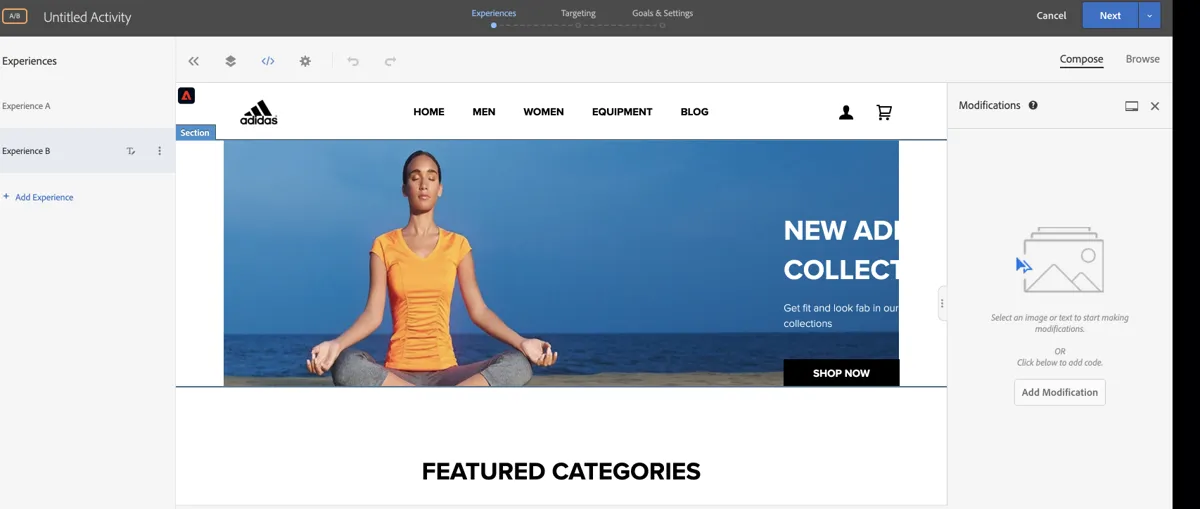
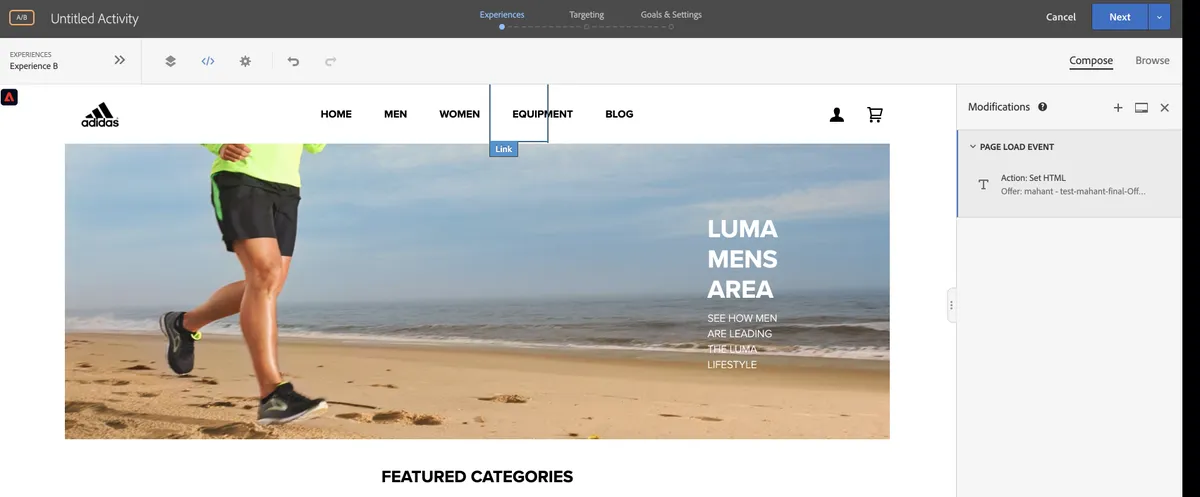
4. Modify the page URL to remove the token.
a. Click the "gear" icon in the toolbar
b. Choose "Page delivery"

c. Click on additional template rules
d. select URL contains and add your project url without token - it can also be just the project ID

5. Follow the activity configuration

6. Activate and test your activity