Luma - AJO Multilingual Demonstration
Introduction
In AJO, the multilingual feature enables you to effortlessly create content in multiple languages within a single campaign or journey. You can switch between languages when editing your campaign, streamlining the entire editing process and improving your capability to manage multilingual content efficiently.
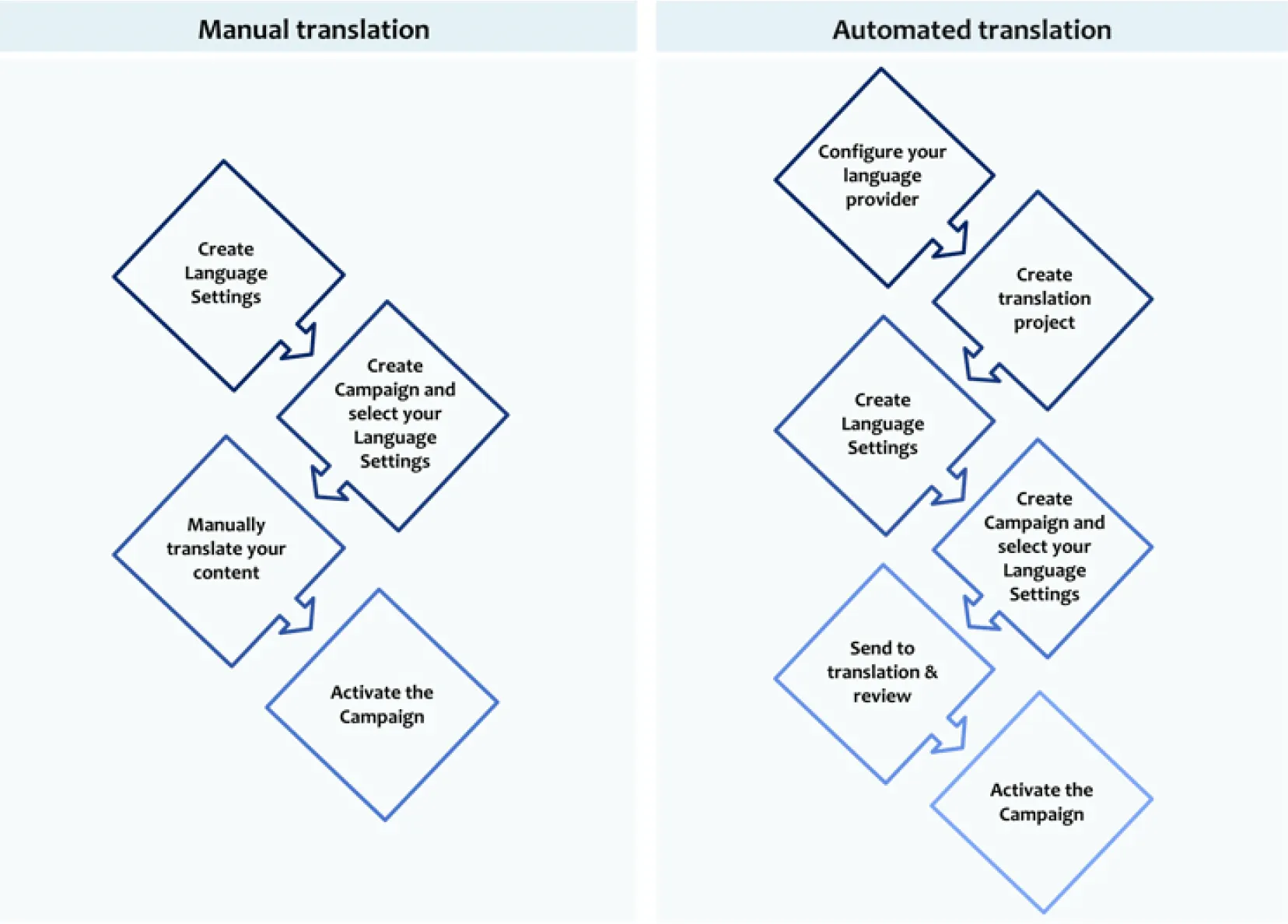
With Journey Optimizer, you can create multilingual content through two distinct methods:
- Automated translation: Send content to your preferred language provider for automated translation.
- Manual translation: Translate your content directly into an email designer or import existing multilingual content.
Prerequisites
TOPIC | DESCRIPTION |
|---|---|
Locales | First, you will need to ensure that your locales are set up within the locale dictionary. Locales can be specified by language and region, making it easy for users to identify the appropriate multilingual content based on different criteria. These locales will make it easy for users to pick from a defined list of options for the regions and languages specified by your business. All configured locales in Public Luma Sandbox. |
Providers | Next, you can configure your list of translation providers that you want to use for each locale. Translations can be done automatically with AI, managed by a designated translation partner, or done manually through an in-house process. Each locale can have its own specified translation providers, each with its process in place. We have Bing Microsoft Translator as a translation provider in Public Luma Sandbox and we will use this provider for this automated translation demonstration. |
Language Projects | With the locales and translation providers configured, we can now set up translation projects. Within these projects, we can define which locales and providers to include within a given workflow, as well as define options such as automatic publication after approval and whether or not to enable a review workflow. For this demo scenario, we have created a project Luma Translation Project which has a source locale from en-US and a target locale to all EMEA region languages. |
Language Settings | Lastly, you can configure language settings for your channels. This is where you can define your primary language and its associated locales. You can also choose the attribute that is referenced to determine a profile’s preferred language. For this demo, we have created a language setting (Channel > Language Setting)Luma_English_to_EMEARegionalLang.
Once the settings have been configured, you are now ready to begin managing multilingual content within Adobe Journey Optimizer. |
Demo Scenario
Luma as a retail brand decides to roll out a new product launch email to all the Loyalty members in the EMEA region. This time the brand wants to reach out to customers in a more personalized way than earlier by sending the emails in their regional languages. They have partnered with a Bing Microsoft translation provider and utilize the automated translation feature of Adobe Journey Optimizer.
All the prerequisite steps are already configured and the below steps need to be followed in sequence to carry out the AJO Multilingual Campaign successfully.
Step-by-Step
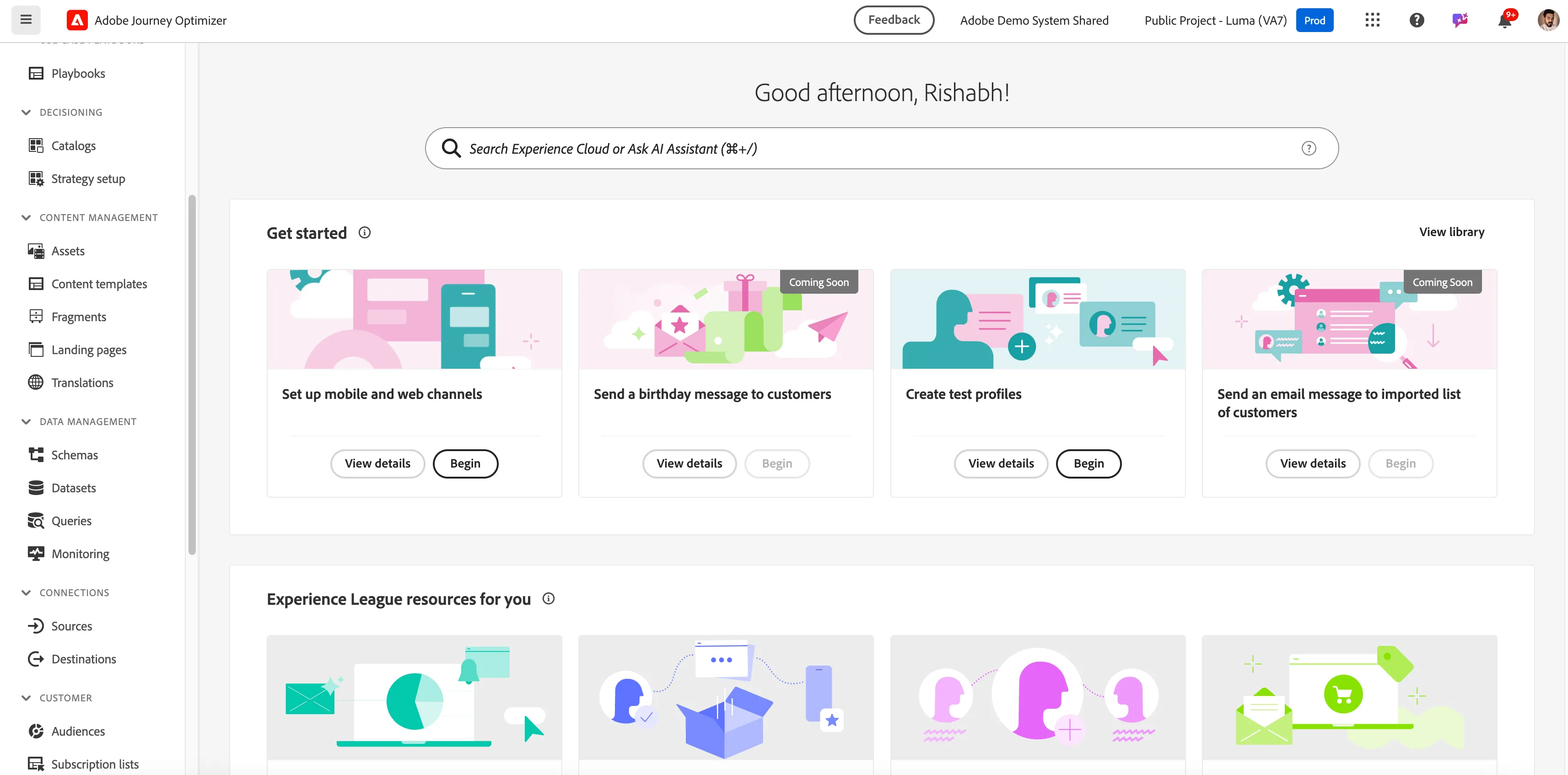
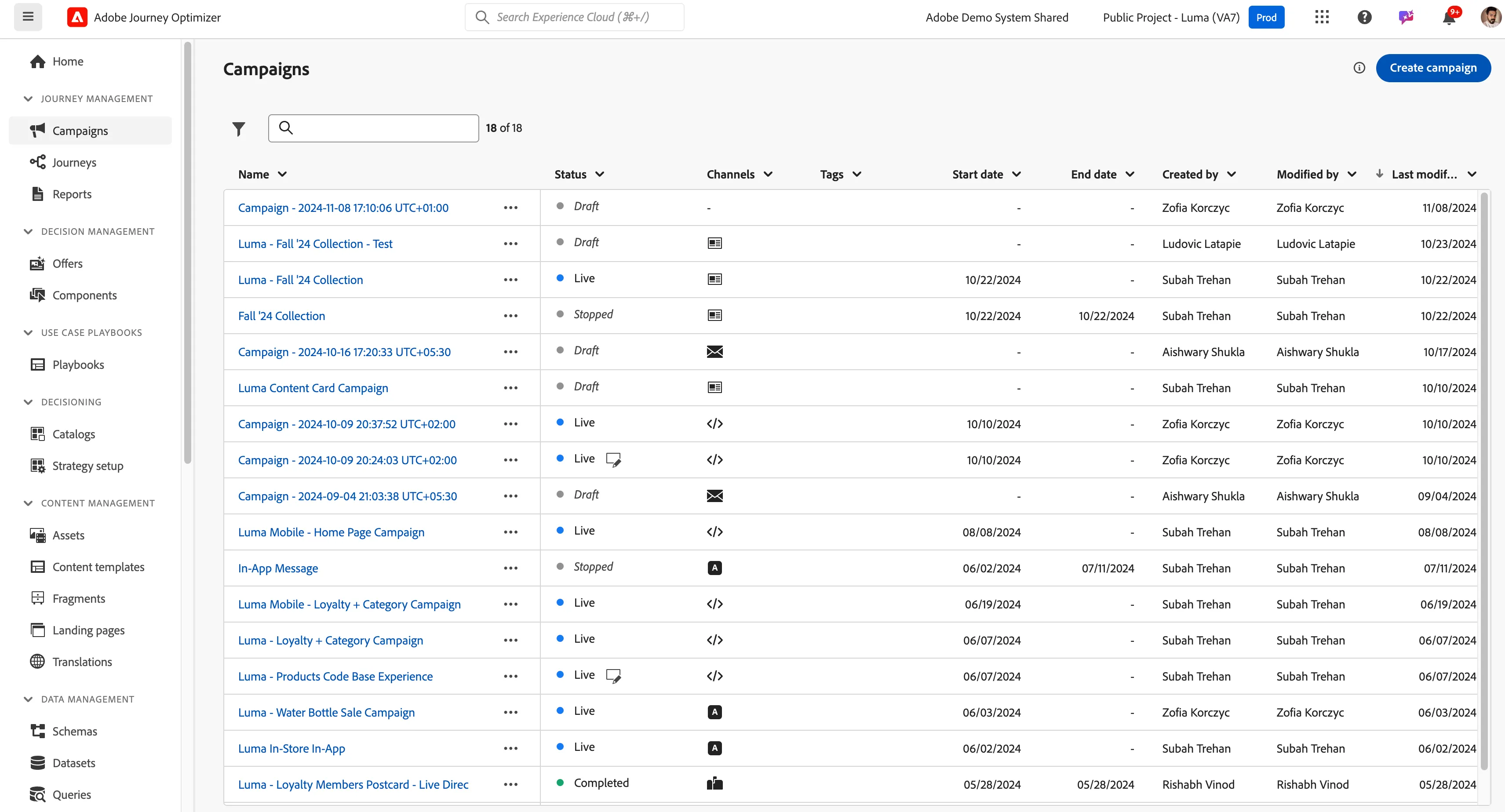
From the left panel click on Campaigns and click on Create Campaign on top left.
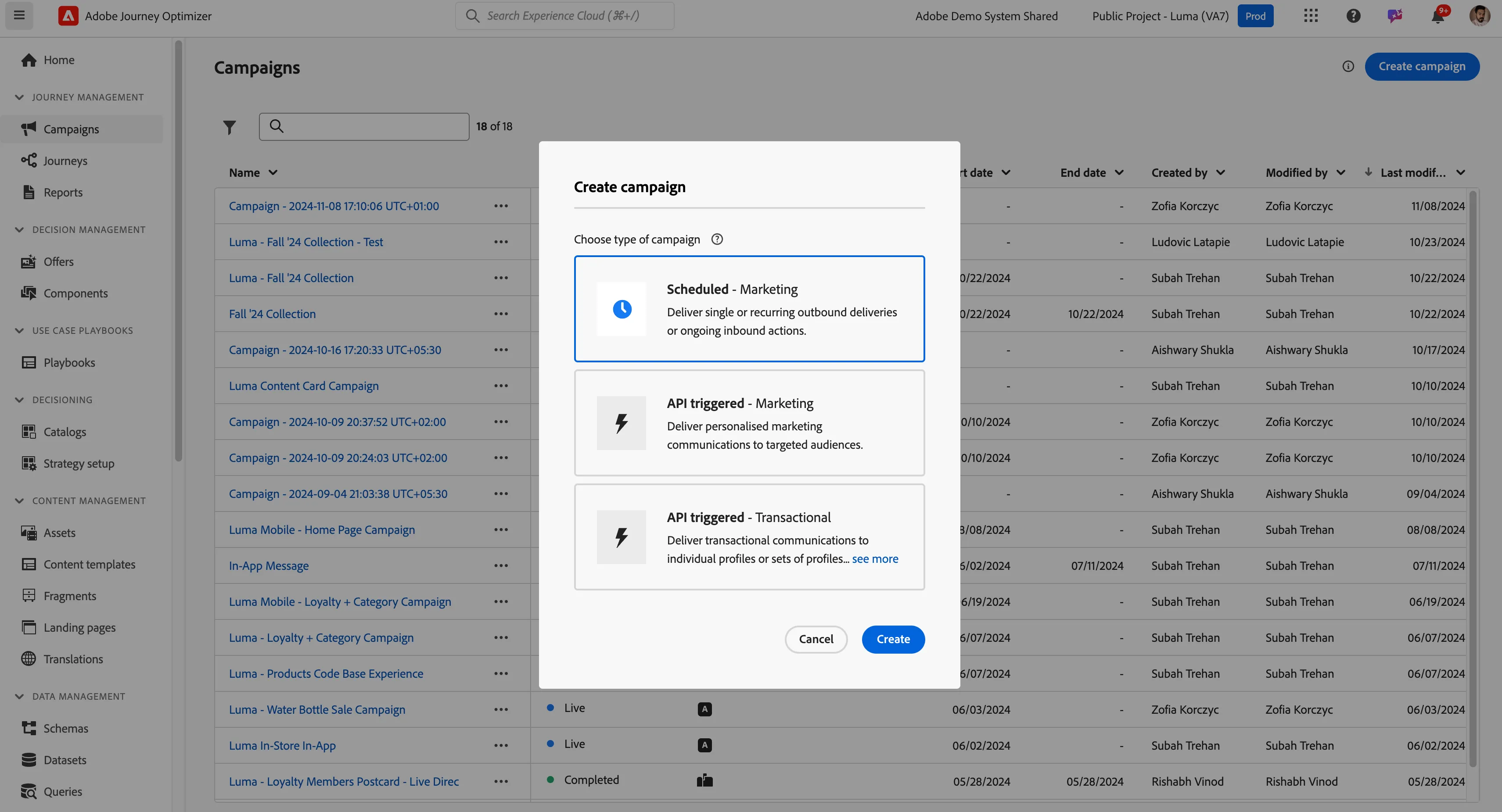
Select the Scheduled - Marketing Campaign and provide the name as Luma - New Product Launch - EMEA Region. Select Audience as Luma - Loyalty member with Address and action as Email. (Please keep the remaining settings to default.)
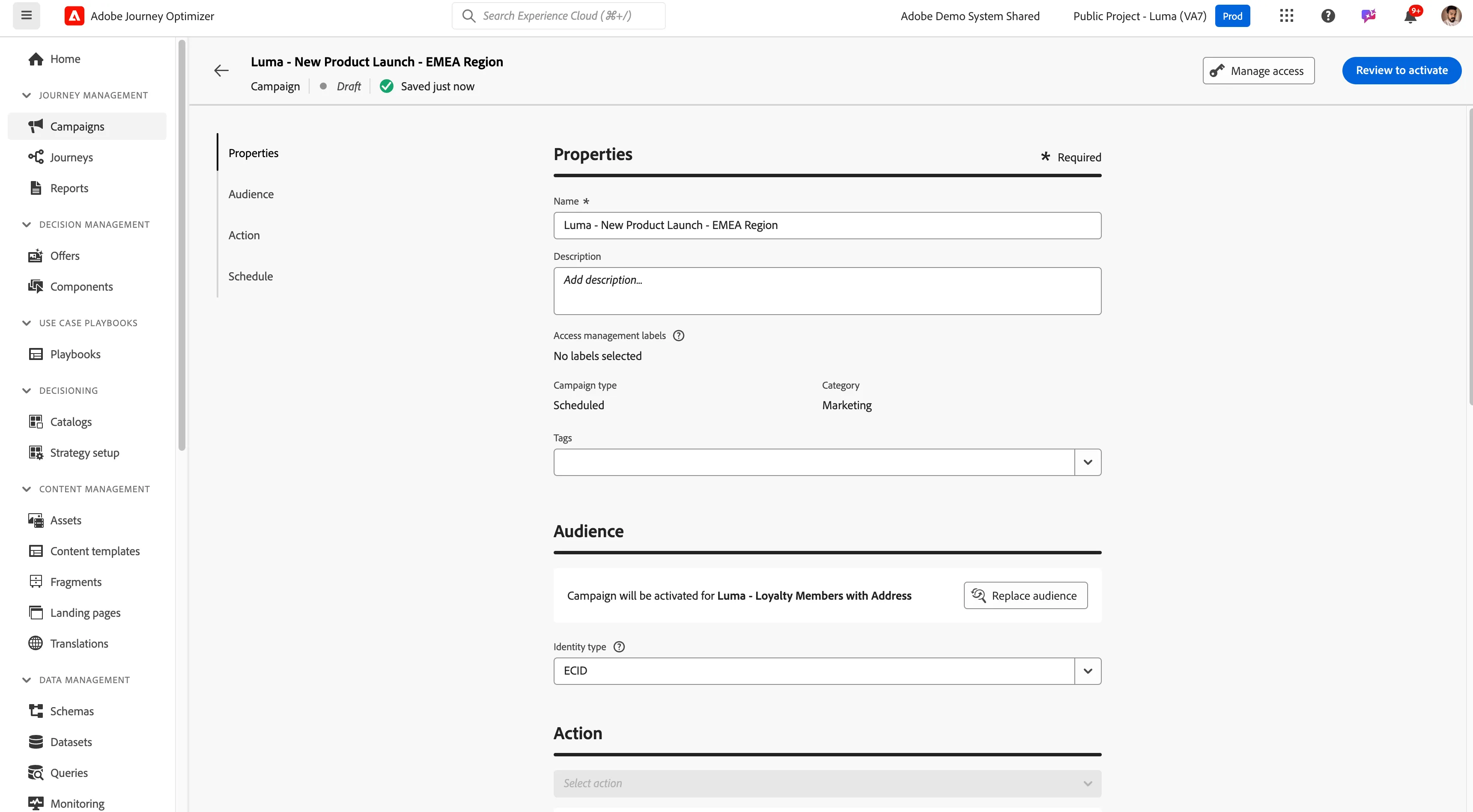
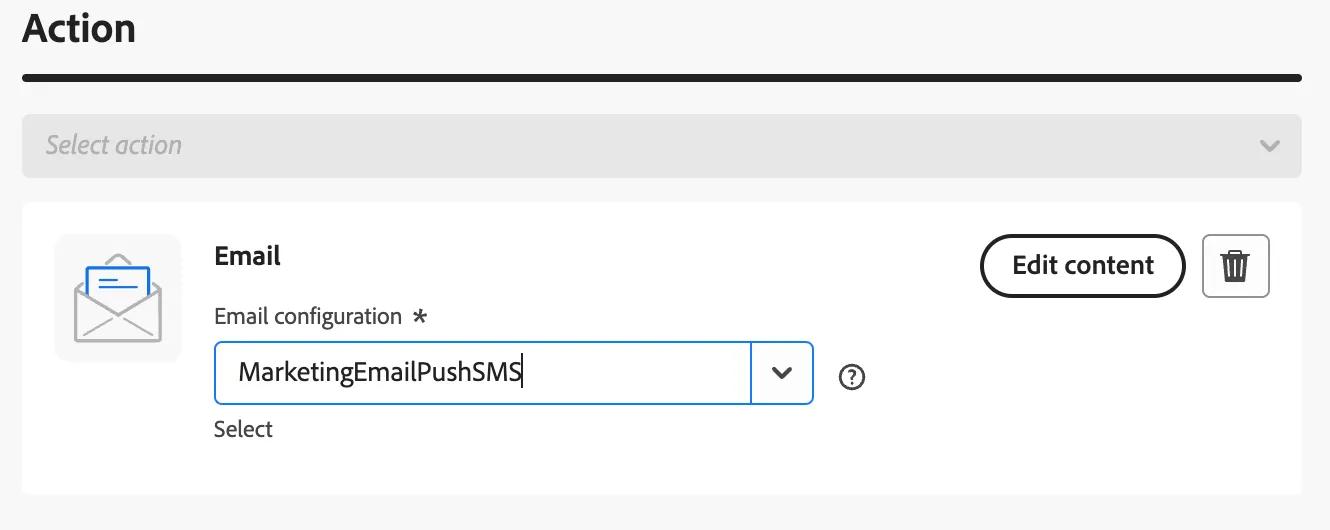
Under action email select the channel surface and click on edit content.
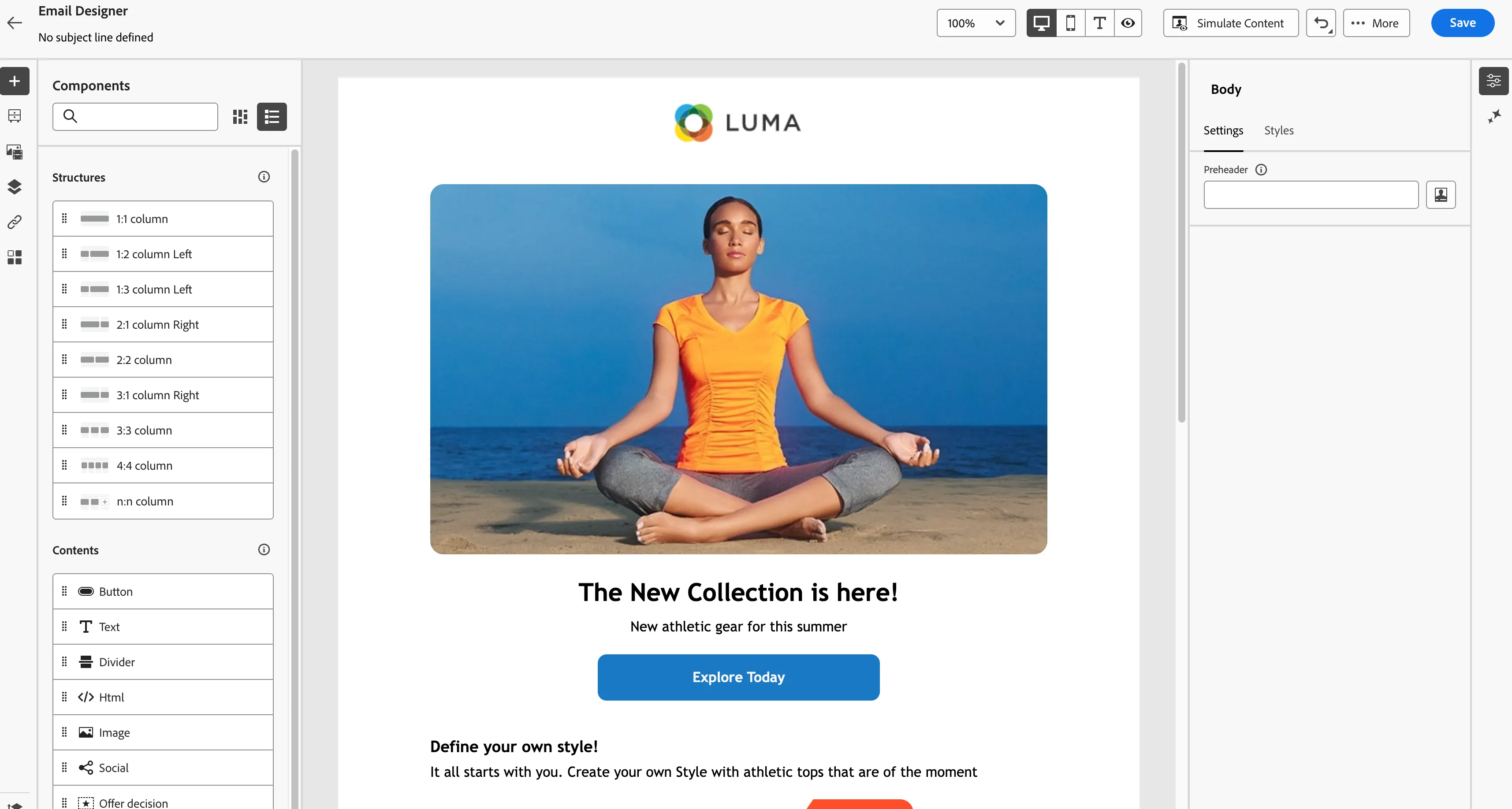
Click on the edit email body and select the Luma - Features template from the list. Click on save.
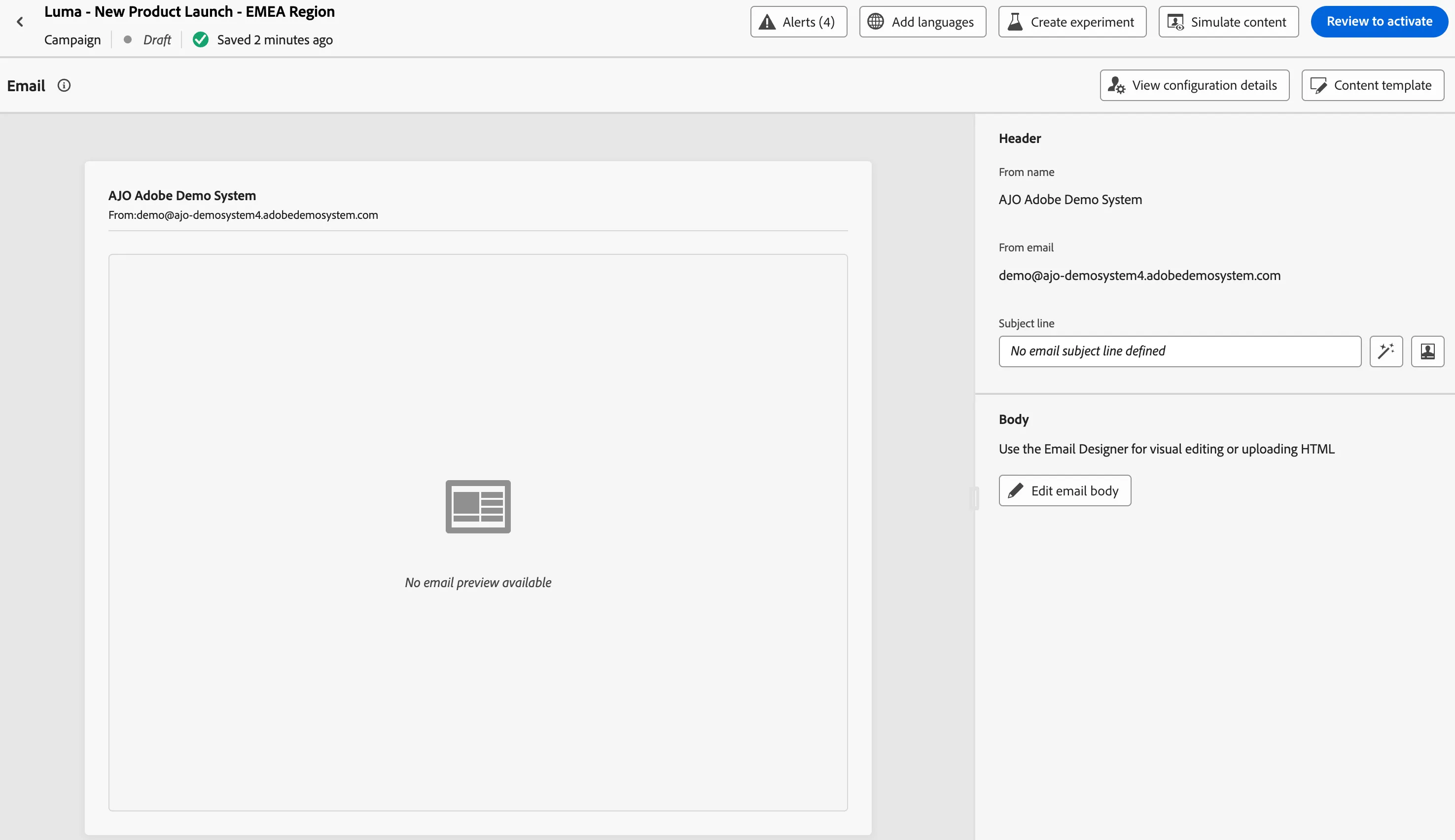
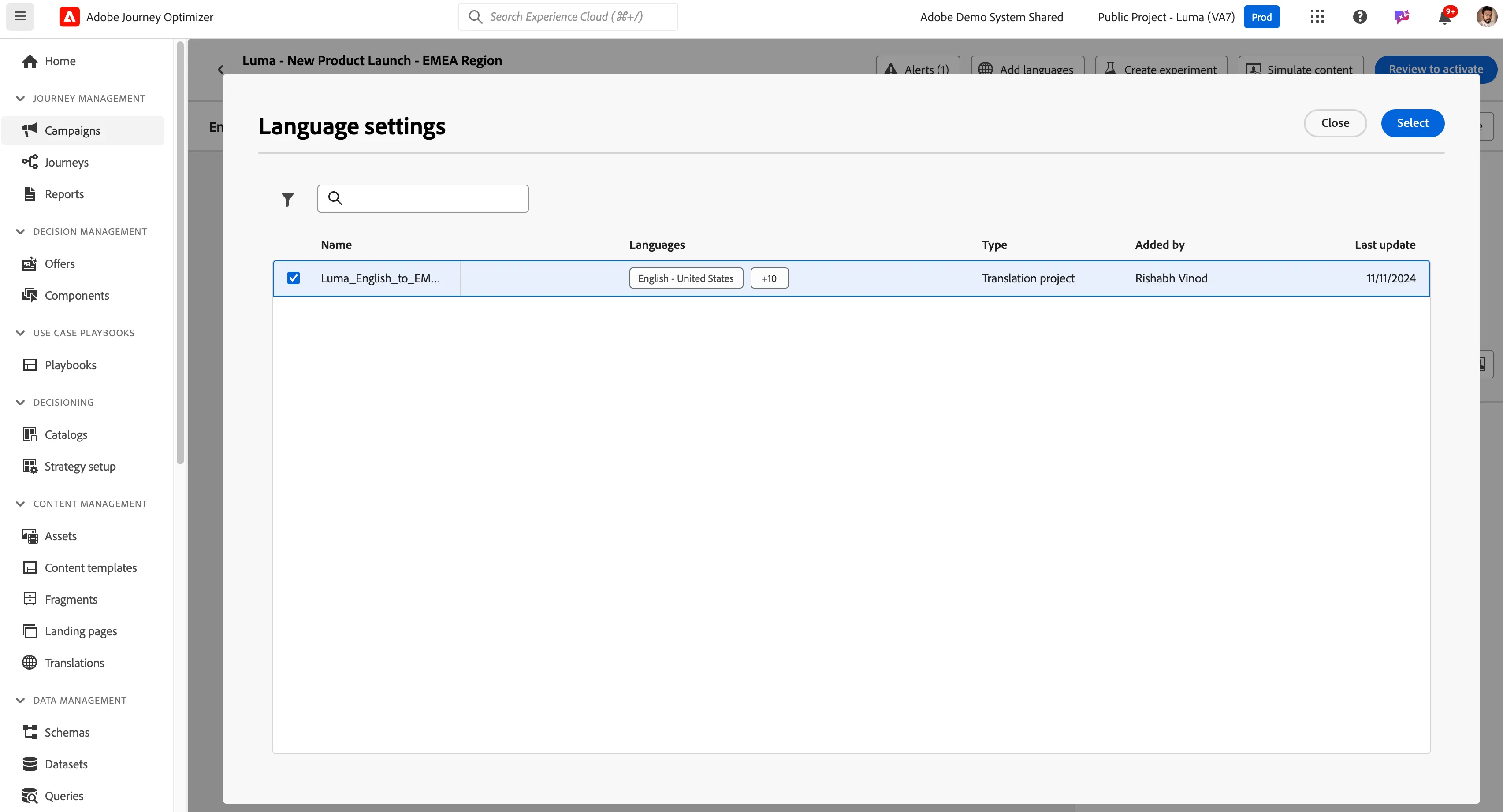
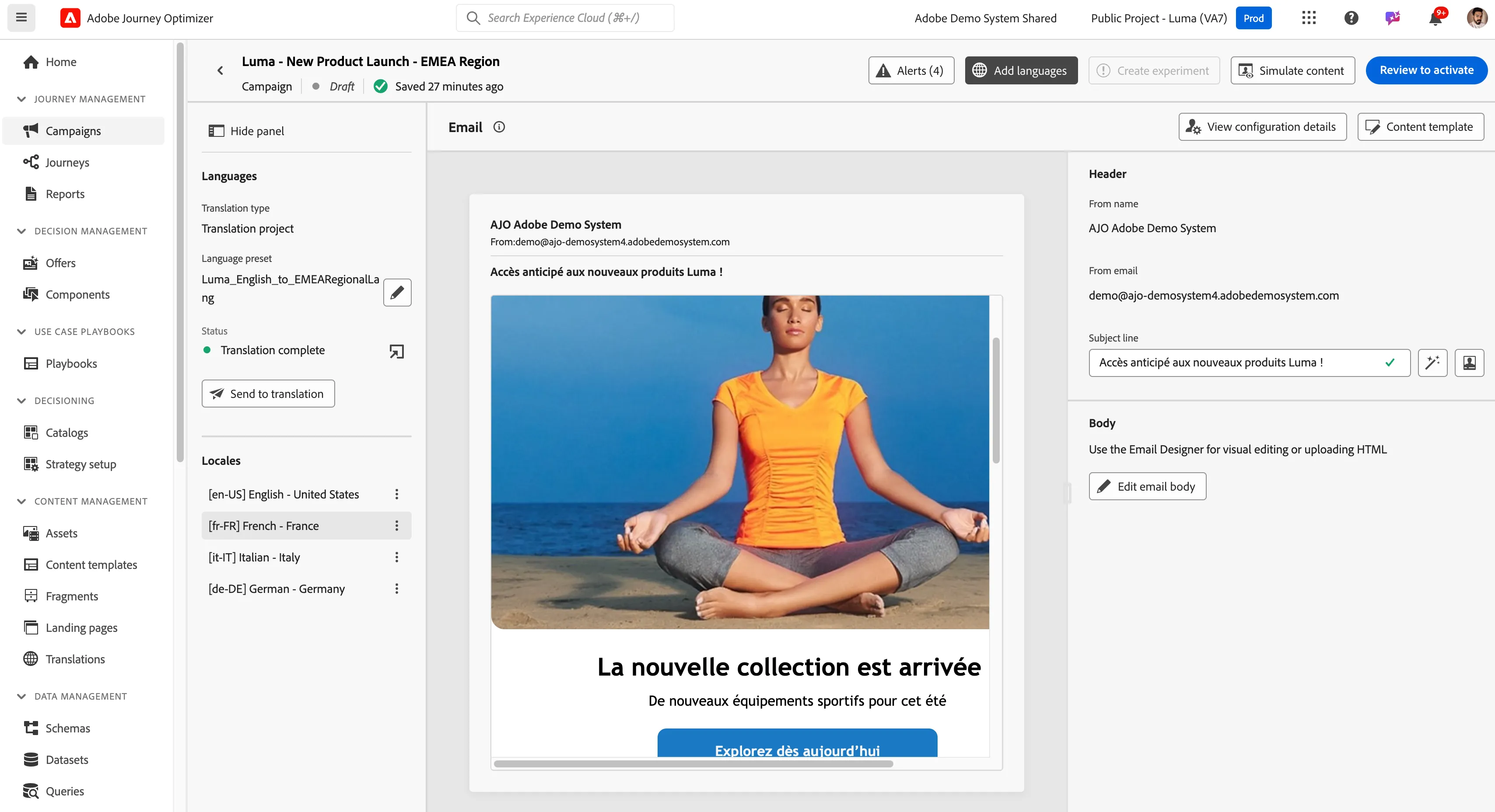
Come out of the email designer by clicking on the previous arrow and provide a suitable subject line. Click on Add Language and select the language setting created in the prerequisites Luma_English_to_EMEARegionalLang. (You will get a green status message language setting has been successfully loaded.)
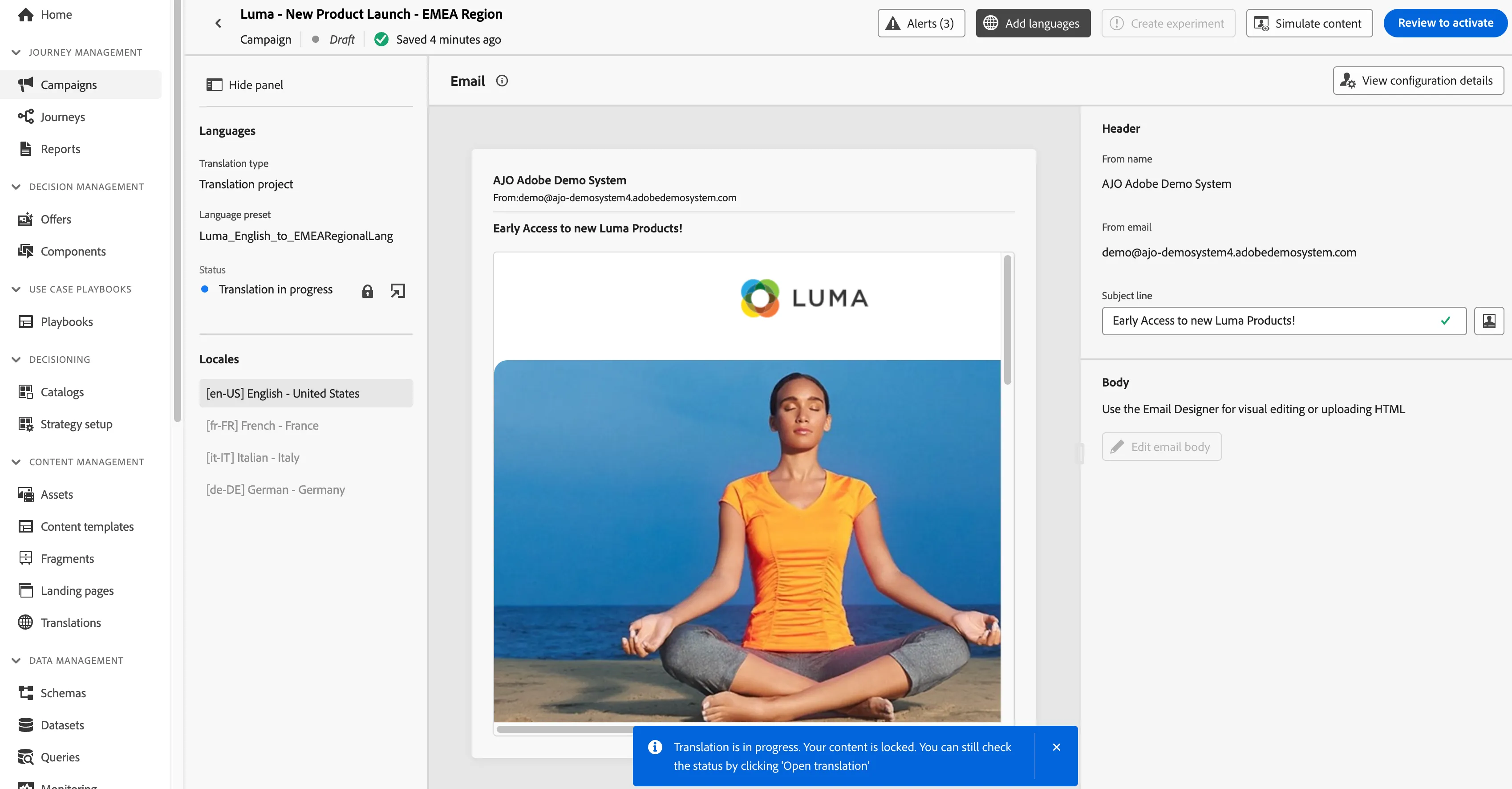
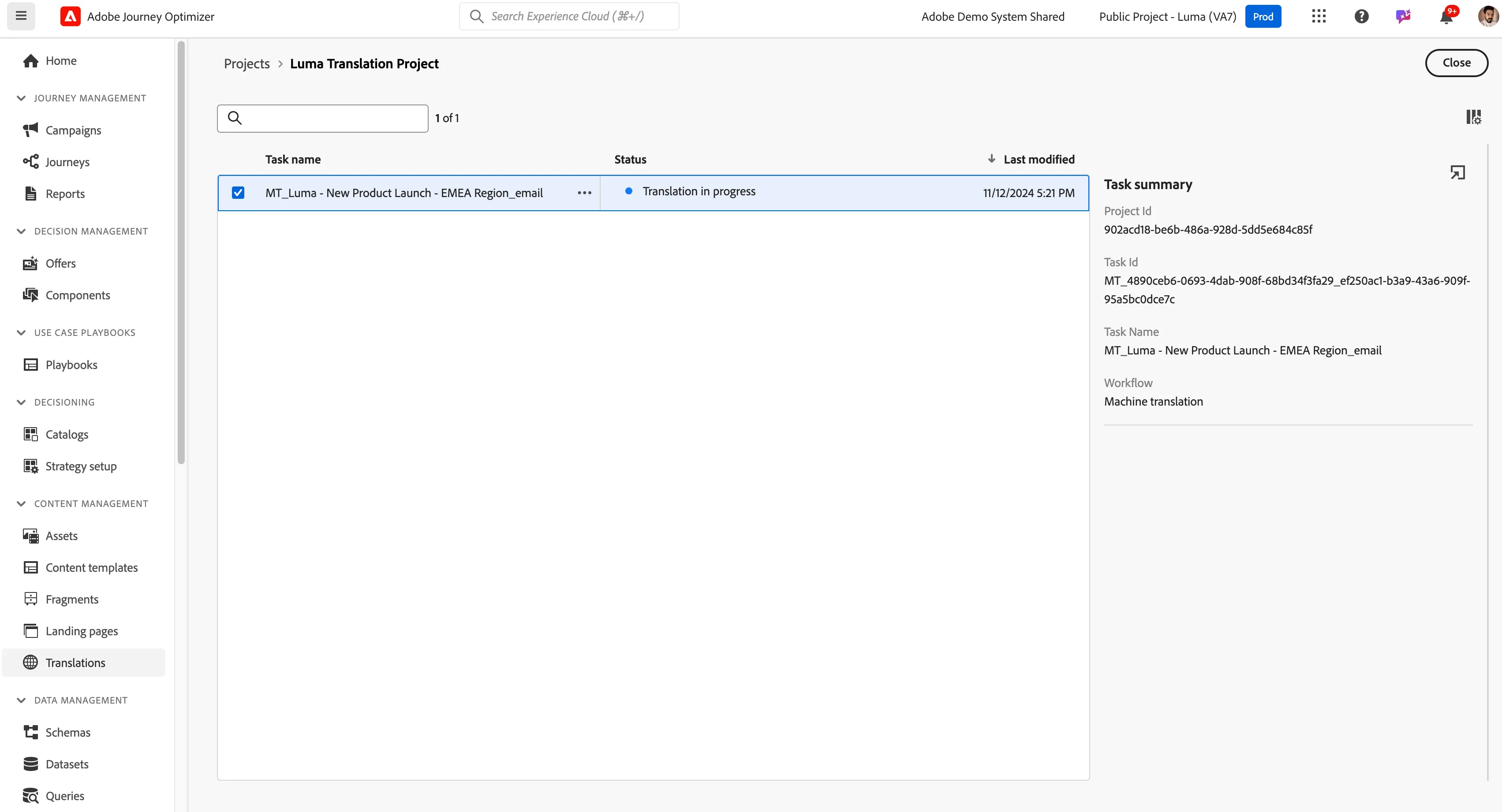
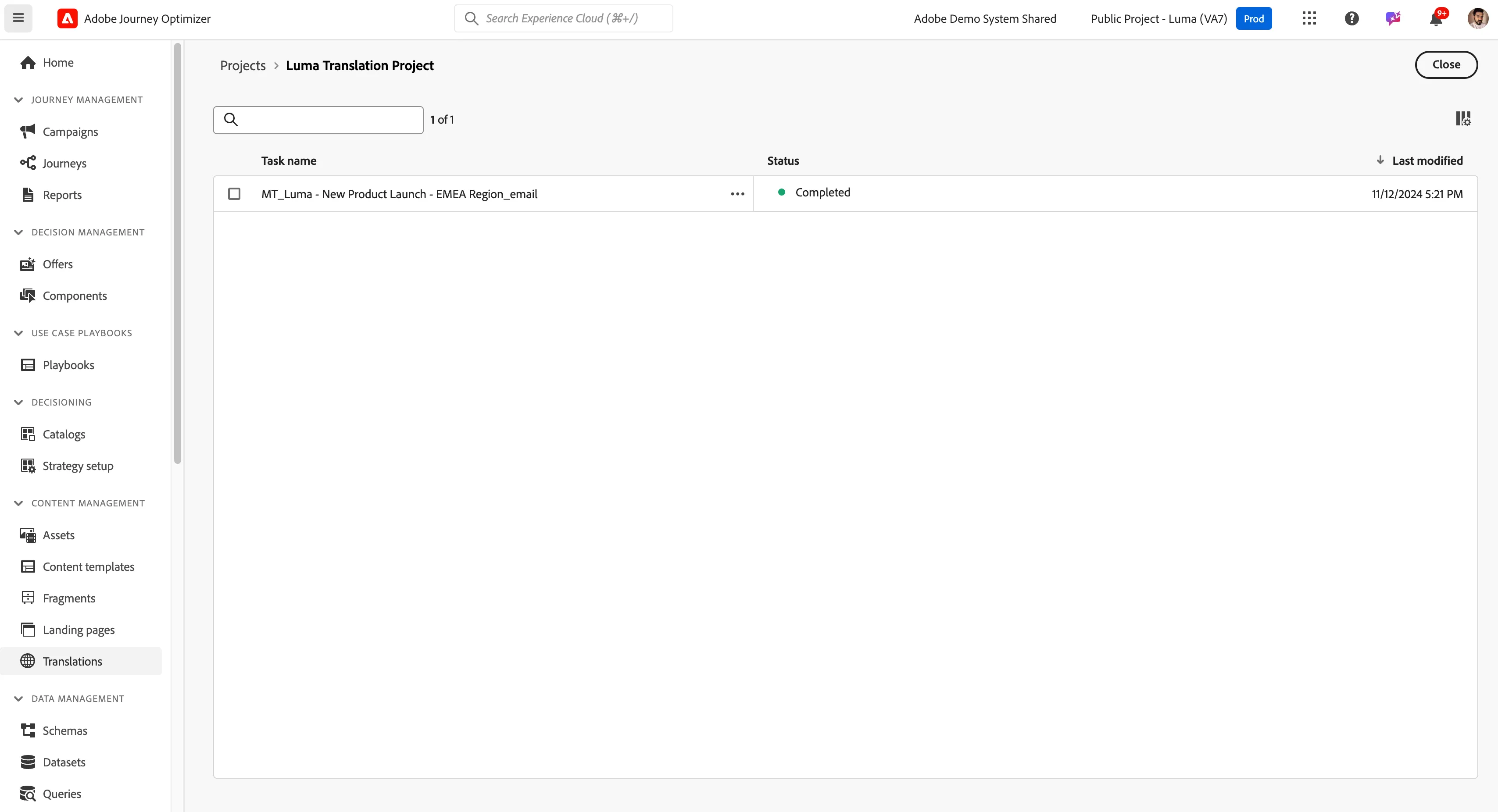
Click on Send for translation from the left panel and the content gets locked we can check the status of translation jobs by clicking the arrow box.
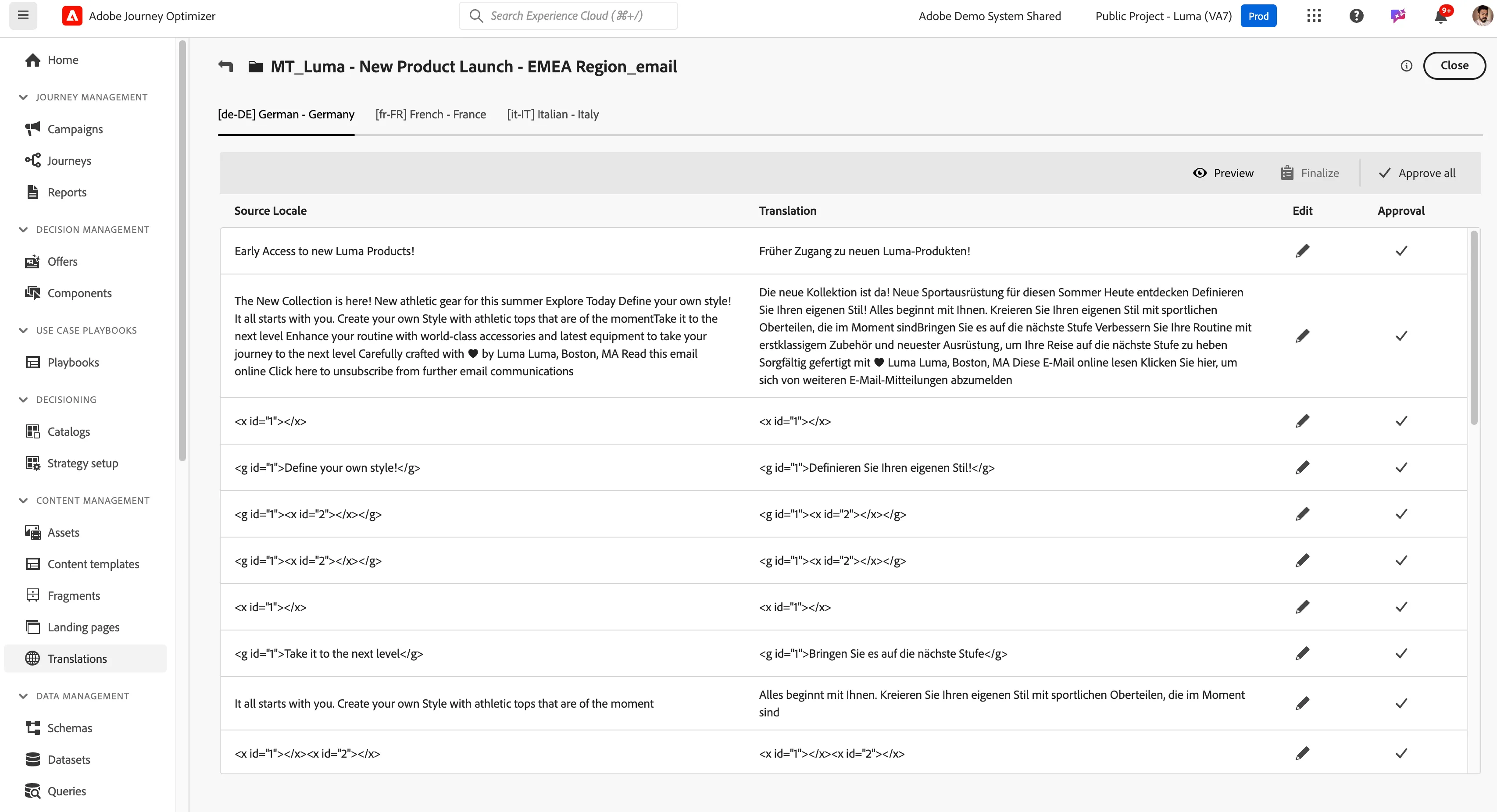
Once the translation process is completed and the task status is ready for review then we can review the content and preview them accordingly.
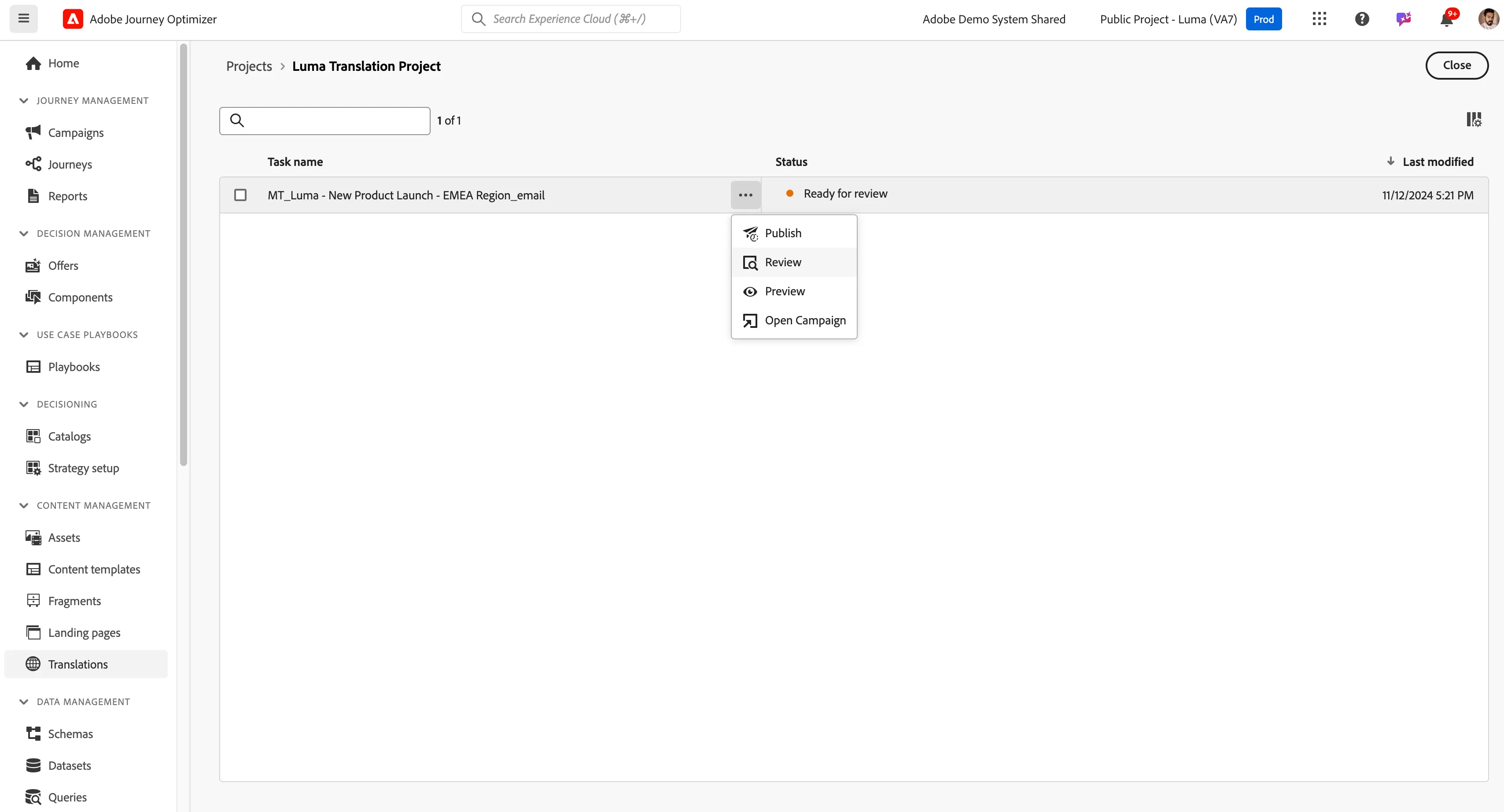
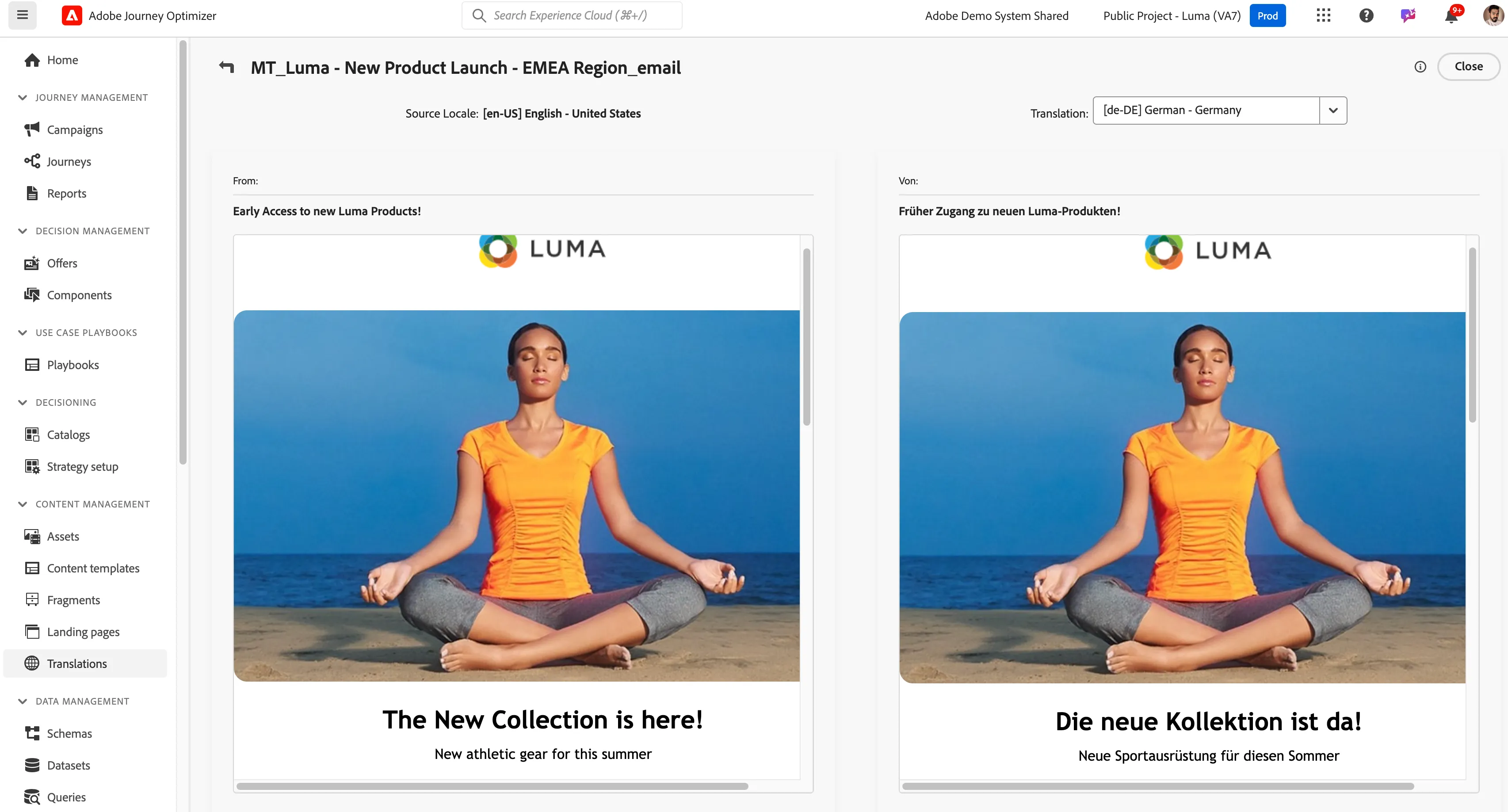
Once you have previewed it and all looks good approve the content by clicking on approve all. Carry out similar steps for other locale.
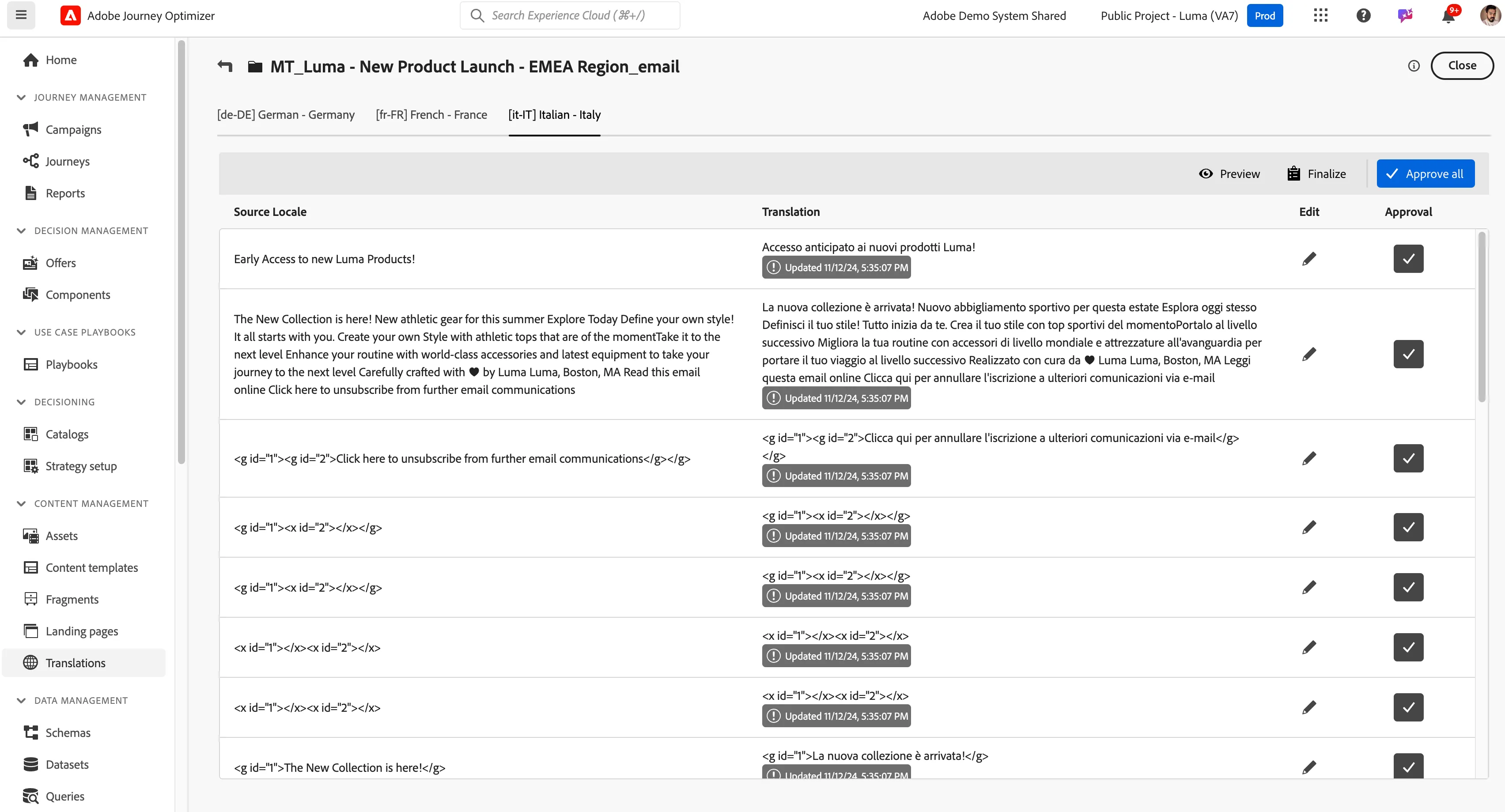
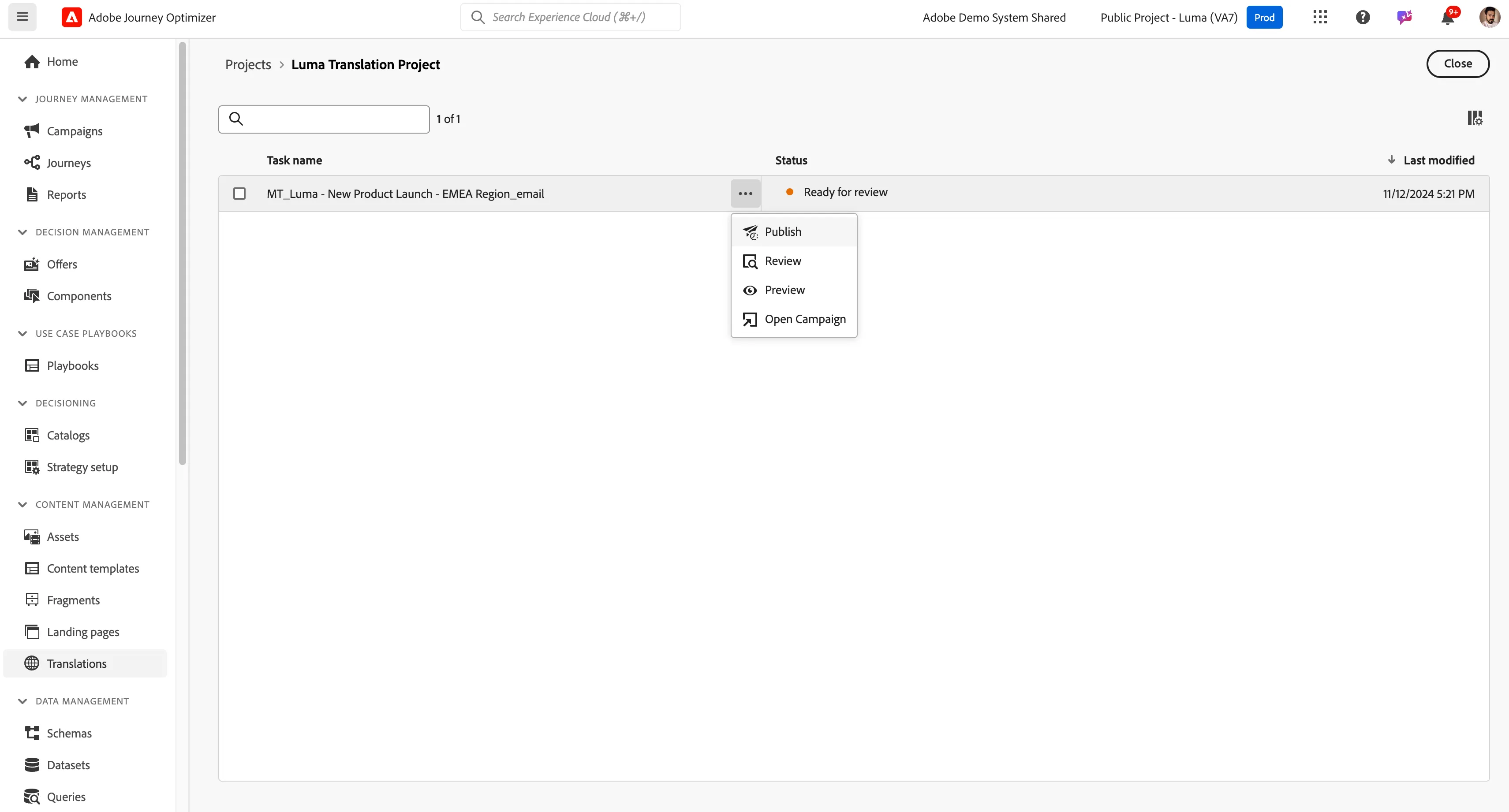
After you have approved all the locale translations close this screen as we need to publish this task to be available in the Campaign and the status will change to complete.
Now get back to the campaign and refresh the page and all translations are available depending on the customer profile's preferred language.
Demo Environment
AJO Sandbox: Public Project Luma