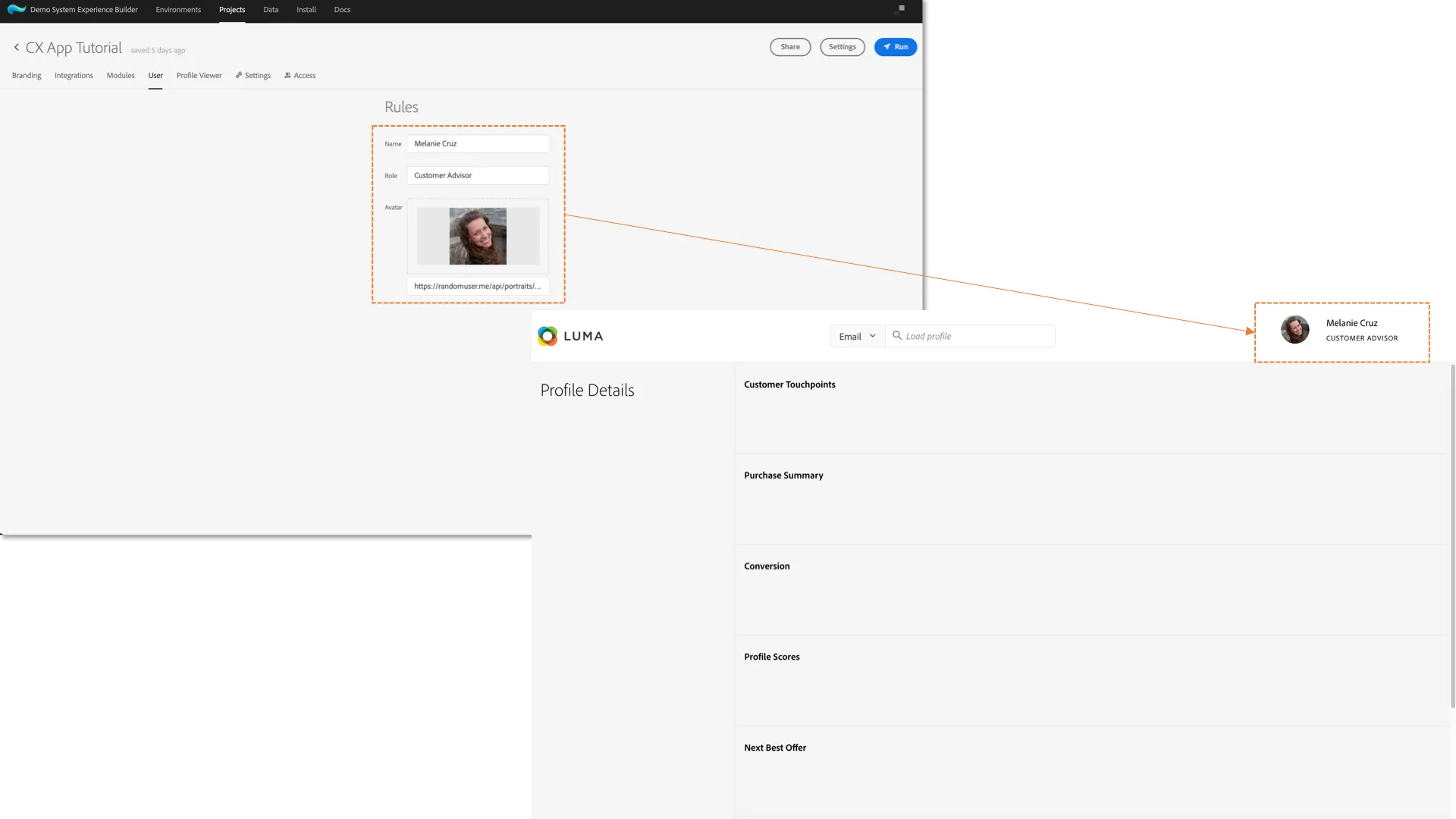
Modify CX App content
The Customer Experience App project allows you to customize various elements to meet customer branding and use cases. In the section below, we will configure the minimum required for the Call Center use case.
Branding
Follow the steps below to configure the Customer Experience App branding:
- Open the newly created Customer Experience App project.
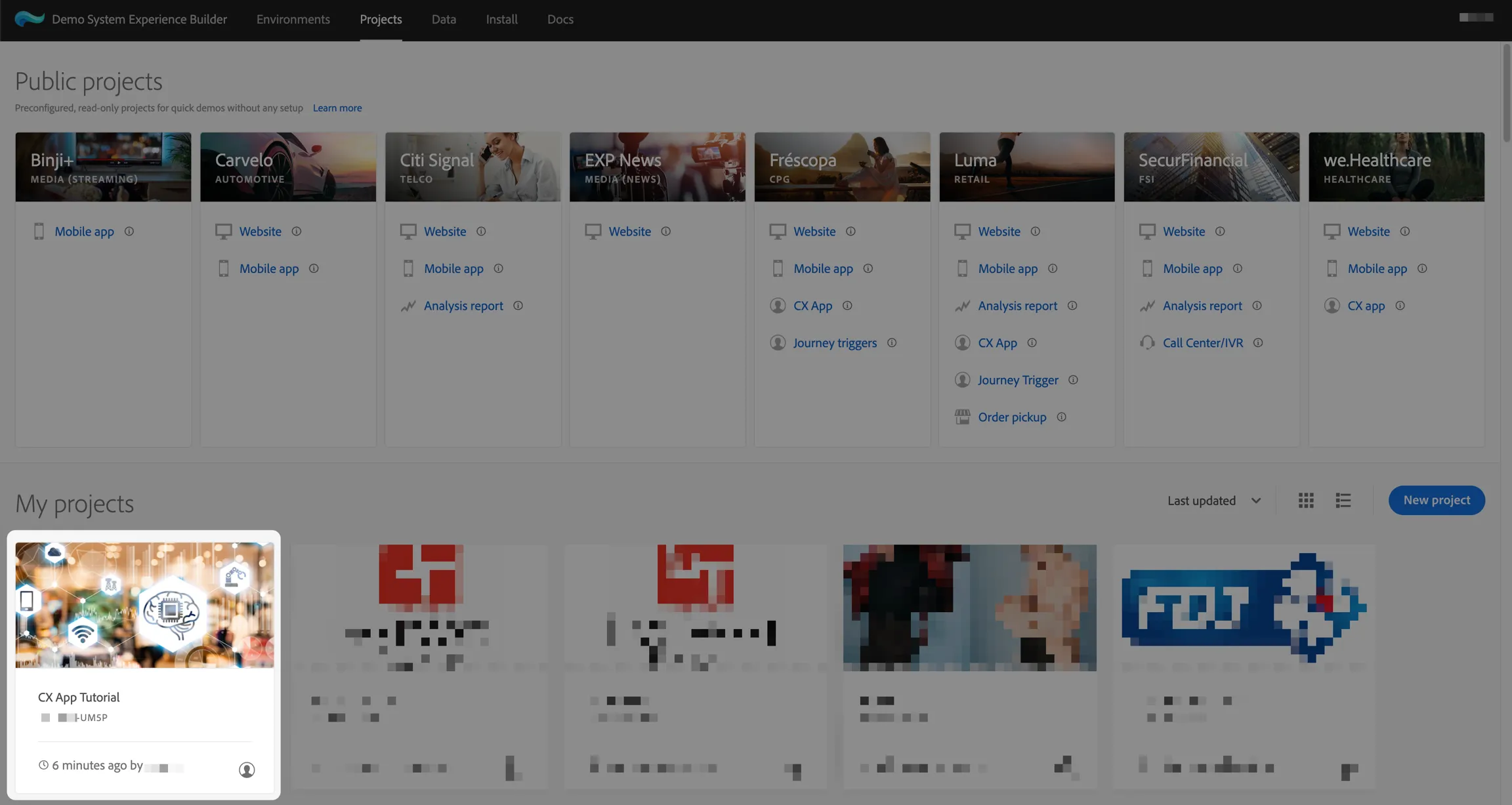
2. You are redirected to the default tab Branding. Using this screen, you can modify the customer logo and the background/text colors.
Integrations
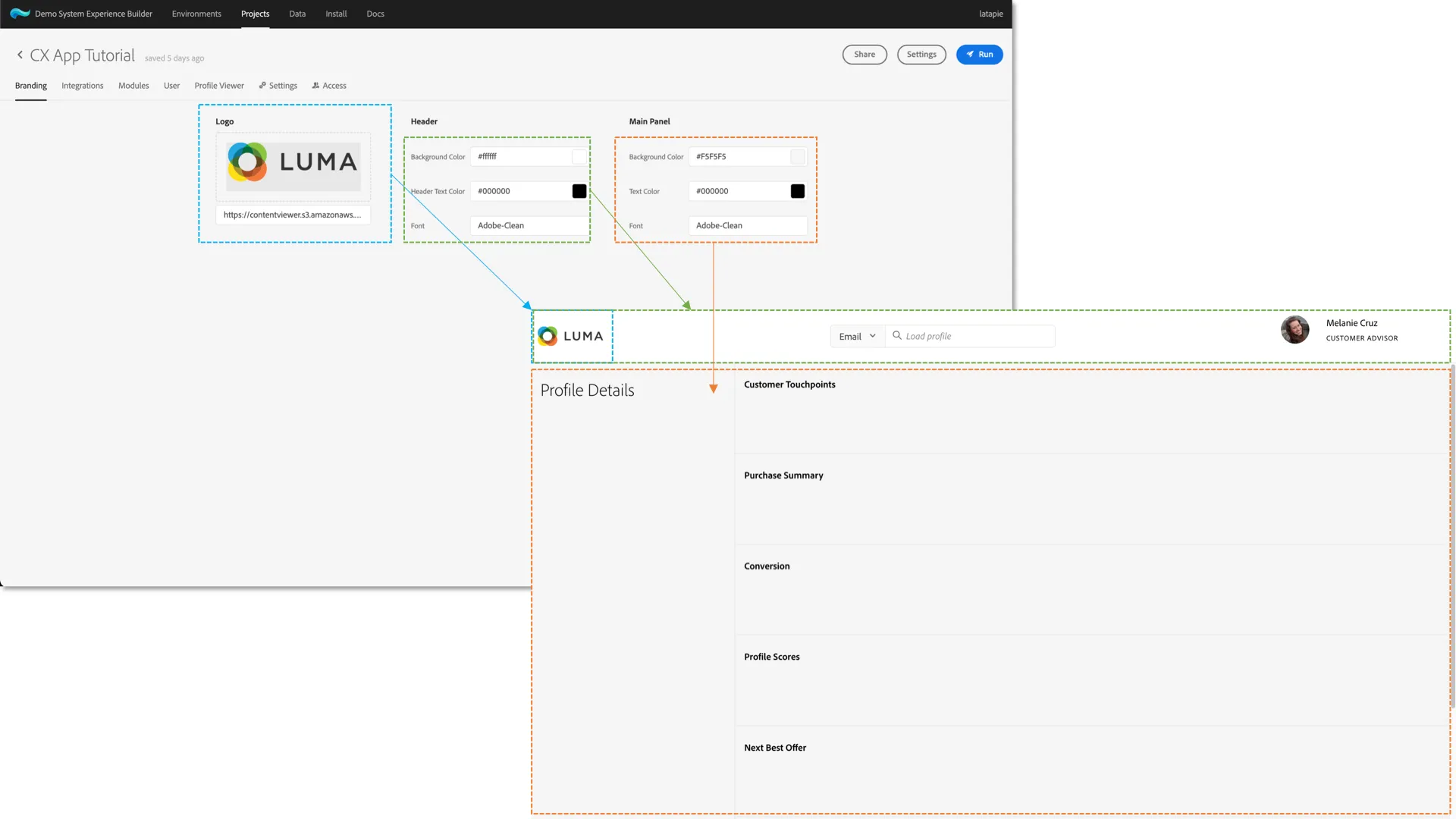
To connect your Customer Experience App project with your AEP/AJO sandbox, you need to select the Adobe Data Collection tag property (Launch) in the Integrations tab. The one you created during the project creation process should appear at the top.
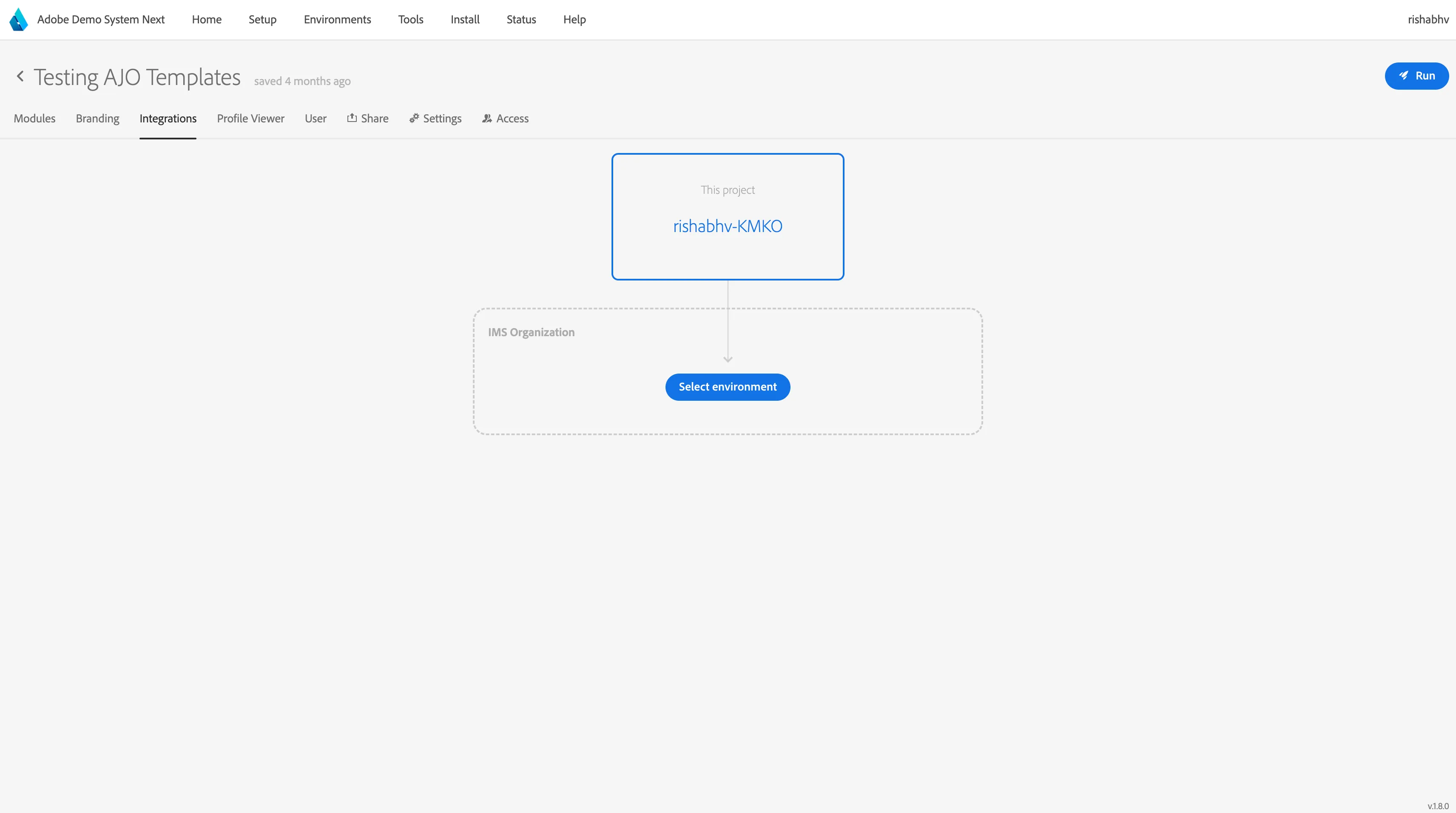
When you select a tag property, the Launch Property ID, IMS Org, and the AEP Sandbox Name details will be automatically filled.
Modules
The Modules tab allows you to configure the display order, labels, and properties of the Customer Experience App modules.
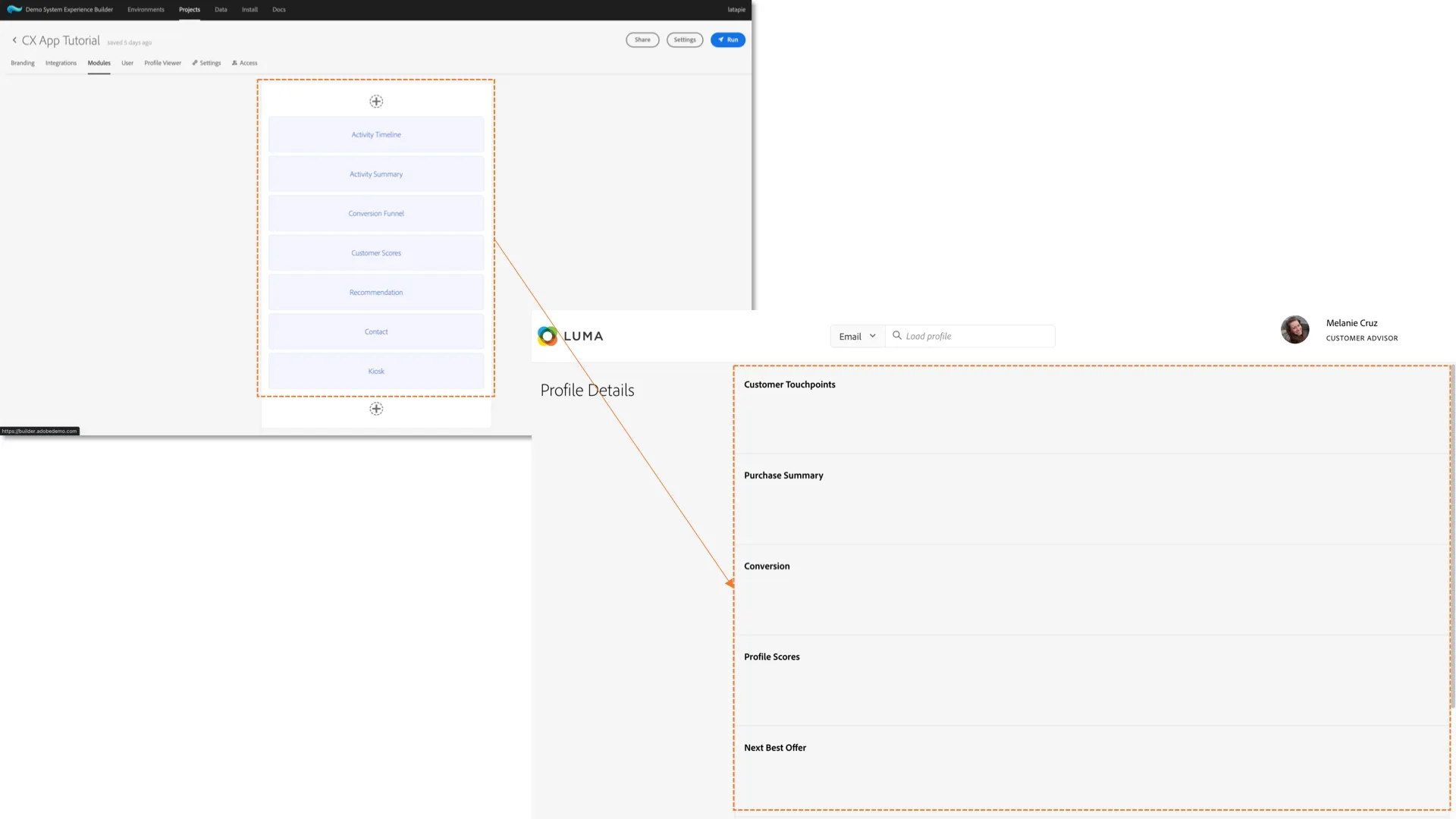
For the Call Center use cases, we recommend using the following modules:
- Activity Timeline
- Activity Summary
- Recommendation
- Contact
- Customer Satisfaction
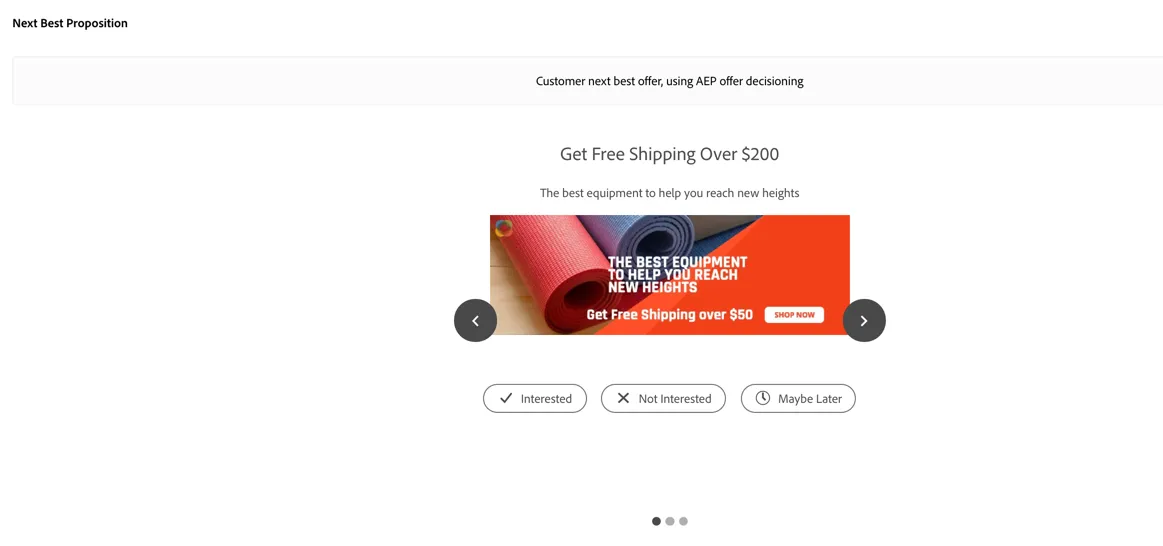
For example, let's configure the Recommendation module to display the next best offer powered by Offer Decisioning.
As prerequisites, you need to have a Decision created and activated. The offers included in the decision must have a JSON representation with the following structure:
{
     "name": "Bring your mug and enjoy a free coffee cup",
    "description": "Show you love your mug and the environment",
    "image": "https://adobedemo.com/demo/myimage.png",
    "link": "https://adobedemo.com/mycategory"
}
Note: HTML and Image offers are not supported but are in scope for a future release.
Below are steps to configure the module:
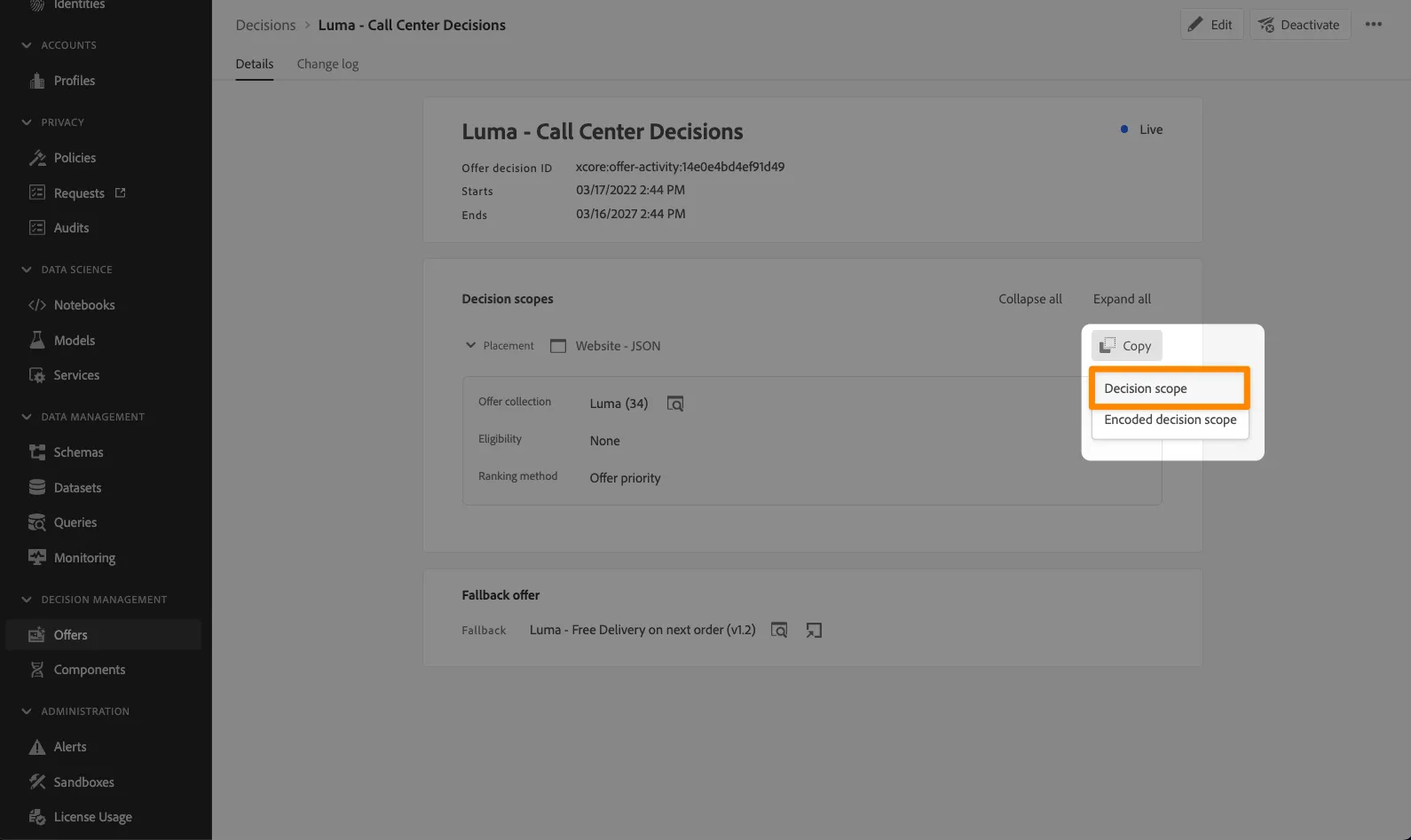
- In Adobe Journey Optimizer, copy the Decision scope.
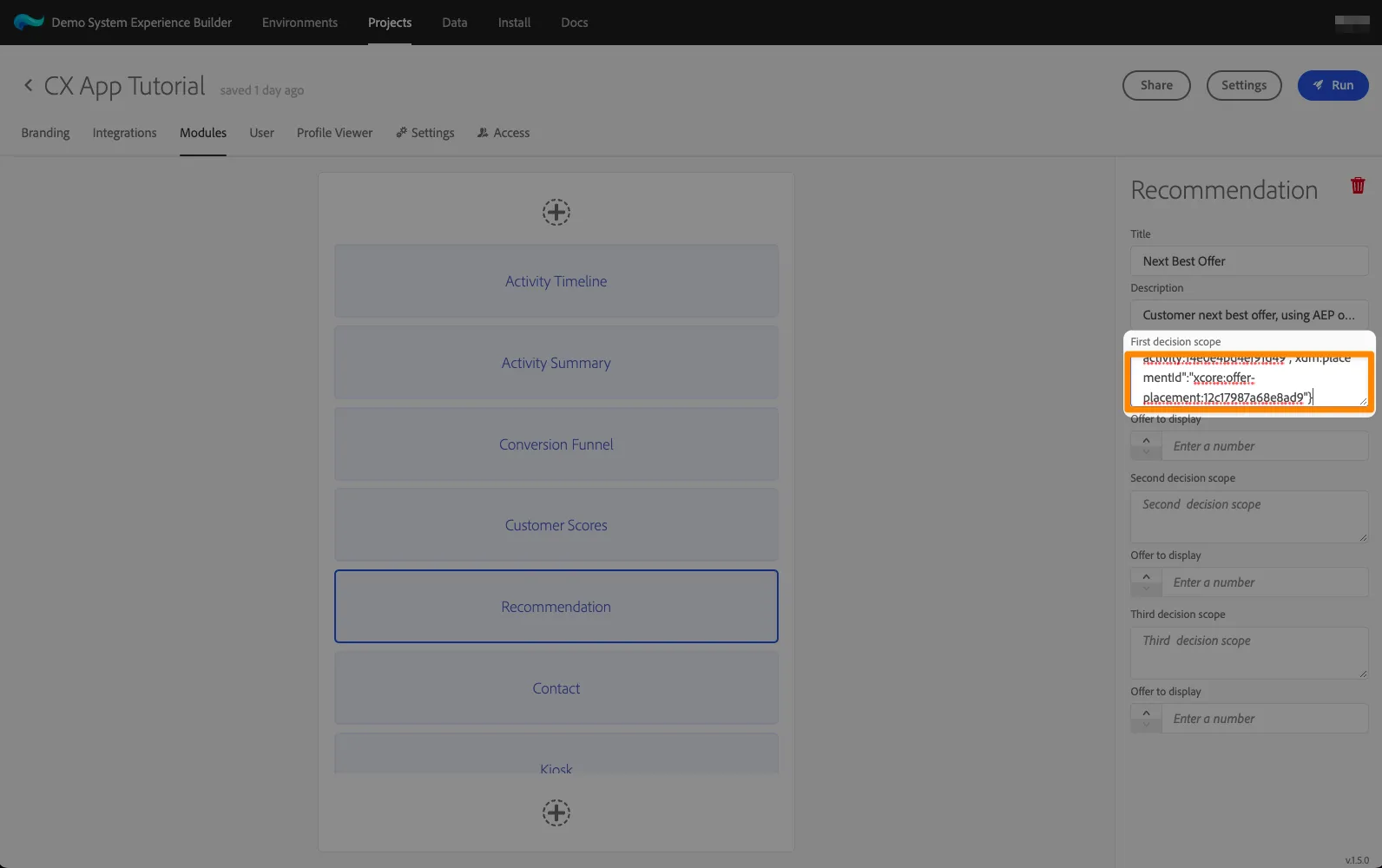
2. In your Customer Experience App project, edit the Recommendation module and paste the decision scope.
3. Update the number of Offers to display.
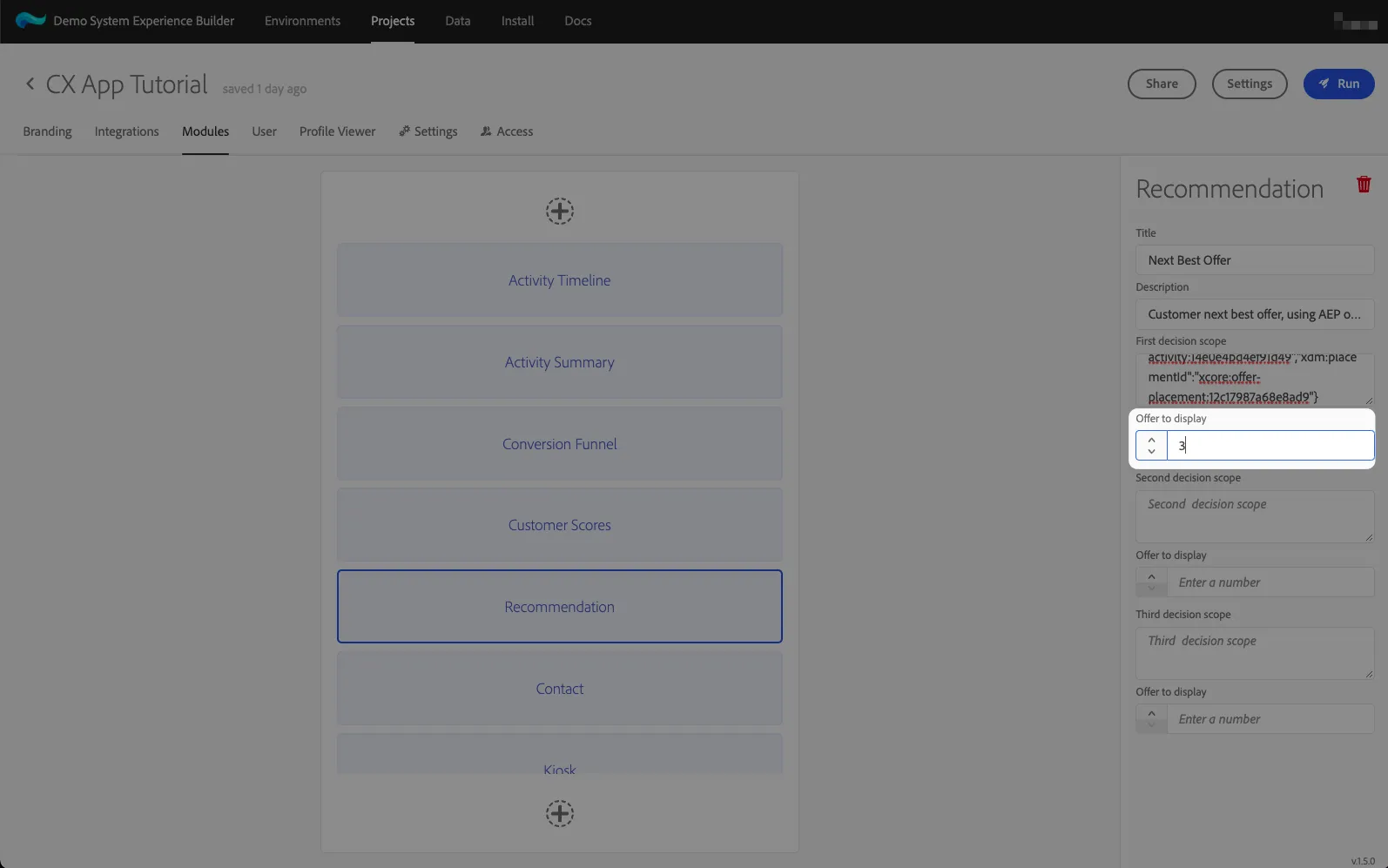
Your project is now ready to display the Next best offer for the customer calling the Call Center!
User
The User tab lets you modify the Name, Role, and avatar of the advisor interacting with the customer e.g. Call Center Agent, Financial Advisor, etc.