Receive Push Notifications
Prerequisites
- Access to Adobe Journey Optimizer
Create an event to trigger the push message
In first step you need to decide what user action will trigger the push message. It can be app launch, purchase, event based on geolocation, subscription to a loyalty program. For the purpose of this excersize we will use the login and add to cart events.
- Log in to AJO and select "Configurations" from the navigation on the left. On the new screen select "Events"
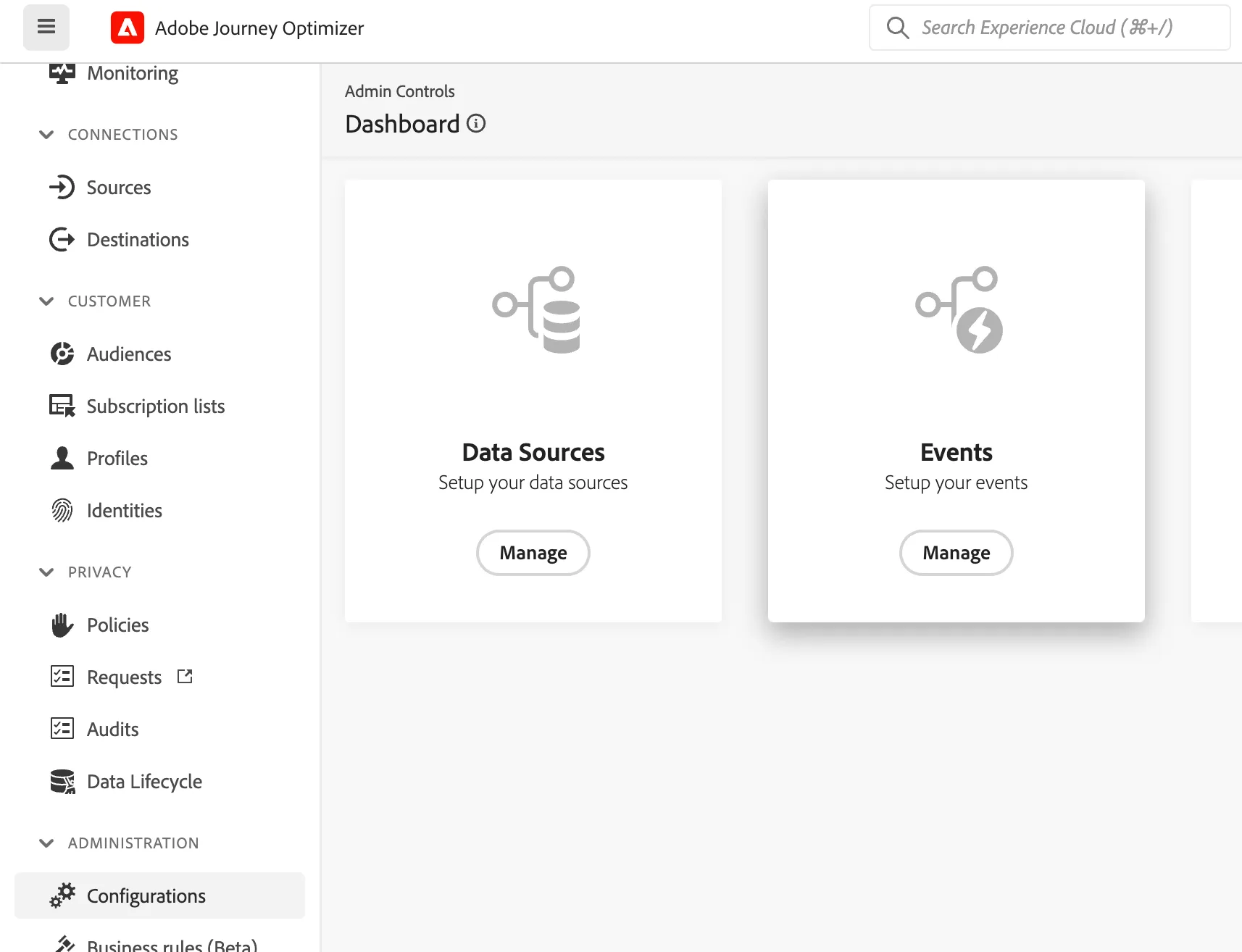
- Fill the event details as below:
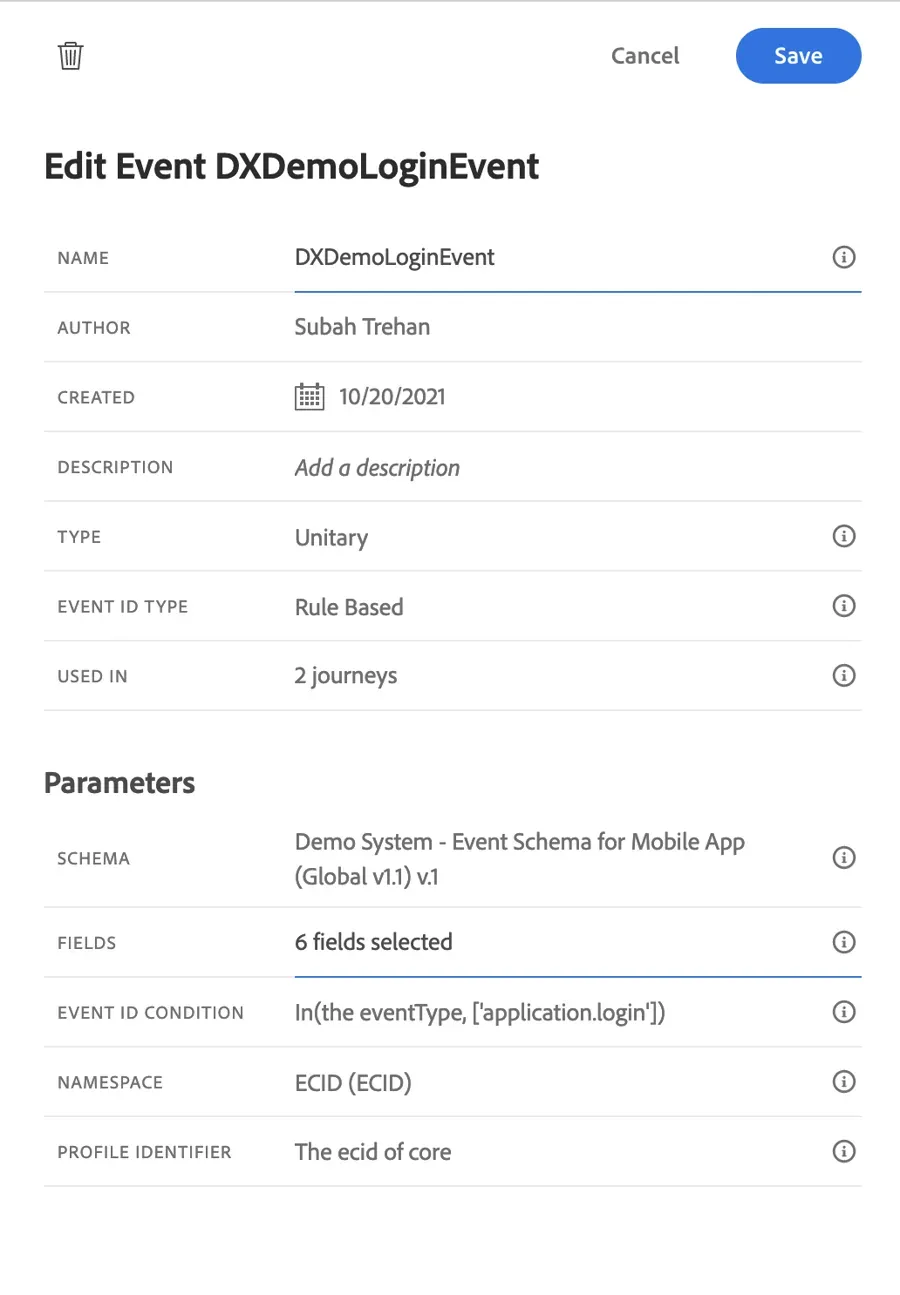
- Save the event
Follow the same steps for "Add to cart" event but this time for eventType condition select: commerce.productListAdds
Create an AJO Journey
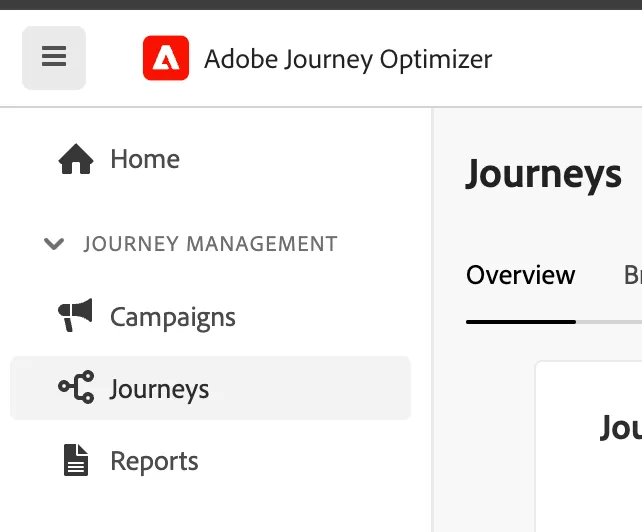
- Log in to AJO. Click on Journeys on the left and the button: "Create new journey"
- On the panel on the right find your event and drag and drop it on the canvas
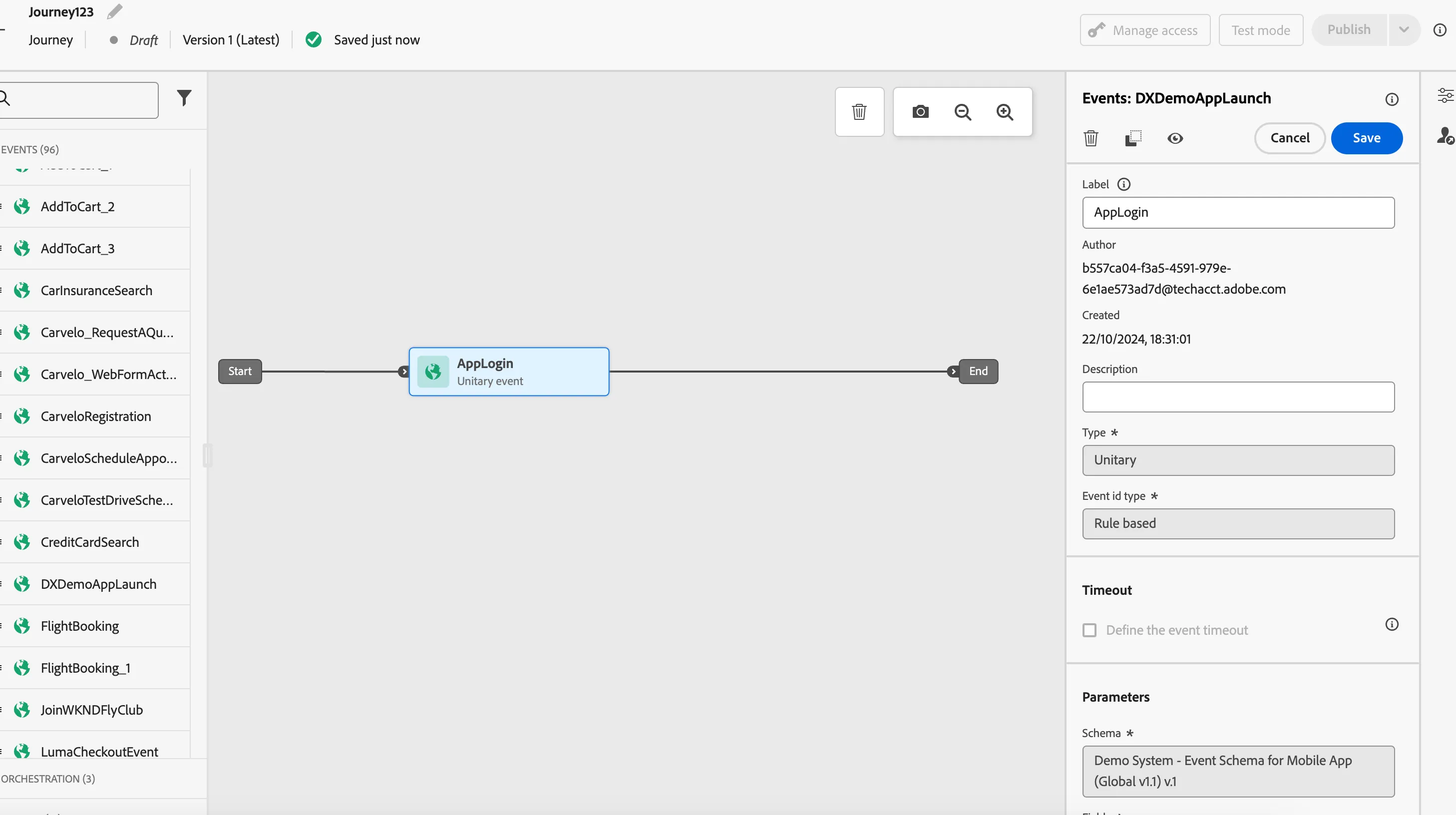
3. From the actions section select "Push" and drag and drop in as a next step after the event. Select the Push Configuration - if it's not available check the Create push channel configurations document.
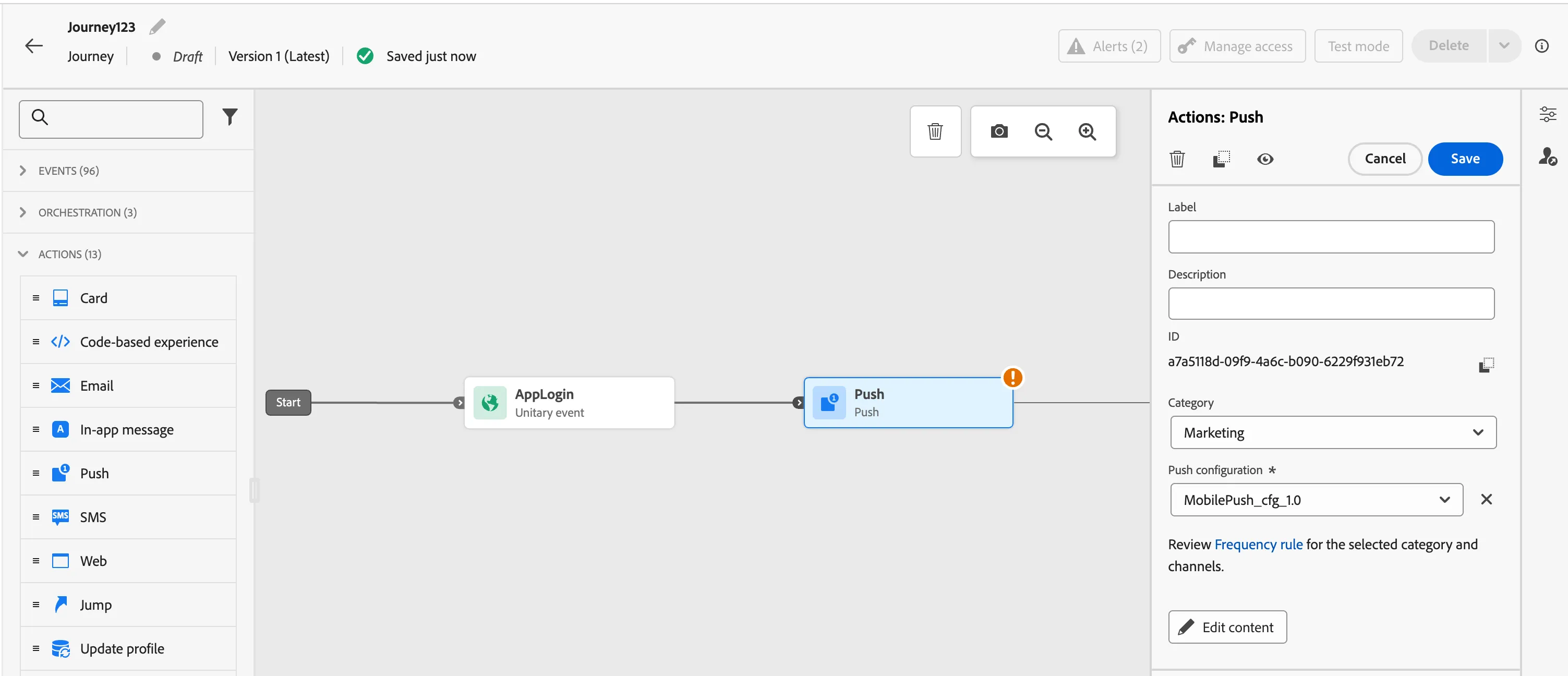
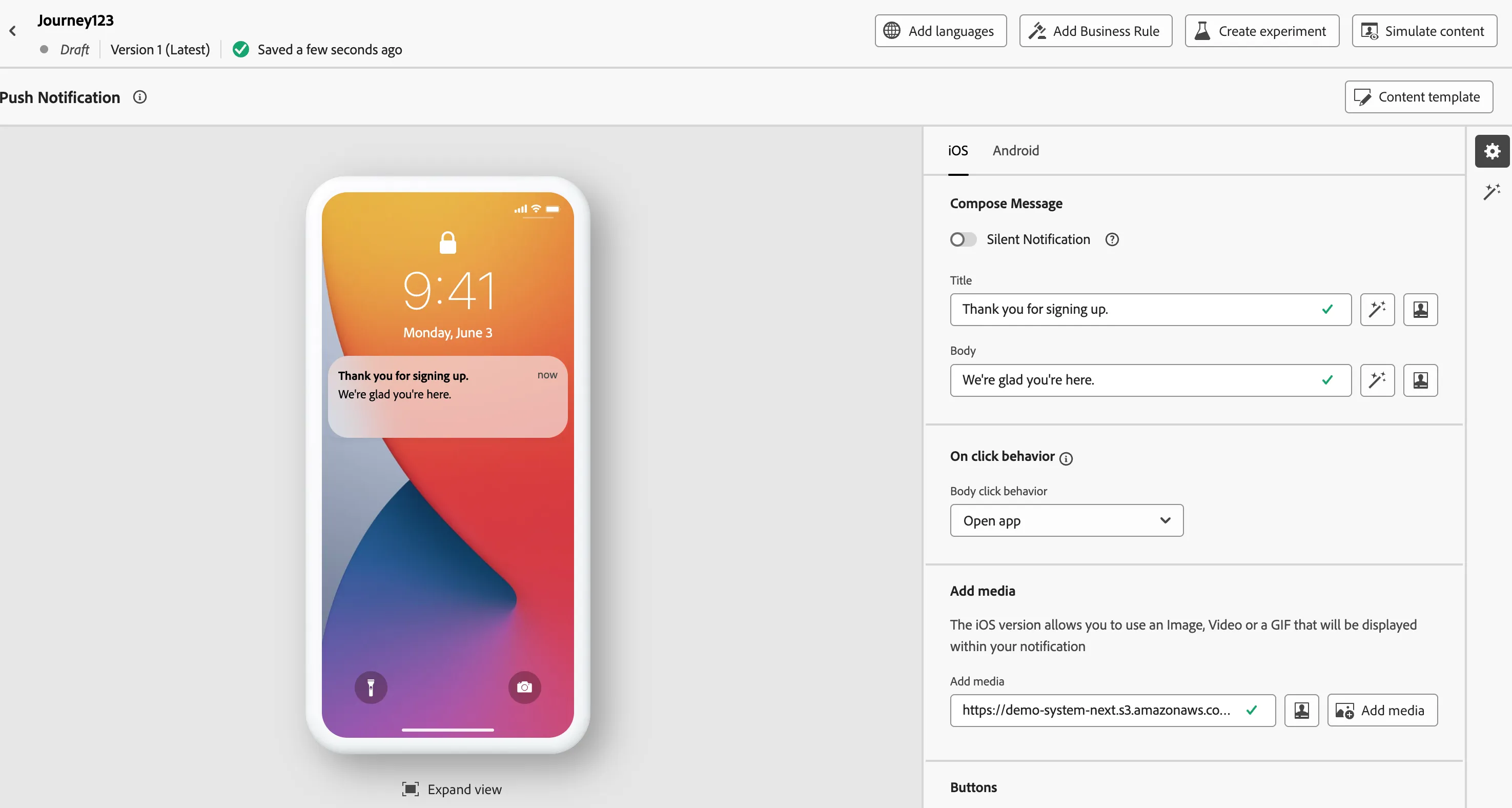
4. Edit the push content
Title: Thank you for signing up.
Body: We're glad you're here.

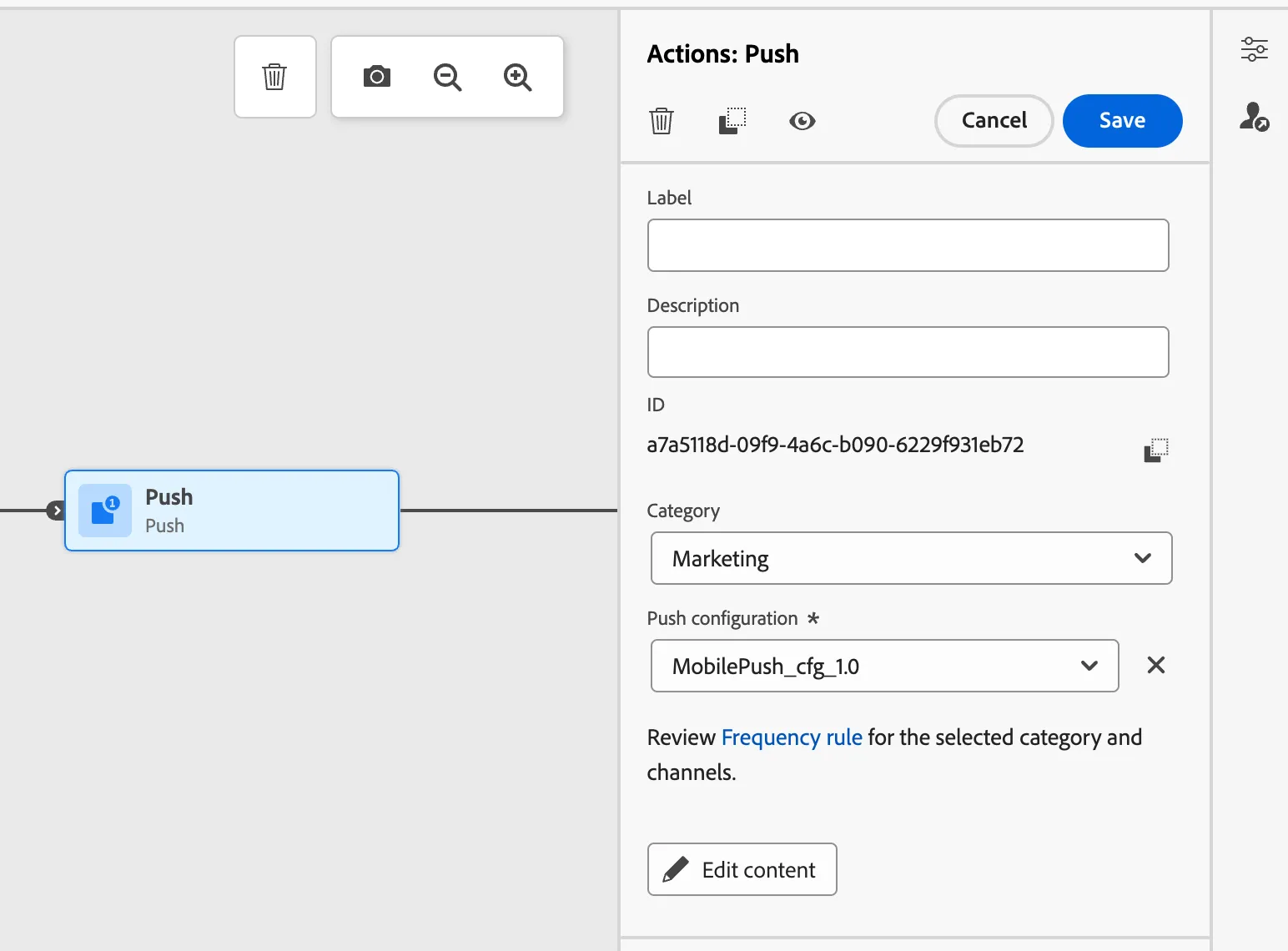
5. Go back to the journey. Click "Save" button on the push action.
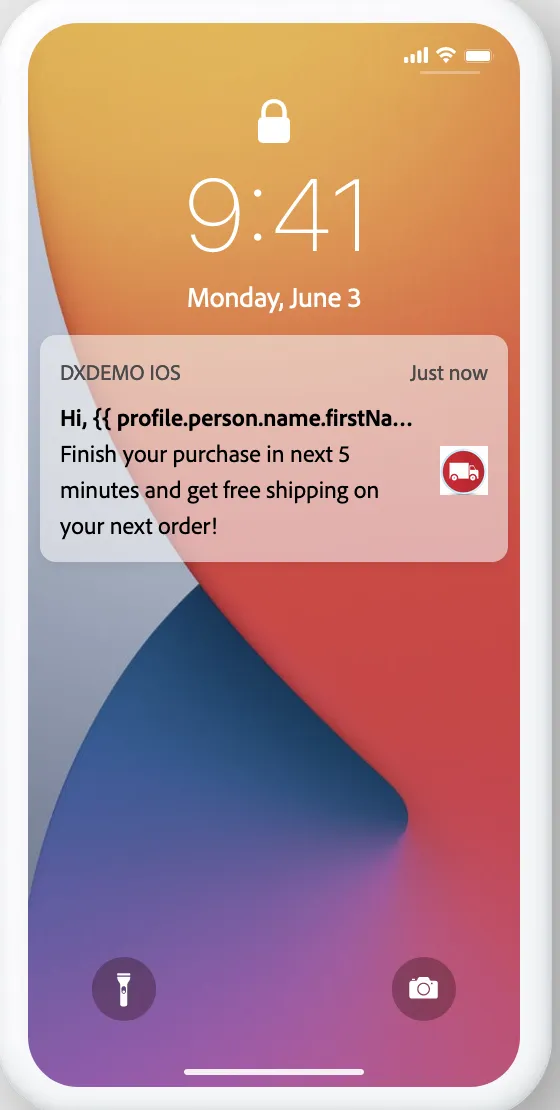
In case of Add to cart journey provide content as below:
Title: Hi, {{ profile.person.name.firstName }}
Body: Finish your purchase in the next 5 minutes and get free shipping on your next order!
6. Rename your journey by clicking the pencil next to its title
7. Click "Publish" to make the journey to work
