Using Content Cards - DEPRECATED
Content Cards, a digital messaging feature in Adobe Journey Optimizer, deliver personalized, engaging content directly within mobile apps. Unlike conventional push notifications, they blend smoothly into the user interface, providing persistent and non-intrusive updates that enhance interaction and user experience.
This tool allows marketers to present relevant, rich media content to users, boosting engagement and ensuring key messages are noticed without interrupting the user's journey.
The DSN Mobile App (DXDemo) supports Content Cards.
Prerequisites:
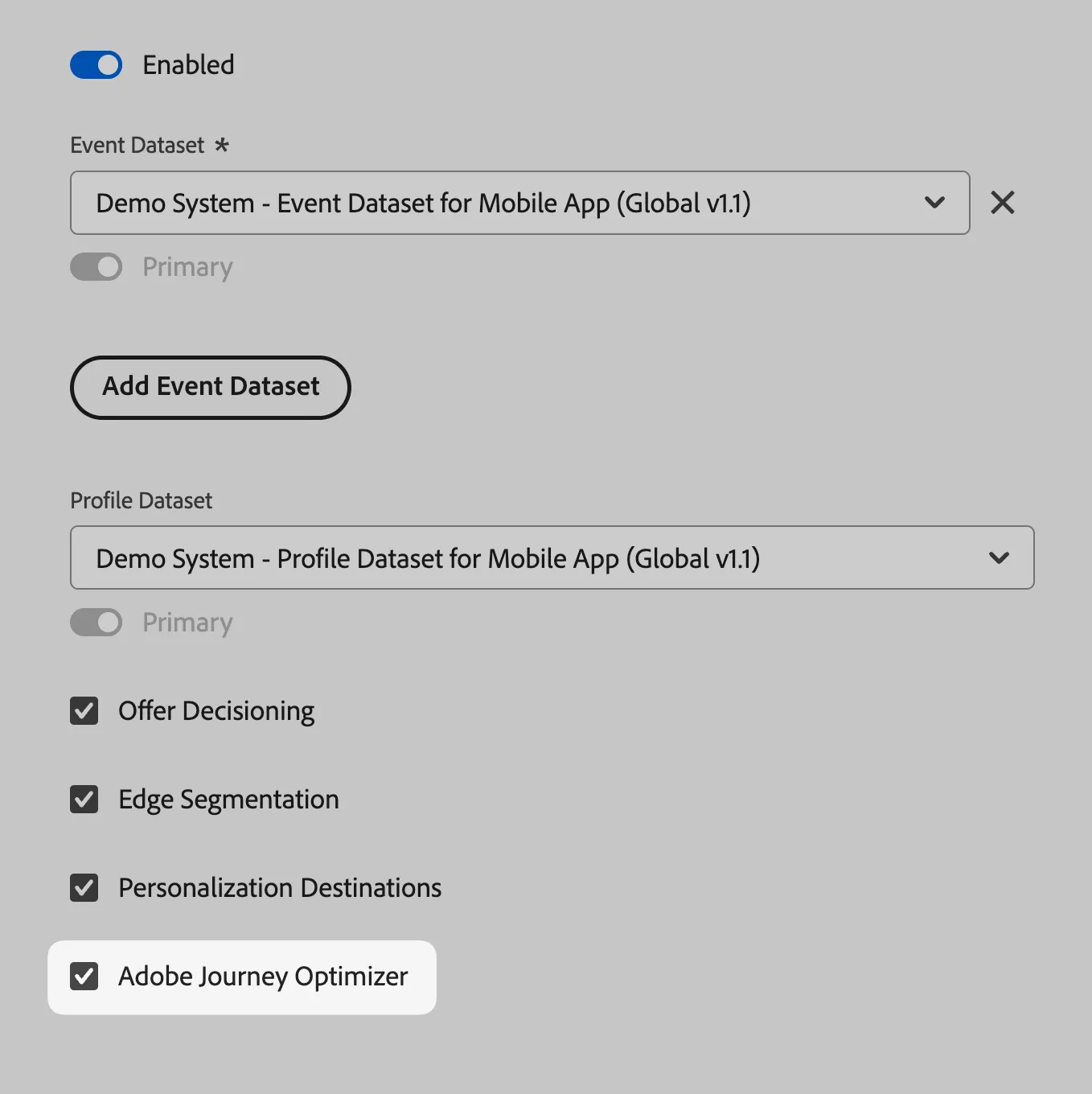
Ensure the Data collection datastream has Adobe Journey Optimizer checkbox checked for the Experience Platform.
Setup:
Create a content card configuration
1.Navigate to Channels > Channel configurations menu.
- Click Create channel configuration.

2.Enter Configuration Details
- Provide a name and an optional description for the configuration.
- Note: Names must start with a letter (A-Z) and can only contain alphanumeric characters, underscores (_), dots (.), and hyphens (-).
3.Choose the Content Cards channel for the configuration.
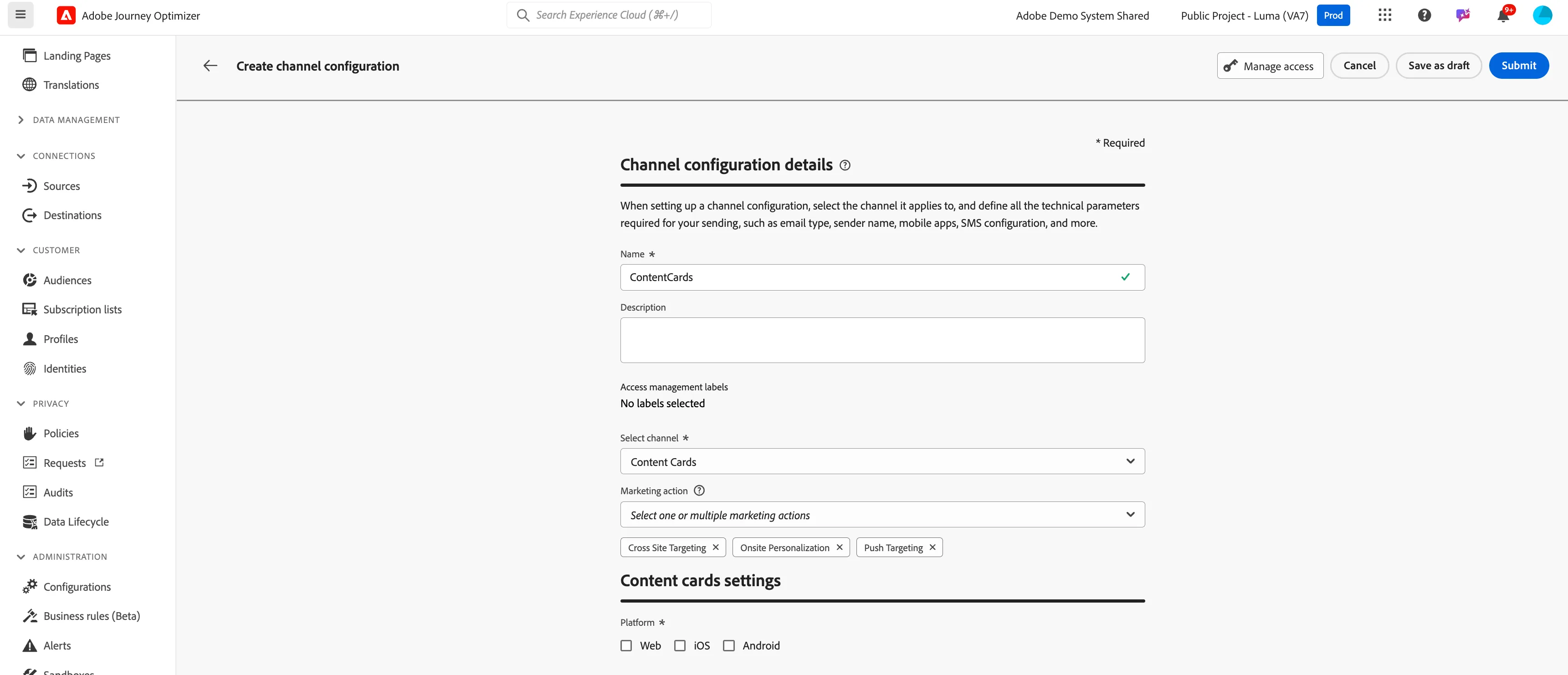
4.Choose the platform where the content card experience will apply:
For Web:
- Specify a Page URL to target a single page.
- Or, create a Pages matching rule to apply changes to multiple URLs that meet the rule. This is useful for making global changes across a website, such as updating a hero banner or adding an image across product pages.
For iOS and Android:
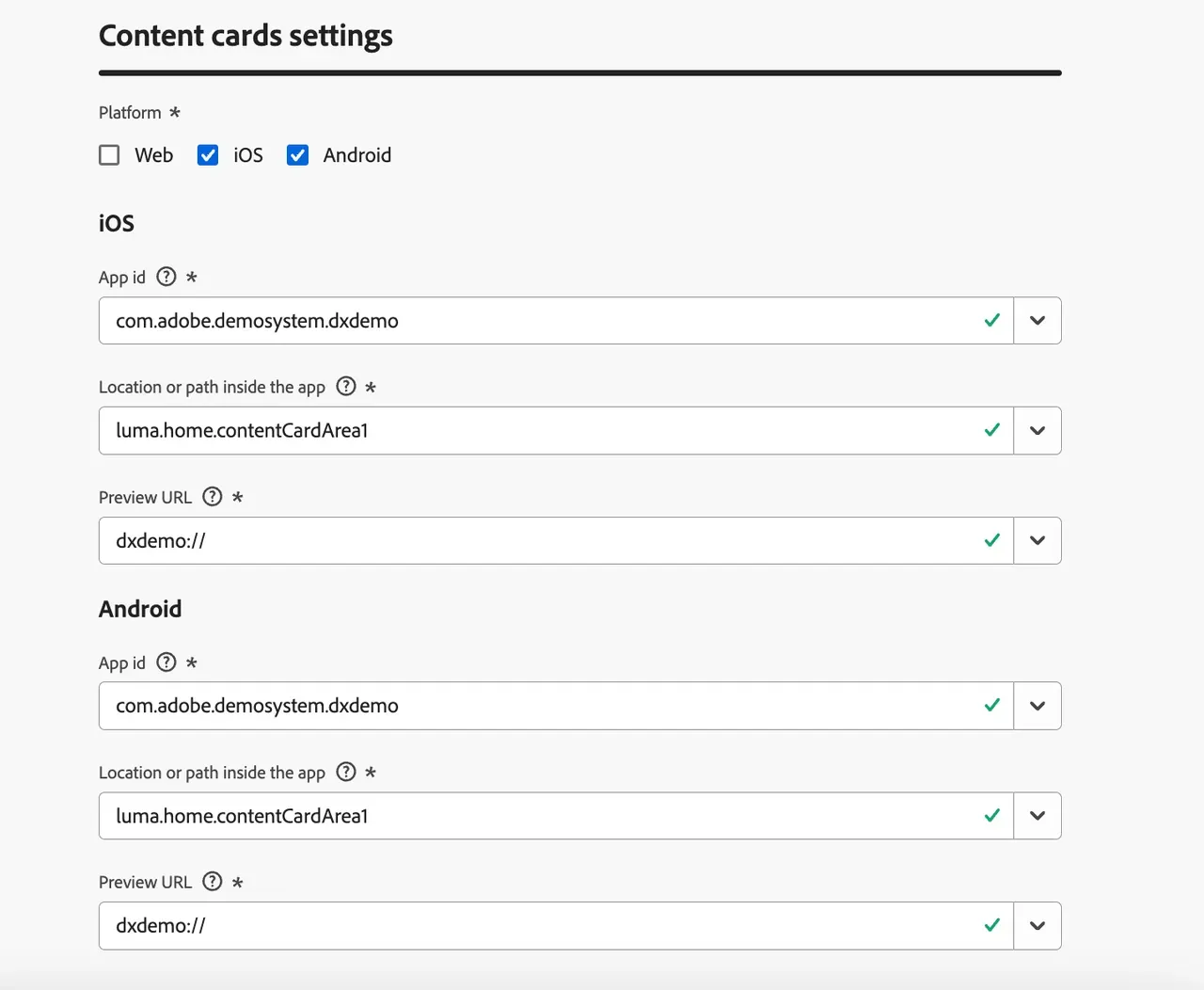
- Enter or select the App ID, Location or path within the app, and provide a Preview URL.
- Location or path inside the app : You can either use the same path as shown in the screenshot below luma.home.contentCardArea1 or use a custom surface name using the following recommended naming convention: ldap+projectid-cc
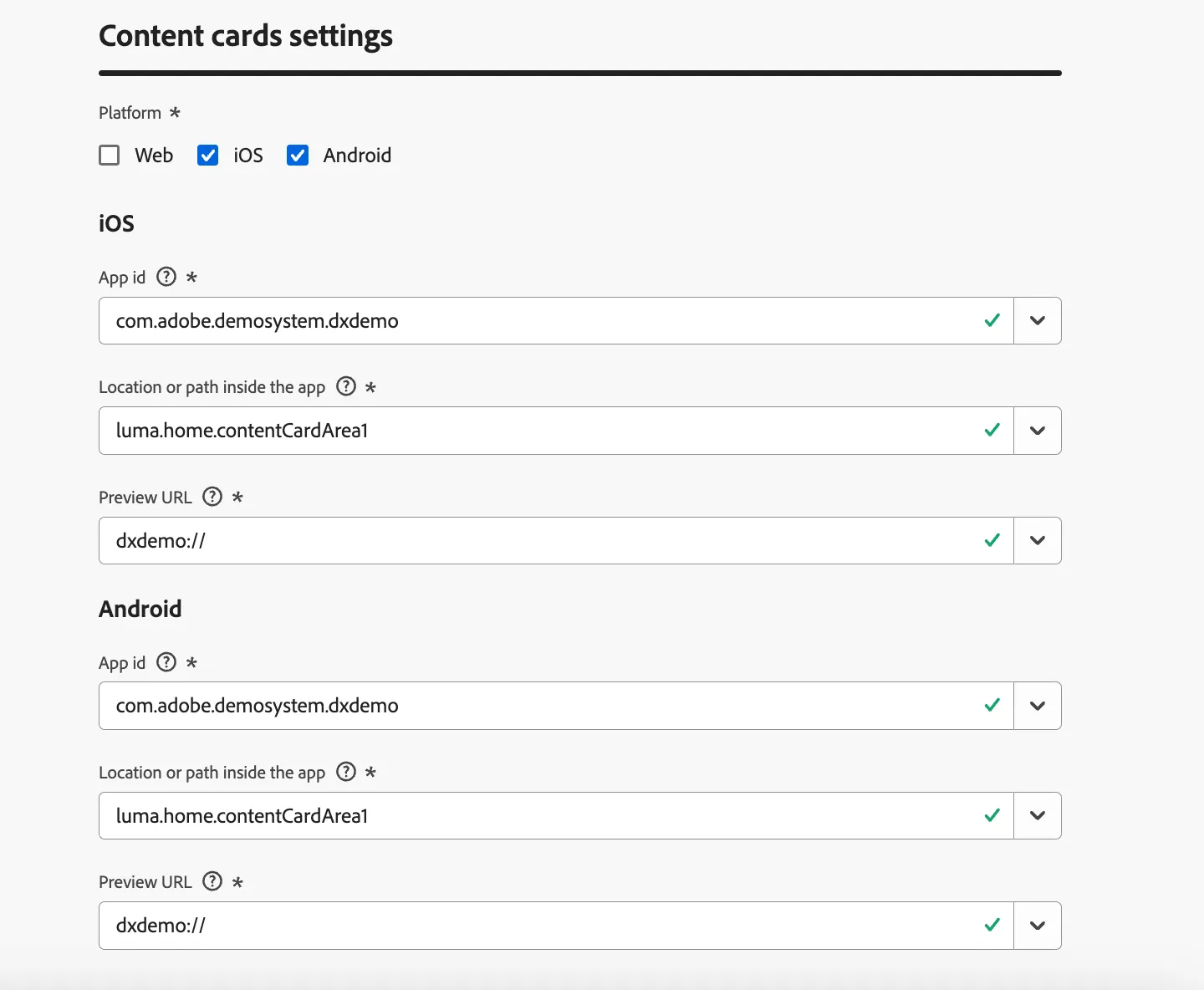
5.After configuring the settings, submit your changes.
Once completed, you can use your new configuration when creating a Content card experience.
Create content cards
To begin building your content cards through a campaign, follow these steps:
1.Navigate to Journey Managment > Campaigns. Create a Campaign.

2.Select Campaign Type as "Scheduled"
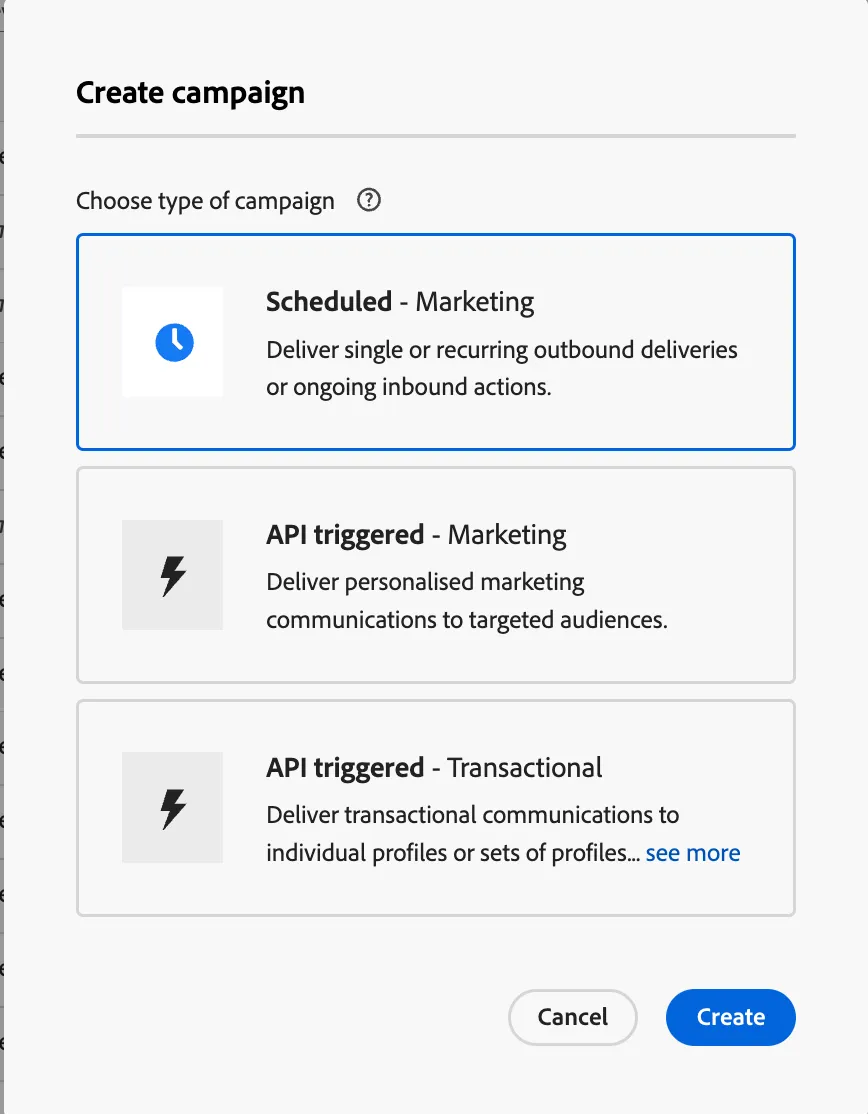
3.Define Campaign Properties:
- In the Properties section, provide a name and description for the campaign.
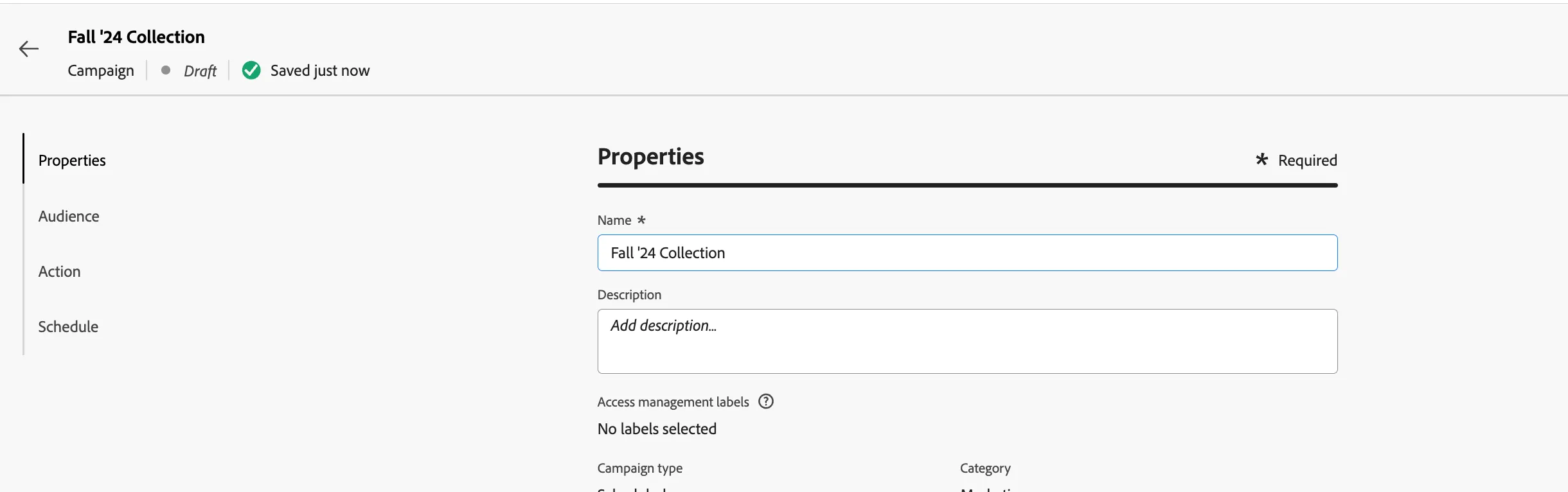
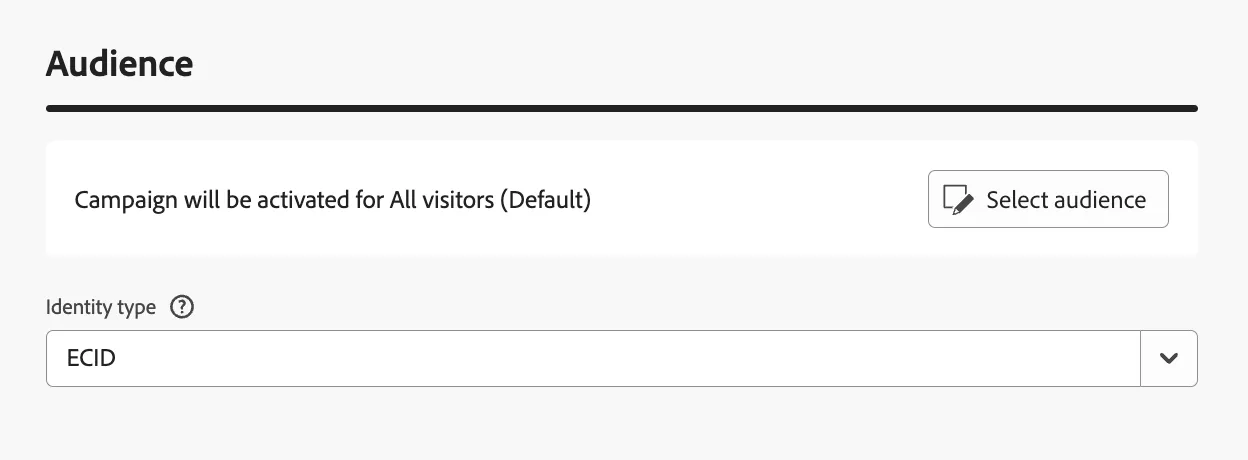
4.Choose Your Audience:
- In the Audience section, click Select audience to choose from the available Adobe Experience Platform audiences.
- In the Identity namespace field, select the appropriate namespace to identify individuals in the segment.
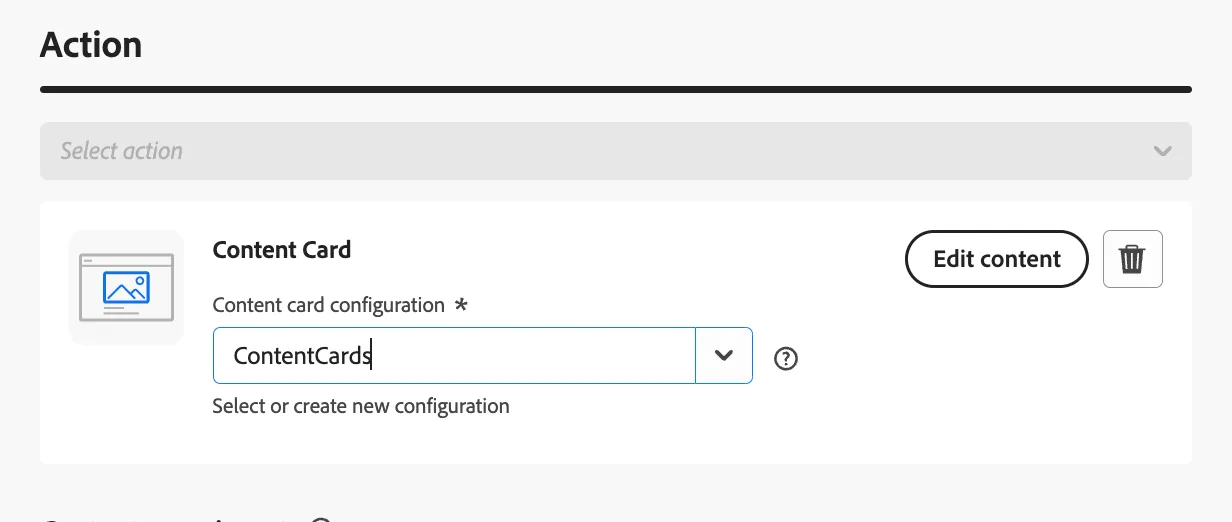
5.Choose the Content card action for the campaign.
6.Select or Create a Content Card Configuration
In our case, select an existing content card configuration- ContentCards
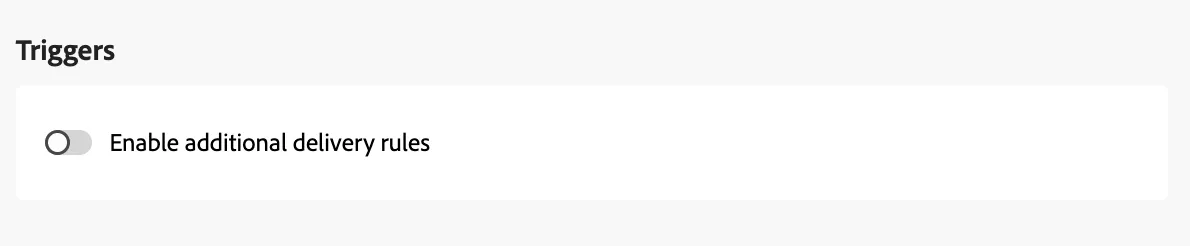
7.Enable Additional Delivery Rules (Optional):
- If needed, toggle Enable additional delivery rules. You can then click Edit triggers to define the events and criteria for message delivery using the rule builder.
Lets keep the triggers empty.
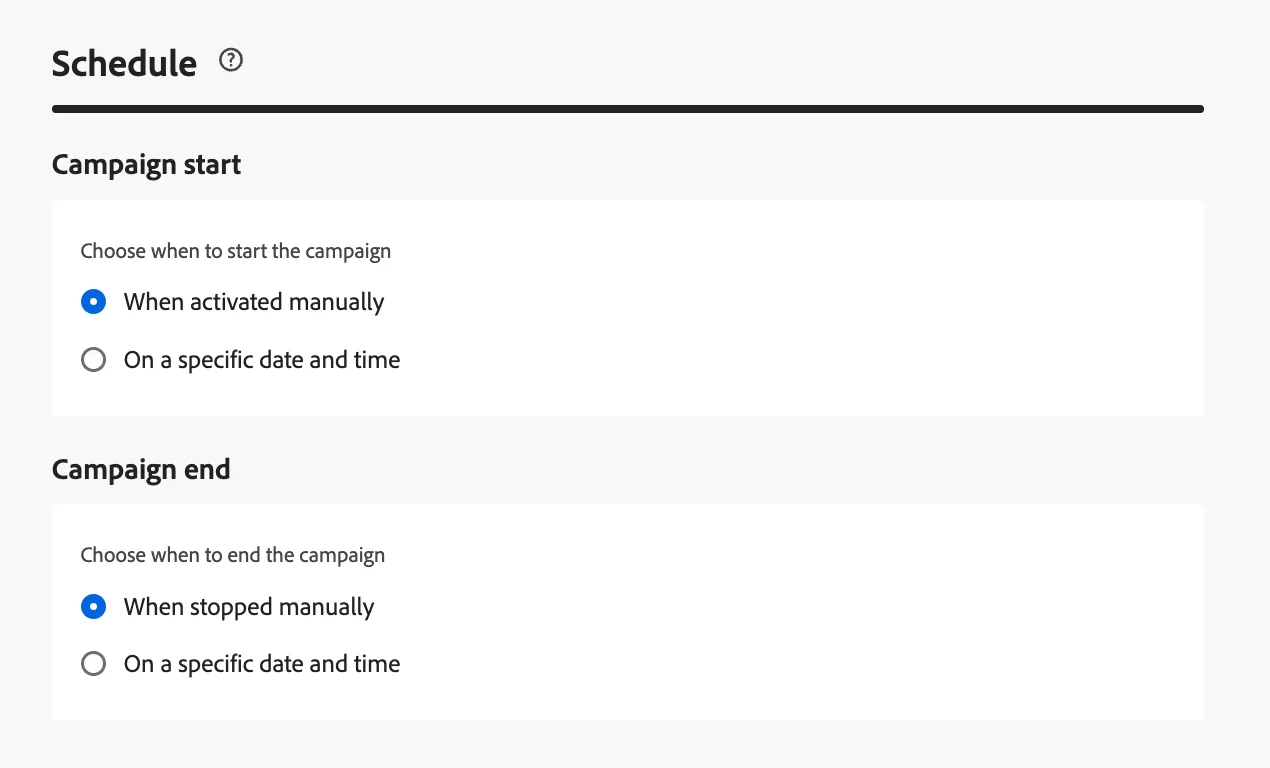
8.Set your campaign to run on a specific date or recur at regular intervals
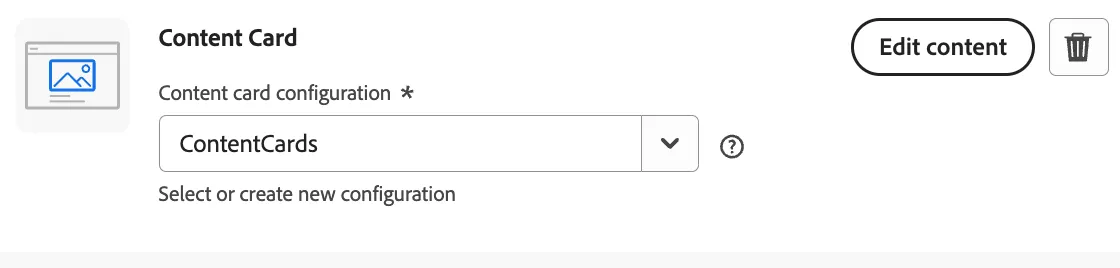
9.Begin creating the content by clicking Edit content.
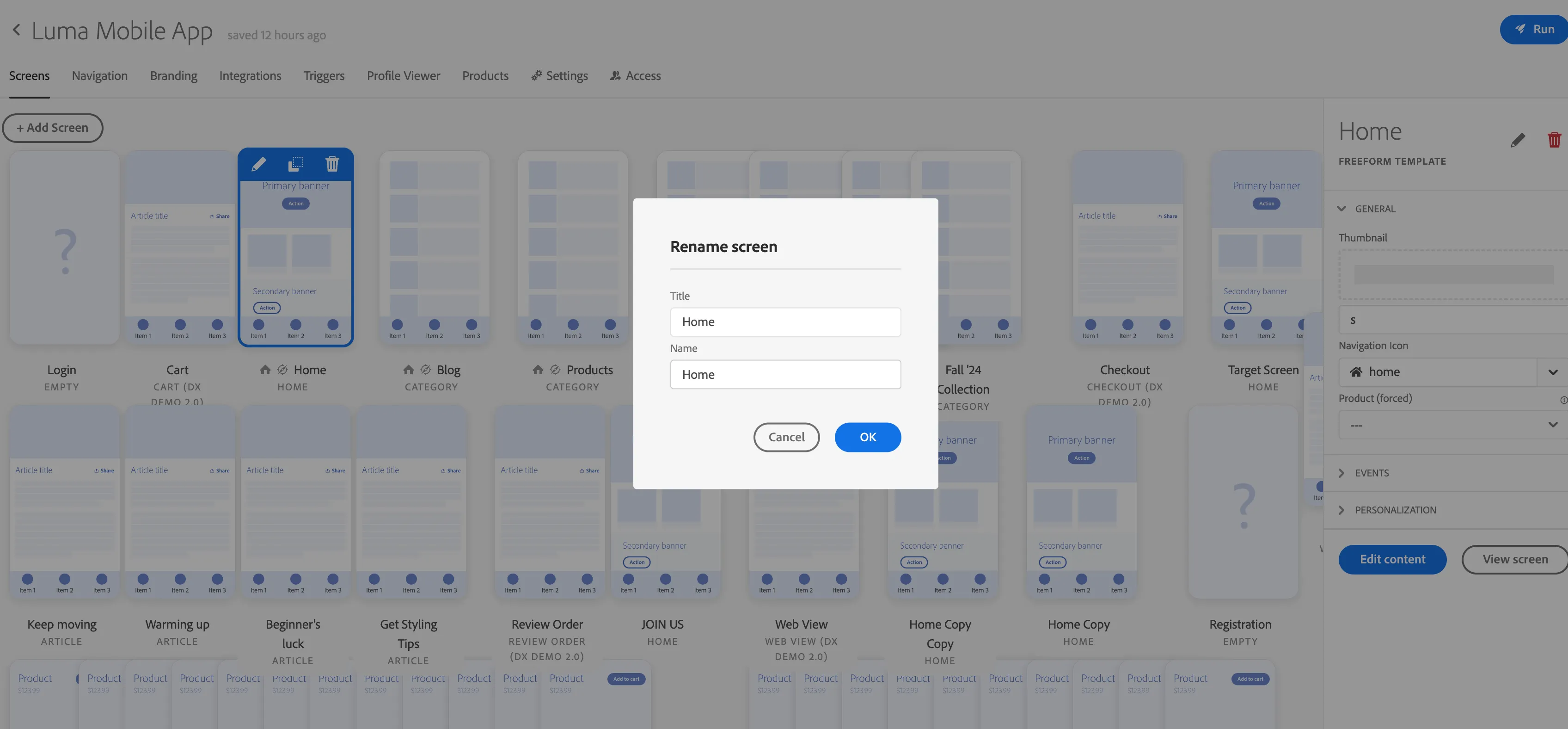
Target: To provide target value, it has to be dxdemo://Name
You can grab Name from mobile project configuration.
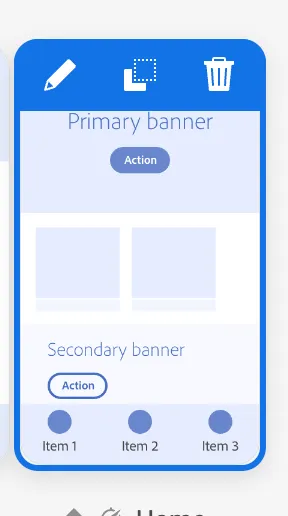
Go to mobile project in the builder. Click on any screen where you want to navigate.
Click on pencil icon to see the screen name and use Name property.
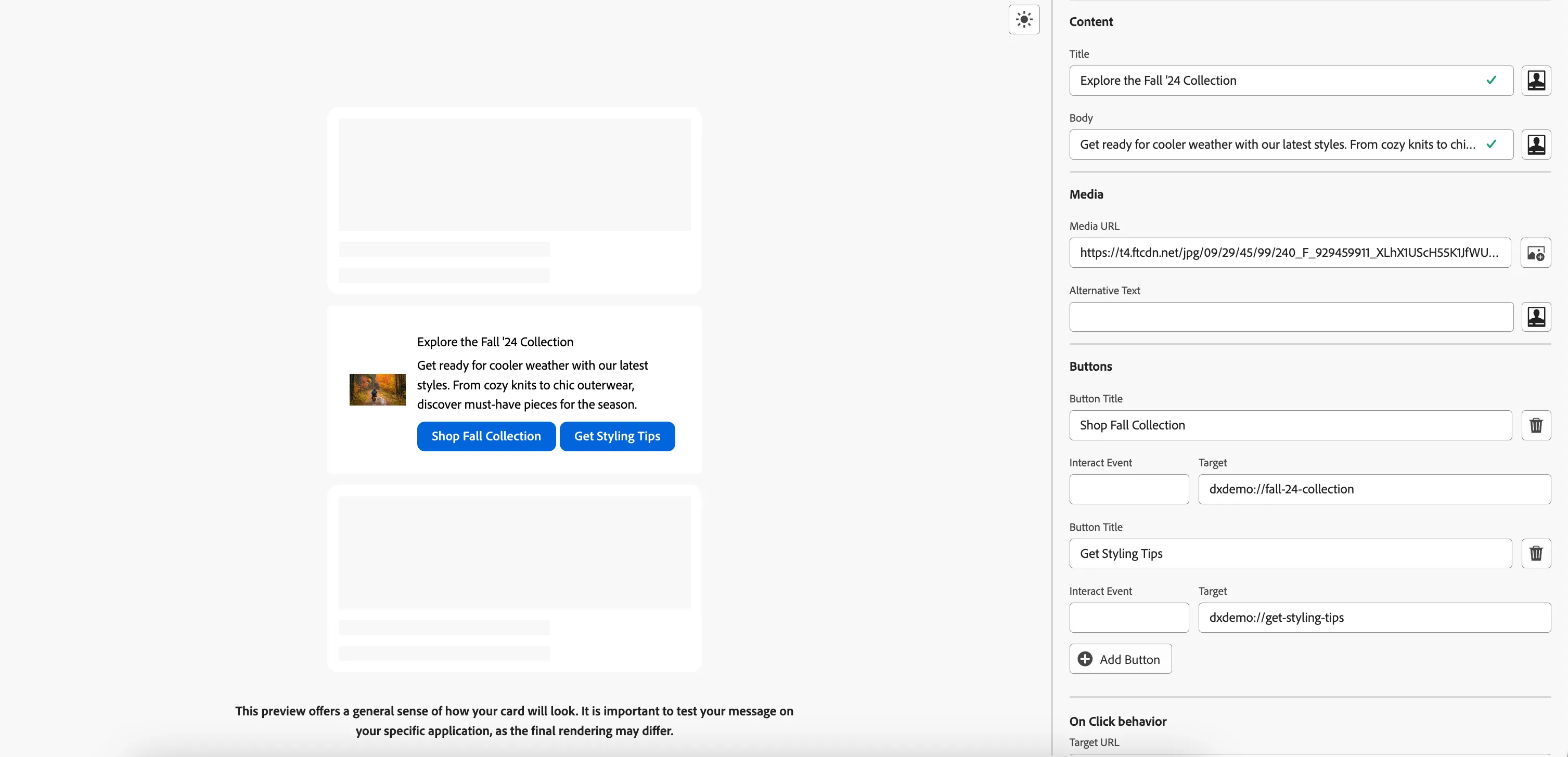
Provide sample content as below:
Title: Explore the Fall '24 Collection
Body: Get ready for cooler weather with our latest styles. From cozy knits to chic outerwear, discover must-have pieces for the season.
Media Url : https://t4.ftcdn.net/jpg/09/29/45/99/240_F_929459911_XLhX1UScH55K1JfWU2D1FLFLOC0xJ3ey.jpg

Button Label: Shop Fall Collection
Target : dxdemo://fall-24-collection
Button Label : Get Styling Tips
Target : dxdemo://get-styling-tips
Configure Mobile App for Content Cards
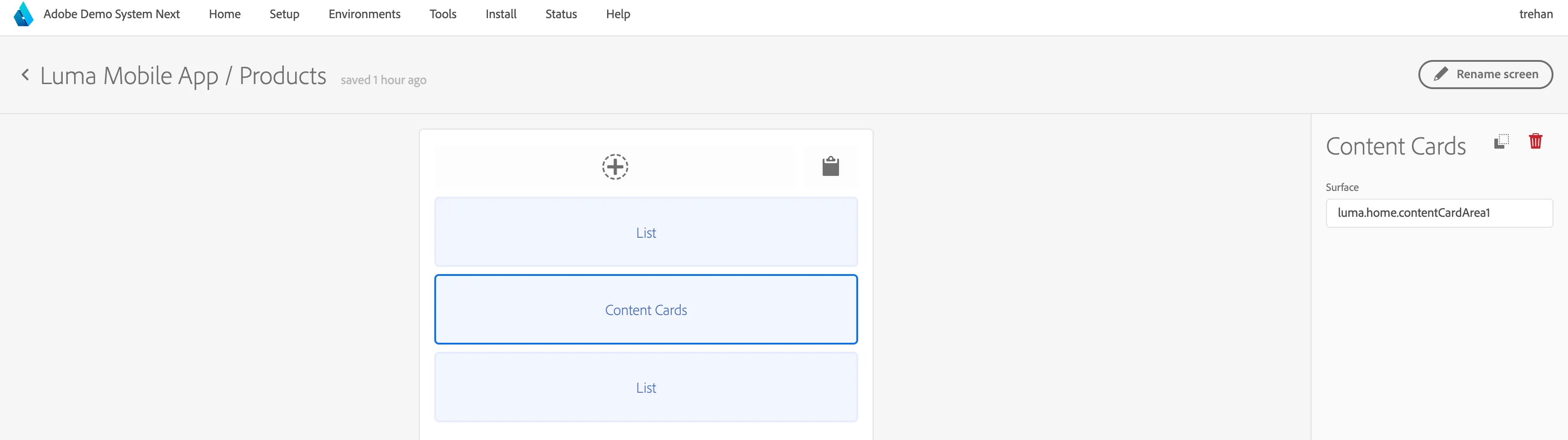
- Open mobile project in builder configuration.
- Navigate to Products screen(or any screen)
- Add component - Content Cards under General category.
Provide surface value as luma.home.contentCardArea1.
While using your own Mobile project, users need to use the same location path used in the Content card channel configuration for the surface value of the DSN Mobile Content card component.
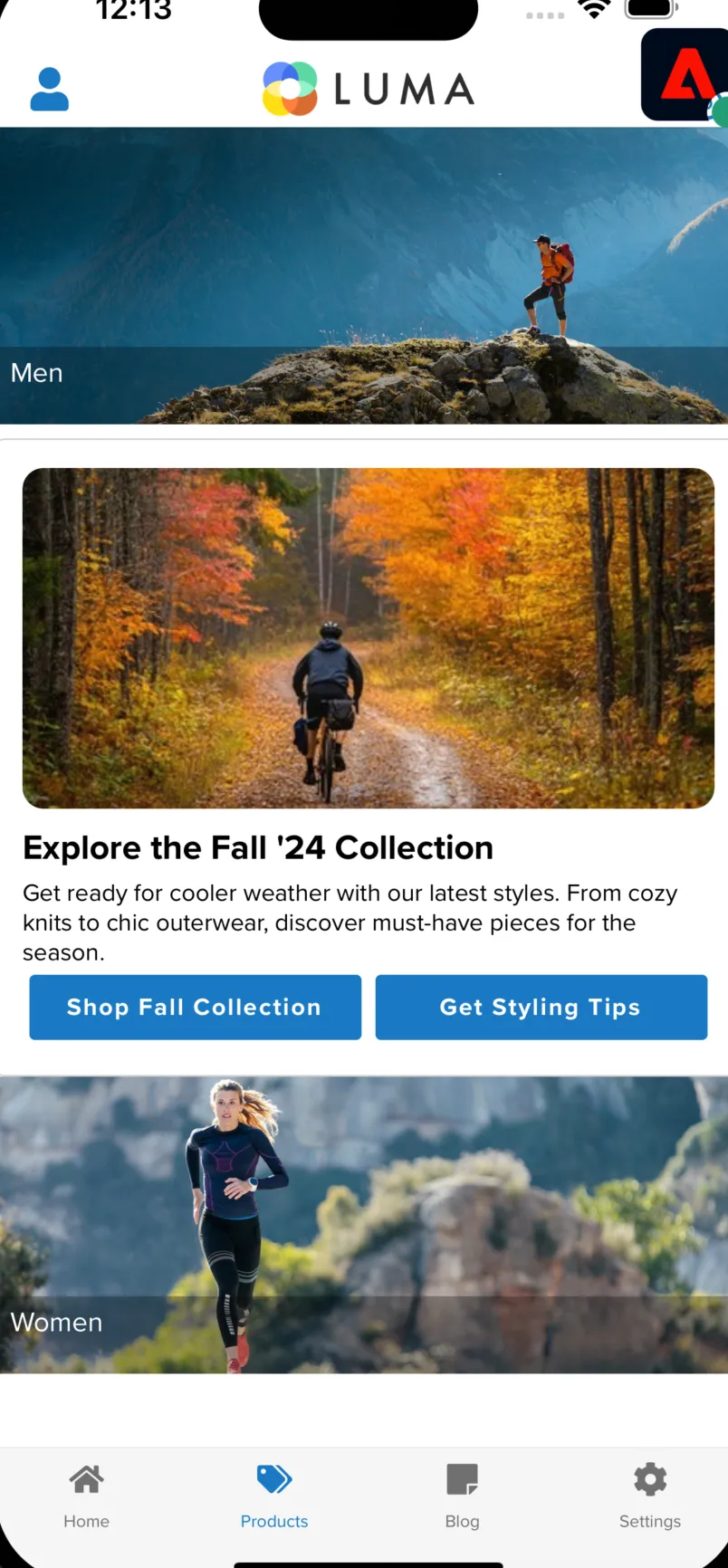
4.Open the app on the device. Navigate to products screen. It should look as below:
Sample Scenario is implemented in Luma - More Info here