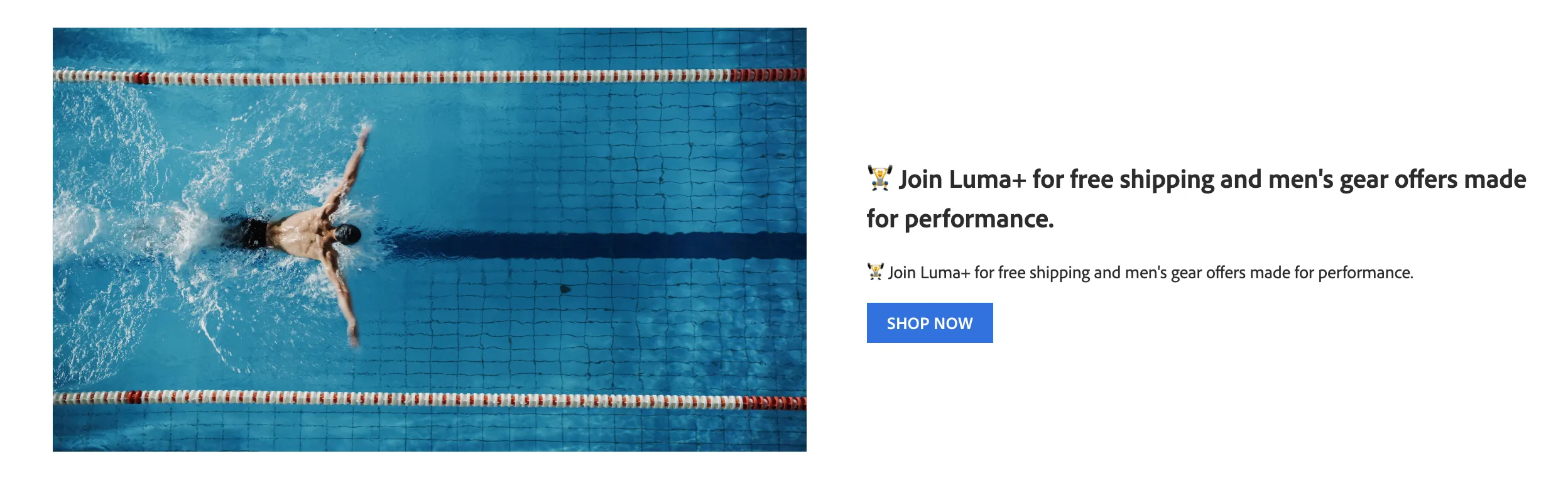
Experience Decisioning
The Experience Decisioning component renders personalized content from Adobe Journey Optimizer (EXD) campaigns on your website pages. It connects to your EXD campaign, matches the configured surface with decisions from the campaign response, and displays the personalized content.

The component supports three rendering formats:
- Ribbon A compact banner bar with optional image and text. It can be displayed inline on a page or fixed at the top of all pages.
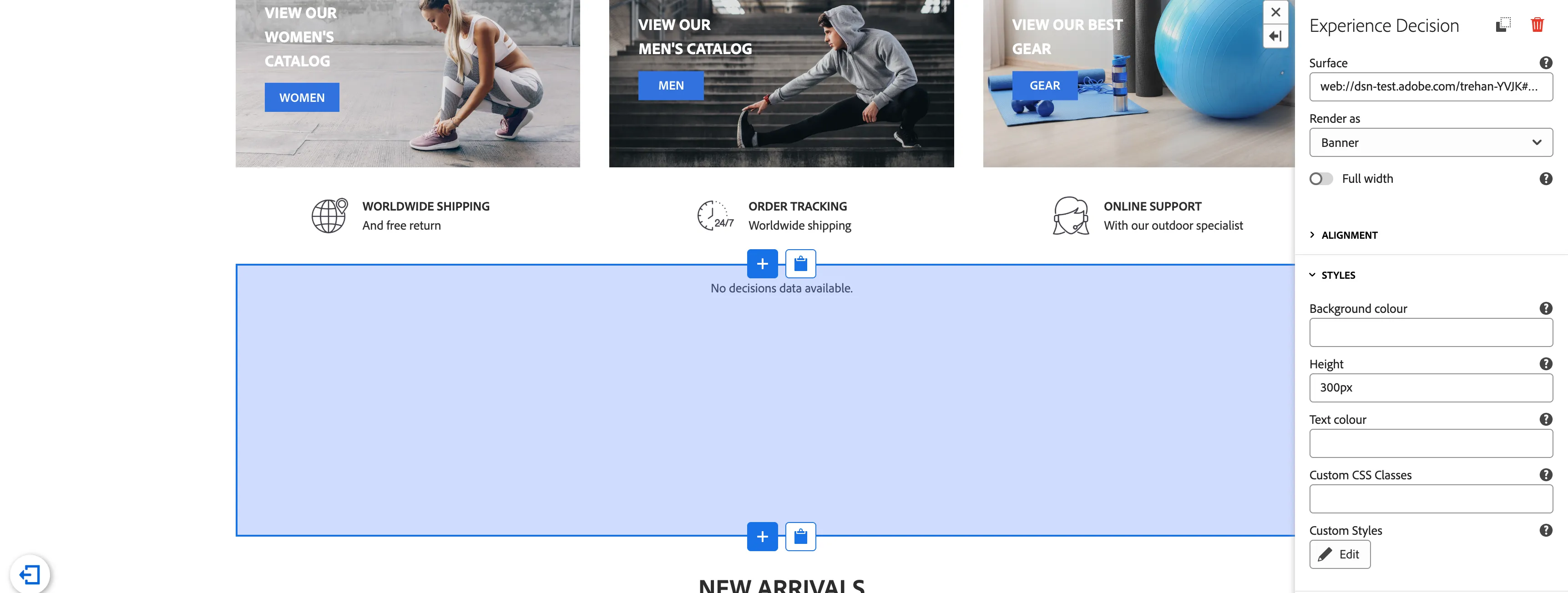
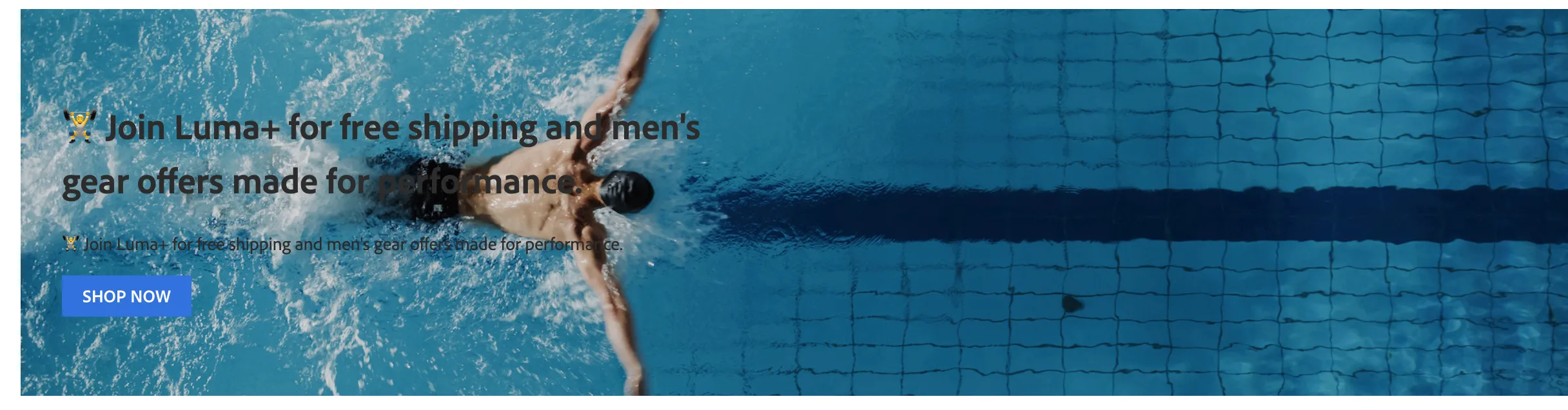
- Banner A full-width hero section with image, title, subtitle, and an optional call-to-action button.
- Card A flexible card layout with multiple variants (image on top, left, right, or overlayed) for displaying personalized content.
Simplifies Data Collection Rule
- Simplified data collection The data collection rule is handled directly by the component code. You no longer need complex Launch rules for each personalization variant.
- Complex logic handled in code All EXD communication, surface matching, and content parsing are managed internally by the component.
- Simple drag-and-drop Add the component through the visual editor, configure it, and it works immediately—no custom JavaScript required.
Prerequisites
Before using the ExperienceDecision component, ensure the following:
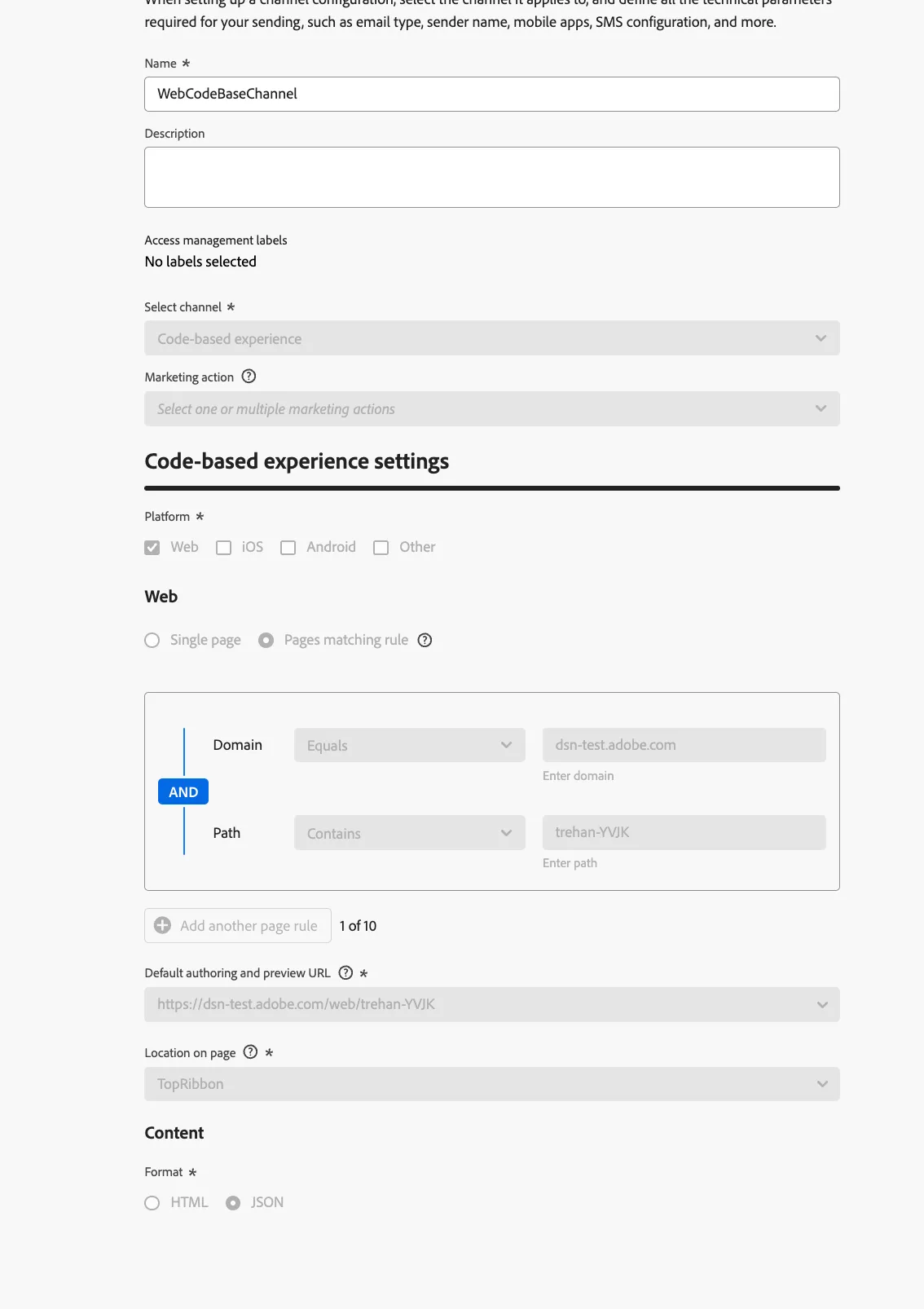
- You have an Adobe Journey Optimizer campaign configured with decisions, and the surface and Content format should be JSON.
- Your website project has data collection (Launch) configured to call updateEXDOffer(response) with the EXD response.
- The campaign should use the following structure for content:
{
      "image": "https://example.com/image.jpg",
      "text": "Main title or text",
      "description": "Subtitle or description",
      "link": "https://example.com/page",
      "buttonLabel": "Click Here"
}
For more details, see: Experience Decisioning
Steps
Step 1: Create Website Project
- Go to: https://dsn.adobe.com/quick-setup
- Select your environment.
- Select the preset “Luma Advanced” (or your preferred preset).
Step 2: Add ExperienceDecision Component to Home Page
- Go to: https://dsn.adobe.com/workspace
- Open your website project.
- Click the Home page tile.
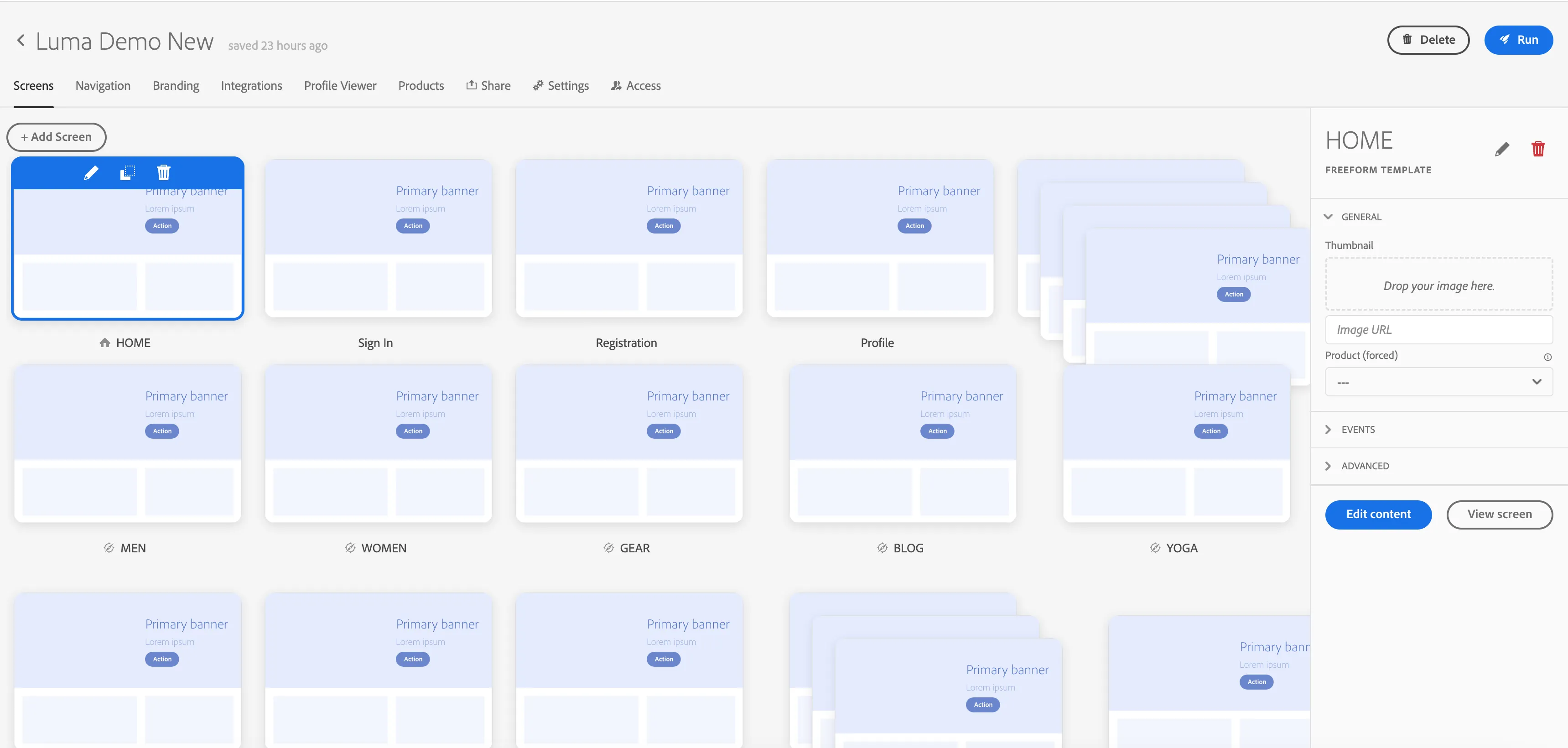
- Select Edit Content from the right-hand panel.
- In the visual editor, click +.
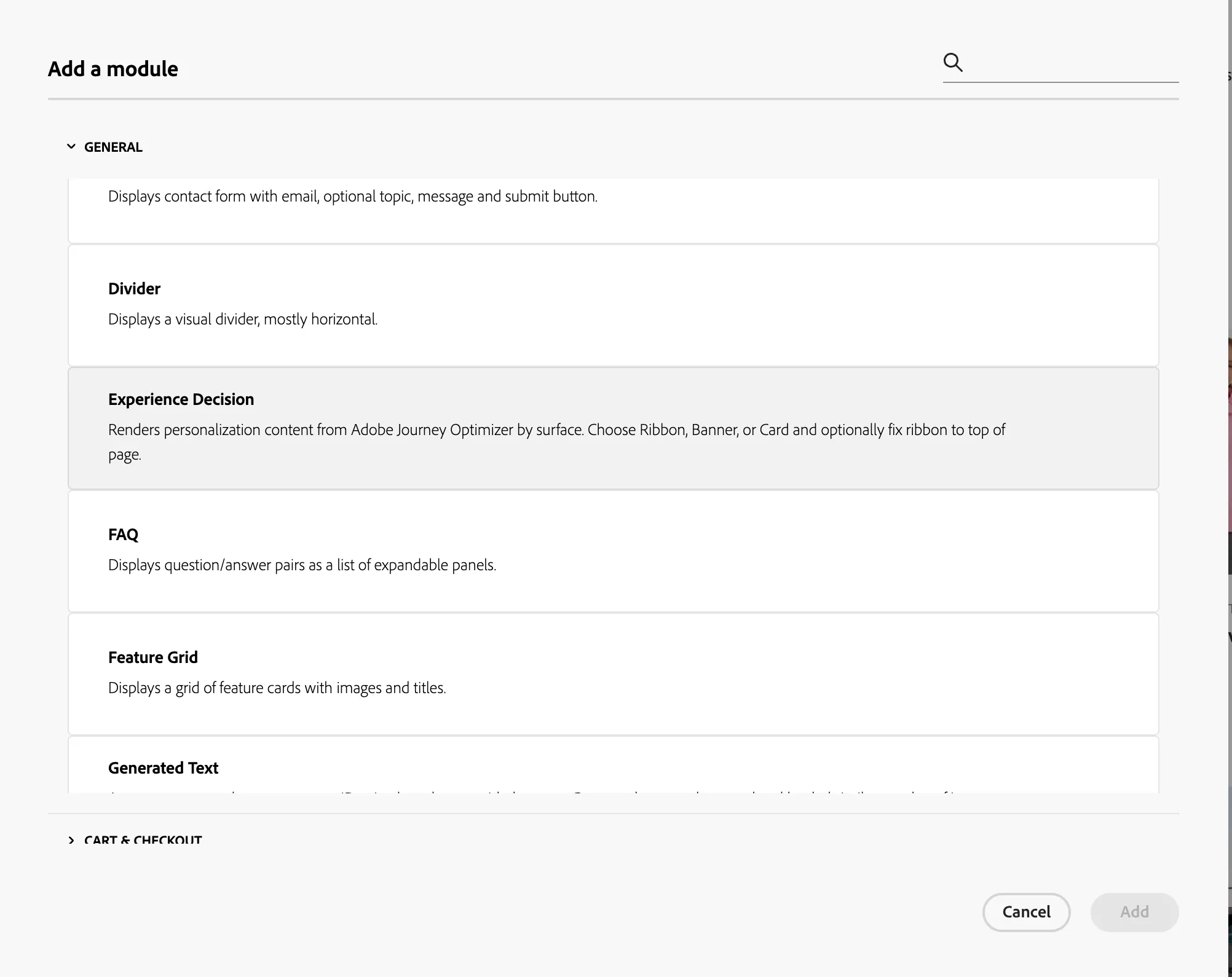
- Search for and select ExperienceDecision under the General Category.
- Click on the component, and it is added to the page and is ready for configuration.
For more details, see: Step 3 – Modify the website https://dsn.adobe.com/docs/step-3-modify-the-website
Step 3: Configure ExperienceDecision Component
After adding the component, configure it using the panel on the right.
Basic Configuration
- Render as Choose how the content should be displayed:
- Ribbon
- Banner
- Card
- Surface Enter the surface identifier that matches your EXD campaign (for example: web://dsn.adobe.com/luma3#TopRibbon)
- Styles → Background colour Set the background color (for example: #ffffff)
Ribbon-Specific Configuration
When Render as is set to Ribbon:
- Ribbon position
- Inline: Renders within the page content flow
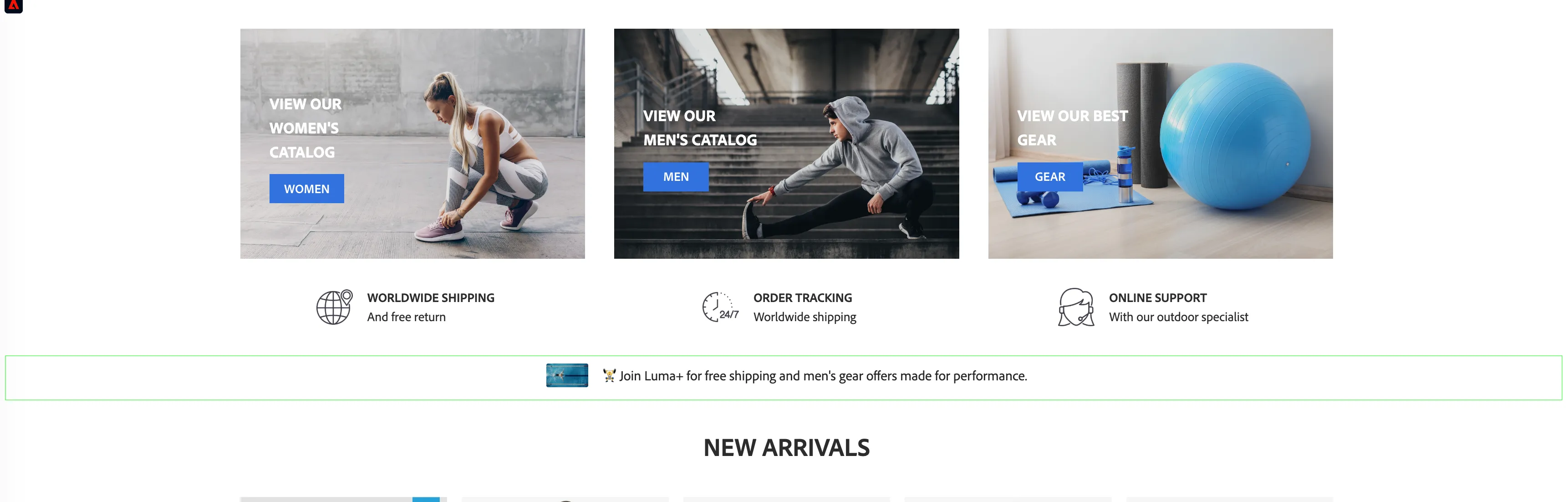
- Top of page: Renders fixed at the top of all pages

Note: When Top of page is selected:
- The ribbon appears on all pages of the website.
- The component itself does not render content on the page where it is placed.
- The ribbon is managed globally by the Page component.
Banner-Specific Configuration
When Render as is set to Banner:
- Full width: Toggle to span the full browser width
- Alignment: Left, Center, or Right
- Vertical alignment: Top, Middle, or Bottom
- Styles
- Height (for example: auto or 500px)
- Text colour (for example: #f9e322)
Card-Specific Configuration
When Render as is set to Card:
- Card layout
- Image on top
- Image on the left
- Image on the right
- Image partially overlayed
- Image fully overlayed
- Alignment: Left, Center, or Right
- Vertical alignment: Top, Middle, or Bottom