Web - AJO Code Based Experiences
This section details how to configure AJO Code-based experience in a DSN Web project such as Luma created using the Quick Setup.
Prerequisites
To showcase the capabilities of the AJO Code-Based Experience, you must ensure that you have met the following prerequisites:
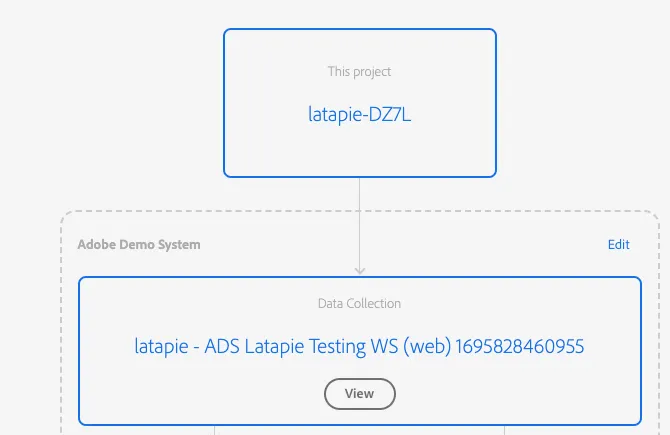
- A DSN Web project connected to an AEP Launch tag property
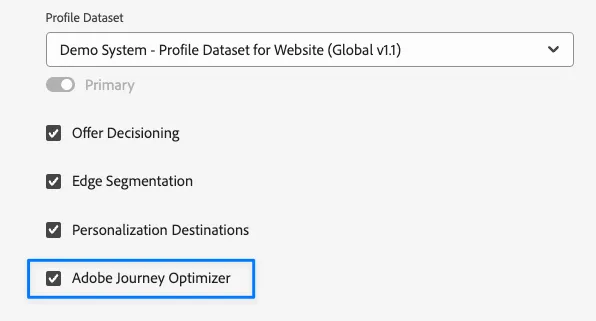
- Your data stream should have the Journey Optimizer checkbox checked
Setup:
Create a Channel Configuration
- Navigate to Channels > Channel Configurations menu.
- Click Create channel configuration.

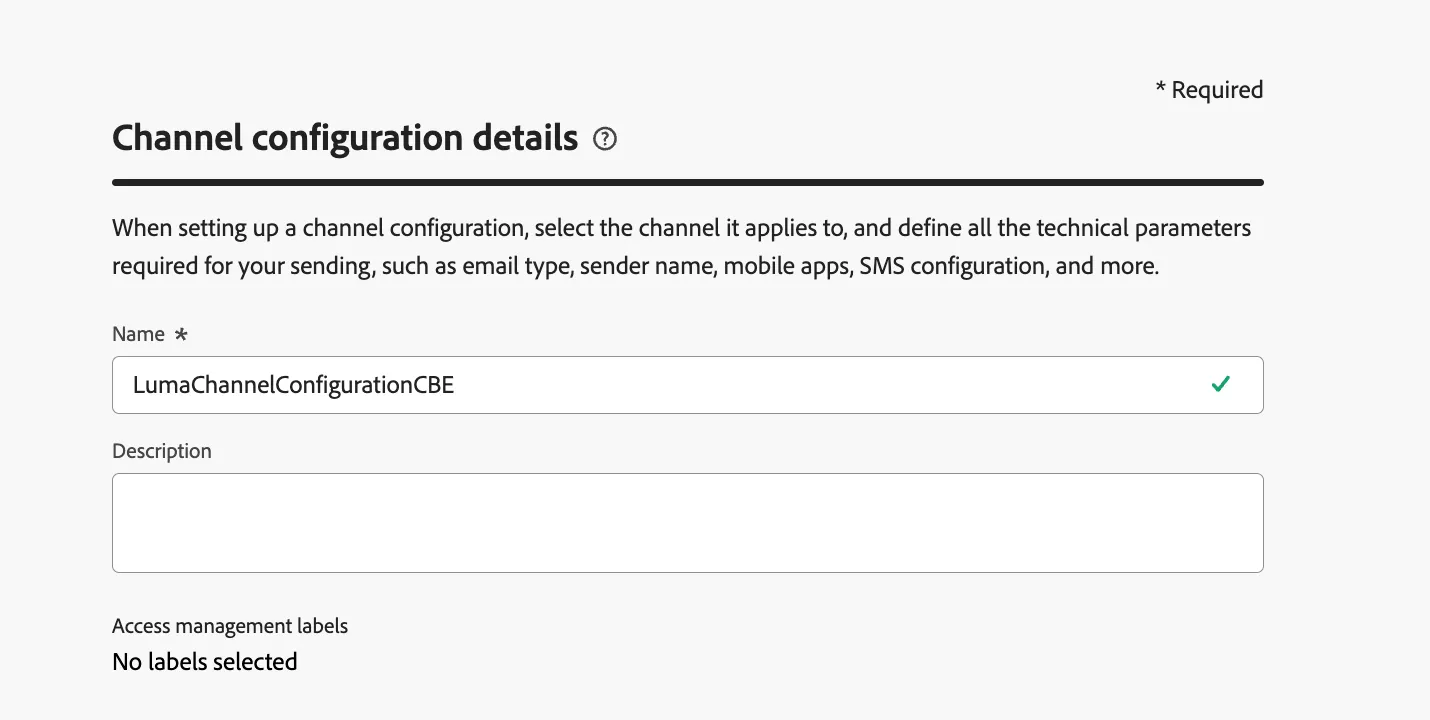
2. Enter Configuration Details
- Provide a name and an optional description for the configuration.
- Note: Names must start with a letter (A-Z) and can only contain alphanumeric characters, underscores (_), dots (.), and hyphens (-).
3. Choose the Code-based experience channel for the configuration.
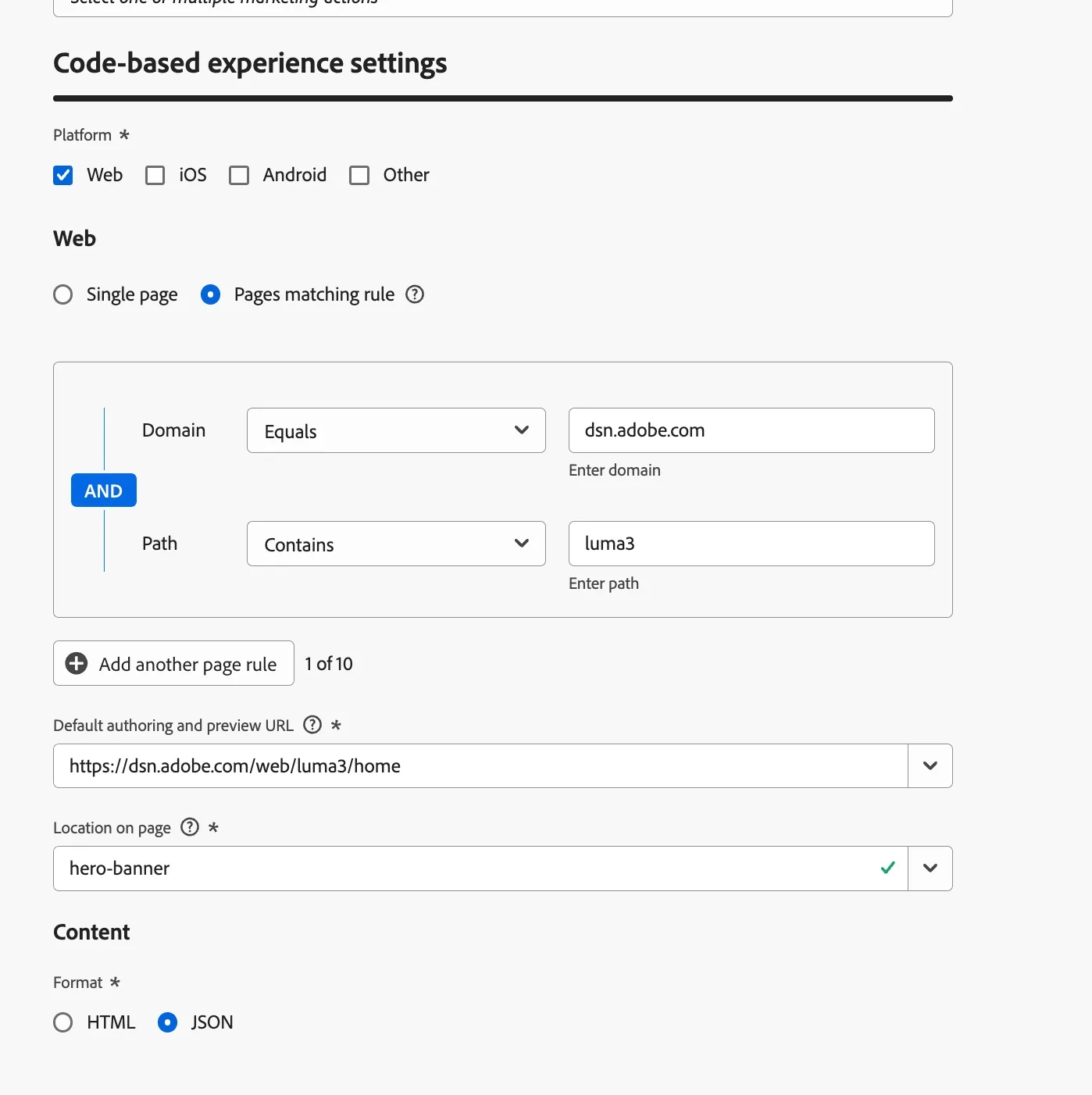
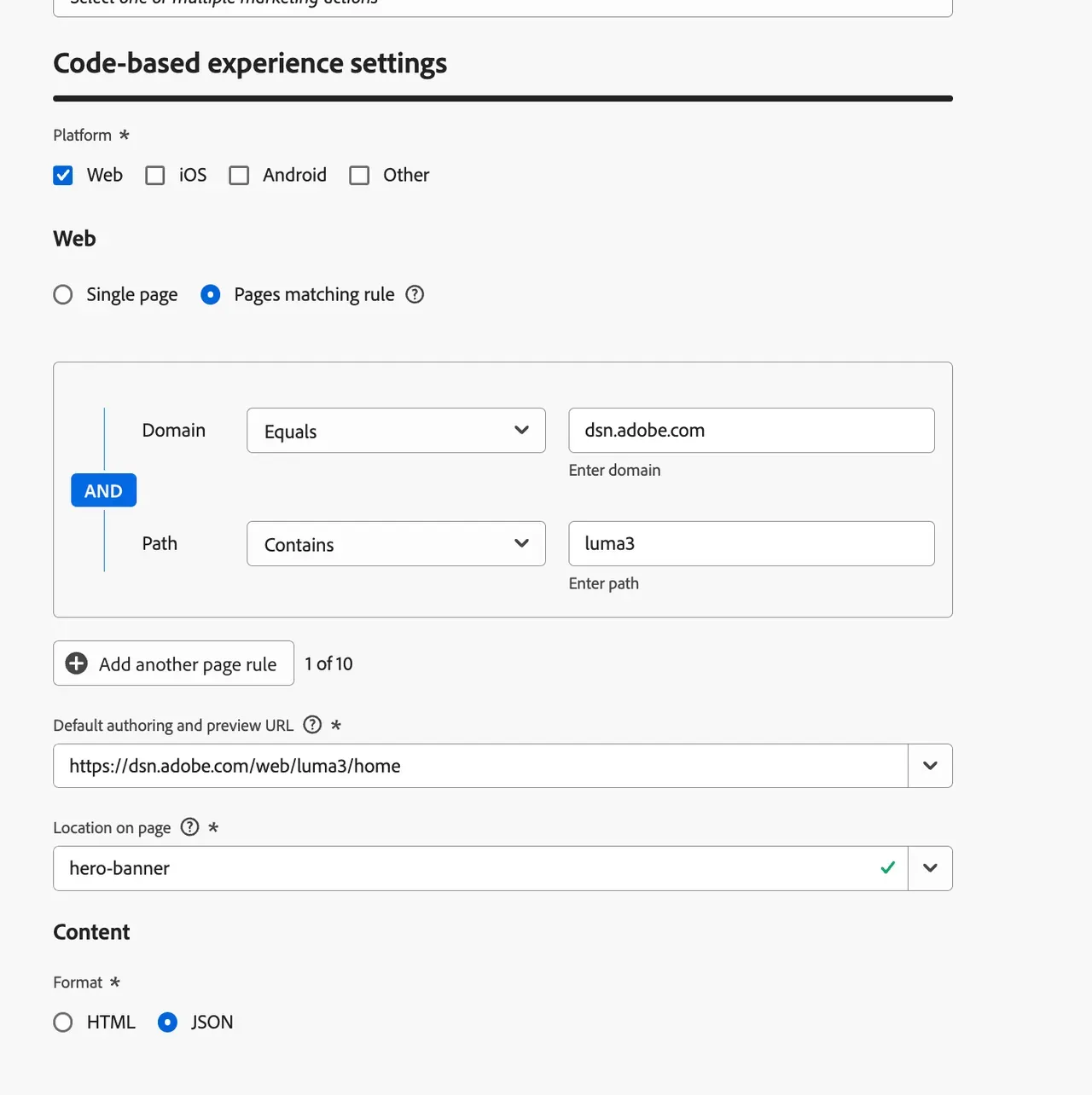
4. Choose the platform: Web where the code-based experience will apply:
- Specify a Page URL to target a single page.
- Or, create a Pages matching rule to apply changes to multiple URLs that meet the rule. This is useful for making global changes across a website, such as updating a hero banner or adding an image across product pages.
Location - hero-banner as seen in the screenshot below is the unique identifier for the code-based experience.
After configuring the settings, submit your changes.
Once completed, you can use your new configuration to create a code-based experience.
Create a new AJO Code-Based Experience Campaign
- Navigate to Journey Management> Campaigns. Create a Campaign.

2. Select Campaign Type as "Scheduled"
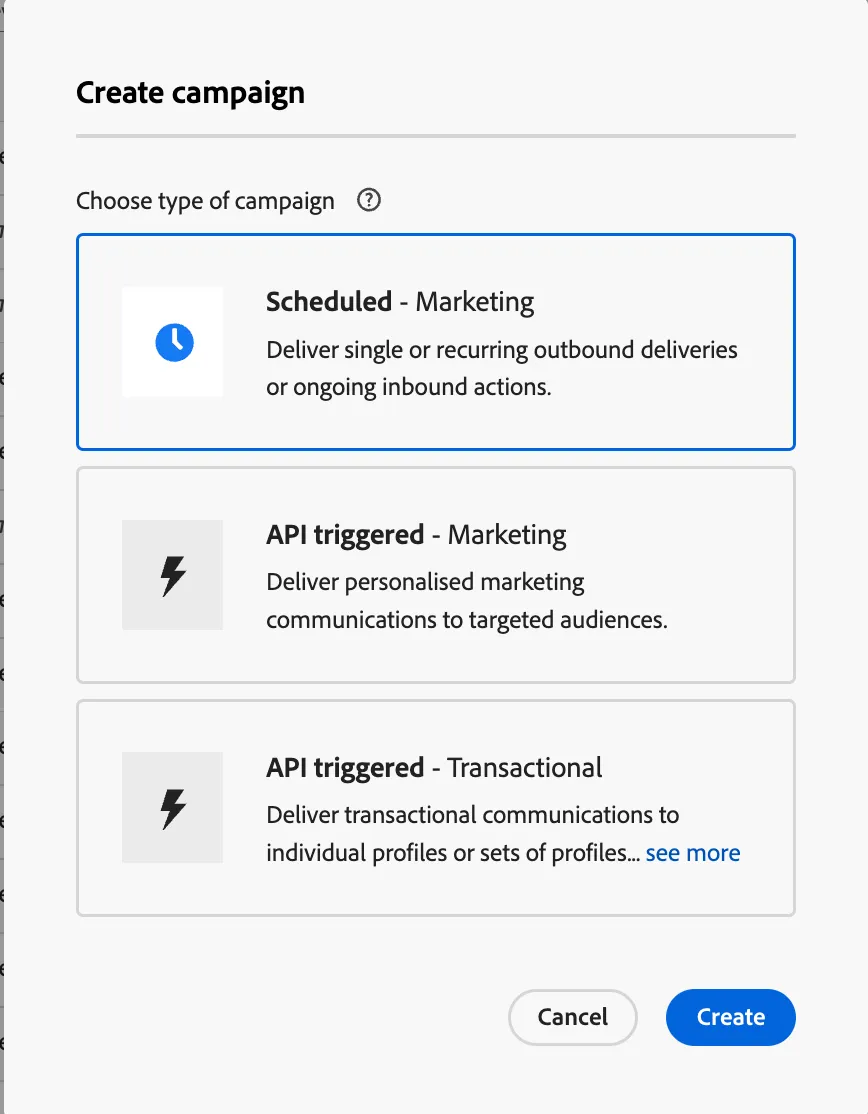
3. Define Campaign Properties:
- In the Properties section, provide a name and description for the campaign.
- Choose Your Audience:
- In the Audience section, click Select Audience to choose from the available Adobe Experience Platform audiences.
- In the Identity namespace field, select the appropriate namespace to identify individuals in the segment.
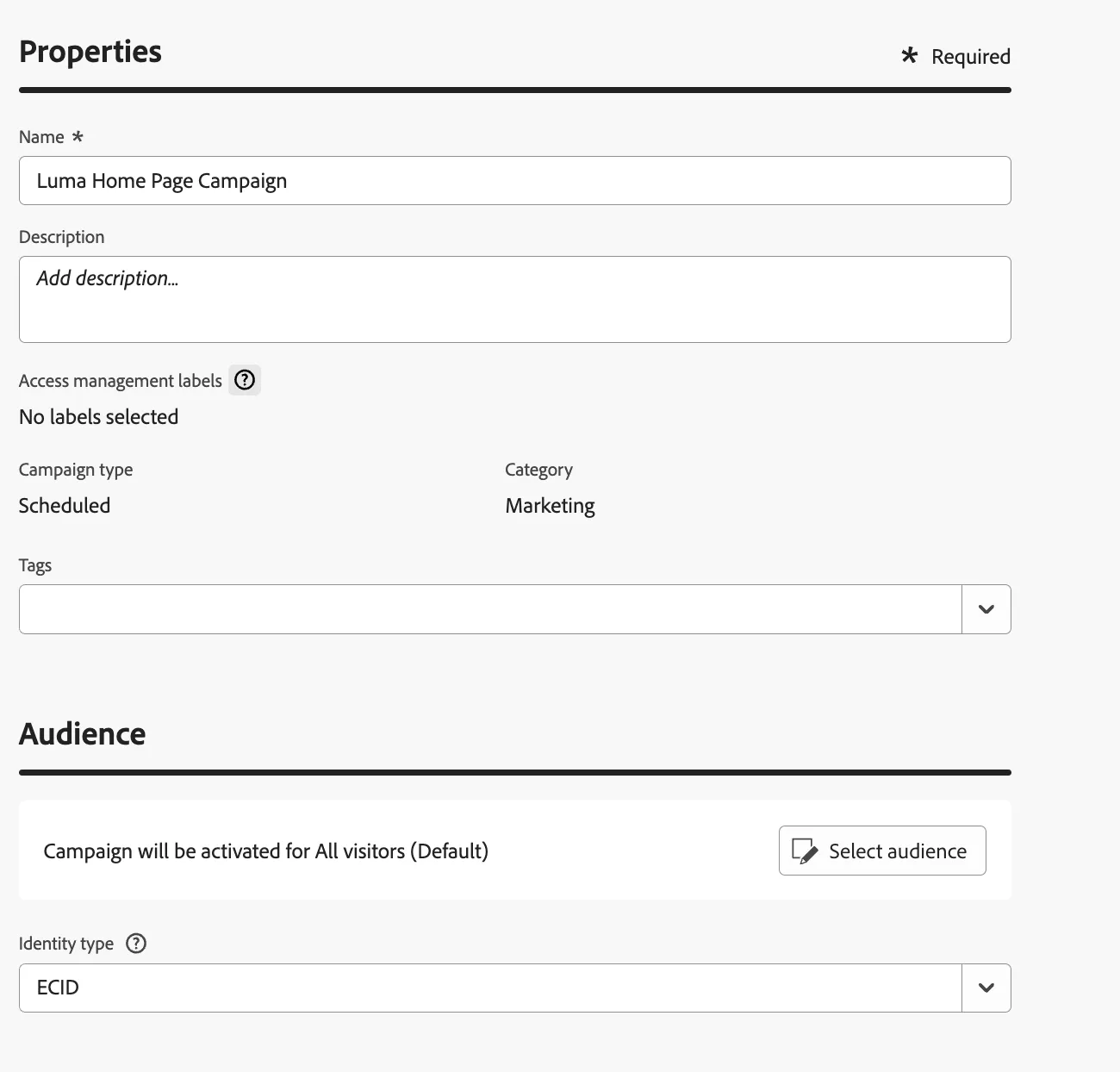
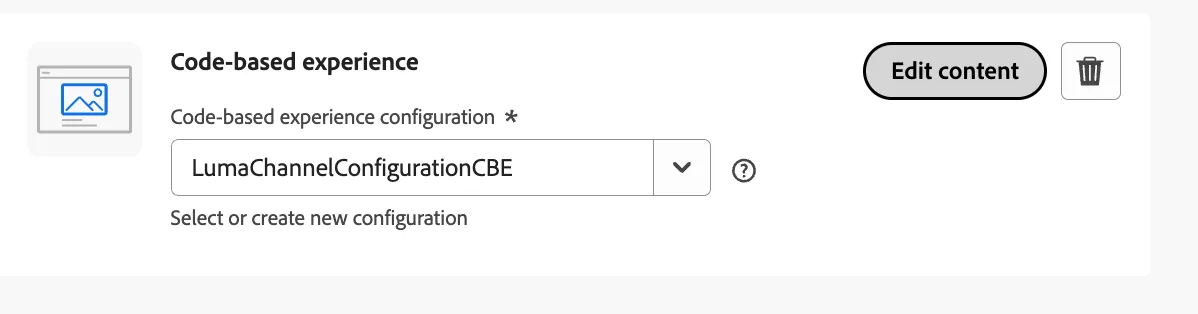
5. Choose the Code-Based experience for the campaign.
6. Select or Create a new Configuration
In our case, select an existing code-based experience configuration- LumaChannelConfigurationCBE
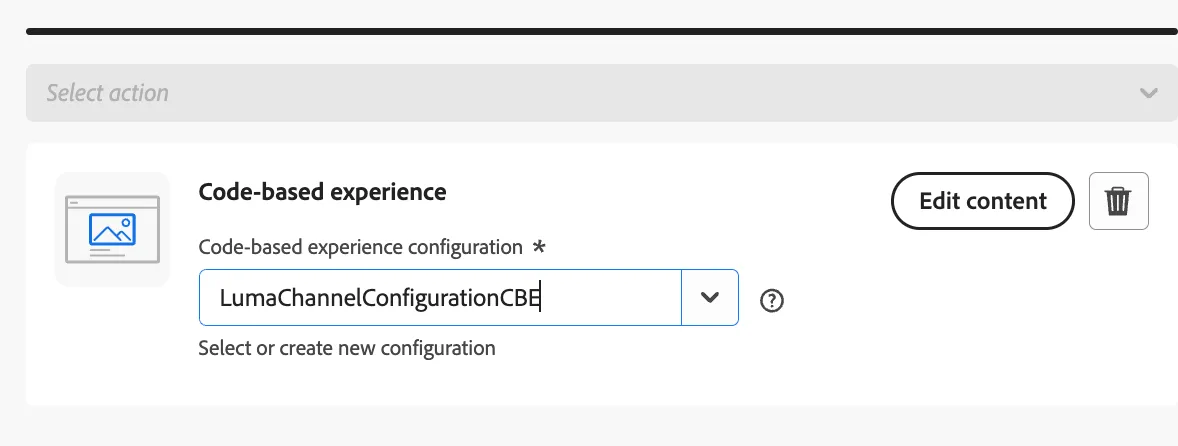
7. Enable Additional Delivery Rules (Optional):
- If needed, toggle Enable additional delivery rules. You can then click Edit triggers to define the events and criteria for message delivery using the rule builder.
Let's keep the triggers empty.
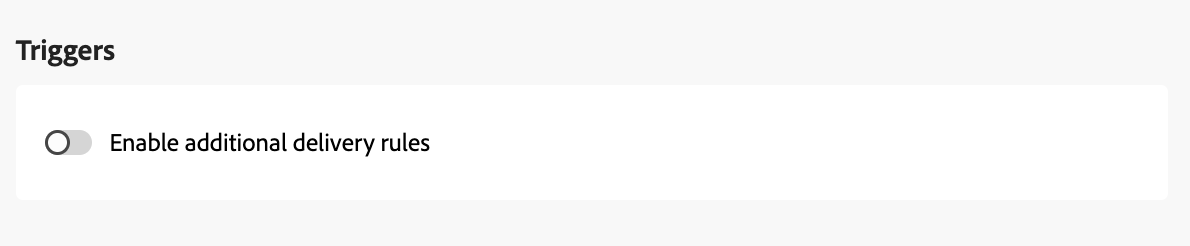
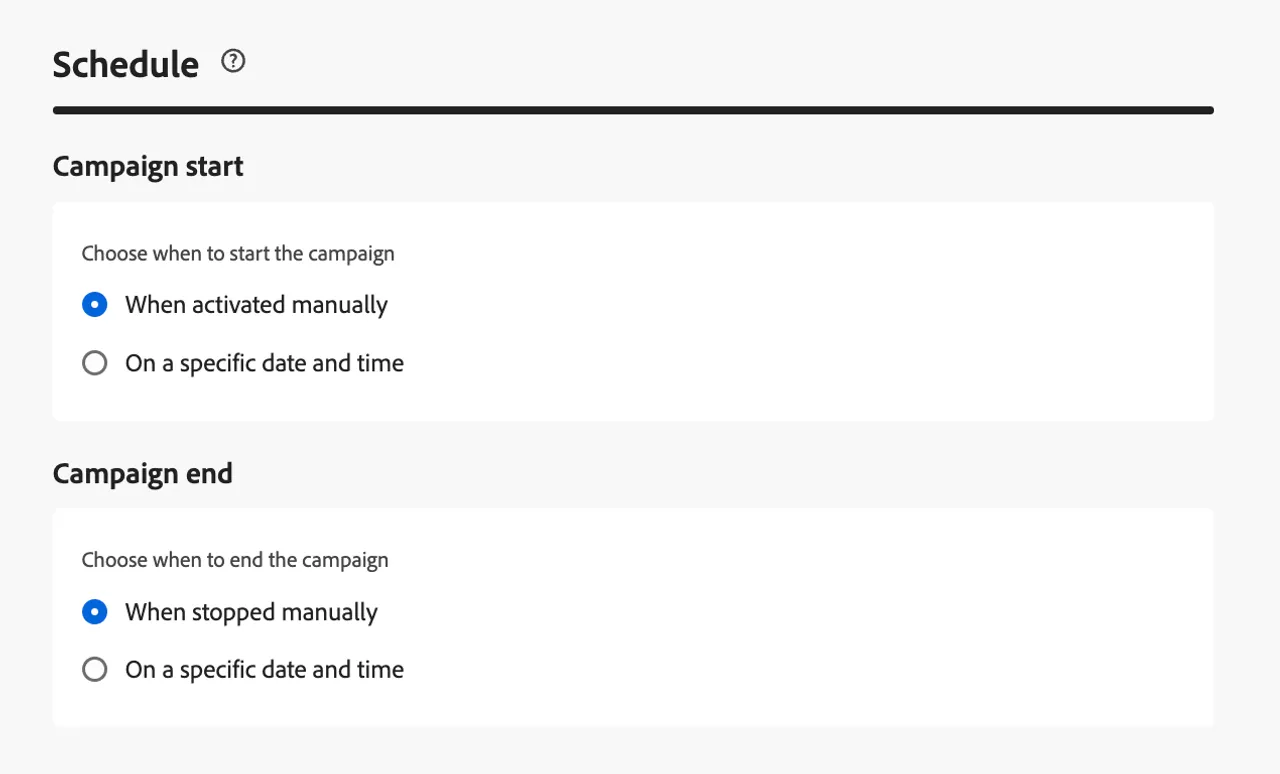
8. Set your campaign to run on a specific date or recur at regular intervals
9. Begin creating the content by clicking Edit content.
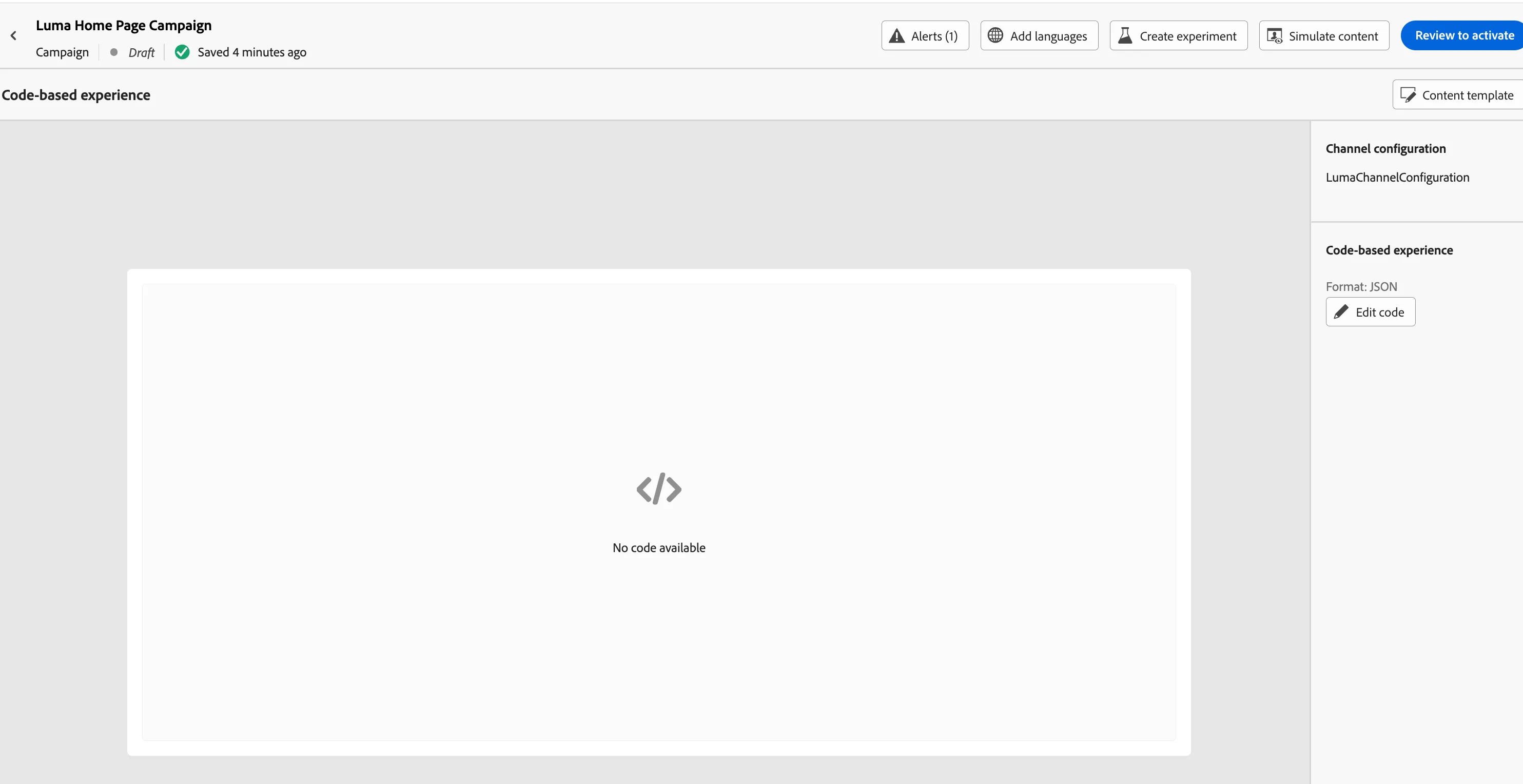
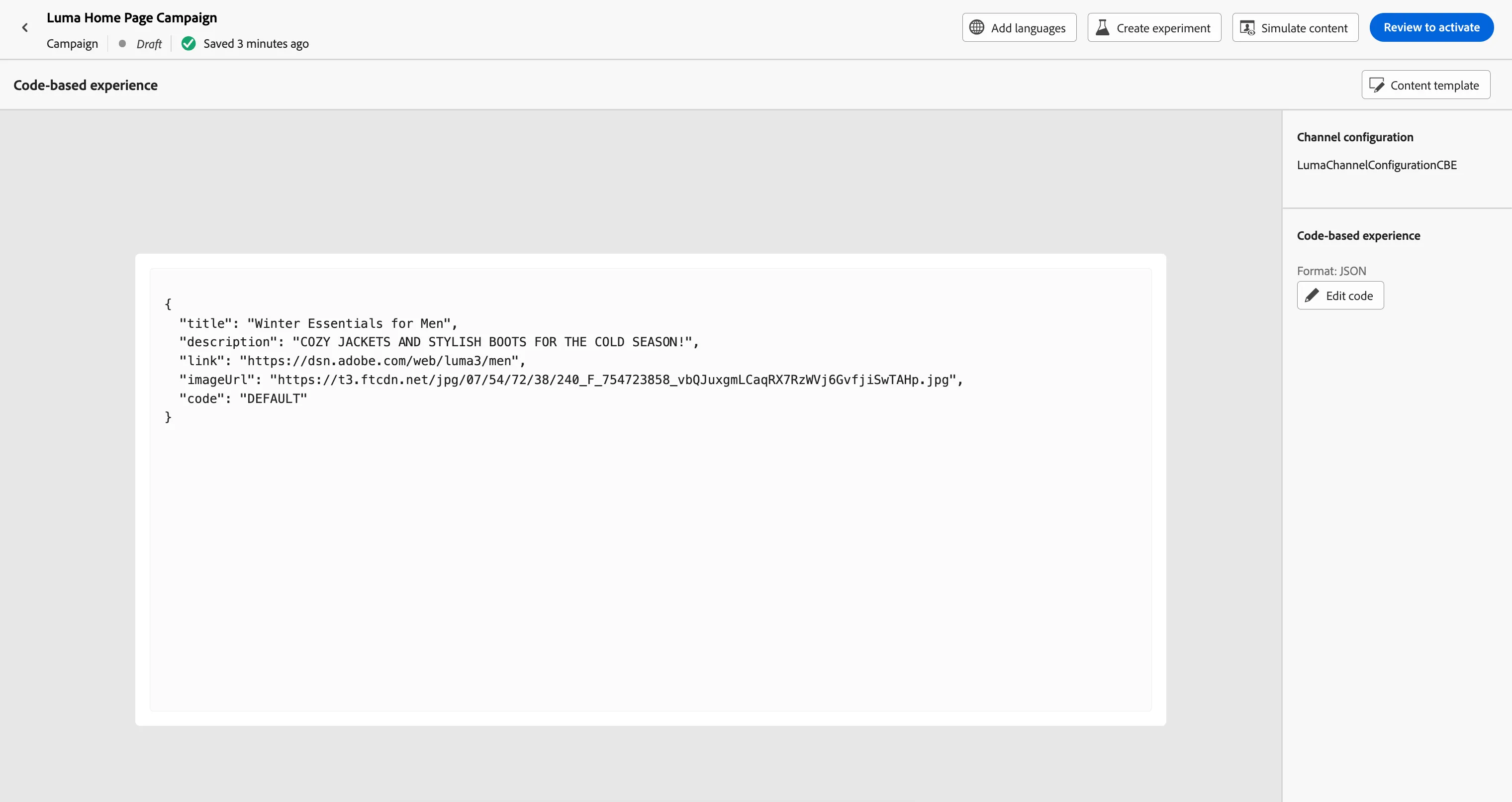
10. Click on Edit Code on the right to provide content
11. Provide content and Click on Save and close
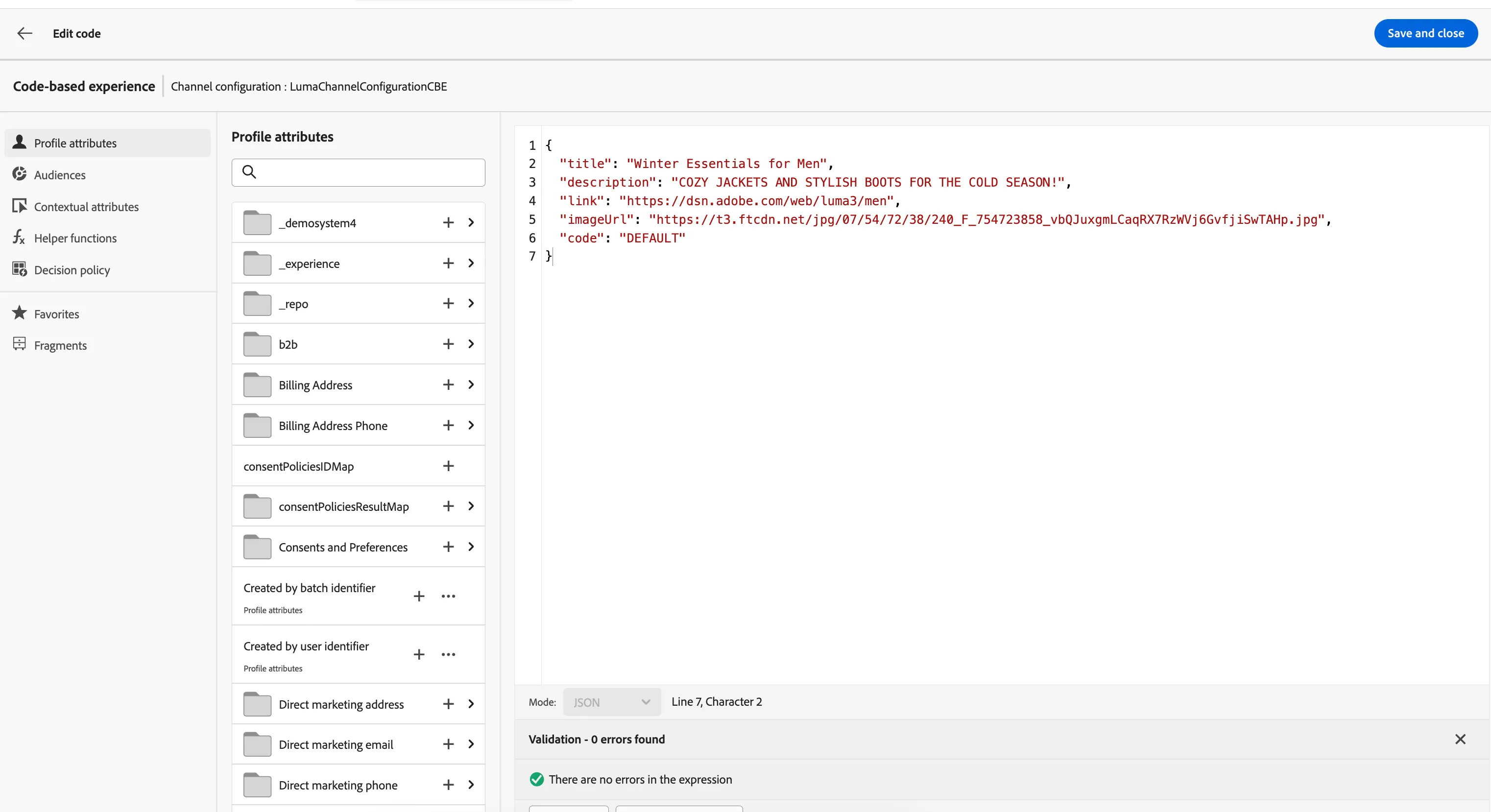
Sample Content:
{
  "title": "Winter Essentials for Men",
  "description": "COZY JACKETS AND STYLISH BOOTS FOR THE COLD SEASON!",
  "link": "https://dsn.adobe.com/web/luma3/men",
  "imageUrl": "https://t3.ftcdn.net/jpg/07/54/72/38/240_F_754723858_vbQJuxgmLCaqRX7RzWVj6GvfjiSwTAHp.jpg",
  "code": "DEFAULT"
}
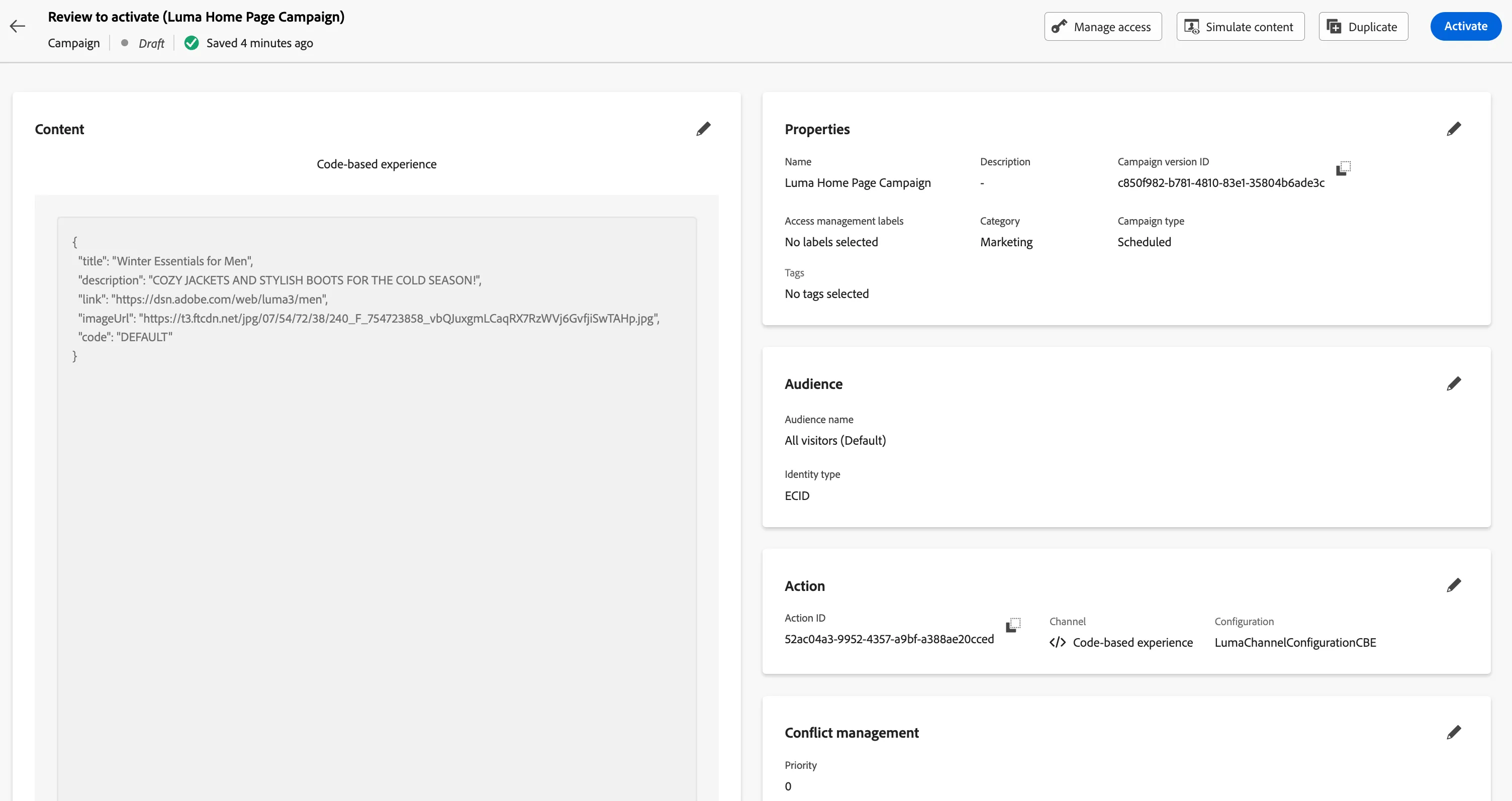
12. Click on Review to activate. Then Click on Activate. The campaign should be live now.
Update the AEP Data Collection tag property configuration
To display the Code-Based Experience on the DSN web project, you must update the rule in the tag property.
Update the Tag properly Web view rule
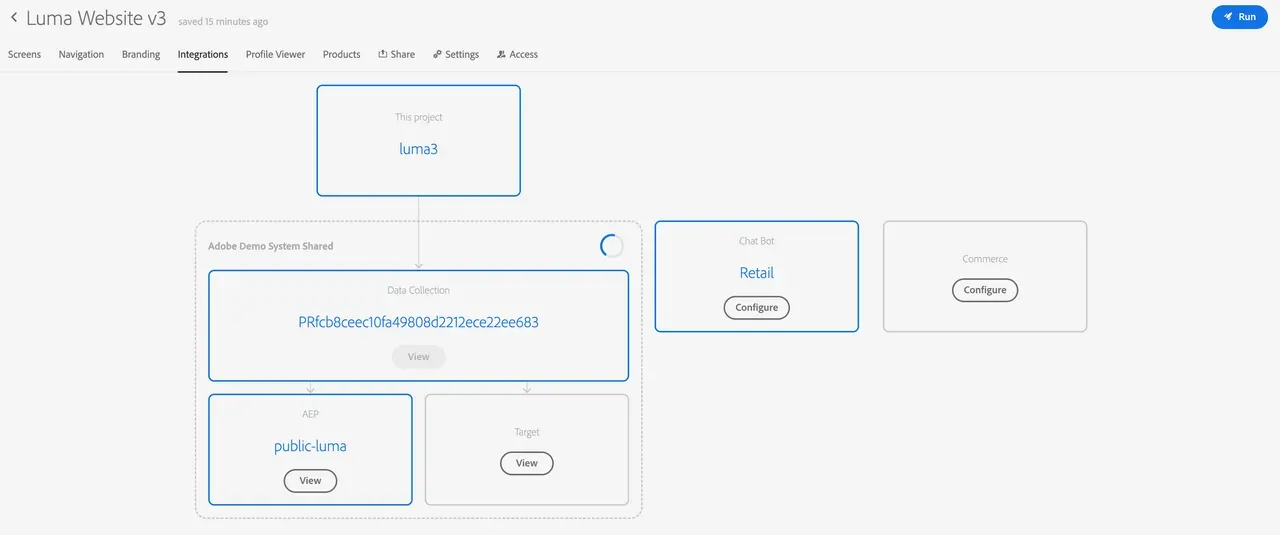
- Go to your web project --> integrations and open your Data Collection property
3. Using the menu, click on Rules
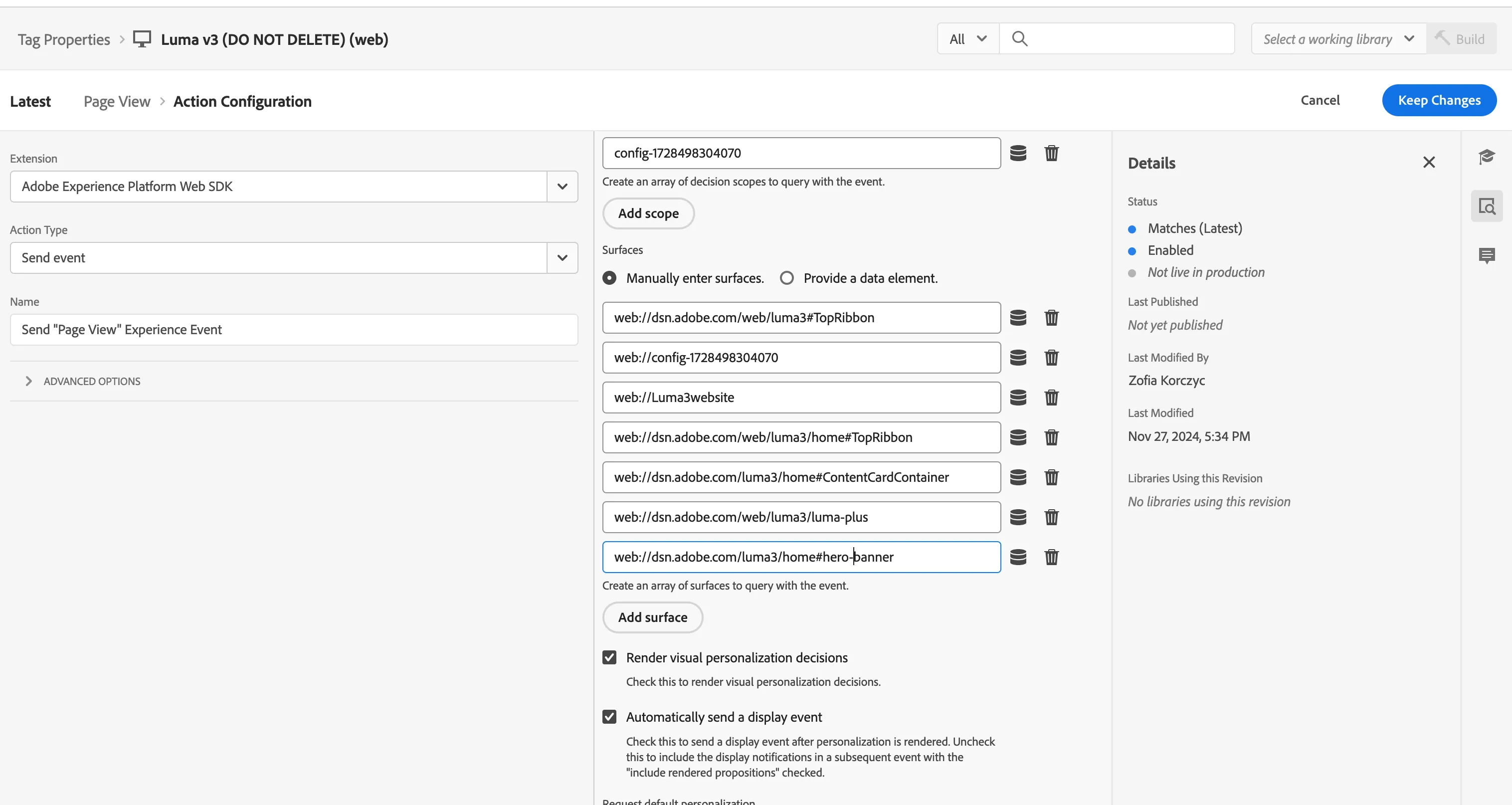
4. Click on the rule to edit the configuration. Click on the action - 'Send "PageView" Experience Event'. Add a surface under surfaces - for example -web://dsn.adobe.com/luma3/home#hero-banner. When you are using your custom project it would be web://dsn.adobe.com/projectName/page#location. This location needs to match the location specified when creating the channel configuration.

5. Go to rule - Display Offer (Offer Decisioning). Click on the action "Display the offer on page". Open the editor and modify the code.
Copy and paste the following code in the Data Collection code editor, make sure to update the ID in the code on lines 27,28 and 29 which should be the same as provided on the website configuration page. In this case, we are using hero-banner
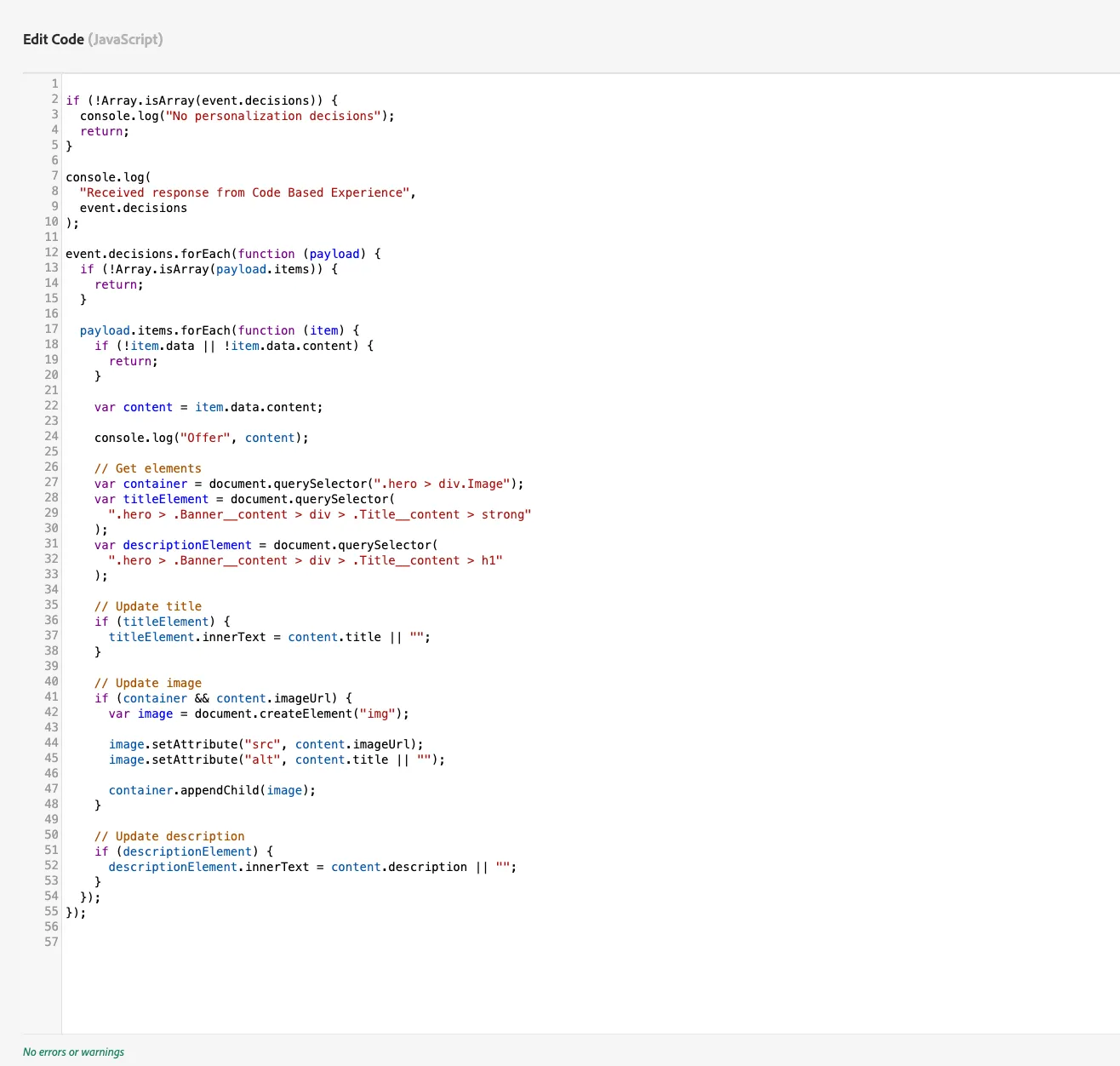
if (!Array.isArray(event.decisions)) {
  console.log("No personalization decisions");
  return;
}

console.log(
  "Received response from Code Based Experience",
  event.decisions
);

event.decisions.forEach(function (payload) {
  if (!Array.isArray(payload.items)) {
    return;
  }

  payload.items.forEach(function (item) {
    if (!item.data || !item.data.content) {
      return;
    }

    var content = item.data.content;

    console.log("Offer", content);

    // Get elements
    var container = document.querySelector(".hero > div.Image");
    var titleElement = document.querySelector(
      ".hero > .Banner__content > div > .Title__content > strong"
    );
    var descriptionElement = document.querySelector(
      ".hero > .Banner__content > div > .Title__content > h1"
    );

    // Update title
    if (titleElement) {
      titleElement.innerText = content.title || "";
    }

    // Update image
    if (container && content.imageUrl) {
      var image = document.createElement("img");

      image.setAttribute("src", content.imageUrl);
      image.setAttribute("alt", content.title || "");

      container.appendChild(image);
    }

    // Update description
    if (descriptionElement) {
      descriptionElement.innerText = content.description || "";
    }
  });
});
Configure Website for Code Based Experience
- Open web project in builder configuration.
- Navigate to the Home screen(or any screen)
- Add module - Banner under General category.
- Click on the component and open the right sidebar. In the Styles section - provide value for Custom CSS Classes as hero-banner.
The class name must match the ID used in the script code mentioned above.
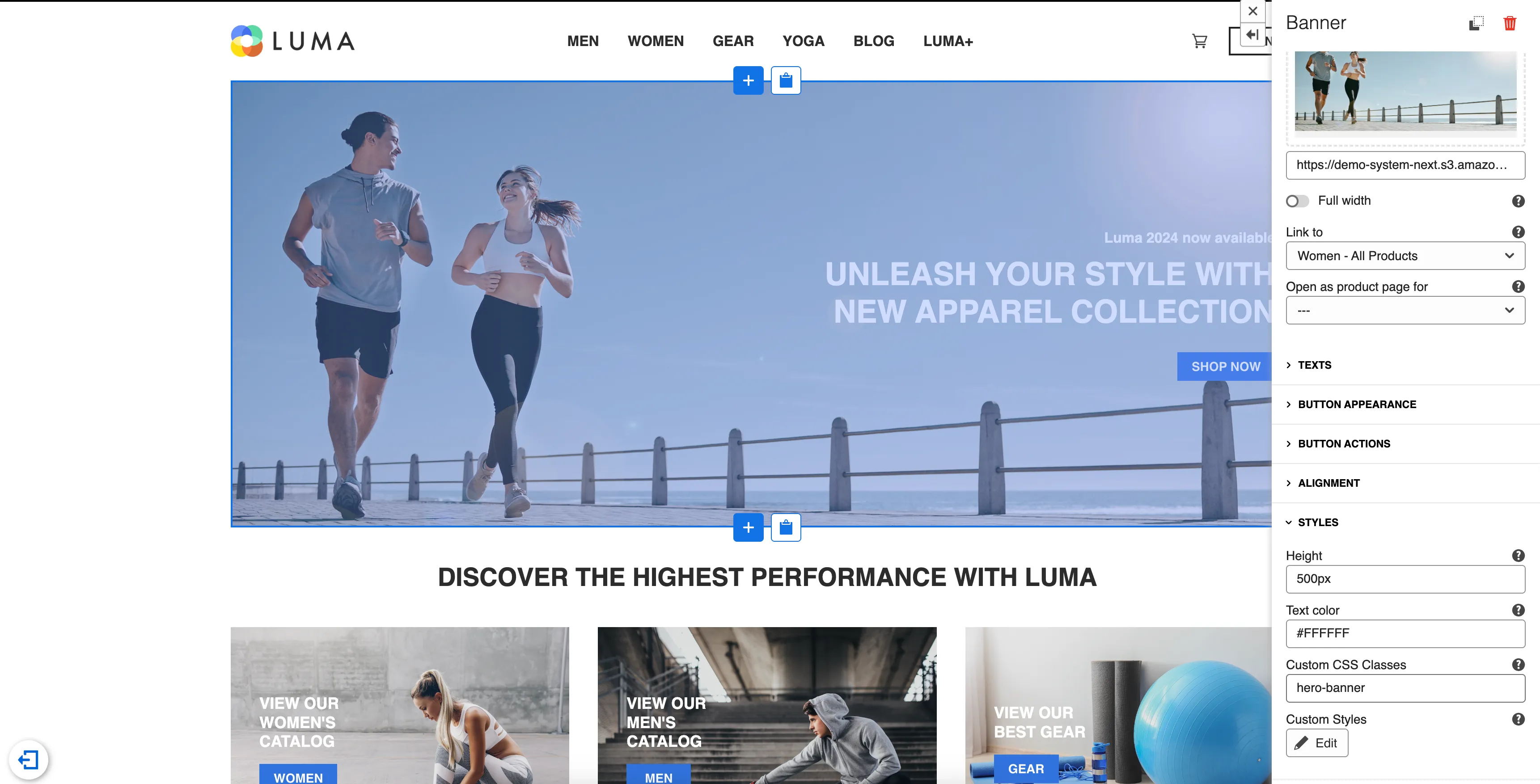
5. Open the website. Navigate to the home screen. The Code-Based Experience should be rendered in the place where you have added the banner.

You have successfully configured a working setup that can be customized as per your demonstration requirements.
Live demo of Web AJO Code-Based Experiences: