AJO Mobile In-App Message - DEPRECATED
An AJO Mobile in-app message is a concise notification or announcement that appears within the AJO Mobile application. These messages commonly relay updates, introduce new features, announce promotions, or share crucial app-related information. Their primary objective is to captivate users' attention and motivate them to undertake specific actions, like updating the app to unlock new features or joining promotional activities.
Prerequistes
- Ensure you have the latest DSN schemas and a vertical mobile app set up.
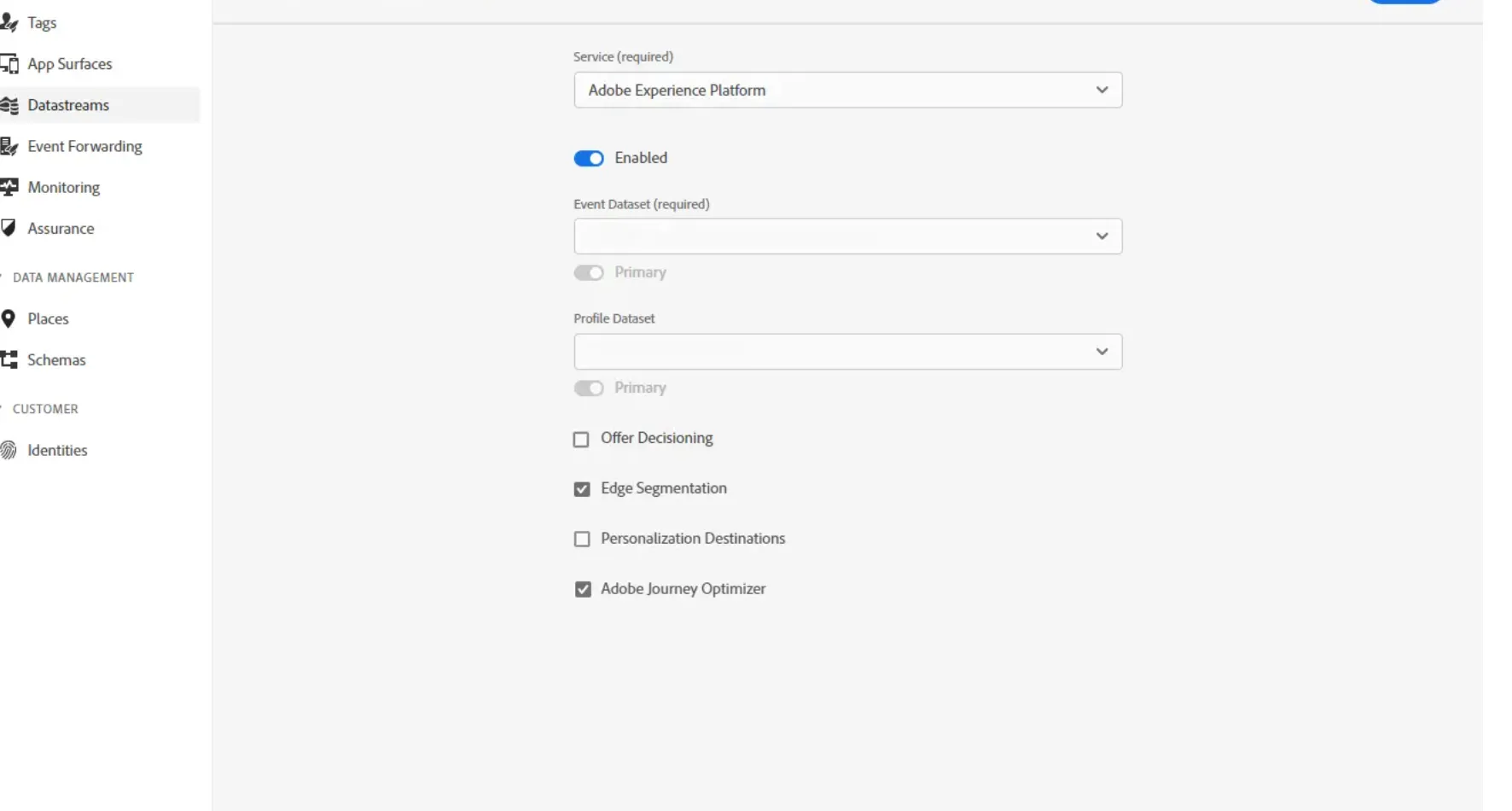
- Within AEP Data Collection, edit the mobile datastream to include Offer Decisioning and Adobe Journey Optimizer.
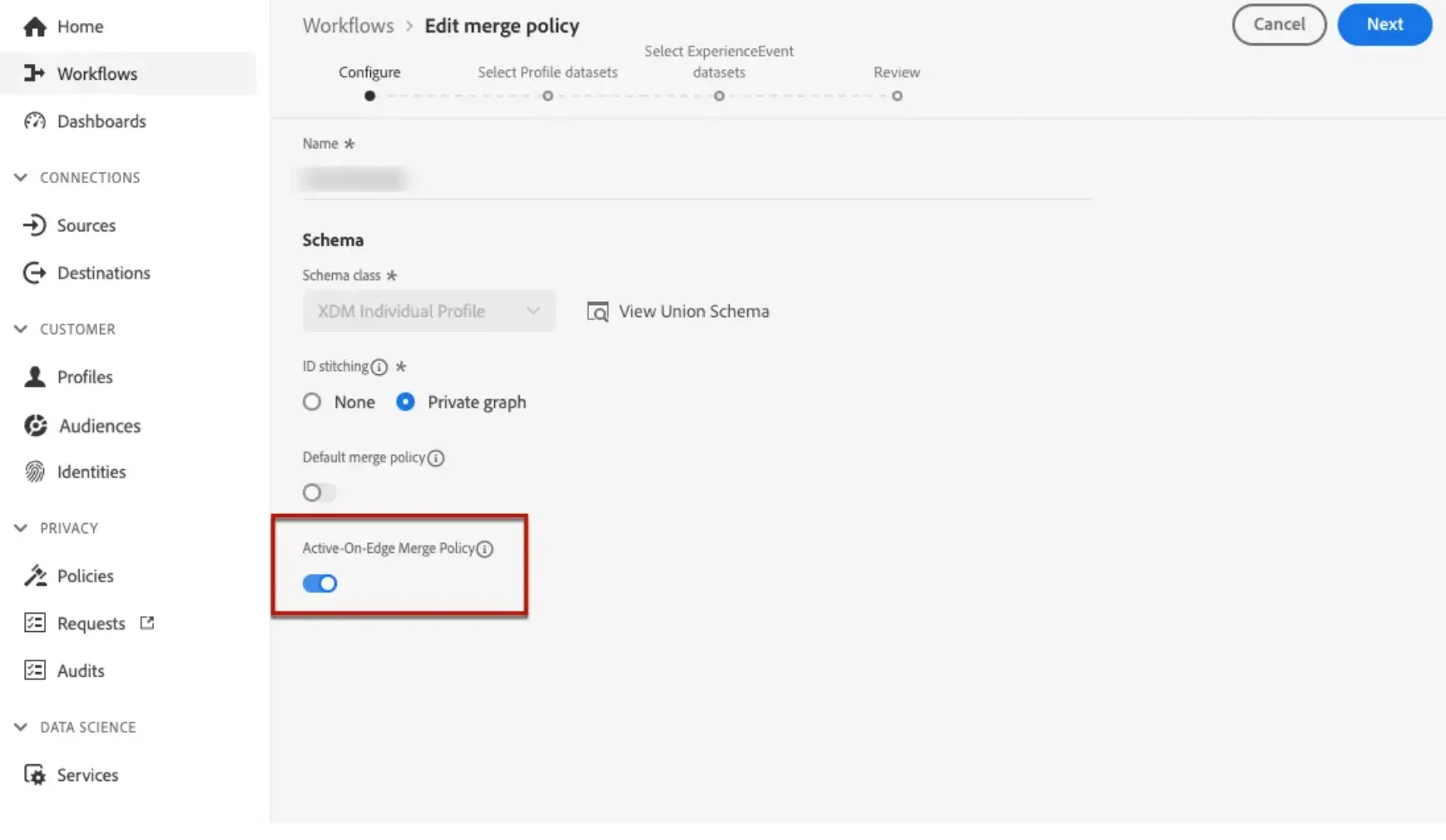
3.In Adobe Experience Platform, make sure you have the default merge policy with the Active-On-Edge Merge Policy option enabled. To do this, select a policy under the Customer > Profiles > Merge Policies Experience Platform menu.
Channel configuration prerequisites
Configue App Surface - https://dsn.adobe.com/docs/configure-app-surface
Create an In-app message
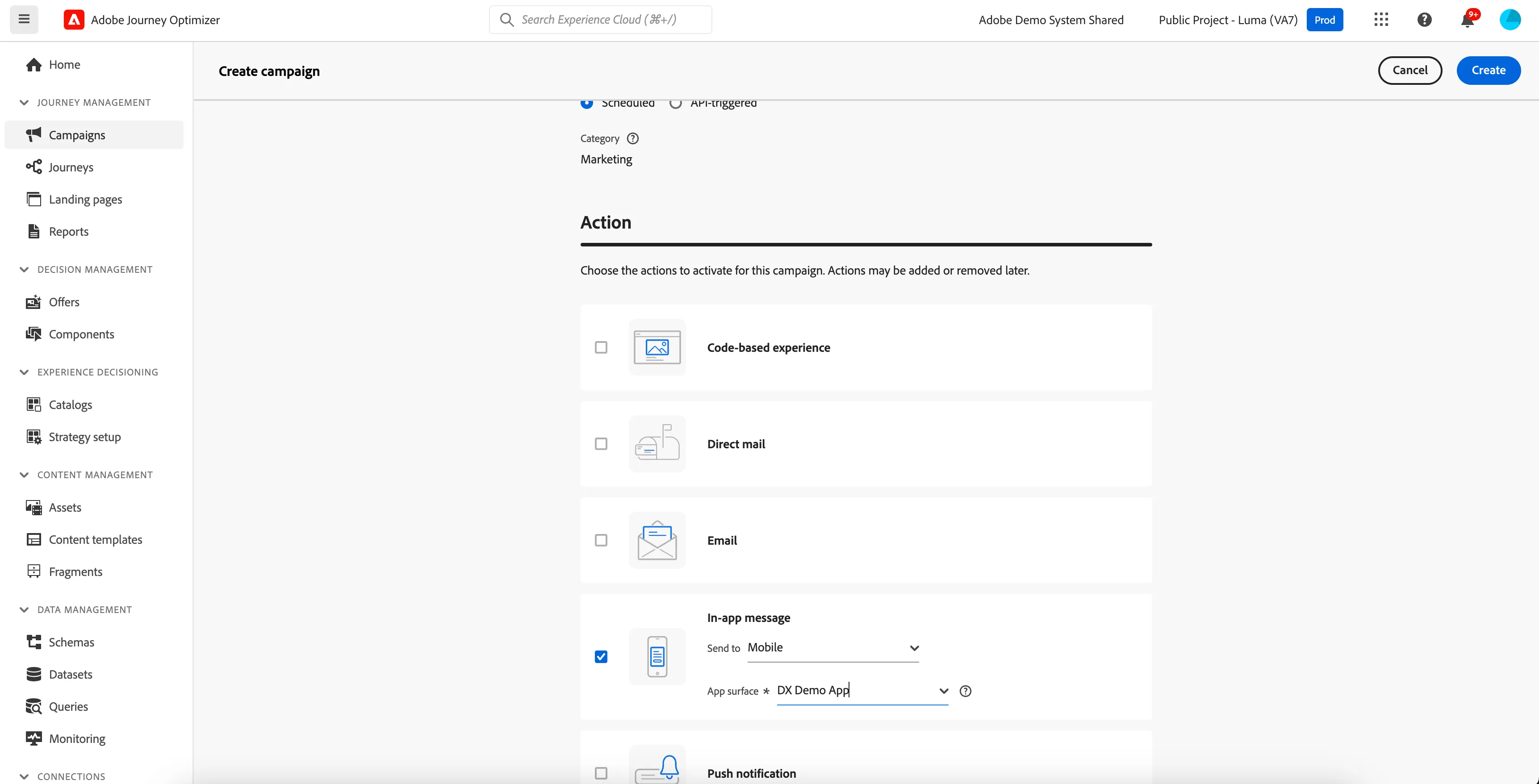
- Go to AJO. Access the Campaigns menu, then click Create campaign.
- In the Properties section, select when the campaign execution type: Scheduled or API-triggered. Select Scheduled.
- In the Actions section, choose the In-app message and the App surface previously configured for your In-app message. (If you don't have any app surfaces follow this link https://dsn.adobe.com/docs/configure-app-surface).Then, click Create.
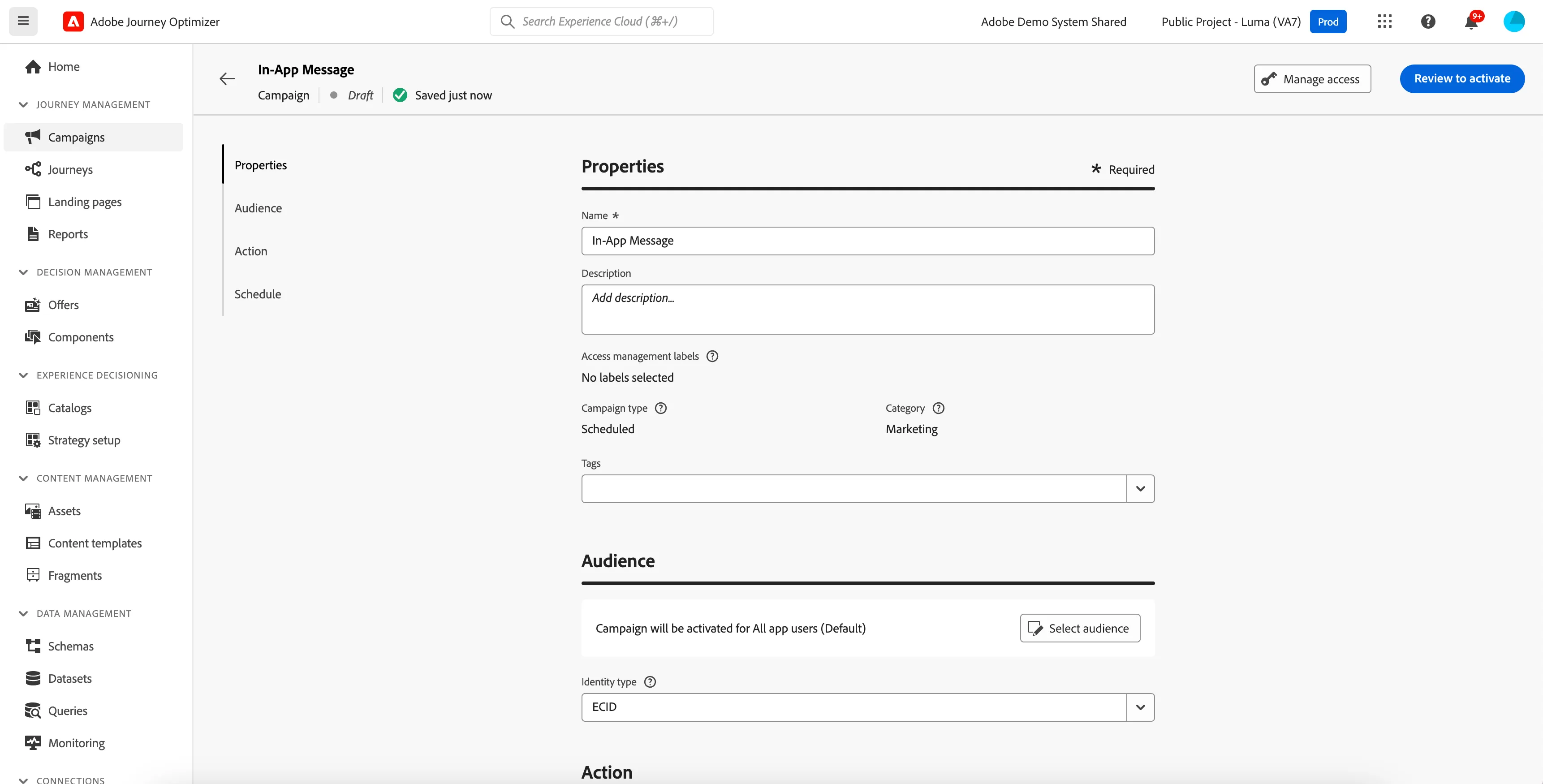
4.In the Properties section, enter the Title and the Description description.
5.Click Edit triggers to choose the event(s) and criteria that will trigger your message. Rule builders enable users to specify criteria and values that, when met, trigger a set of actions, such as sending an in-app message.
a.Click the event drop-down to change the Trigger if needed.
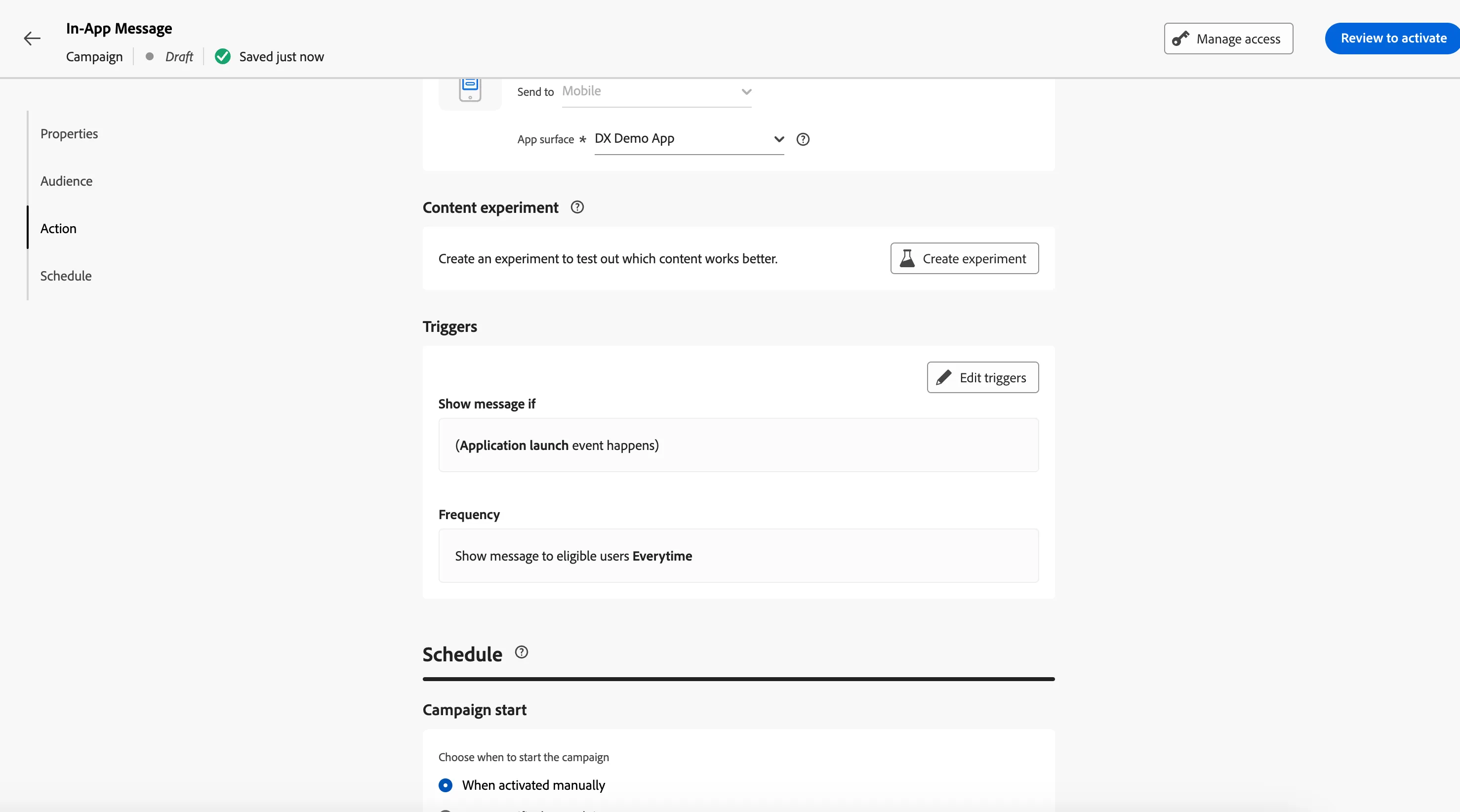
b.Click Add condition if you want the trigger to consider multiple events or criteria.
c.Choose the Or condition if you want to add more Triggers to further expand the rule.
d.Click Done.
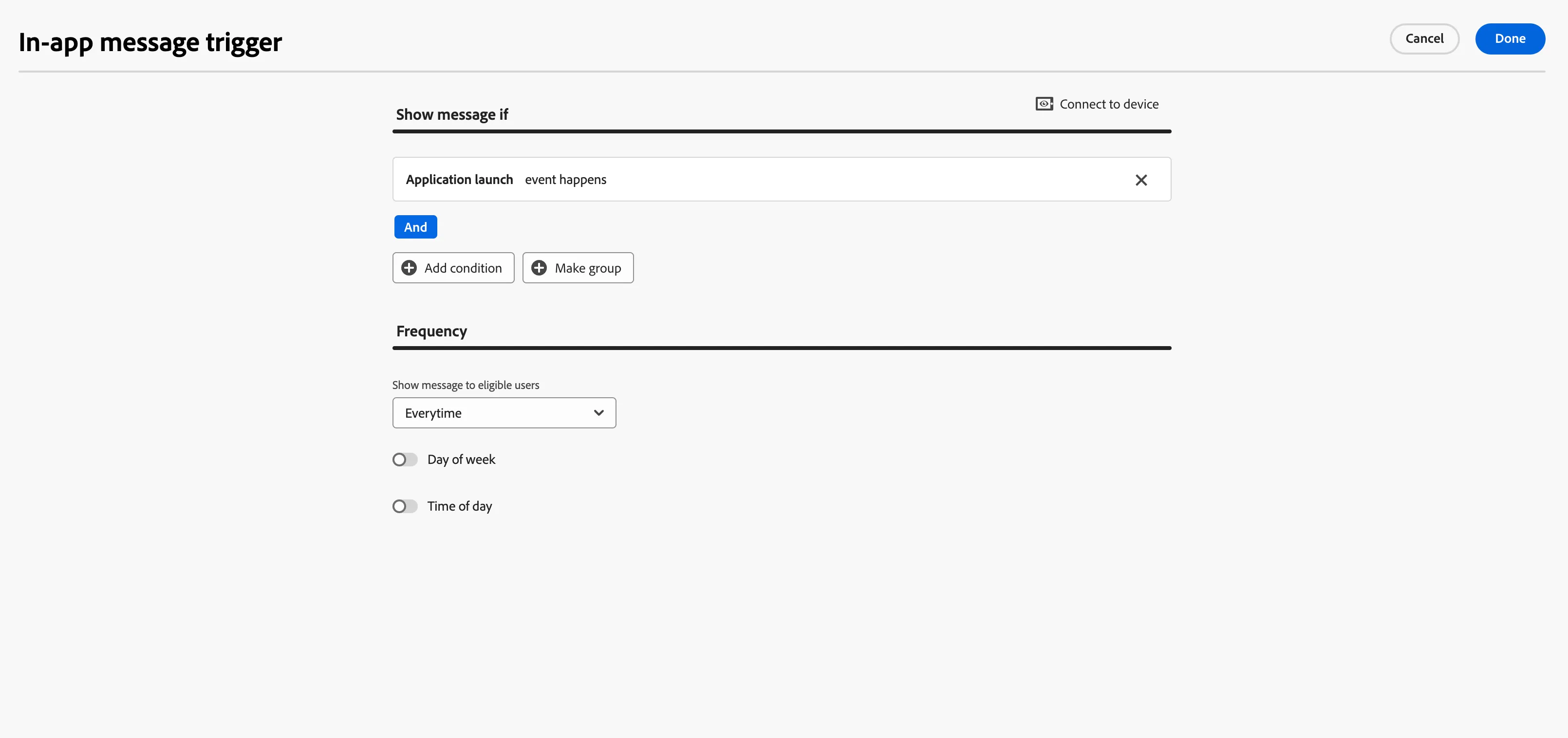
6.Click Edit content to design the content.
a.Provide Media, Content and button details.
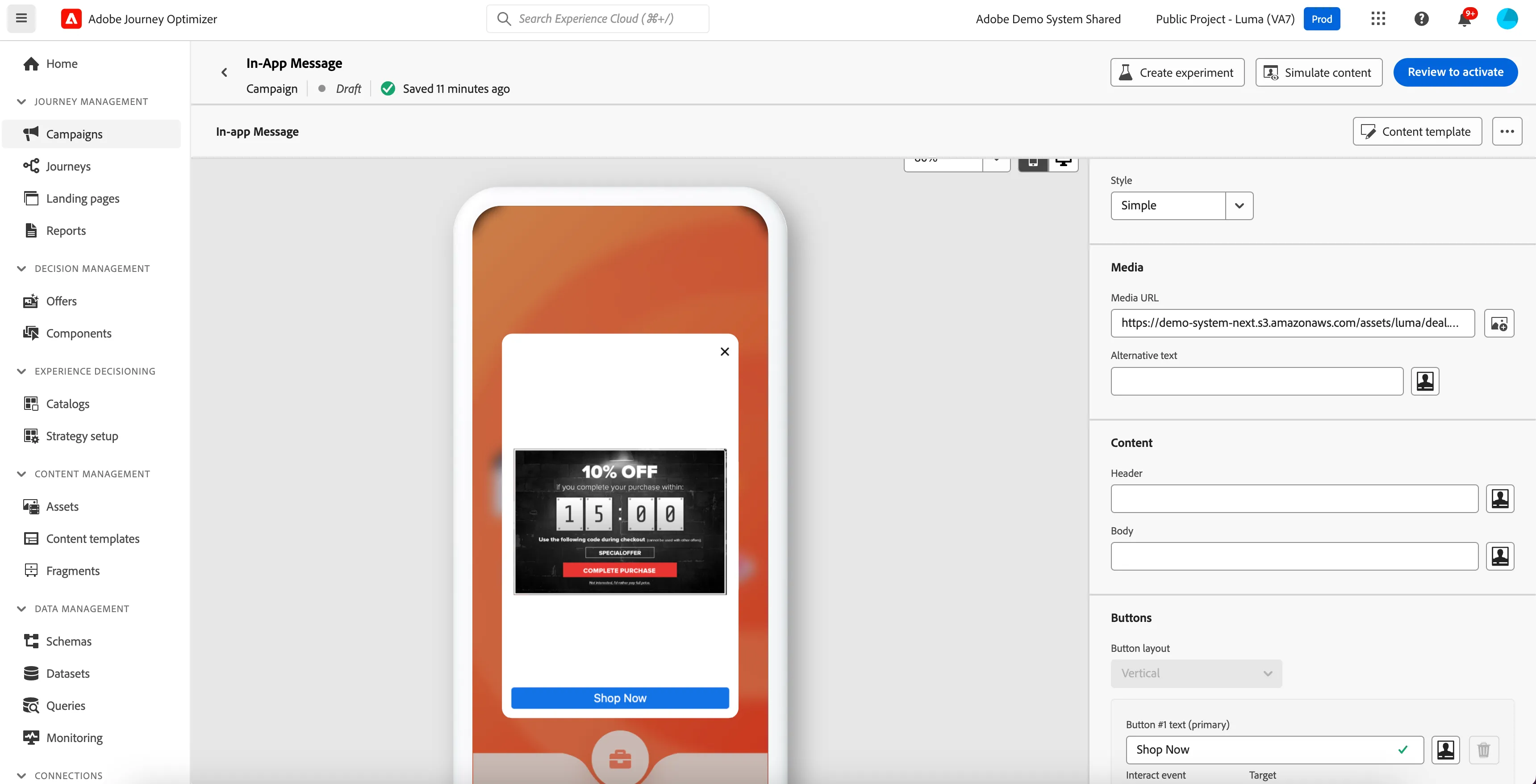
7.Click Review to activate.
8. Open the app, In-app message will be displayed on app launch.
How to send custom events from mobile app to platform?
- Open builder interface. Go to project and navigate to any screen in mobile project.This will open the sidebar.
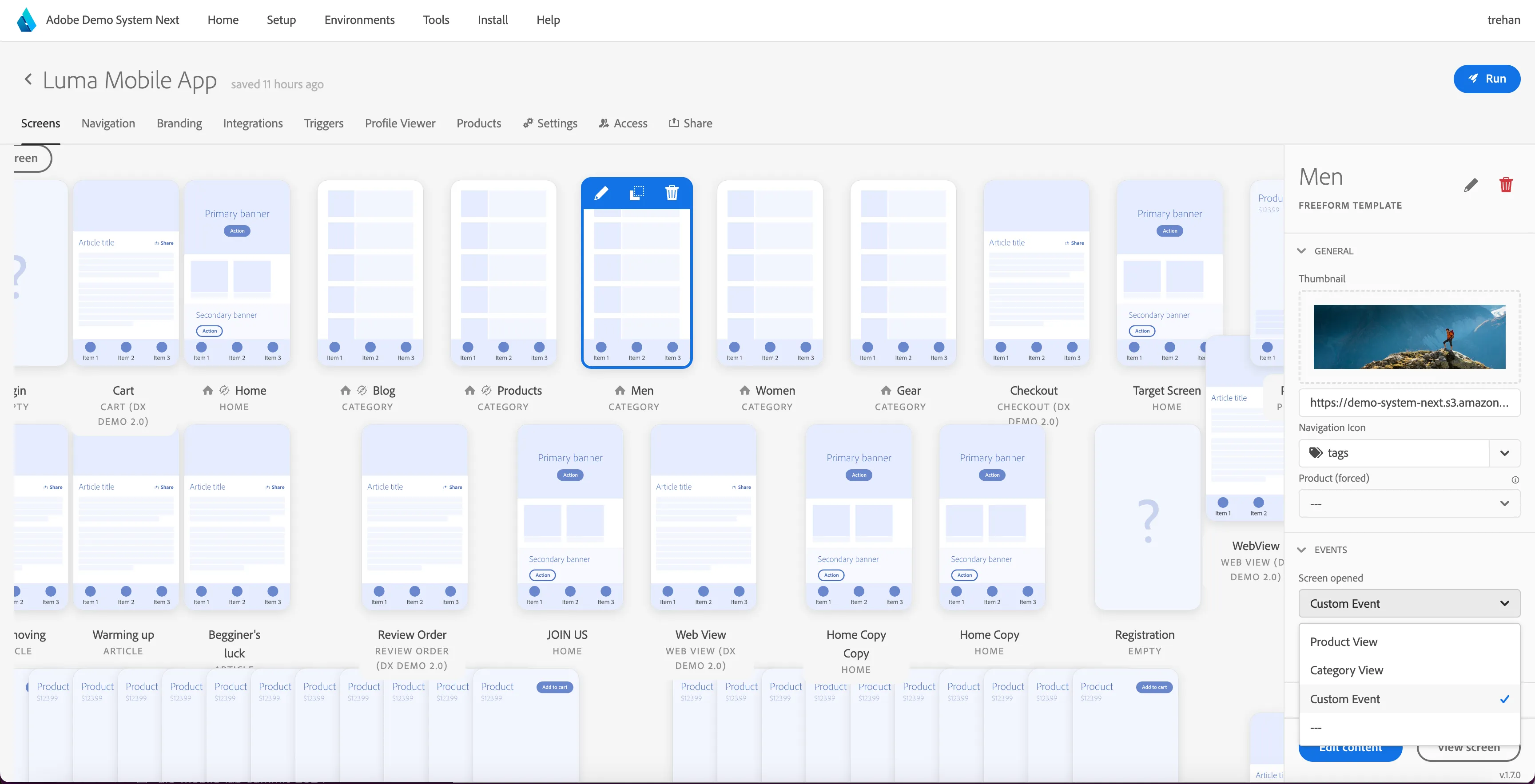
2.Click on Events. You can send any event by selecting it in dropdown. If Custom Event is selected, provide a value for custom event.
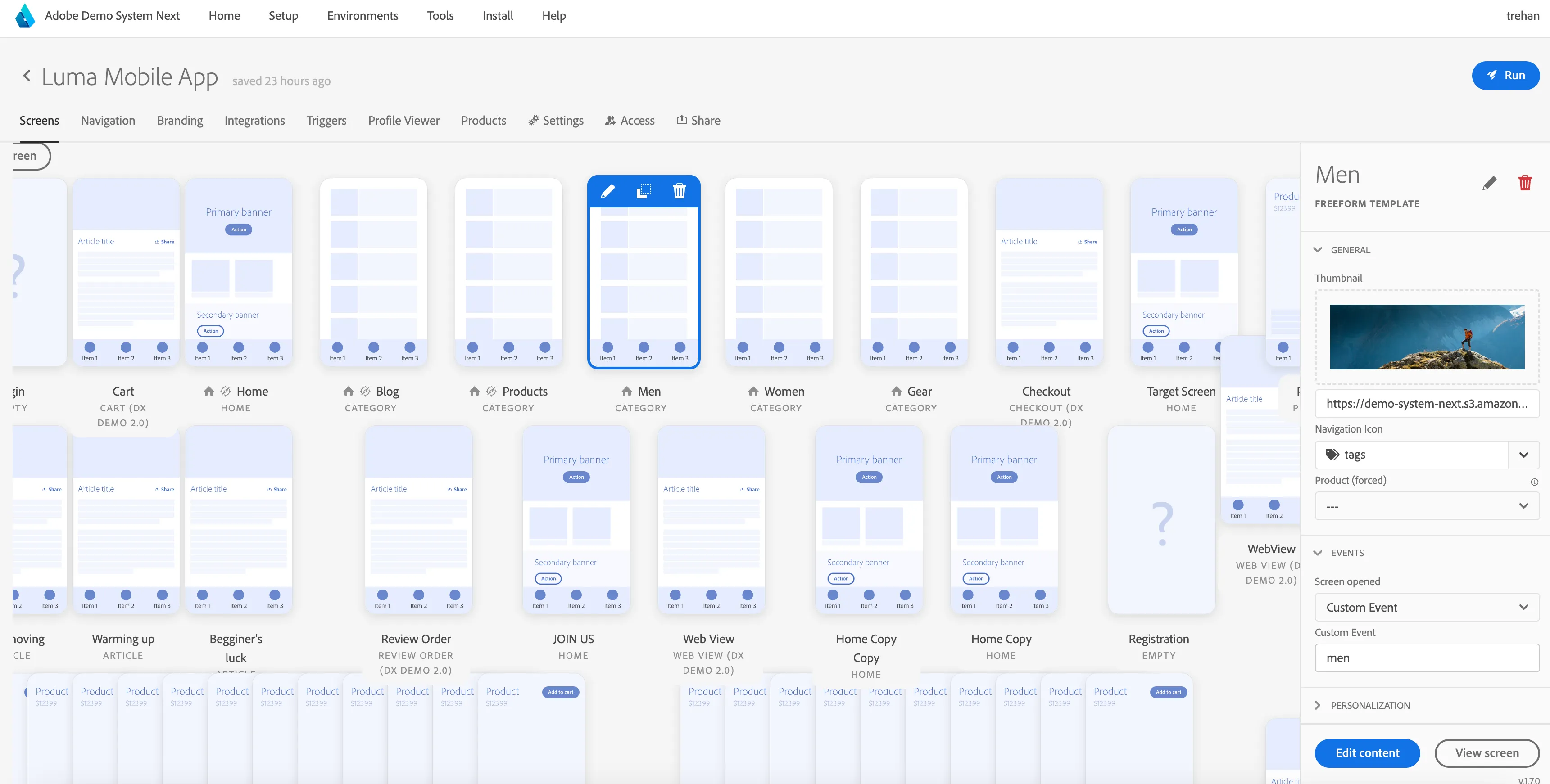
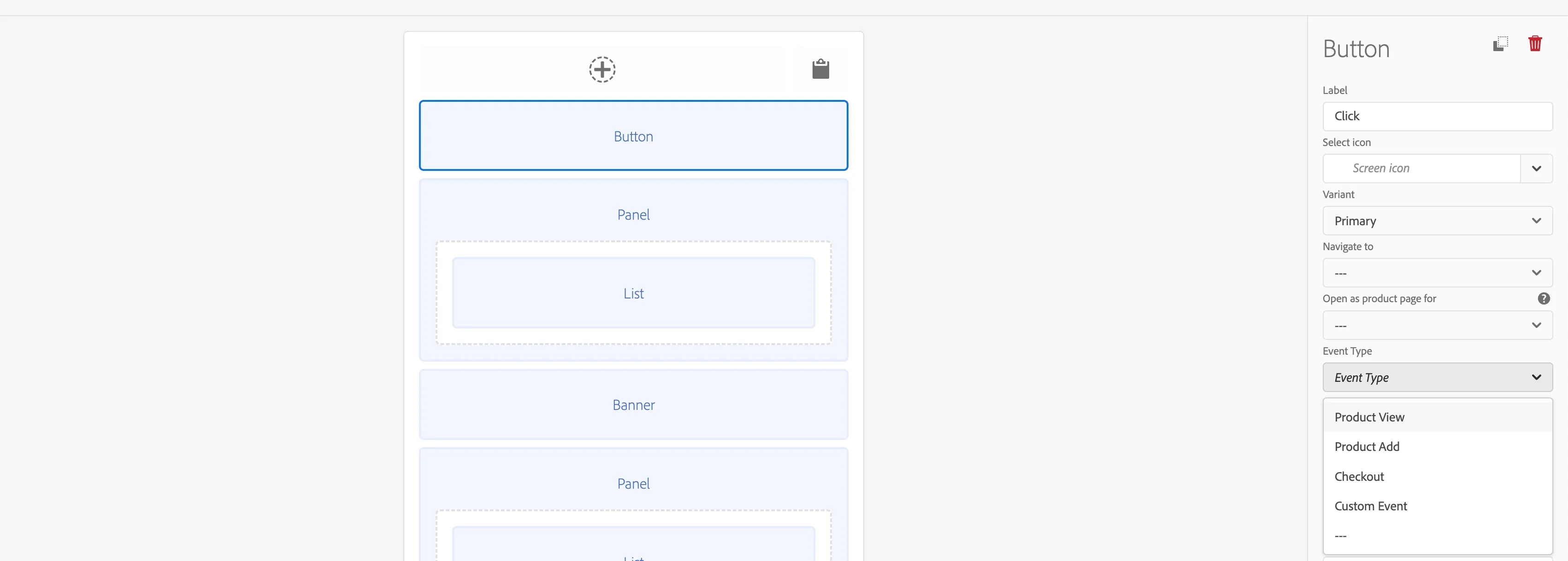
3. You can also use button component to send an event to platform. Click on Edit Content.
Add a button component and select event type in dropdown.
Demo Scenario to show In-App mesage in DSN public projects: