Profile Viewer Extension
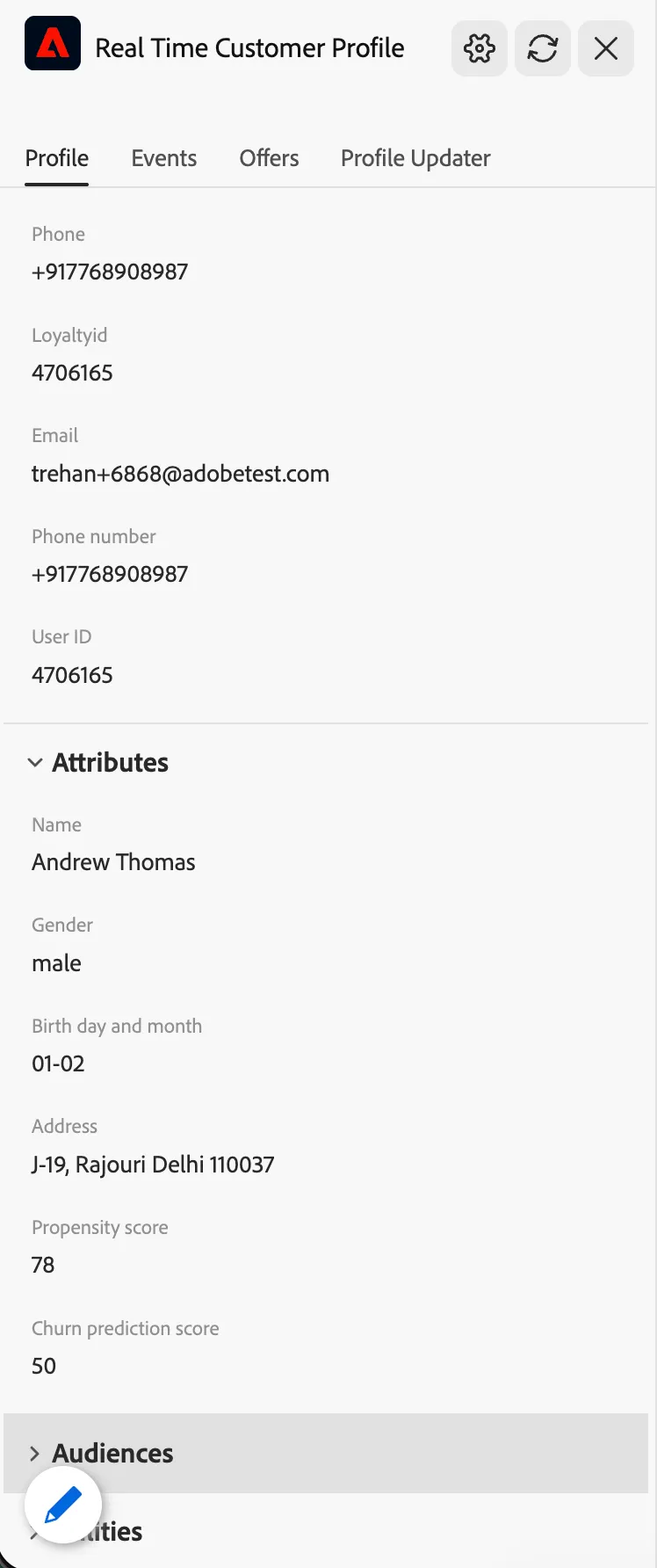
Profile viewer is a tool available in the DSN front-end UIs to help you tell the story without having to switch to other interfaces. It is available on the website, mobile app, and cx app, as well as when using the customer website.
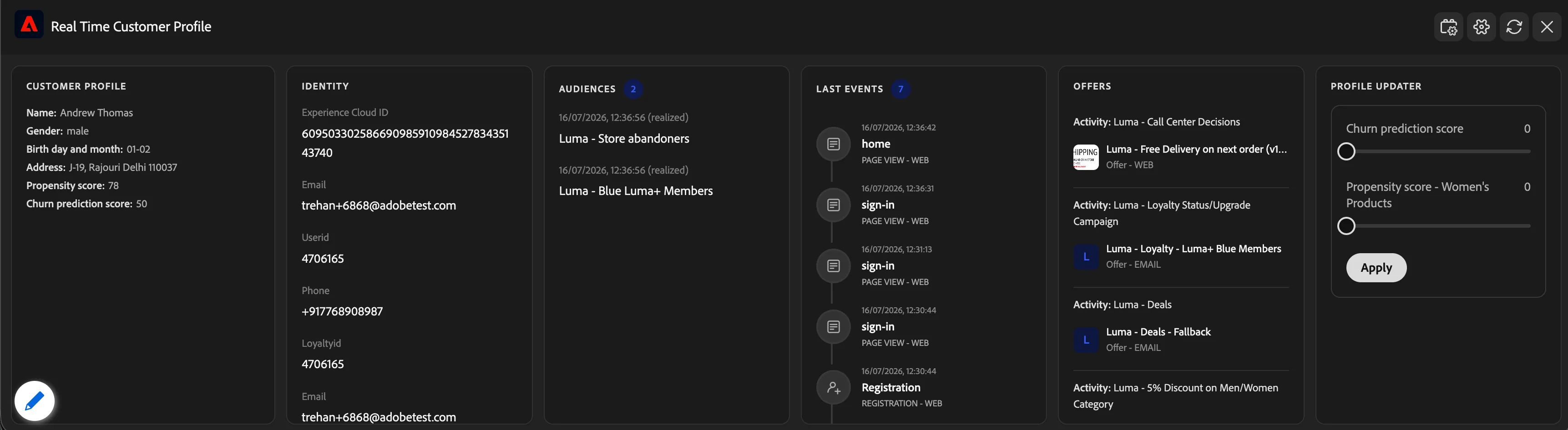
It shows you — live, as you click around the demo — everything Adobe Experience Platform (AEP) knows about the visitor you're currently browsing as: their identity, the events they've triggered, the audiences/segments they belong to, and the personalized offers they're being served.
Profile Viewer recently went through a full visual redesign, built on Adobe's newest design system (Spectrum 2).
Three things changed along with the redesign, each covered in its own section below:
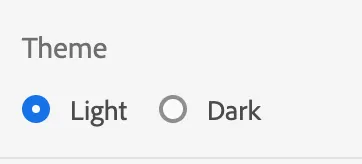
· A simplified Theme control — just Light and Dark.
· Small refinements to the Layout options.
A brand-new Profile Updater section for live "what-if" personalization demos.
Where it lives:
Profile Viewer shows up in a few different places, depending on how a project is set up:
· Inside DSN demo websites and apps — most demo storefronts and experiences have it built right in. You'll usually see a small trigger button on left or bottom right.
· On external, non-DSN websites — Profile Viewer can also be dropped onto a real customer website that has nothing to do with the DSN platform. This is done through an Adobe Experience Platform Tags (Launch) extension called "Demo System Profile Viewer." A site administrator installs the extension, fills in a Project ID, and the panel appears on the site without any custom development work.
New: Layout — side panel or bottom dashboard
Every project can choose how the panel is displayed. This is set once per project in Builder, and there are two options:
Layout | What it looks like | Best for |
|---|---|---|
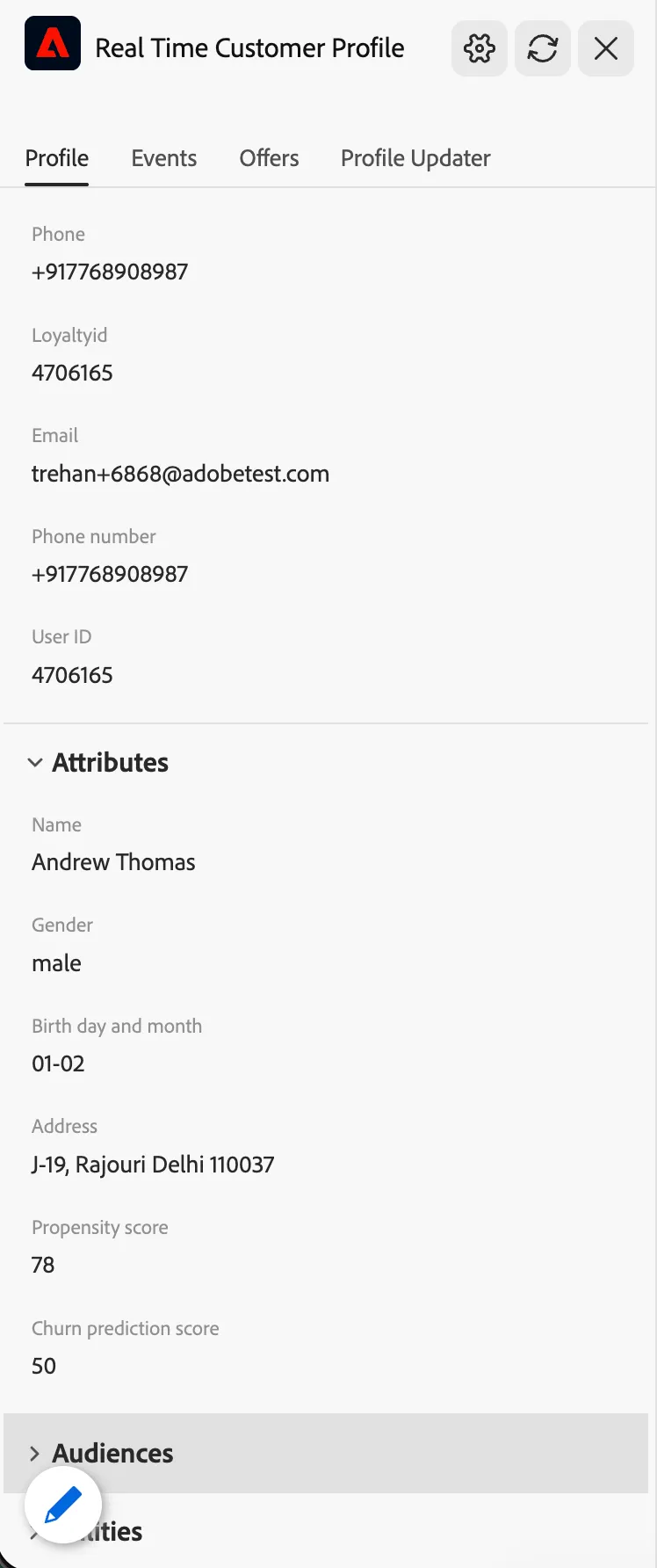
Side panel (default) | A small trigger button that expands into a tabbed panel on the side of the screen. Tabs only appear for sections that actually have data to show. | Keeping the panel out of the way until you need it. |
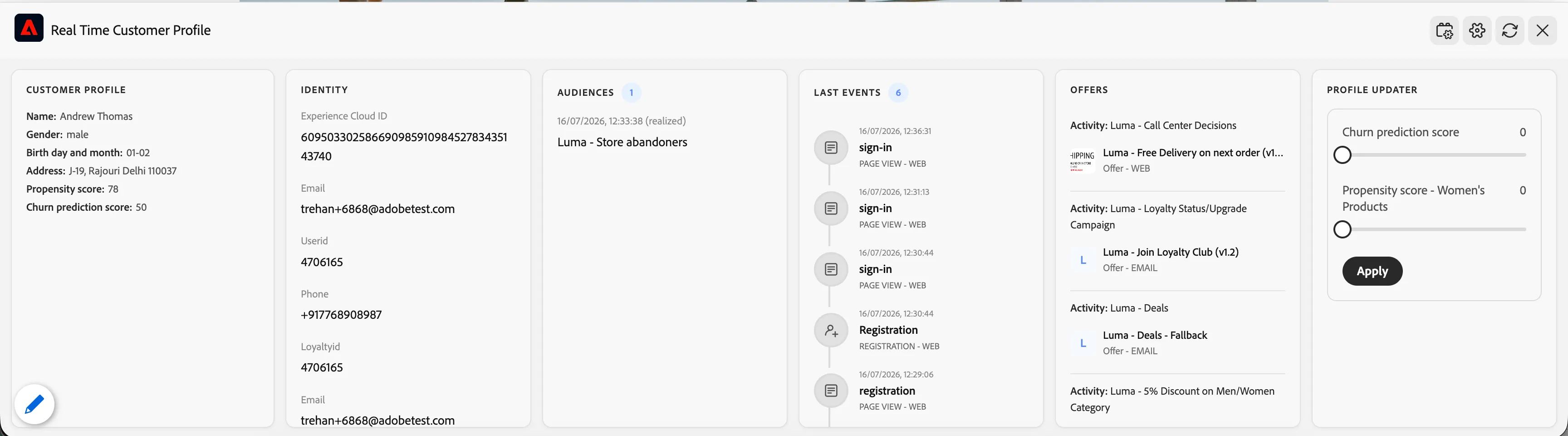
Bottom dashboard | A row of cards across the bottom of the screen, all sections visible at once — no clicking through tabs. | Presenting on a big screen or projector, where you want everything visible at a glance without extra clicks. |
Whichever layout is chosen, the same header controls are always available: a title, a link back to the project's settings, a refresh button, and a close button.

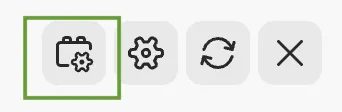
In the bottom dashboard layout, the Utilities section is hidden by default and can be toggled on from a small icon in the header, since it's used less often than the other sections.
New: Theme — Light or Dark
Each project is set to Light (the default) or Dark mode from its project settings in Builder.
How to modify content of Profile Viewer:
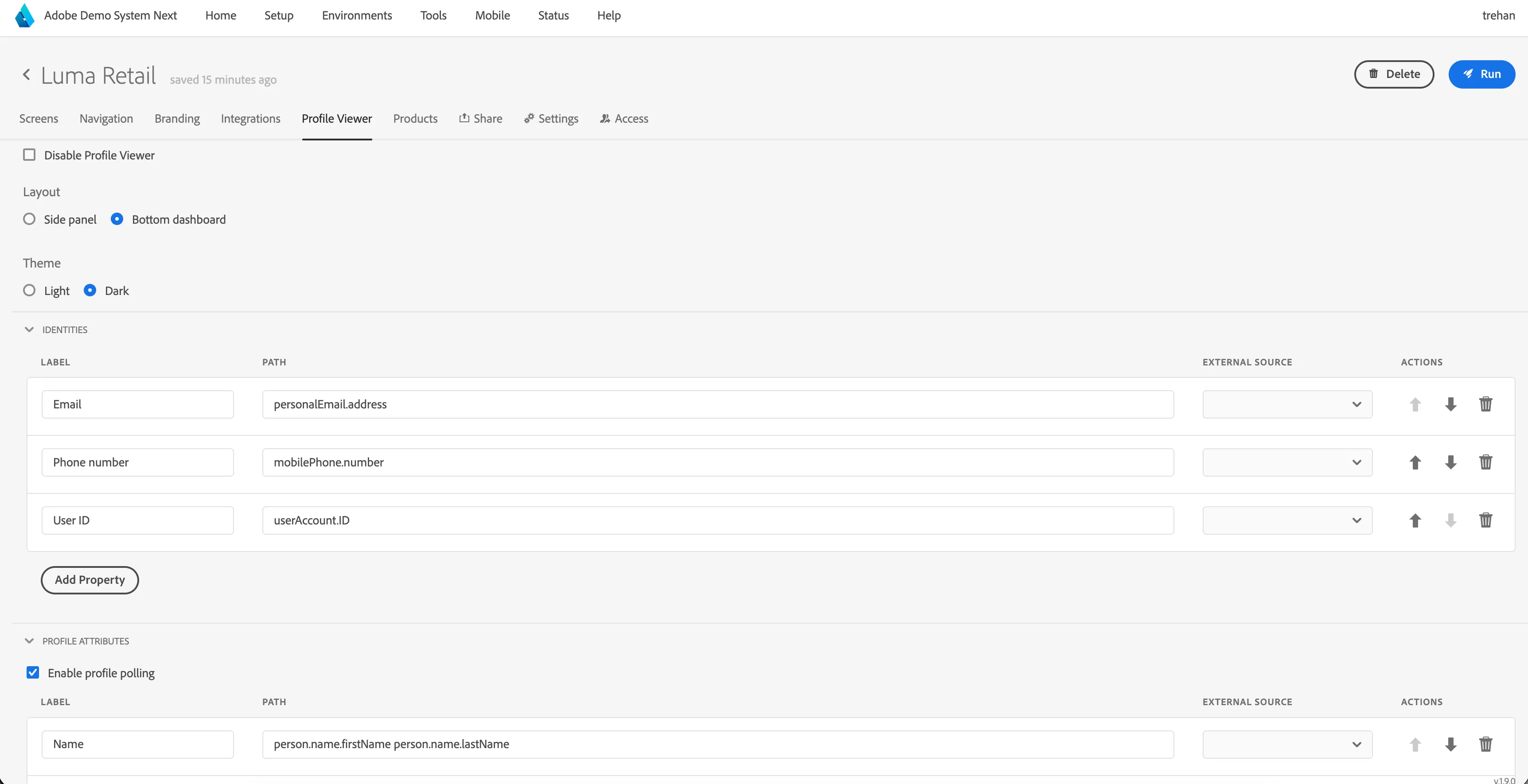
You can modify which fields and events profile viewer displays using your project in DSN.
To do that go to your project and switch to Profile Viewer tab.
Description of Profile Viewer sections
Profile
Events
Offers
Debug
Using dynamic values in Profile Viewer fields
You can update the values displayed in profile viewer also using dynamic values.
To access dynamic value in text (eg. Text component's content) use ${selector} syntax, where selector matches
- <Path> property for component that has Path set and no Form ID eg. ${enrollment.selectedPlan}
- Tip: You can also use the path selector in the Profile Viewer options to refer to some information in Experience Events titles! For example: ${timestamp} will refer to entity.timestamp value of the particular event
- <Name> property for component that have Name set but no Path or Form ID, eg. ${email}
- formData.<Form ID>.<Path> for component that has Form ID and Path set, eg. ${formData.registration.name.firstName}
- formData.<Form ID>.<Name> for component that has Form ID and Name set but no Path, eg. ${formData.registration.email}
- <Attribute selector> for AEP Profile Schema attributes, eg. ${person.name.firstName}
The selectors can be used as inputs for the dynamic values formatting functions, e.g. ${formatDate:YOUR_SELECTOR} will attempt to format the value behind your selector as a date. See here for more information on the formatting functions.